Driver privacy and compliance
Writing a vehicle tracking notice for drivers: what to cover
The points a driver tracking notice should cover, from the devices fitted to working hours, the SOS exception, access and retention, with the platform facts that fill each one in. A starting list for your own document, not a legal template.
Ashish Srivastava6 min read
A vehicle tracking policy for employees, or driver notice, tells the people you track what is collected, why, when, who sees it, how long it is kept and how they can ask about it. It should cover nine points: the reason for tracking, the devices fitted, the data each one sends, the purposes and the uses you rule out, working hours and private trips, the SOS exception, who has access, how long data is kept, and how to make a request. This checklist gives each point with the platform facts that fill it in. It is a starting list for your own document, written with your adviser, not a legal template.
Key takeaways
- Write the notice before the first tracker goes live, even if you trust your drivers and they trust you.
- Describe what each device sends: a GPS tracker, a dashcam and a fuel sensor collect very different things.
- State the purposes and, just as clearly, what the data is not used for.
- Explain working hours, private trips and the SOS exception in plain words.
- Name who has access, the retention periods and how to make a request; then review the text with your adviser and staff representatives.
Why a notice matters even with good intentions
Most fleet owners track vehicles to plan jobs, find a stolen van or answer a customer who asks where the delivery is. Drivers do not know that unless you tell them. A tracker that nobody explained feels like surveillance, and rumours fill the gap: "they check how long I stop for lunch", "they rank us". A short, honest notice settles those questions before they start, and in many countries data protection law requires one anyway (in the EU, the information duty of Art. 13 GDPR).
A notice also forces you to decide things you might otherwise leave open: which purposes count, who may look at the history, and what happens after hours. Those decisions are the real work; the document records them.
The checklist
1. What is collected and from which devices
List each kind of device in your vehicles and what it sends. Be specific, because the answer differs a great deal:
| Device | What it typically sends |
|---|---|
| GPS tracker | Position, speed, heading, time; on most wired trackers the ignition; alarms such as power cut or SOS |
| Tracker with driver ID reader | The card or key fob number, so trips show who drove |
| Tracker with an accelerometer | Harsh braking, acceleration and cornering, where the model reports them |
| Fuel sensor or vehicle data | Fuel level or consumption |
| Dashcam | Photos and clips for events, a schedule or a request, and live video on demand; cabin audio only if your administrator switches it on |
| Phone app | The phone's position while the app runs |
Say which of these your vehicles actually have. Do not list everything the platform can show; list what you fitted.
2. Purposes, and what the data is not used for
Name the purposes, for example dispatching jobs, theft recovery, mileage records, maintenance by distance, answering customer queries and the safety of lone drivers. Then say what you will not do with it. Readers trust a notice more when it names its limits.
One limit you can state from the platform itself: it does not score, rank or rate drivers, and no decision about a driver is made by the system alone. Reports describe vehicles and trips; any judgement about a person is made by a person. If you decide never to use tracking data for disciplinary action except in named cases, say so and name the cases.
3. Working hours and private trips
This is the section drivers read first. Explain:
- When tracking applies. The platform can take working hours from a calendar. Outside them, a vehicle is private without anyone doing anything.
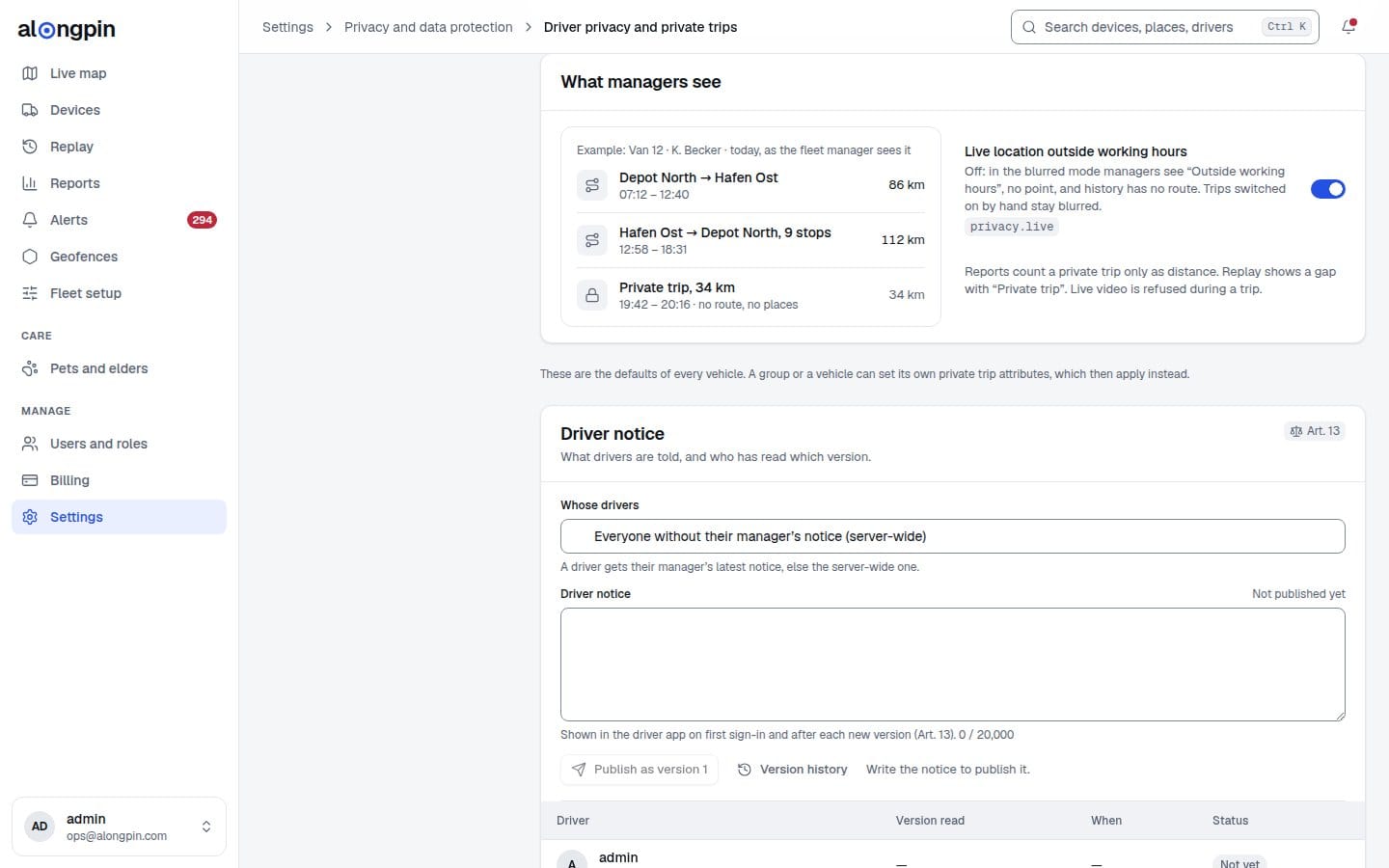
- What private means in your setup. Positions can be blurred to about 1 km, reduced to distance only (no location, but distance and odometer stay for the logbook), or not stored at all. Name the mode you chose.
- How a driver switches a trip to private, if you allow it: a switch on the phone or a button in the vehicle wired to the tracker.
- What managers still see. In blur mode, a rough area; in distance-only mode, a private trip shown only as its distance; in pause mode, only that a trip happened. Private positions raise no geofence or speed events, and dashcam media taken during a private trip is deleted.
The driver privacy settings describe each mode and switch in detail.
4. The SOS exception
By default an SOS ends a private trip and sends the real position, so help can find the driver; the vehicle is then tracked until working hours start again. You choose which alarms do this. Say it plainly in the notice, because a driver who presses SOS on a private evening trip should not be surprised that the position went out. SOS and alarm handling shows who is told and how the alarm is acknowledged.
5. Who has access
Name the roles, not the people: "dispatch sees live positions of their depot's vehicles", "the fleet manager sees trips and reports for all vehicles", "HR sees nothing unless a case requires it". In the platform, each role covers a set of functions and a set of vehicles, so the notice can match the setup exactly. Mention that changes and sign-ins are recorded in an audit log, and that views of dashcam recordings are logged. For the setup behind this, see who can see driver locations.
6. How long data is kept
Give the periods you set under Settings → Privacy → Retention and deletion: positions, events, the audit log, dashcam media. In a standard setup positions and events are kept for 365 days and dashcam media for 30, but your operator may have changed them, so copy the values you see there. Mention legal holds: a recording kept past its period for an insurance claim, until the hold is released.
7. How to make a request
Tell drivers how to ask for a copy of their data, a correction, a restriction or erasure, and who answers. Drivers with an account can file a request themselves under Settings → Your account → Privacy and your data, and requests you receive by email or letter are logged in the same register with the one-month deadline. When someone leaves, the steps in erasure requests and tracking data apply.
8. Contacts and complaints
Give the name or role of whoever answers questions (a data protection officer where you have one) and the right to complain to the supervisory authority. The privacy and GDPR overview lists the tools the platform gives you for these rights.
9. Version and date
Number the notice and date it. When working hours, devices or purposes change, publish a new version and tell drivers.
Publishing the notice in the platform
Alongside your own copy (in the handbook or the contract pack), you can publish the text in the portal under Settings → Privacy → Driver privacy and private trips, in the Driver notice section. Each published version is kept and cannot be changed afterwards; a mistake is fixed by publishing a new version. Drivers see it in the driver app at their next sign-in and are asked to read it, and the table of acknowledgements shows who has read which version. Managers can publish one notice for their own users; administrators publish the server-wide one.
Review with your adviser and staff representatives
Before you publish, have the text read by:
- Your legal or data protection adviser, who checks the legal basis and anything your country requires;
- Staff representatives or a works council, where you have one. In Germany the works council must agree before vehicle tracking starts;
- Two or three drivers, who will tell you which sentences they do not understand.
Then set a date to review it, at the latest when the fleet, the devices or the working hours change.

Common mistakes to avoid
- Copying a generic template that lists data you do not collect, or misses the dashcam you do.
- Leaving out what happens after hours. It is the question every driver asks.
- Promising "we never look" when dispatch watches the live map all day. Say who looks and when.
- Forgetting to update the notice after fitting new devices or changing the private mode.
How Alongpin helps
Alongpin (alongpin.com) is a GPS tracking platform you open in a browser or on your phone. It is built for tracking that drivers can live with: private trips and working hours, a published driver notice, roles that limit who sees what, an audit log, and retention periods you set. Read how it handles privacy and data protection and security, then see the fleet solution.