Devices and connection
Device not appearing after connecting: unverified devices
A tracker that connects with an identifier the platform does not know is kept in the list of unverified devices. How to find it there, register it in one step, and who is allowed to.
Ashish Srivastava4 min read
If a GPS tracker is not showing up after setup, although it is powered and pointed at the server, look in the list of unverified devices. A tracker that connects with an identifier no device has is not thrown away: it is kept under Devices → Unverified, with its protocol, address, first and last contact and last position, and someone with the right can register it as a device in one step.
Key takeaways
- A tracker whose identifier (usually the IMEI) matches no device lands in Unverified, not on the map.
- The list shows the identifier, the address it connects from, when it was first and last seen, and its last position.
- Register turns it into a device with a name, group and other details; its history starts with its next message.
- Administrators, and users whose role covers unverified devices for the whole account, see this list.
- Not in the list either? Check the address, the port and the SIM.
How a tracker lands in the unverified list
Every message a tracker sends carries its identifier, usually the IMEI or a serial number. The platform looks for a device with exactly that identifier. When there is none, for example because the device was never added, or because one digit of the IMEI was mistyped when it was, the tracker is kept connected and reported as unverified.
While it is unverified, nothing it sends becomes history: no positions on the map, no trips, no events, no alerts. Only its latest position with a fix is kept, so you can see where it is. Records not seen for a while (30 days in a standard setup) are removed automatically.
What the list shows
Open Devices and select the Unverified tab. The list, newest first, shows for each tracker:
- Identifier: what the tracker reports, and the protocol it used;
- Address: the IP address it connected from, usually its mobile network;
- Last seen, and when it was first seen;
- Last position: a small map, speed and battery, if the tracker has had a fix.
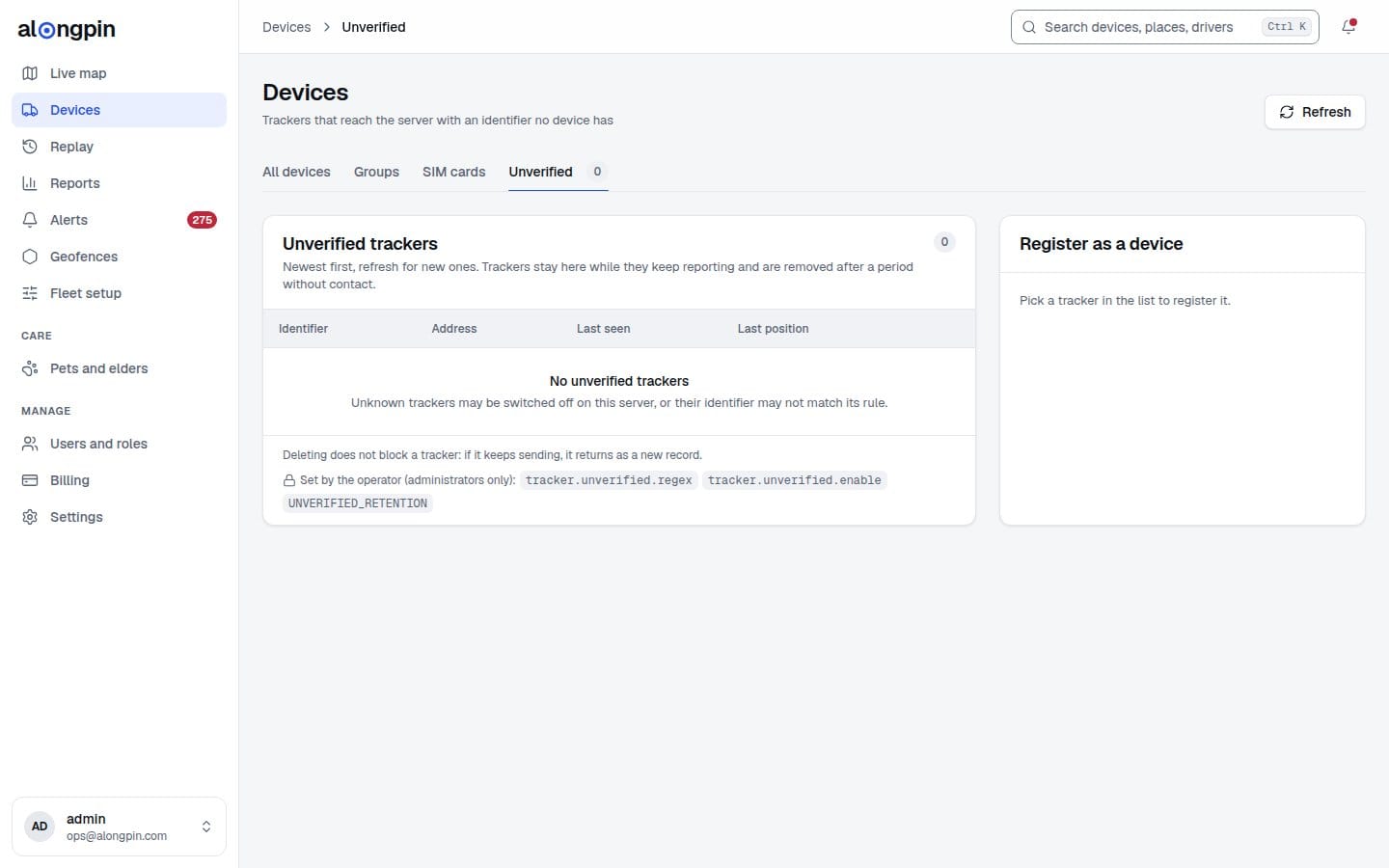
The list does not update by itself: select Refresh after switching a tracker on. A tracker's own identifier is often printed on its label or box, so you can match a row with the unit in your hand.
Register it as a device
- Select the tracker in the list, then Register.
- The Identifier is fixed: it is what the tracker reports. Enter a Name (it starts as the identifier), choose a Group, and fill in the Model, Phone number, Contact, Speed limit and Map icon as you like.
- Select Register as a device.
You become the device's owner, and it counts against your device limit like any device you add. Its history starts with its next message; the position shown in the unverified list is not copied. A tracker on a permanent connection is disconnected once so it logs in again as the new device, which takes a moment. Then select Open to see it, or Set up for its connection details.
If the identifier was mistyped on an existing device, correcting it on that device has the same effect: the record leaves the list and the tracker reports to the device.
Delete entries that are not yours
Trackers belonging to someone else sometimes reach a server by mistake, for example a second-hand unit still set to this address. Select the delete action on its row and confirm with Delete record. Deleting does not block the tracker: if it keeps sending, it comes back as a new record. To stop it for good, register it and disable the device, or change the address in the tracker.
Who can see the list
The list is for administrators and for users whose role includes unverified devices for the whole account; other scopes do not open it. Registering also needs the right to add devices and a free place within the device limit, and a read-only account cannot register or delete. If you do not see the Unverified tab, ask your administrator to look for your tracker's identifier there, or to register it for you.
If it is not in the list
If the tracker is not under Unverified either, its messages are not reaching the platform, or the identifier is not one it accepts. Check:
- Address and port: the tracker must send to the server address and the port of its own protocol. The device connection guide explains the ports; always use the one Set up the tracker shows. A tracker set to another protocol's port is not understood.
- The protocol: is your model's protocol supported? Look it up in the compatibility check. Which protocols are switched on is set by the operator of the server.
- SIM: a working data plan and the right APN.
- The identifier itself: identifiers of 3 to 32 letters, digits or underscores are listed; others are not.
- The server's setting: an administrator may have switched off the list of unknown trackers, or set the server to add unknown trackers as devices automatically.
For the full first connection of a new tracker, the setup guides go step by step per kind of device.
Frequently asked questions
Why is the position in the list not on the live map?
Unverified trackers have no device yet, so the platform keeps only their latest fix in this list. Once registered, positions go to the map from the next message.
Can a tracker be registered by two people?
No. The first registration creates the device and removes the record; the list then reloads for everyone else.