Fleet management
Fleet maintenance scheduling by mileage and engine hours
Move servicing from a wall calendar to plans that follow distance, engine hours or dates. How maintenance plans count, when they warn, where the readings come from and who gets told.
Ashish Srivastava7 min read

Fleet maintenance scheduling works best when each service follows what the vehicle has actually done: kilometres driven, hours the engine has run, or days passed, whichever the manufacturer uses. A tracking platform counts those for you. In Alongpin you create a maintenance plan ("oil change every 10,000 km", "hydraulics every 500 engine hours"), attach it to vehicles or a group, set a warning ahead of the mark, and an alert rule tells the right person before the service is due rather than after it.
Key takeaways
- A wall calendar treats every vehicle the same; a plan by distance or engine hours follows each vehicle's real use.
- One plan holds one interval: by distance, by engine hours or by calendar time.
- Warn before gives an advance notice ("due in 1,000 km"), then a second notice when the mark is passed.
- Distance and engine hours come from the tracker; what each vehicle can count depends on the device and its wiring.
- The plan raises events; an alert rule for Maintenance due decides who hears about them.
- There is no "done" button: keep the workshop's own record alongside.
Why calendar-only servicing misses heavy-use vehicles
A service every six months is easy to plan, and it is right for a van that does an average amount of driving. It is wrong for the van that covers twice that on a long-distance route, which reaches its oil change interval months before the date on the wall, and for the van that sits at the depot most weeks and gets serviced with oil that has hardly been used. The same goes for plant and machines whose engines run for hours on site without the odometer moving at all.
Preventive maintenance in a fleet means servicing by the measure the manufacturer gives: kilometres for most road vehicles, engine hours for plant and vehicles that idle a lot, and time for inspections and checks the law or the insurer asks for at fixed intervals. A tracking platform already records distance and engine running time for every vehicle, so the counting can move from a spreadsheet someone forgets to update into the system that sees every trip.
Plans by distance, engine hours or calendar time
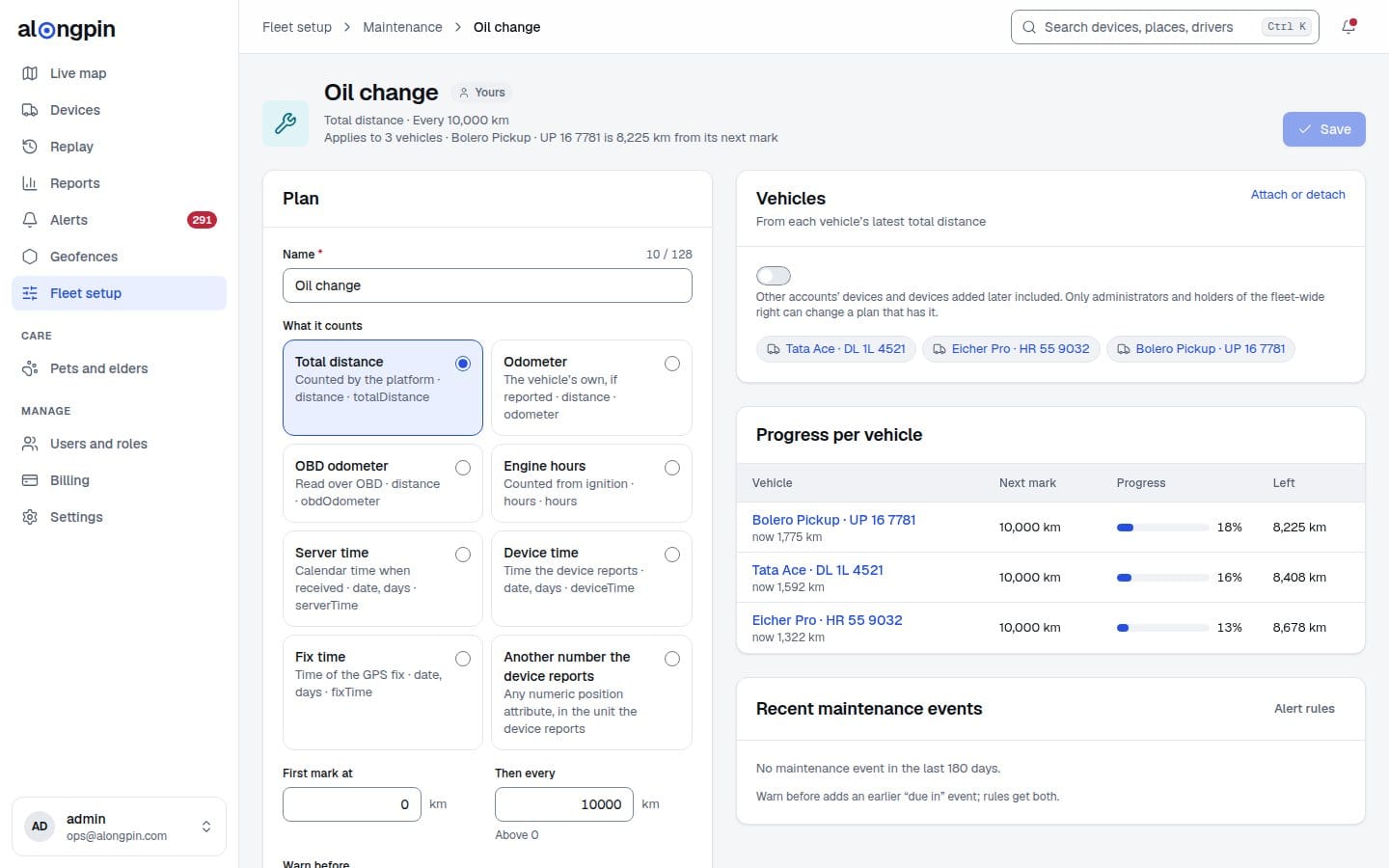
A maintenance plan in Alongpin has a name, a measure it counts, the first mark and the interval. Open Fleet setup, the Maintenance tab, and choose New plan. Under Counts you choose what it measures:
- Total distance: the distance the platform counts from the tracker's positions. Every tracker that reports positions gives this.
- Odometer: the vehicle's own odometer, for trackers that report it.
- OBD odometer: the odometer read through the diagnostic port.
- Engine hours: the time the engine has run, counted while the ignition is on.
- A time type: service by date, with the first date and an interval in days.
First mark at is the reading of the first service the plan should announce, and Then every is the interval. A van at 48,200 km whose last oil change was at 40,000 km gets 50,000 as its first mark and 10,000 as its interval; the plan then counts towards 50,000, 60,000, 70,000 and so on. Distances are typed in your distance unit, engine hours in hours.
One plan covers one interval. Vehicles that share the interval and were serviced at similar readings can share a plan. A vehicle serviced at a very different reading, or with a different interval, needs a plan of its own. Most fleets end up with a handful of plans per vehicle type: an oil change by distance, a larger service by distance, an annual inspection by date, and engine-hour plans for machines.
Attach the plan to vehicles or a group
Under Then attach to, tick the Devices or Groups the plan is for and choose Add plan. A plan counts only on the vehicles it is attached to, directly or through their group. Attaching it to a group, such as "Vans" or "North depot", means that a van added to the group later is counted too, without anyone remembering to add it.
The plan's page lists Progress per vehicle: each vehicle's next mark and what is left before it. That is the page to open when the workshop asks which vehicles are due next month.
Advance warnings and the notice when the mark is reached
A notice on the day the mark is passed is too late to book a workshop slot. Open the plan and enter Warn before in the same unit as the interval: 1,000 km on a 10,000 km plan, 50 hours on a 500-hour plan, 14 days on a yearly inspection. The warning must be smaller than the interval.
Each cycle then raises two events for every vehicle:
- The warning, once, when the vehicle comes within the Warn before distance or time of its mark ("due in 1,000 km").
- The due event, when the vehicle passes the mark.
A vehicle that jumps past the mark between two positions, for example after a long gap without coverage, raises only the due event. A plan with an interval of 0 never raises anything; the plan's page shows it as paused.
Where the distance and hours come from on each device
The plan can only count what the tracker sends. Before relying on a plan, check what each vehicle reports.
| Measure | What it needs | Notes |
|---|---|---|
| Total distance | Any tracker that reports positions | Starts at zero when the tracker is fitted: correct it once to the dashboard reading |
| Odometer | A tracker that reads the vehicle's own odometer | Follows the vehicle; needs no correction |
| OBD odometer | A tracker plugged into the diagnostic port that reads it | Depends on the vehicle and the tracker model |
| Engine hours | A tracker that reports the ignition, or reports engine hours itself | A tracker without an ignition wire counts no engine hours |
| Calendar time | Positions arriving, nothing more | Counted by date; the notice comes with the vehicle's next position after the date |
A tracker fitted to a used vehicle starts its own count from zero, so its total distance and engine hours are far below the dashboard. Correct them once, on the vehicle's Settings tab under Odometer, as described in correcting the odometer and engine hours. From then on the plan measures from the real reading.
If a plan's Progress per vehicle says a vehicle has not reported the value the plan counts, the tracker does not send it. For engine hours this usually means the ignition wire is not connected. The vehicle trackers page explains which kinds of tracker report what.
Send maintenance notices to the right person
The plan records events; it does not send anything by itself. To have someone told, open Alerts, the Rules tab, and choose New alert rule:
- Under When this happens, choose Maintenance due. The rule receives both the warning and the due event.
- Under Tell people by, tick the channels. In the app shows the notice in the portal; e-mail suits a workshop or a fleet coordinator who books services from their inbox. Push, text messages and Telegram are offered where your administrator has switched them on.
- Choose Create rule, then under Devices and people tick the same vehicles or group as the plan.
- Under Who receives it, tick the people who act on it: the person who books the workshop, not every manager.
A fleet with several depots can make one rule per depot group, each sent to that depot's coordinator. The alerts page explains rules, channels and quiet hours. For the full walk-through with every field, see how to set up maintenance plans and reminders.
Keep the workshop record alongside
The platform counts marks; it keeps no record of the service itself. There is no "done" button, and the next notice always comes at the next fixed mark, whenever the service actually happened. That has two consequences:
- Keep your workshop record where it is. Invoices, parts, the mechanic's notes and the vehicle's service book stay in your workshop system or spreadsheet. The plan tells you when; the record says what was done.
- Move the marks after an off-schedule service. If a van was serviced 3,000 km early, change First mark at to that reading plus one interval and save, so the next notice comes at the right point. A plan shared by several vehicles moves for all of them, so give such a vehicle its own plan.
To see when each vehicle passed its marks, open the plan's Recent maintenance events, or run the Events report under Reports for Maintenance due and download it as Excel to file next to the workshop invoices.
Common mistakes
- No rule for Maintenance due. The events are recorded on the plan's page, but nobody is told.
- The odometer was never corrected. A plan by total distance on an uncorrected tracker warns tens of thousands of kilometres late.
- Engine-hour plans on trackers without ignition. Without ignition data there are no engine hours to count.
- A new vehicle outside the group. A vehicle that is not attached to the plan, directly or through its group, is not counted.
How Alongpin helps
Alongpin (alongpin.com) is a GPS tracking platform you open in a browser or on your phone. Your trackers, in the vans, trucks and cars you already run, show on one live map with trips, stops, idle time and alerts; reports and scheduled reports answer the questions this article raises, and users and roles let each depot see its own vehicles. Check your trackers in the device check, read how it works for fleets, and start on the pricing page.
Frequently asked questions
Can one vehicle have several plans?
Yes. An oil change by distance, a full service by distance and an inspection by date can all be attached to the same vehicle; each counts on its own.
Do plans change past data?
No. A new or changed plan counts from the next positions the vehicles send.
Who can create plans?
Users who may change the vehicles they attach plans to. A plan that applies to every vehicle on the server is reserved for administrators. How tracking, maintenance and reports fit together for a business is described on the fleet solution page, and the help article on setting up a maintenance plan and its alert answers the most common questions.