Devices and connection
Setting up a maintenance plan and its alert
Plan service by distance, engine hours or time, attach the plan to vehicles or a group, add a warning before each mark, and create the alert rule that tells you when a vehicle is due.
Ashish Srivastava4 min read

A vehicle maintenance reminder with GPS tracking has two parts in Alongpin: a maintenance plan that counts distance, engine hours or time for the vehicles it is attached to, and an alert rule for Maintenance due that tells people when a vehicle passes a mark. Create the plan under Fleet setup → Maintenance, attach it to the vehicles or a group, add an optional warning, then add the rule under Alerts.
Key takeaways
- A plan raises a maintenance event each time a vehicle passes a mark: the first mark, then every interval after it.
- Warn before adds an earlier "due in" event, once per interval.
- The plan counts only on the devices and groups it is attached to.
- Without an alert rule for Maintenance due, the events are recorded but nobody is told.
Create the plan
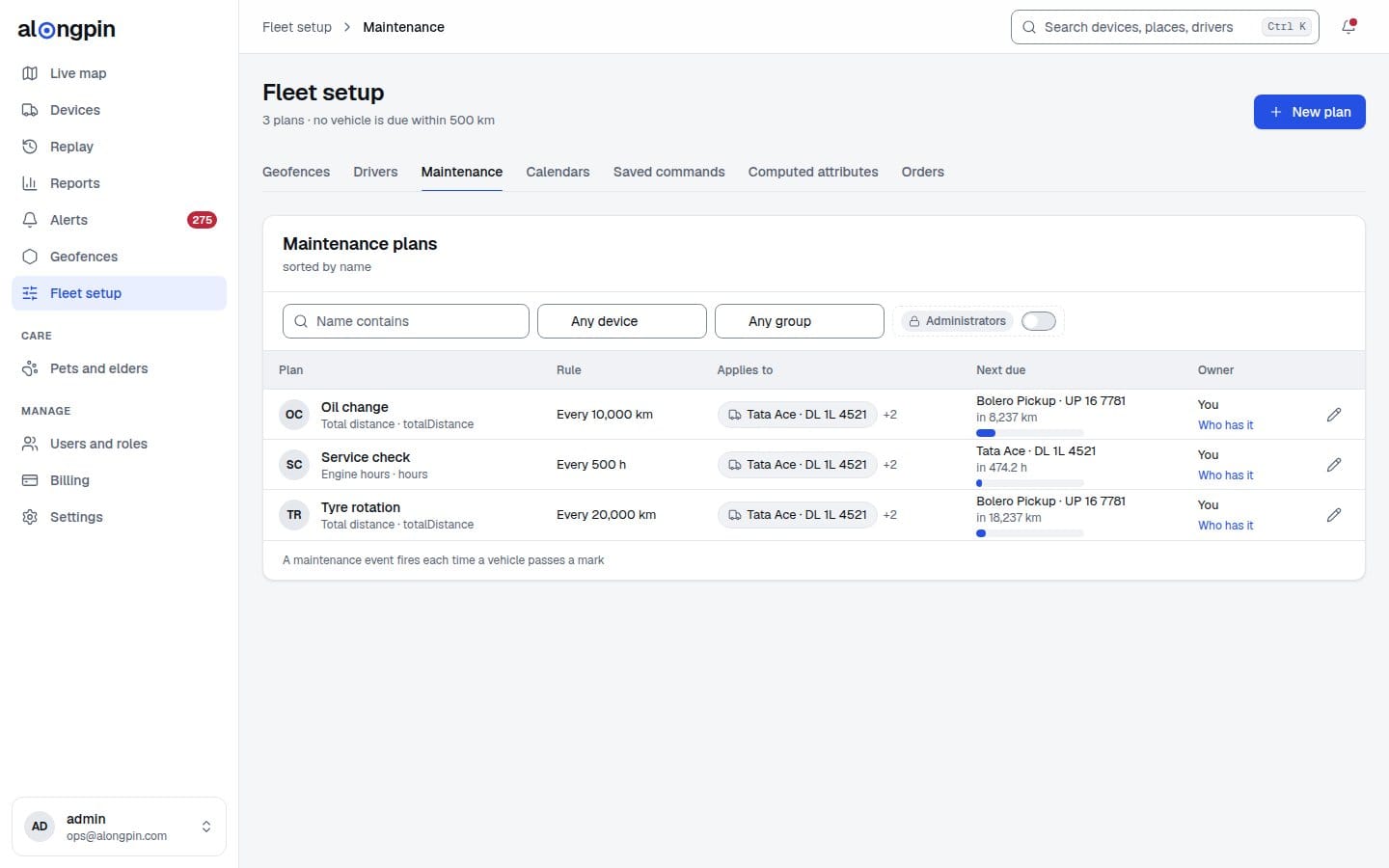
- Open Fleet setup in the menu and choose the Maintenance tab.
- Choose New plan and give it a name people will recognise, such as "Oil change".
- Under Counts, choose what the plan measures:
- Total distance: the distance the platform counts for the device.
- Odometer: the vehicle's own odometer, if the tracker reports it.
- OBD odometer: the odometer read over OBD, if the tracker reads it.
- Engine hours: counted from the ignition.
- A time type (Server time, Device time or Fix time), for service by date, such as every 365 days.
- Enter First mark at and Then every. For an oil change every 10,000 km starting at 0 km, enter 0 and 10,000. Distances are typed in your distance unit and engine hours in hours.
- Under Then attach to, tick the Devices or Groups the plan is for, and press Add plan.
Add an advance warning
Open the plan from the list. Its page has a Warn before field in the same unit as the interval: enter 1,000 to be warned 1,000 km before each mark. The warning must be smaller than the interval. Press Save plan.
With a warning, a vehicle on that plan raises two events per interval: a warning ("service due in 1,000 km") when it comes within the warning distance, and the due event when it passes the mark. If a single position jumps past the mark, only the due event comes.
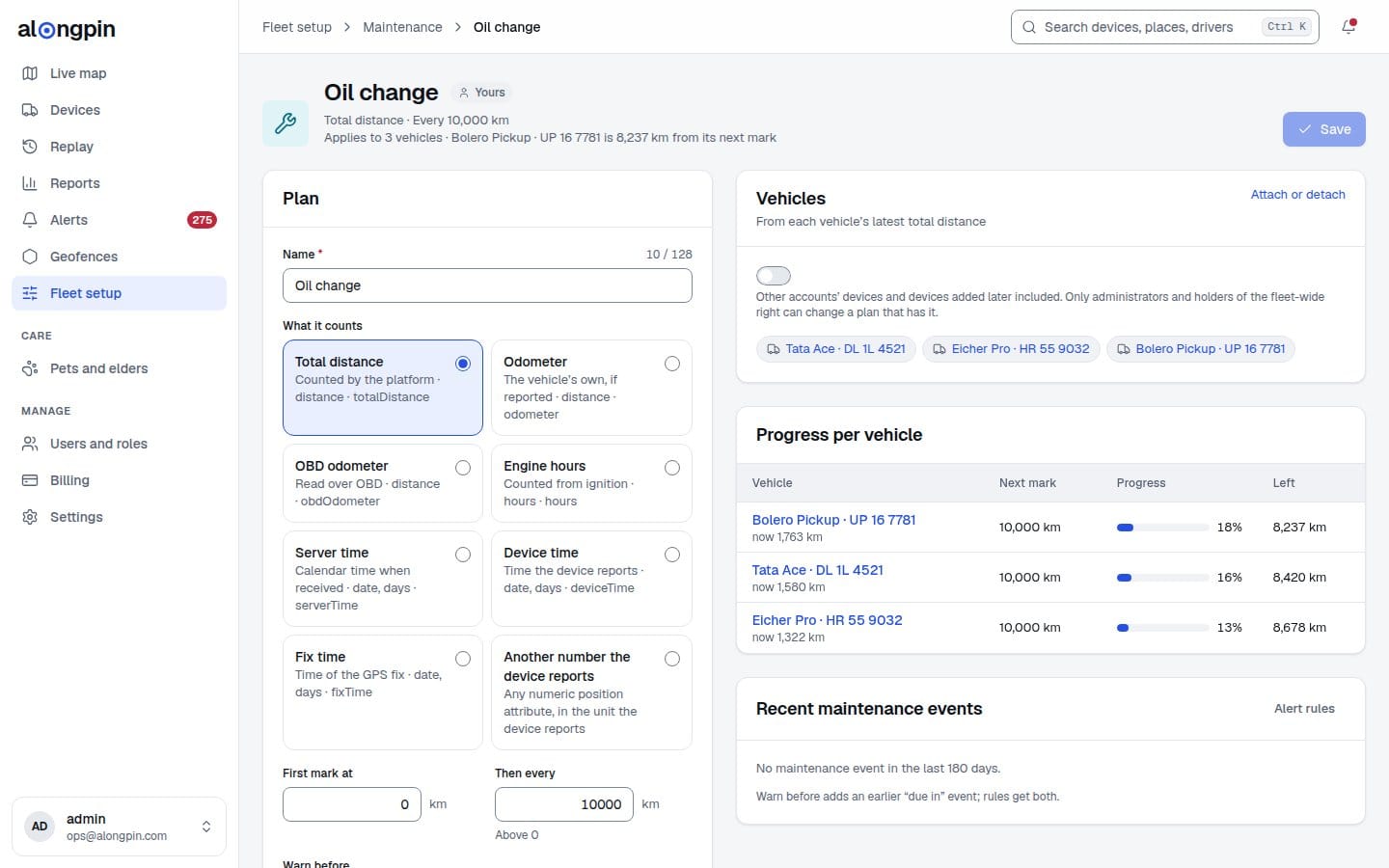
The plan's page also shows Progress per vehicle, with each vehicle's next mark and what is left, and the Recent maintenance events.
Attach it to a device or a group
A plan counts only on the devices attached to it, directly or through a group. Attaching it to a group covers every vehicle in that group and its subgroups, including vehicles added to the group later. To change the attachments later, open the plan and use Attach or detach. Administrators can also apply a plan to every device on the server.
Add an alert rule for the maintenance event
The plan records events; an alert rule decides who hears about them.
- Open Alerts and the Rules tab, then choose New alert rule.
- Under When this happens, choose Maintenance due.
- Under Tell people by, tick the channels you want. Which ones are on offer (email, text message, push, Telegram) depends on what your administrator has switched on.
- Press Create rule, then choose its devices (or All my devices) and the people who receive it.
The rule fires for both the warning and the due event, so one rule covers both. More on channels and rules is on the alerts page.
Why it depends on a correct odometer or engine hours
A plan that counts Total distance or Engine hours measures from the tracker's own count, which starts at zero when the tracker is fitted. On a used vehicle, correct the odometer and engine hours first (in the device's Settings, Correct next to Odometer), or the first service will be due tens of thousands of kilometres late. A plan that counts the vehicle's own Odometer follows the dashboard and needs no correction, but only works when the tracker reports it. A plan does nothing for a vehicle that doesn't report the value it counts; its progress shows The device has not reported this value.
After the service: the next mark
The platform keeps no "done" state. Marks fall at the first mark plus whole intervals (0, 10,000, 20,000 km and so on), whenever the service actually happened. If a vehicle was serviced well before or after its mark and you want the next marks counted from the service, change First mark at to the reading at the service and save.
The maintenance events also appear in the events report, so you can show when each vehicle passed its mark; see reports. For how maintenance fits with the rest of a fleet's day, see the fleet solution.
Frequently asked questions
Can one plan cover several kinds of vehicle?
Yes, but each vehicle is measured against the same interval. Make separate plans for vehicles with different service intervals.
What does "Paused" mean on a plan?
Its interval is 0, so it raises no events. Enter an interval above 0 and save.