Elder care
Emergency contacts for an older parent: who should get the alert
How to choose the relatives, neighbours and friends who receive an older parent's SOS and other alerts: nearest first, contacts without an account, alerts apart from reminders, a plan for who does what, and a list kept current.
Ashish Srivastava7 min read
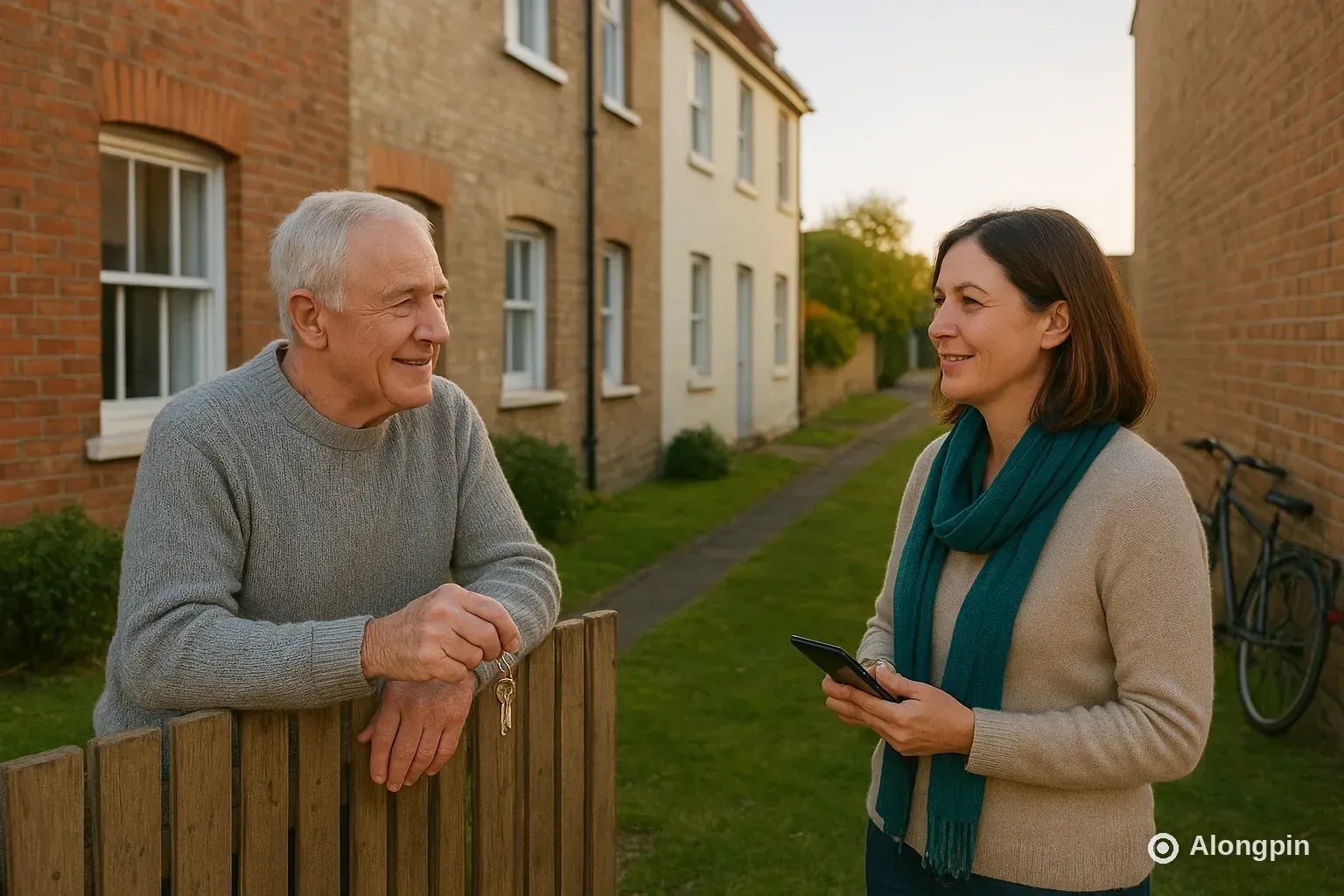
The best emergency contacts for an elderly parent are the people who can be at her door quickly and who will answer their phone, not necessarily the closest relatives. A daughter two hundred kilometres away should hear about an SOS, but the neighbour across the street is the one who can check on her within minutes. In Alongpin, these people are contacts on your parent's care profile: they need no account, and you choose for each one whether they receive alerts, reminders, both or nothing. This guide helps you choose the people, set them up and agree what each of them does when the phone buzzes.
Key takeaways
- Choose by distance and availability: who can reach her in minutes, who is awake at night, who has a key.
- Contacts need no account. Alerts reach them by email (two addresses) and text message (one mobile number).
- Tick Receives alerts and Receives reminders separately: the neighbour needs the SOS, not the pharmacy refill.
- Everyone ticked is told at the same time. Agree beforehand who goes, who calls and who stands by.
- Check the list every few months and after any change in her life.
Step 1: Choose by distance, not by closeness
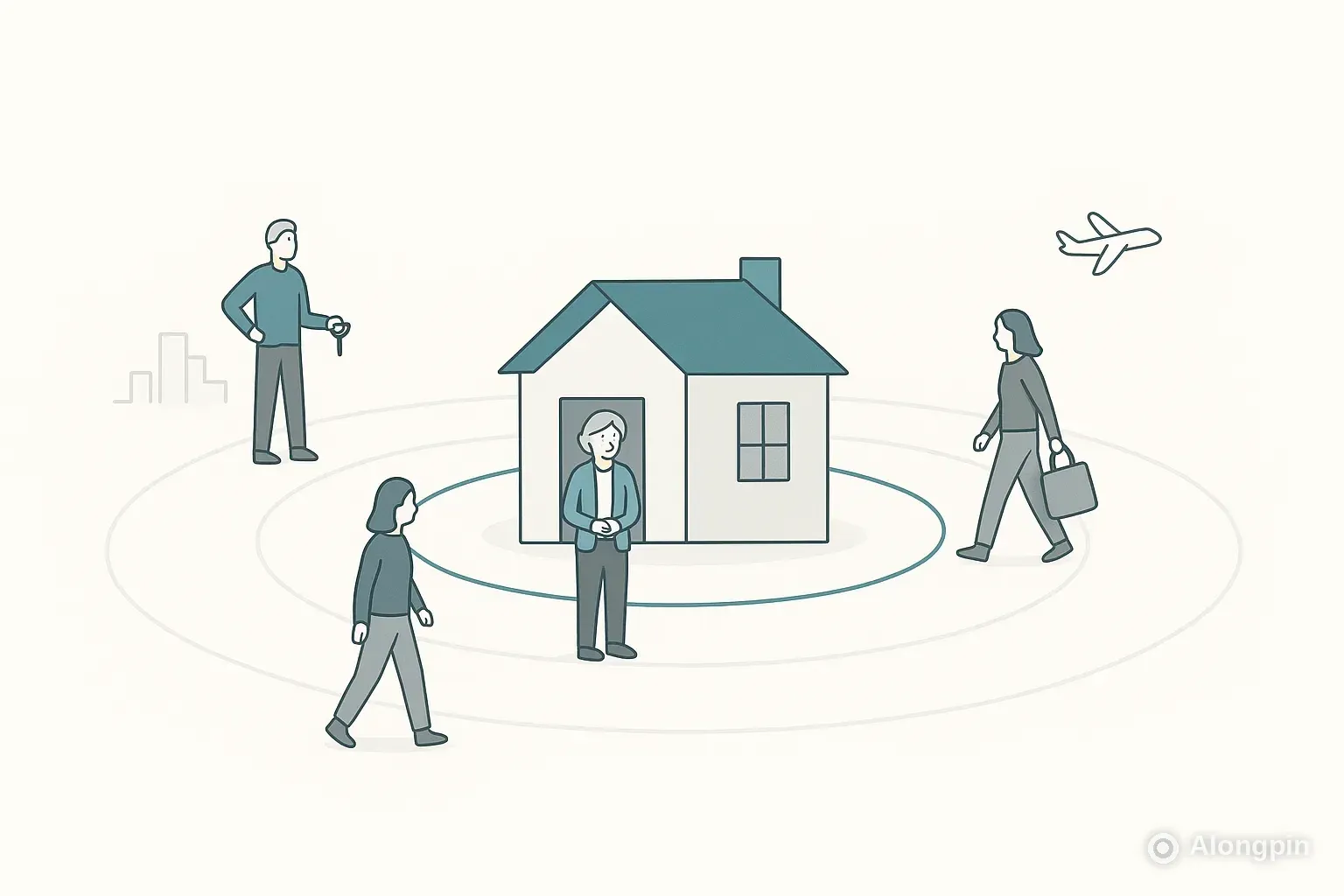
Write down everyone who could help, then sort them by one question: how quickly could this person be standing at her front door?
- Within minutes: a neighbour, a friend in the same building, a relative in the next street. These are your first responders.
- Within an hour: a son or daughter in the same town, a carer who visits regularly.
- Far away: children and grandchildren in other cities or abroad. They coordinate, phone the neighbour, call the doctor, but they cannot open the door.
Then ask the practical questions. Who has a key, or knows where one is kept? Who is home during the day, and who at night? Who will pick up a call from an unknown number? A retired neighbour who is home most days may be a better first contact than a busy son.
Ask each person before you add them. Being an emergency contact is a small commitment, and people should know that their phone may ring at 3 a.m.
Step 2: Add each person as a contact
Open Pets and elders, then your parent's profile, and add the people under Contacts. Each contact has:
- a Role: Owner, Guardian, Family, Caregiver, Emergency, Neighbour or Other;
- a Name and a Relationship in your own words (Daughter, Neighbour at no. 12);
- Mobile and Mobile 2, Landline and Landline 2;
- Email and Email 2, an Address and Notes.
Contacts need no account and never sign in. That makes them right for neighbours and friends who will not install anything.
Only some of these fields receive messages. Email goes to Email and Email 2; text messages go to Mobile. Mobile 2 and the landlines are for calling only: they are shown with the contact, and next to an open alert, so whoever handles it can ring them. Put the number that receives text messages in Mobile.
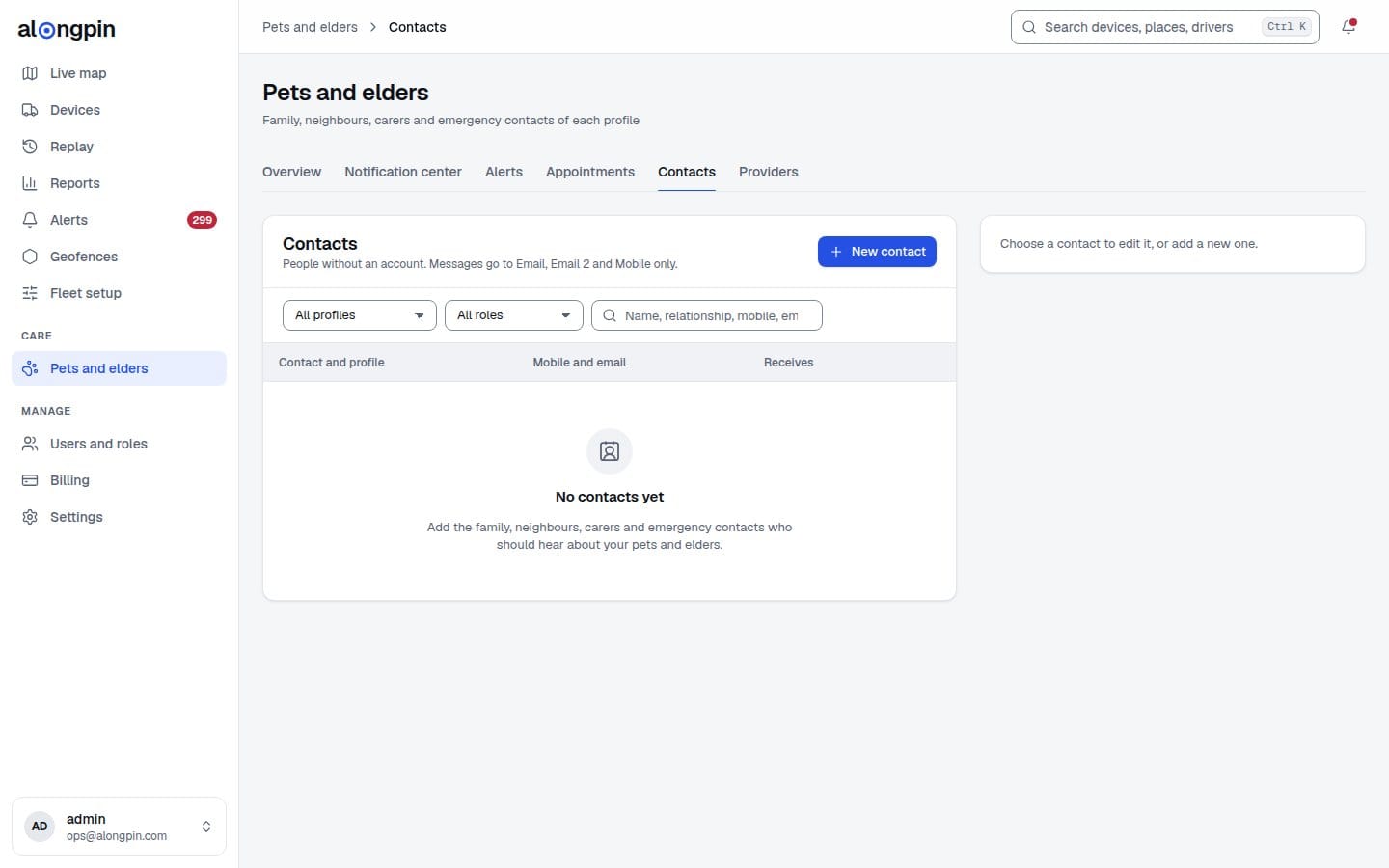
One contact can be marked Primary contact, the main person to call. Marking another moves the mark.
More on the form itself in adding contacts to a care profile.
Step 3: Separate who gets alerts from who gets reminders
Each contact has two switches, Receives alerts and Receives reminders, and they answer different needs.
Alerts are the urgent ones, raised by her watch or by the platform:
- SOS, when she presses the button (always on);
- Fall, when the watch reports one (only watches that detect falls);
- Left home, when the watch leaves her home zone;
- Low battery;
- No movement, when the watch reports no movement for longer than you set, within the hours you choose.
Reminders are the planned ones: a medication refill, a doctor's appointment, a document about to expire.
A neighbour should usually receive alerts and not reminders. A carer who handles appointments may need reminders and not alerts. The daughter who manages everything may need both. Ticking both for everyone fills phones with messages people learn to ignore.
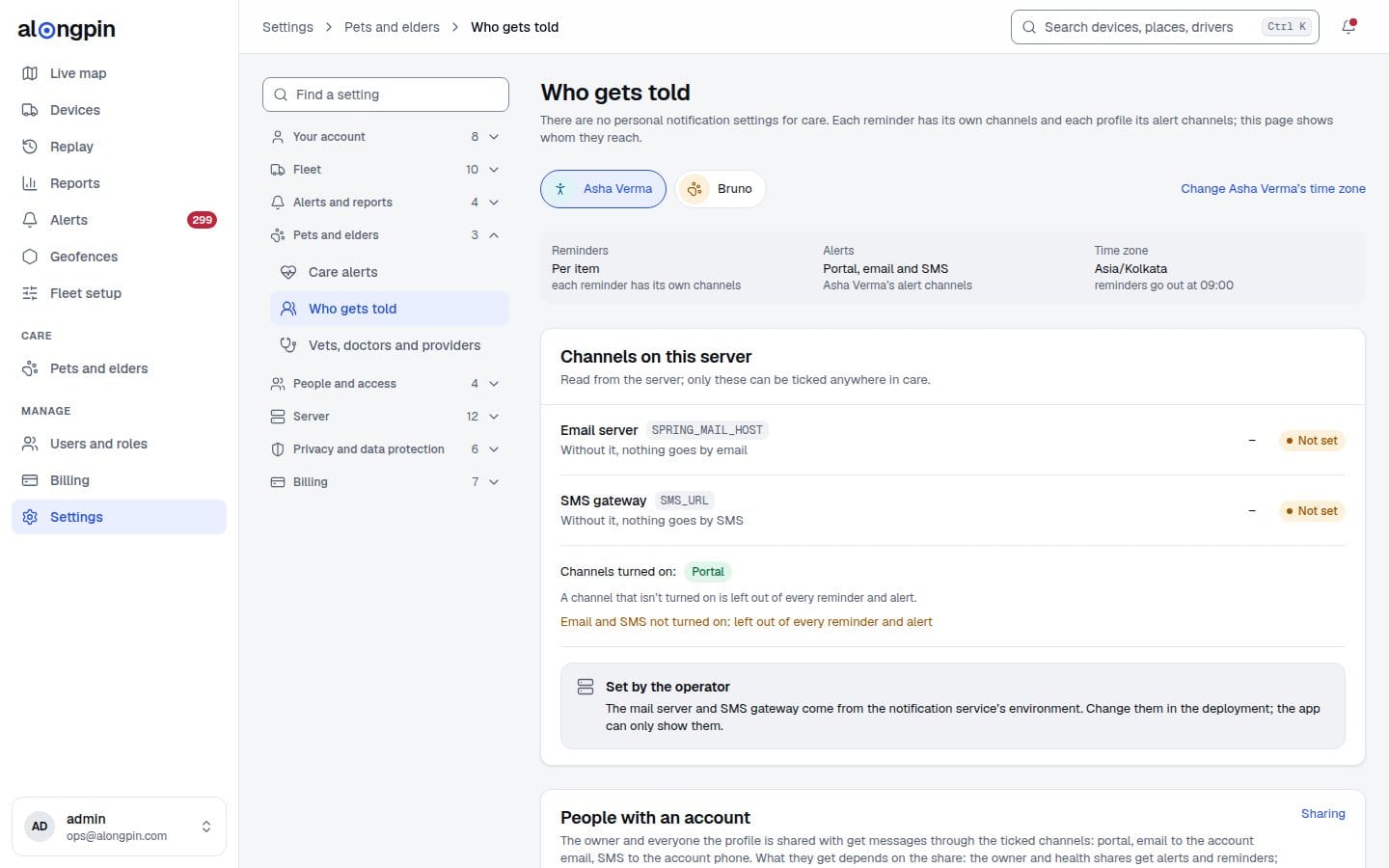
Alerts and reminders also go to people with an account: the profile's owner and the family members it is shared with. Who gets what, by which channel, is listed in one place under Who gets told, with a warning when someone cannot be reached, for example a ticked text message channel and no mobile number. Who gets a care alert, and how explains the rules.
What the message says
By default, alert emails and text messages are short: they say there is a new alert for your parent and to open the app. They do not say what happened or where, so that her health and whereabouts do not travel in plain messages. The portal and the app show the full alert, and an administrator can switch the installation to full details.
That matters for contacts without an account. A neighbour who gets "New alert for Kamla. Open the app to see it." cannot open the app. Agree in advance that such a message means "call the daughter now" or "go and ring her bell". If you want contacts to see the alert type and a map link in the message, ask your administrator whether full details are on.
Text messages need a text message gateway set up on your installation, and email needs a mail server; both are set by the operator. The Who gets told page shows which channels are switched on.
Step 4: Agree what each person does
The platform tells everyone you ticked at the same time. It does not call them one after another or wait for the first to answer, so the order is yours to agree, before the first alert.
A short plan written down and shared with everyone avoids two people driving across town while nobody phones the doctor:
| Who | On an SOS or fall | On "left home" | On "no movement" |
|---|---|---|---|
| Neighbour (alerts) | Goes to her door, calls the daughter | Looks out, calls her mobile | Rings her bell |
| Daughter (account) | Phones mother, then the neighbour; acknowledges the alert | Checks the map | Phones mother |
| Son abroad (account) | Stands by, phones the doctor if asked | Nothing | Nothing |
Whoever takes charge should acknowledge the alert in the portal or the app. Acknowledging records who handled it and when, so the others see it is in hand. It sends no message itself, so the person who acknowledges should still call the rest. Contacts without an account cannot acknowledge; a family member does it for them.
Put the essentials in the profile's Emergency notes too (the key with the neighbour, the medication in the fridge, the door code). They are shown next to every alert, with the emergency contacts and their numbers.
Step 5: Test it
Before you rely on it, run a real test with your parent's agreement. Ask her to press the SOS button at a time you have announced, and check that each person received the message on the channel you expected. The alert's Who was told list shows what went out to whom and whether each message failed. People with an account can also send themselves a Test email or Test SMS from Who gets told.
Step 6: Keep the list current
Contact lists go stale quietly: a neighbour moves, a phone number changes, a carer stops visiting. Look at the list every few months, and at once after any of these:
- someone moves house, changes number or goes away for a long stretch;
- your parent comes home from hospital and needs closer attention for a while;
- a new carer starts, or one leaves.
Remove people who can no longer help rather than leaving them ticked. A message that reaches the wrong person, or nobody, is worse than a short list that works.
Common mistakes
- Only far-away relatives. Everyone is told, but nobody can go.
- The landline in the mobile field. Text messages go only to Mobile.
- Everyone gets everything. Reminders drown out alerts.
- No plan. Three people call each other while nobody goes to the door.
Next steps
The care profiles page shows what else a profile holds, the SOS page what happens when the button is pressed, and the alerts page how alerts reach people for every kind of device.
How Alongpin helps
Alongpin (alongpin.com) is a GPS tracking platform you open in a browser or on your phone. A parent's GPS watch or alarm becomes a care profile: SOS, fall, leaving-home and inactivity alerts reach the family and emergency contacts, and health readings, medication refills and appointments sit in one place you can share. See how it works for elder care, and check a watch in the device check.
Frequently asked questions
Does a contact need the app or an account?
No. Contacts receive alerts and reminders by email and text message and never sign in. Family members who want to see the map and acknowledge alerts need an account and a share of the profile.
Can I set an order, so the neighbour is called first?
No. Everyone ticked is told at the same time. The order is the plan you agree between you.
Can a contact receive alerts on two phones?
Text messages go to Mobile only. A second number can be kept in Mobile 2 for calling, or the second person can be added as a contact of their own.