Care profiles and health
Who gets a care alert, and how
Who is told when a watch or collar reports SOS or a fall, leaves home, runs low on battery or stops moving: the owner, the people a profile is shared with and the contacts marked for alerts, by portal, email or SMS.
Ashish Srivastava4 min read
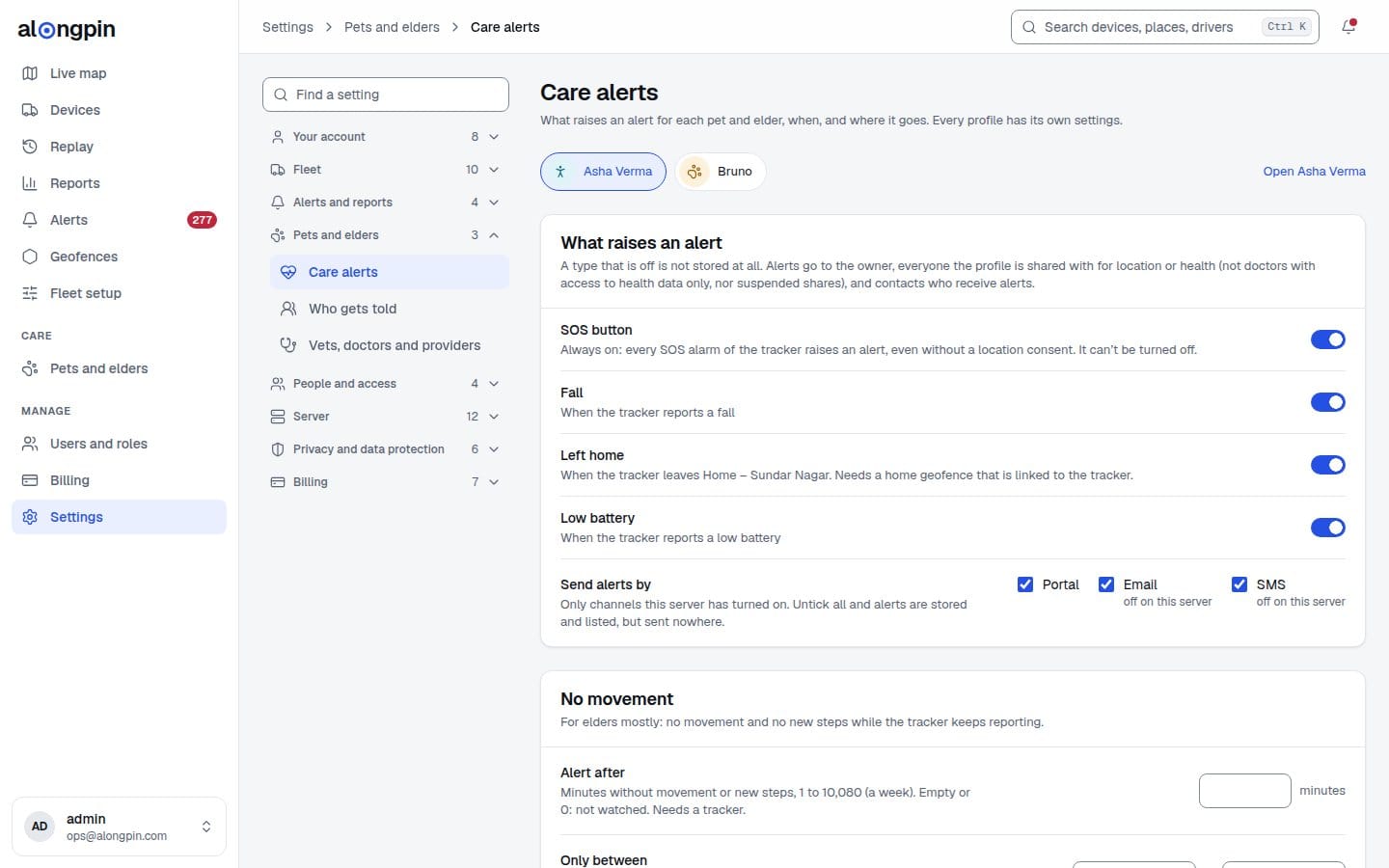
When a watch or collar sends an SOS, reports a fall, leaves home, runs low on battery or stops moving for too long, the care alert goes to three groups: the profile's owner, the people the profile is shared with for everything or for location, and the contacts marked Receives alerts. So who gets an SOS alert from a GPS watch is decided by the profile's sharing and contacts, and how it reaches them by the channels ticked under Settings → Pets and elders → Care alerts. Who gets told, next to it, shows the result per person.
Key takeaways
- Each profile has its own alert settings and channels: Portal, Email and SMS, where your server has them switched on.
- People with an account get alerts through the portal, their account email and phone; contacts by email and SMS only.
- SOS and fall alerts need a watch or collar that reports them.
- Pets and elders → Alerts shows who was told about each alert, and anyone who sees the profile can acknowledge it.
The five care alerts
| Alert | Raised when | Needs |
|---|---|---|
| SOS | The tracker's SOS button is pressed | A device with an SOS button; always on |
| Fall | The tracker reports a fall | A device with fall detection |
| Left home | The tracker leaves the home geofence | A home geofence linked to the tracker |
| Low battery | The tracker reports a low battery | A device that reports it |
| No movement | No movement and no new steps for the minutes you set, within the hours you set | A tracker that keeps reporting |
SOS and fall alerts come only from devices that report them: many watches have an SOS button, fewer detect falls, and most pet collars do neither. Check before you buy on the watches page. A tracker that has gone silent for a couple of hours raises no "no movement" alert, because silence is not the same as stillness. How the SOS button works end to end is on the SOS feature page.
Who is told
| Person | Gets alerts? | How |
|---|---|---|
| The owner of the profile | Yes | The ticked channels: portal, account email, account phone |
| Someone it is shared with for Everything | Yes | The same |
| Someone it is shared with for Location only | Yes | The same |
| A doctor with Health data only access | No | Reminders only |
| A share that is suspended for lack of a sharing consent | No | Nothing until a consent lists them |
| A contact with Receives alerts | Yes | Email to Email and Email 2, SMS to Mobile; never the portal |
To add someone, share the profile with them (they need an account) or add them as a contact (no account). To stop someone getting alerts, stop sharing, or untick Receives alerts on the contact. The care profiles page shows how sharing and contacts fit together.
The channels
Under Settings → Pets and elders → Care alerts, choose a profile and tick the channels under Send alerts by: Portal, Email and SMS. Only channels your server has turned on can be ticked; SMS needs a gateway that the operator sets up. If you untick everything, alerts are still stored and listed, but nobody is told.
Some details to know:
- Portal messages appear for people signed in to the portal at the time; the alert stays in the list for later.
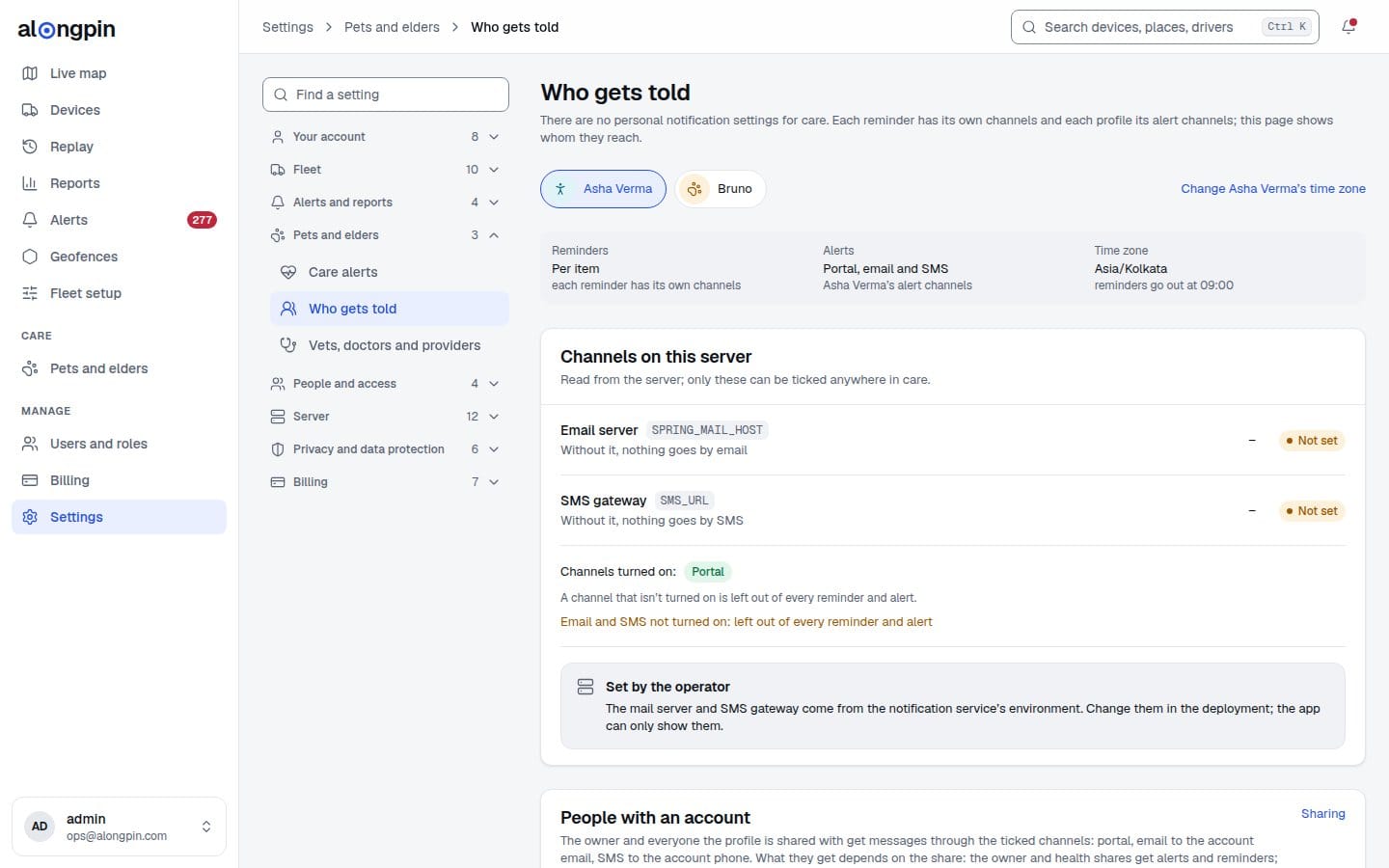
- Email goes to each person's account email, SMS to their account phone. Someone without a phone number on their account gets no SMS; Who gets told marks them "no phone".
- By default, emails and text messages say only "New alert for Rose. Open the app to see it." so nothing about the person's health or whereabouts leaves the platform. The portal shows the full text. Your administrator can switch to full details.
- Care alerts are separate from the alert rules under Alerts. If your account also has a rule for the tracker's alarms, an SOS can reach you through both.
See who was told, and acknowledge
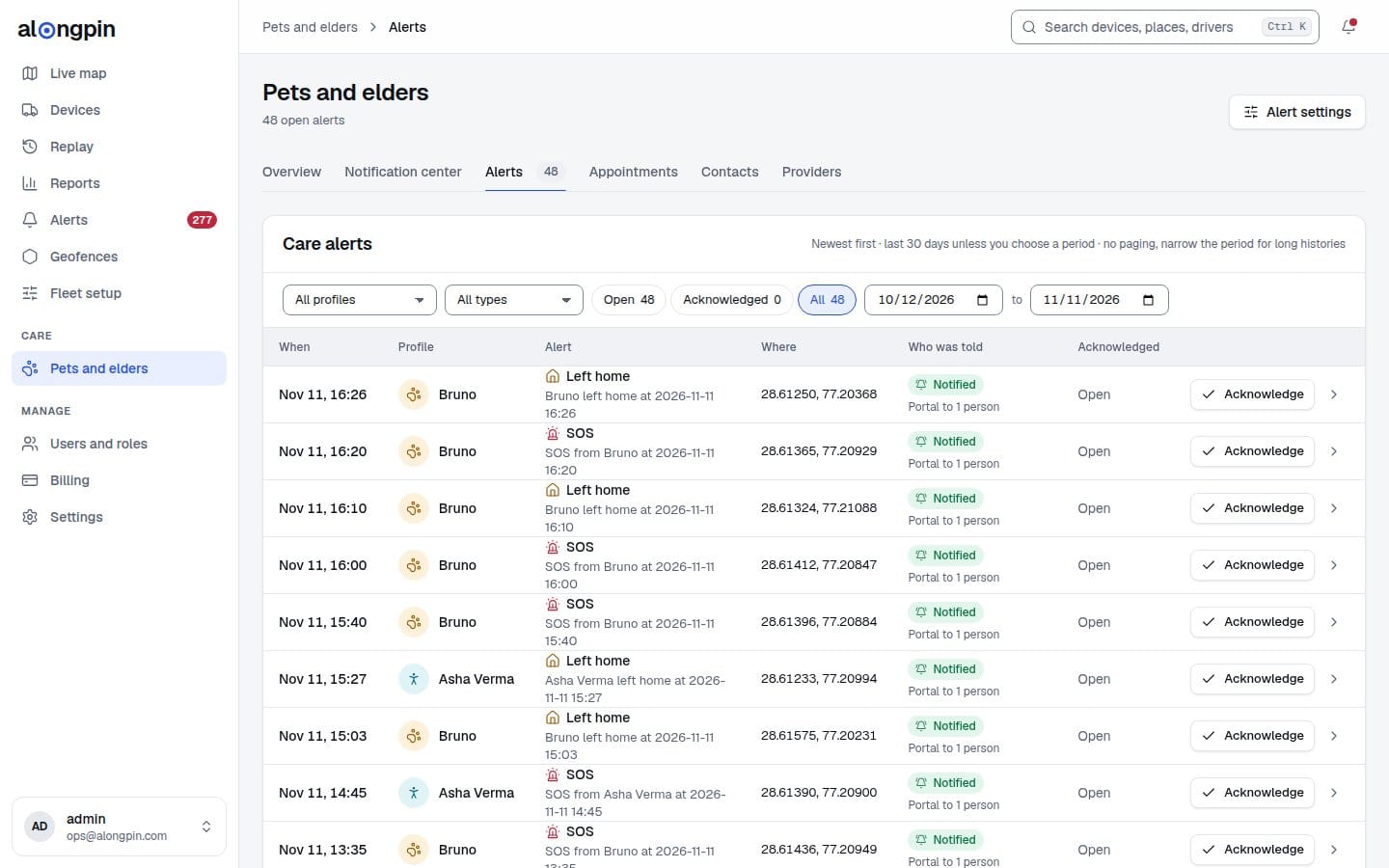
Open Pets and elders → Alerts. Each alert shows when and where it happened and, under Who was told, what became of its messages: Notified, Notified, some failed, Nobody notified: no channel or Sending failed. Open an alert to see the place on the map, the emergency notes and the contacts to call.
Select Acknowledge once someone has taken care of it. That records who acknowledged and when; it does not message anyone and does not stop other alerts. Anyone who can see the profile can acknowledge, including family it is shared with; read-only accounts and doctors with health-only access cannot.
Frequently asked questions
Do care alerts arrive as push messages on my phone?
Care alerts go by portal, email and SMS. An alert rule under Alerts for the same tracker can use the other channels your account has.
My sister should get the SOS alerts but not the medication reminders. How?
Share the profile with her for Location only: she gets alerts, contacts and the map, but no health data and no reminders.
Why did nobody get the last alert?
Who was told gives the reason. Most often no channel was ticked, or the only ticked channel (often SMS) is not switched on for your server.