Fleet management
Dispatching from a live map: finding the nearest vehicle
A live map replaces the round of phone calls when a job comes in. How dispatchers read vehicle states, focus on the candidates, judge who is nearest and free, and where the map stops.
Ashish Srivastava6 min read

Dispatching from a live map replaces the round of phone calls that starts every urgent job. Instead of ringing four drivers to ask where they are and whether they are busy, the dispatcher looks at one screen: every vehicle's position, its state (moving, idle, parked, offline) and how long it has been in that state. In Alongpin, the live map lets you narrow the view to your group, focus on the few vehicles that could take the job, and judge who is nearest and who is free. It does not plan the route or assign the job; that decision stays with you.
Key takeaways
- The live map answers "where is everyone?" in one look, without interrupting drivers.
- States tell you more than positions: a van parked for 40 minutes at a customer is probably busy; one moving back towards the depot may be free.
- Add … to focus keeps the candidates for a job in view together; busy areas merge into count bubbles until you zoom in.
- Nearest on the map is straight-line distance; you still judge roads, traffic and the driver's workload.
- The map does not plan routes, give arrival times or assign jobs.
- Give the dispatch desk a role that covers the vehicles it dispatches, often read-only.
The cost of ringing round drivers
Every call to a driver takes a minute, interrupts their work, and often has to be made while they are driving, which they should not answer. The answers are approximate ("about ten minutes from Sector 18"), and by the time the third driver has called back the first has moved on. For a customer waiting on a breakdown, a delivery or an emergency repair, the time spent finding out who is where is time added to their wait.
A live map does not remove the call entirely. You still phone the driver you choose, but you phone one driver, with the job, rather than four with a question.
Reading moving, idle, parked and offline at a glance
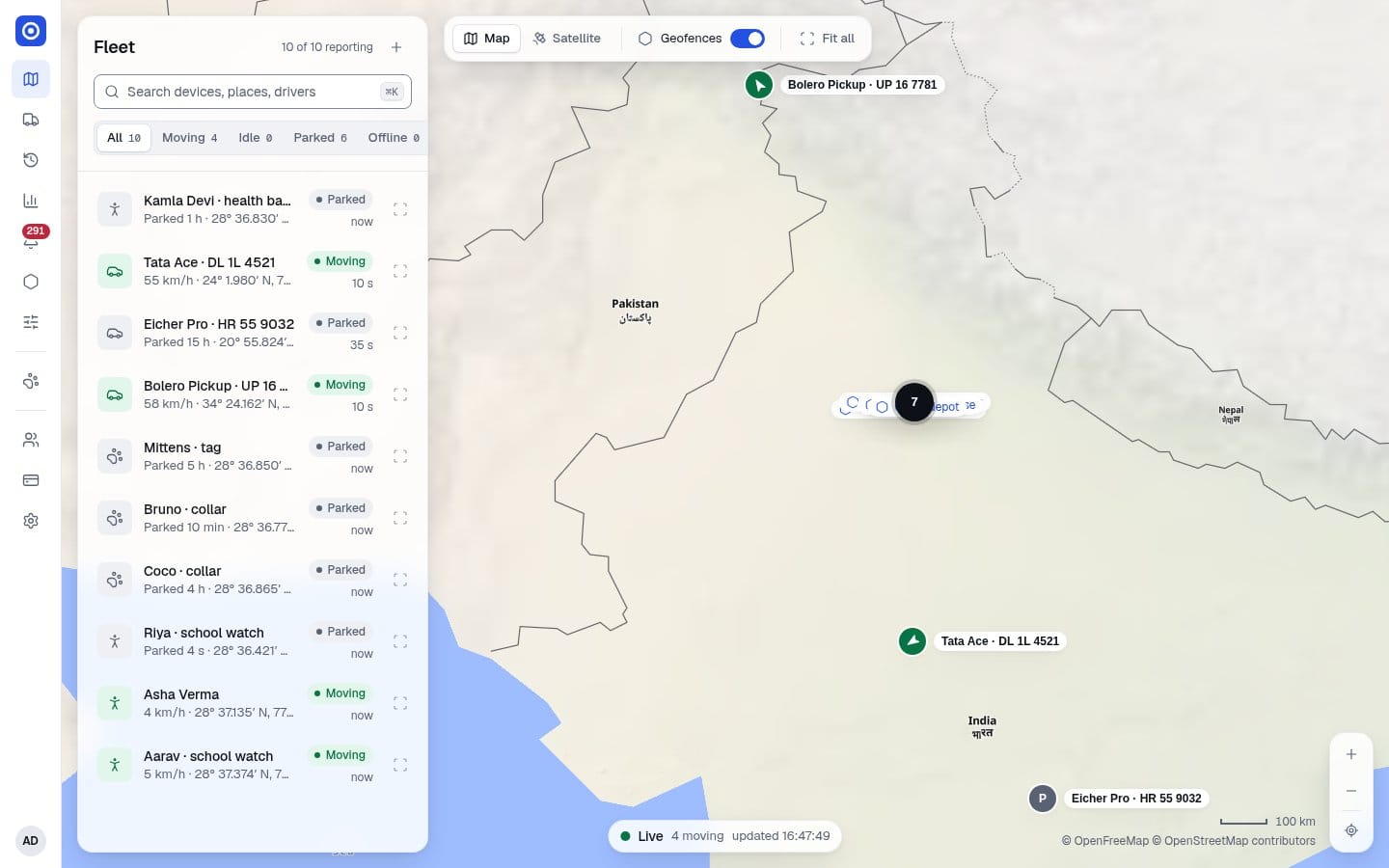
Each vehicle on the live map shows its state on its marker and in the Fleet list, and the chips under Filter by status count how many vehicles are in each:
- Moving: driving now. The list shows its speed and the marker points in the direction of travel.
- Idle: standing with the ignition on, such as waiting at a gate or a loading bay ("Idling 6 min").
- Parked: standing with the ignition off ("Parked 40 min").
- Offline: the tracker is not connected. The marker sits at the last known position, and the list says how long ago that was.
- Unknown: nothing has arrived for a while (10 minutes in a standard setup), common for phones running the app.
For dispatch, the duration matters as much as the state. A van parked for five minutes outside a customer has just arrived; one parked for two hours may have finished and be waiting for its next job, or be at lunch. A vehicle that has been offline for three hours is not a candidate until you know why. Idle needs a tracker that reports the ignition; without it, a standing vehicle always shows Parked. Reading vehicle status on a map explains each state in detail.
Focusing on several vehicles and using clusters in busy areas
When a job comes in, narrow the map first. If your login covers more than your own vehicles, type your group's name into Search above the list: the search matches device names, identifiers, places, drivers and groups, so the list and the map shrink to your group. A status chip narrows further; Parked and Idle together show the vehicles standing still.
Then put the candidates in focus. Each row in the Fleet list has a focus button (Add and the vehicle's name to focus). Select it on the three or four vehicles that could take the job: the map zooms out just enough to fit all of them and follows them as they move, and a bar above the map reads "Focus: 3 devices". Dragging the map pauses the following until you choose Resume; Clear focus ends it. Focusing several devices on the live map covers the details.
Where many vehicles stand close together, at a depot or in a dense city centre, their markers merge into one bubble with a count. Select the bubble or zoom in to split it. Vehicles you have in focus are never merged, so the candidates for a job always keep their own marker and name.
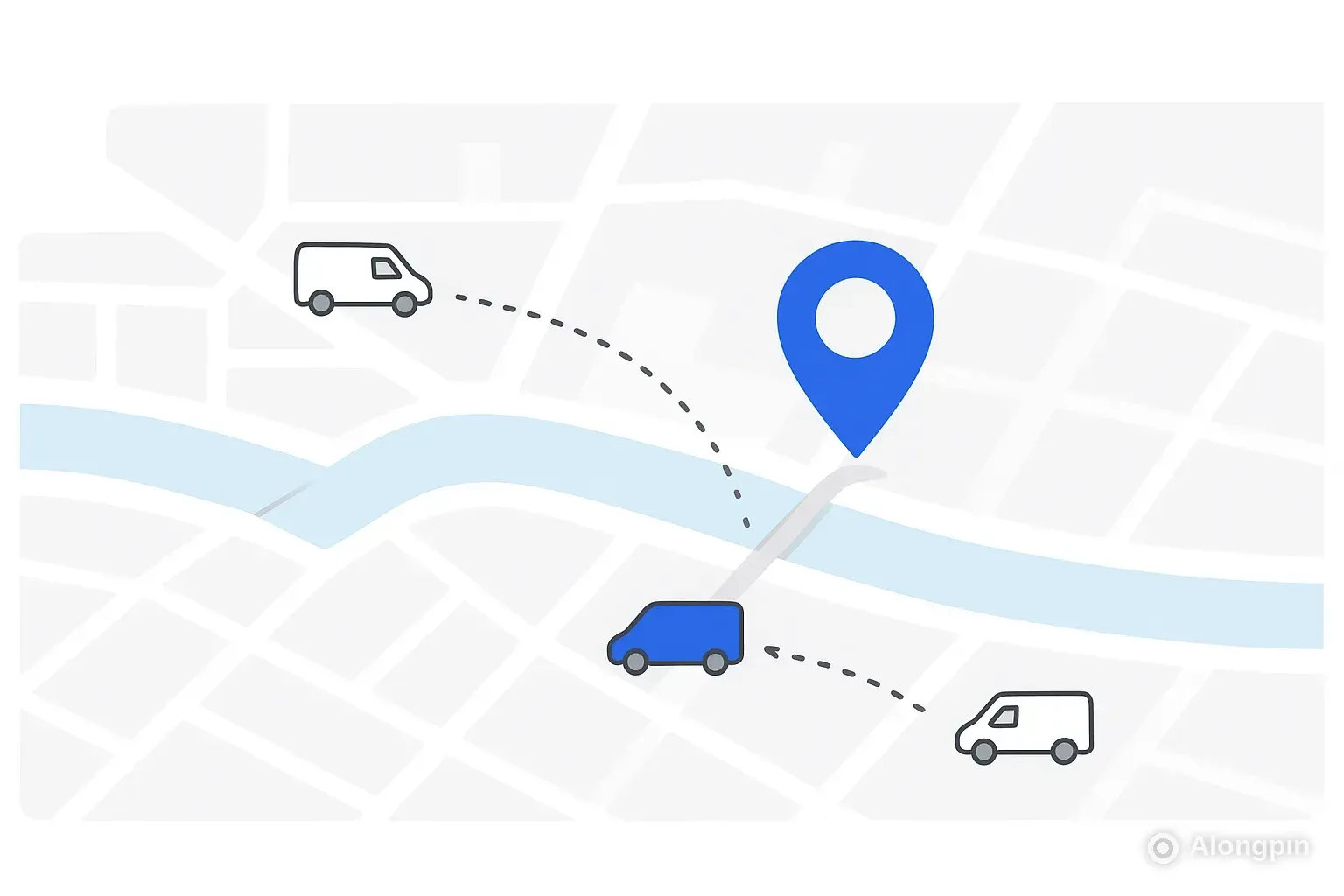
Judging who is nearest and who is free
The map shows straight-line distance. Use it as a first sort, then check the things the map cannot weigh for you:
- The roads. A vehicle 3 km away across a river may be further by road than one 6 km away on the same side. Zoom in on the map to see the route between.
- The direction of travel. A moving vehicle heading towards the job is a better choice than one the same distance away heading out. In the vehicle's panel, switch on Movement line to see where it has come from in the last hour.
- What it is doing. Open the vehicle's panel: its state and how long it has lasted, when it was last updated, and Today so far with its driving time. A van that has driven for seven hours today may not be the one to send.
- How fresh the position is. If updated is long ago, the vehicle may be in a car park or a tunnel. Trust it less.
- The driver. Where your trackers identify drivers, the panel shows who is in the vehicle. Whether they have the skills, the parts or the time for this job is something only you, or they, know.
Once you have chosen, call that driver with the job. If your role allows commands and the tracker supports them, Send command in the panel sends a saved command to the tracker, which some fleets use for messages to a terminal in the cab; what a tracker can receive depends on the model.
What the map does not do
A live map shows where vehicles are. It does not:
- Plan routes or work out the best order of several stops.
- Give arrival times to you or the customer.
- Assign jobs to vehicles, track job status or record that a job was done.
- Know the driver's workload, breaks or the next job they already have.
These stay in your job sheet, your dispatch software or your head. What the map removes is the guesswork about positions and states, which is the part that phone calls were used for. For what happened after the job, the trip of that vehicle can be replayed from the panel with Replay today.
Screens and roles for the dispatch desk
A dispatcher keeps the live map open all day, so set it up once:
- A large screen with the map in a browser. The focus and the movement lines are part of the page address, so a bookmark brings back the same view after a restart. A second browser window can hold a different group or the Alerts page, where alarms and geofence events arrive as they happen.
- A wide window. At phone width the live map has no focus feature; on a phone, use the app for a quick look.
- A login of their own. Each dispatcher signs in as themselves, so acknowledged alarms show who took them.
The dispatcher's access comes from a role. A role is a set of rights given for a scope; for a dispatcher that is usually reading devices, positions and events for the group of their depot, with commands only if they need them. Vehicles added to the group later are covered automatically. See how to give a dispatcher read-only access to one depot and the users and roles page for the scopes.
Getting started
Pick one busy morning and run dispatch from the map alongside your usual calls. Note how many calls you still needed and why: a missing ignition wire, a vehicle that is often offline, a driver not yet in the system. Those are the gaps to fix before the map becomes the first place you look. A dispatcher's first day is laid out step by step in a dispatcher's first day on the live map, and the fleet solution page shows how the map fits with alerts and reports.
How Alongpin helps
Alongpin (alongpin.com) is a GPS tracking platform you open in a browser or on your phone. Your trackers, in the vans, trucks and cars you already run, show on one live map with trips, stops, idle time and alerts; reports and scheduled reports answer the questions this article raises, and users and roles let each depot see its own vehicles. Check your trackers in the device check, read how it works for fleets, and start on the pricing page.
Frequently asked questions
Can the map tell me the nearest vehicle to an address automatically?
No. You judge it on the map: zoom to the job's area, narrow the list, and compare the vehicles around it.
Does a dispatcher see every vehicle?
Only the vehicles their role or sharing covers. A role scoped to a group shows that group's vehicles and nothing else.
How fresh are the positions?
As fresh as the tracker's reporting interval: every few seconds to every minute or so while moving on most vehicle trackers, as each is set up. The panel shows when each vehicle last reported.