Live map and trips
Focusing several devices on the live map
How to pick one device so the live map follows it, add more so the map keeps all of them in view, and clear the focus again. For dispatchers watching a few vehicles out of many.
Ashish Srivastava3 min read

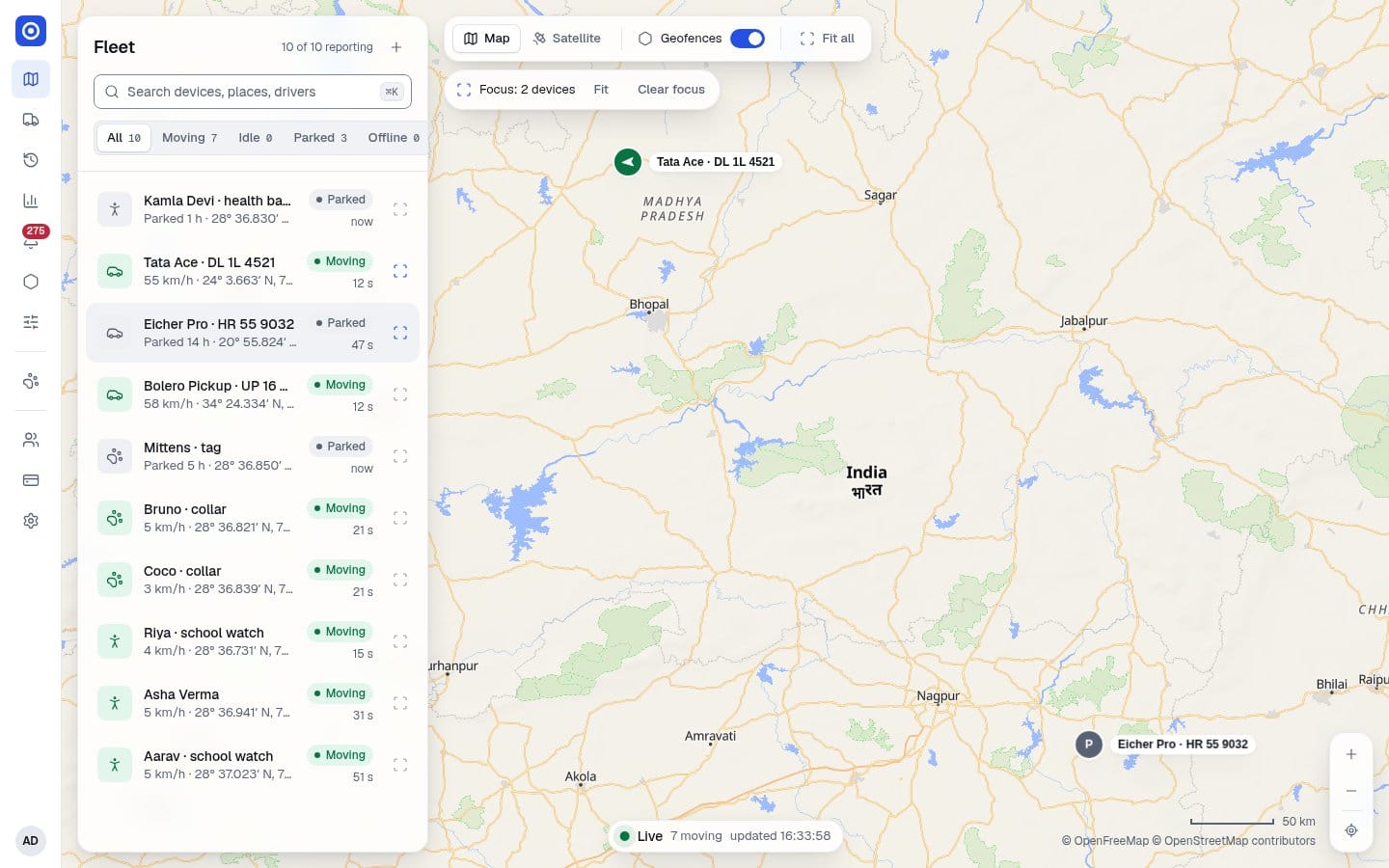
To follow multiple vehicles on the map, pick one device in the fleet list of the live map, then add others with the focus button on their rows. The map zooms to the first device and, as you add more, zooms out just enough to keep all of them in view. While they move, it adjusts only when one of them is about to leave the screen.
Key takeaways
- Picking a device puts it in focus: the map centres on it at street level.
- Add to focus on other rows keeps several devices in view together.
- The map moves again only when a focused device nears the edge; dragging the map pauses it until Resume.
- Clear focus ends it; focused devices never disappear into a count bubble.
Pick one device: the map zooms to it
On the live map, select a device in the Fleet list on the left, or its marker on the map. The map centres on it at street level (or stays closer, if you had zoomed in further), and its panel opens with today's figures. A bar at the top of the map says Focus: and the device's name.
As the vehicle moves, the map does not jump with every report. It moves only when the vehicle is about to leave the visible part of the map, so you can read street names and nearby places without the map sliding under you.
Add more from the list
Each row in the Fleet list has a focus button. Its label is Add and the device's name to focus. Select it on each vehicle you want to watch together, such as the three vans on today's north route or the two technicians heading to the same site.
The map zooms out just far enough to fit every focused device, leaving room for the list and the panel, and the bar now reads Focus: 3 devices. When one of them nears the edge, the map fits them all again.
Moving the map yourself
If you drag the map to look somewhere else, the camera waits: the bar says Paused while you move the map. Select Resume to bring the focused devices back into view and let the map follow them again. Fit fits them at once, for example after you zoomed in on one of them.
Focused devices keep their own markers
Where many devices are close together, the map groups their markers into a bubble with a count, which you zoom into to see them. Focused devices are never grouped: each keeps its own marker with its name, even in a busy depot or city centre. The same goes for the device whose panel is open.
Remove one or clear the focus
- Remove one: select the same button on its row again; its label now reads Remove and the device's name from focus.
- Clear everything: select Clear focus in the bar at the top of the map. The map stays where it is and stops following.
To see every device again, Fit all in the map tools fits the whole fleet.
Good to know
- The focus is part of the page's address, so a reload or a bookmark brings back the same devices in focus.
- The search and the status chips above the list narrow which devices the list and the map show.
- At phone width the live map has no focus; use a wider window or a tablet held sideways, or the app.
When focus helps
Focus suits a dispatcher who keeps the whole fleet on the map but works on a few vehicles at a time: the crews on one job in field service, the vehicles on today's long-distance runs, or a van and the technician meeting it. For managing larger sets for good, groups and filters in fleet tracking are the better tool.
To see where a focused vehicle has just been, switch on its movement line in the panel.
Frequently asked questions
How many devices can I focus on?
There is no fixed number. With devices far apart the map has to zoom out a long way, so a handful that work in the same area gives the most useful view.
Does focus change what colleagues see?
No. Focus is your own view in your own browser window.