Live map and trips
Exporting a trip as CSV, GPX or KML
How to download the track of one or several devices for a period as CSV, GPX, KML or KMZ, what each file contains, how private trips appear, and when a report download is the better choice.
Ashish Srivastava4 min read

To export a GPS track to GPX, KML or CSV, open the Route report, choose Export positions, pick the devices and the period, choose the format and select Download. For a single vehicle there is a shorter way: the Replay page has a File format choice and Download track for the device and period you are replaying. GPX and KML open in map and GPS tools; CSV opens in a spreadsheet.
Key takeaways
- Export positions downloads the tracks of one or many devices (up to 1,000) for any period, as CSV, GPX, KML or KMZ.
- Download track on the Replay page saves the track you are looking at, for one device.
- CSV holds every position with its times, place, speed and sensor values; GPX and KML hold the line of the route.
- Private trips are exported only as they were stored: blurred, without a location, or not at all.
- For trips, stops or summaries as tables, download a report instead.
Export one or several devices
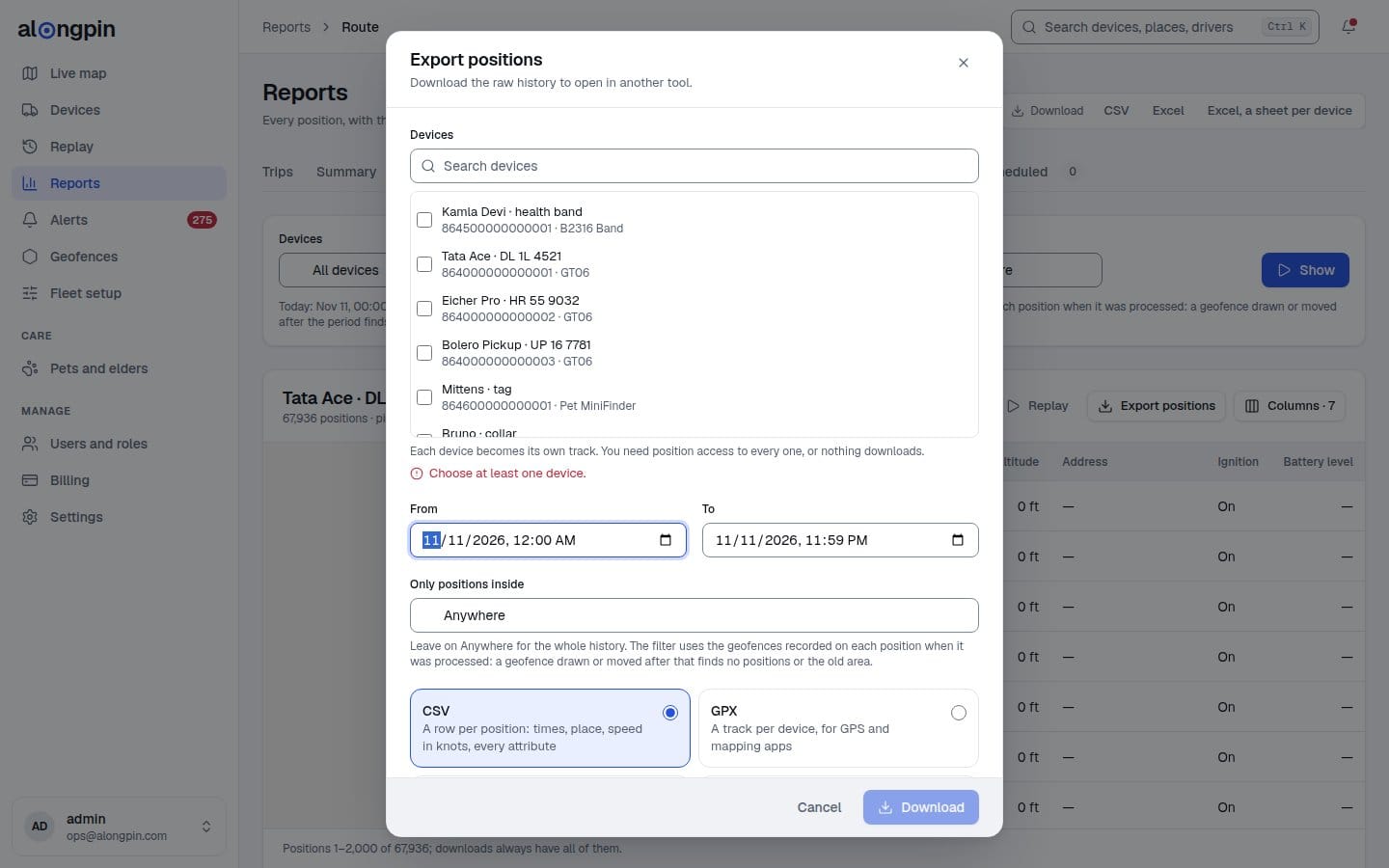
- Select Reports in the menu and open the Route tab.
- Select Export positions. A dialog opens.
- Under Devices, choose one or more devices. Each device becomes its own track in the file.
- Set From and To.
- Optionally, under Only positions inside, choose a geofence to export only what was recorded inside it; leave it on Anywhere for the whole history.
- Choose the Format and select Download.
Before you download, the dialog counts the positions of the period, so you know what to expect from a long one. If the devices have no positions in the period, it says so and there is nothing to download. You need access to the positions of every device you choose; if one is missing, nothing downloads.
Download the track from a replay
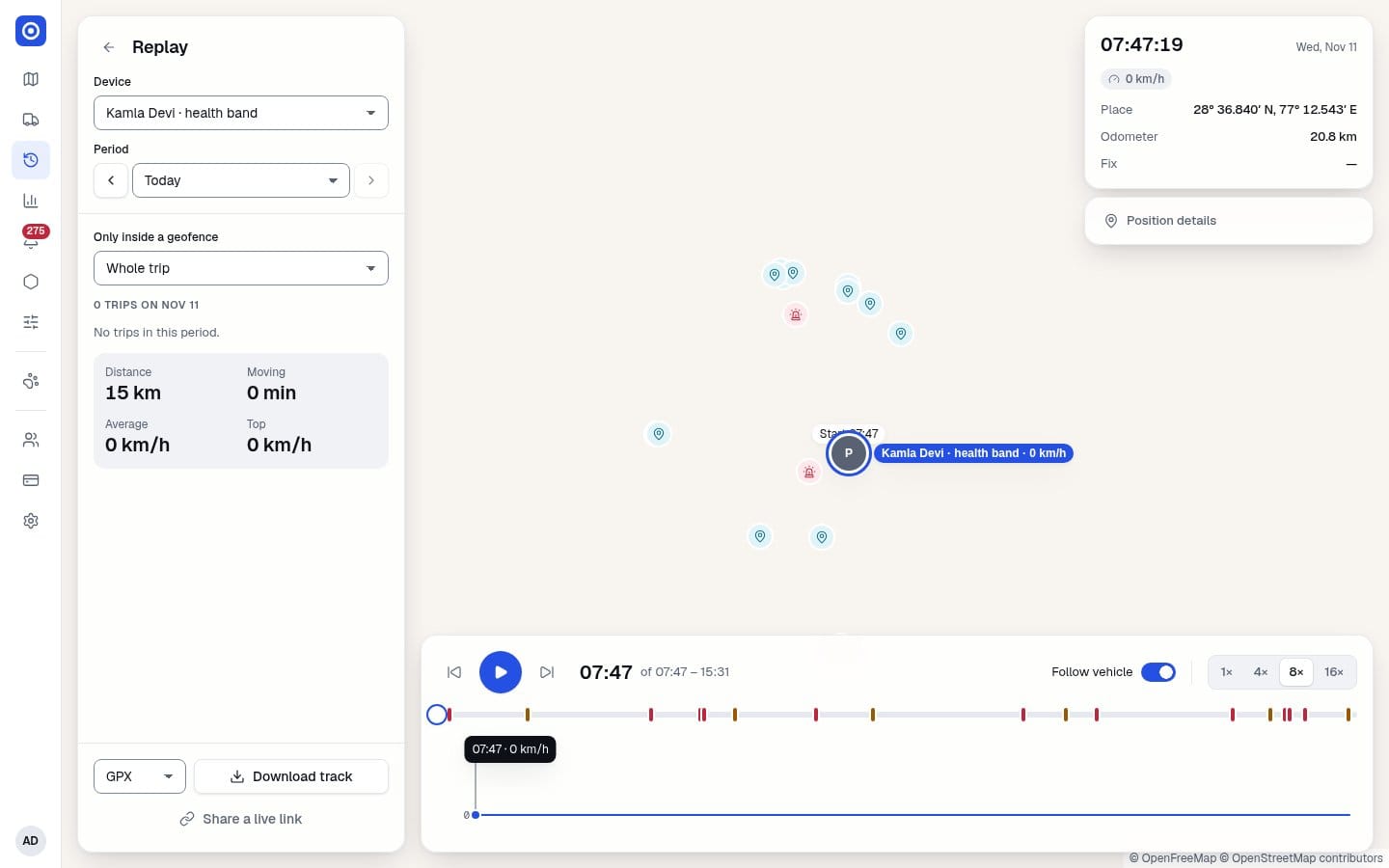
When you are already replaying a trip, you do not need the dialog. In the Replay panel, choose the File format (GPX, KML, KMZ or CSV) and select Download track. The file holds the device and period on screen, or only the selected trip, and respects the Only inside a geofence choice.
Which format to choose
| Format | Good for | What it contains |
|---|---|---|
| CSV | Spreadsheets, your own analysis, importing into another system | One row per position: device, fix time, device time, time received, valid fix, latitude, longitude, altitude, speed, course, accuracy, address, then a column for each sensor value the device sent |
| GPX | GPS and mapping apps, cycling and hiking tools | A track per device with each point's position, altitude and time |
| KML | Google Earth and GIS tools | A line per device along the route |
| KMZ | The same as KML, zipped | A smaller file for large periods |
A few details help when you open the files:
- In the CSV, speed is in knots (multiply by 1.852 for km/h). Times carry the time zone the portal shows you, so they match what you see on screen. GPX times are always in UTC, as the format requires.
- The CSV's sensor columns depend on the tracker: one may report battery and ignition, another fuel, temperature or a driver identifier.
- Text that a spreadsheet could read as a formula is written with a leading apostrophe, so opening the file never runs anything.
Private trips in the export
Where driver privacy is set up, private trips are exported as they were stored, never more precisely. Depending on the private mode, that is a location blurred to about a kilometre without an address, a row without a location (only distance and odometer), or nothing between the start and the end of the trip. There is no way to export the actual route of a private trip.
When a report is the better download
The export gives you raw positions. If what you need is a list of trips with start, end, distance and driver, the stops of the day, or totals per vehicle, download the report itself from Reports as Excel or CSV, or have it emailed on a schedule. See reports for what each report holds, and trip history for how long positions are kept.
If you want tracks in another system automatically rather than by hand, the same exports are available over the API.
Frequently asked questions
Can I export several vehicles into one file?
Yes, with Export positions: choose up to 1,000 devices and each becomes its own track in the file.
Why is the export missing older days?
Either the device's plan keeps history only for a limited time, or your administrator has set how long positions are kept. Positions older than that are no longer stored.
Why can't I see the export at all?
Exports belong to the reports. If reports are turned off for your account, ask whoever manages users to give you access.