Billing and account
Moving a subscription to a replacement tracker
Replacing a tracker without paying twice: add the new tracker as a device, move the subscription to it and keep the period you paid for. What happens when you delete a device, and how to keep the old tracker's history.
Ashish Srivastava3 min read
To replace a GPS tracker and keep the subscription, add the new tracker as a device, then open the old device's subscription under Billing and select Move to another device. The subscription, with the period you paid for, moves to the new tracker at once; the old device stays in your list with its history. Deleting the old device instead cancels its subscription for the end of the period.
Key takeaways
- Add the new tracker first, under Devices, with its own identifier (IMEI).
- Move to another device on the subscription keeps the paid period: "For a replaced tracker; the period stays."
- Deleting a device stops its subscription from renewing; adding the same tracker back before the period ends keeps it going.
- Keep the old device, or disable it, if you want its trips and history.
Step 1: Add the new tracker as a device
Fit and configure the replacement tracker as for any new device; the setup guides cover each kind of tracker. Then, in the portal:
- Open Devices in the menu and select Add a device.
- Give it a name, for example the vehicle's name with "new", and enter its Identifier (IMEI) exactly as the tracker reports it.
- Save. The device appears in your list and shows its first position once the tracker reports.
Not sure the new model will work? Check it on the devices page before you buy.
Step 2: Move the subscription to it
- Open Billing in the menu. On Subscriptions, open the subscription of the old tracker.
- Under What you can do, find Move to another device.
- Under Device to move to, choose the new tracker.
- Select Move. The portal confirms: "The subscription moved to new device".

The period, the next invoice and the package stay as they were; nothing is charged. From now on the new device works and the old one is no longer covered. You can move a subscription while it is paused or while a payment is due, too.
The list of devices to move to holds only devices you own that do not already have a running device subscription. If the new tracker is not offered, check that you added it under your own account and that you have not already subscribed it.
On a whole-account package there is nothing to move: every device you own is covered, up to the package's device limit. If the new tracker would go beyond the limit, delete or give up the old device first.
Deleting a device stops renewal
If you delete the old device instead, its subscription is cancelled for the end of the period, and you are told. The delete dialog says so before you confirm: "Its plan is cancelled for the end of the period … Adding the same tracker again before then keeps it running."
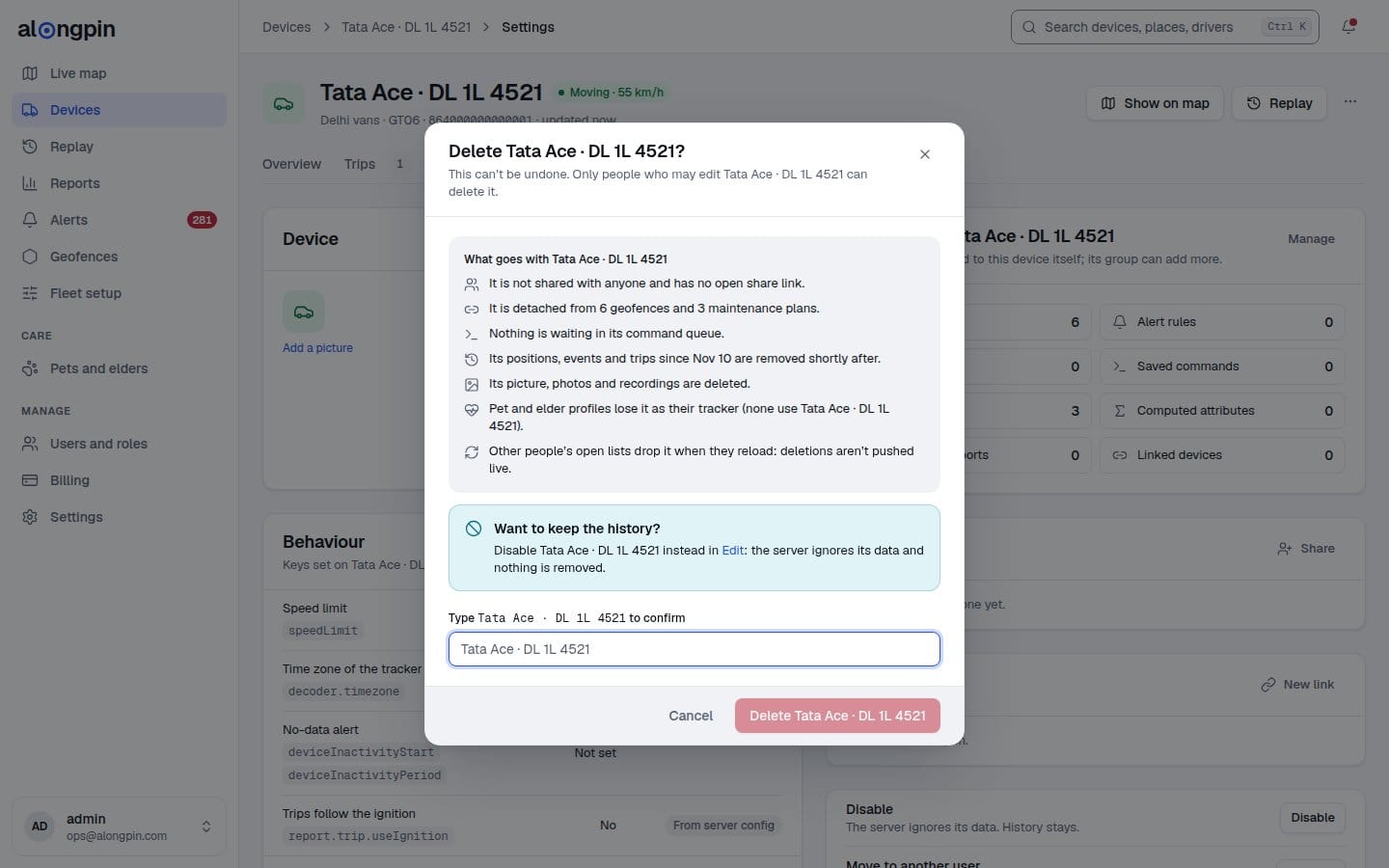
So if you deleted a device by mistake, or the old tracker comes back from repair:
- Add the same tracker back (the same identifier) before the period ends, and its subscription keeps going; or
- Move the subscription to another device before the period ends.
This works for subscriptions paid by bank transfer or card through Stripe, where a cancellation can be taken back. After the period has ended, subscribe the device again.
History of the old device
A device's trips, positions and events belong to that device. Deleting it removes them shortly after, with its photos and recordings, and that cannot be undone. To keep the old tracker's history for reports and replay:
- Keep the old device after moving the subscription. It is no longer covered, so the server ignores anything it still sends, and its history stays.
- Or disable it in the device's settings: the server ignores its data and nothing is removed. The delete dialog offers this as "Want to keep the history?".
Another way, if you want one device with one continuous history: edit the old device and change its Identifier (IMEI) to the new tracker's. The device, its subscription and its history then carry on with the new hardware, and nothing needs to move. Only someone who may edit the device can do this.
Frequently asked questions
Who can move a subscription?
The person who subscribed, and administrators or billing staff. A manager of the subscriber, or a read-only account, can only look.
Can I move a subscription to someone else's device?
No. It moves only to devices you own. To hand a vehicle and its tracker to another user, ask an administrator to transfer the device.
Compare packages on the pricing page.