Kids and family safety
Safe zones for the school run: arrival and leaving messages
A safe zone around school and home turns into a short message when your child arrives or leaves. How to draw the zones, set the rule, keep it to school days, size the zone for indoor accuracy and decide who else gets the message.
Ashish Srivastava6 min read
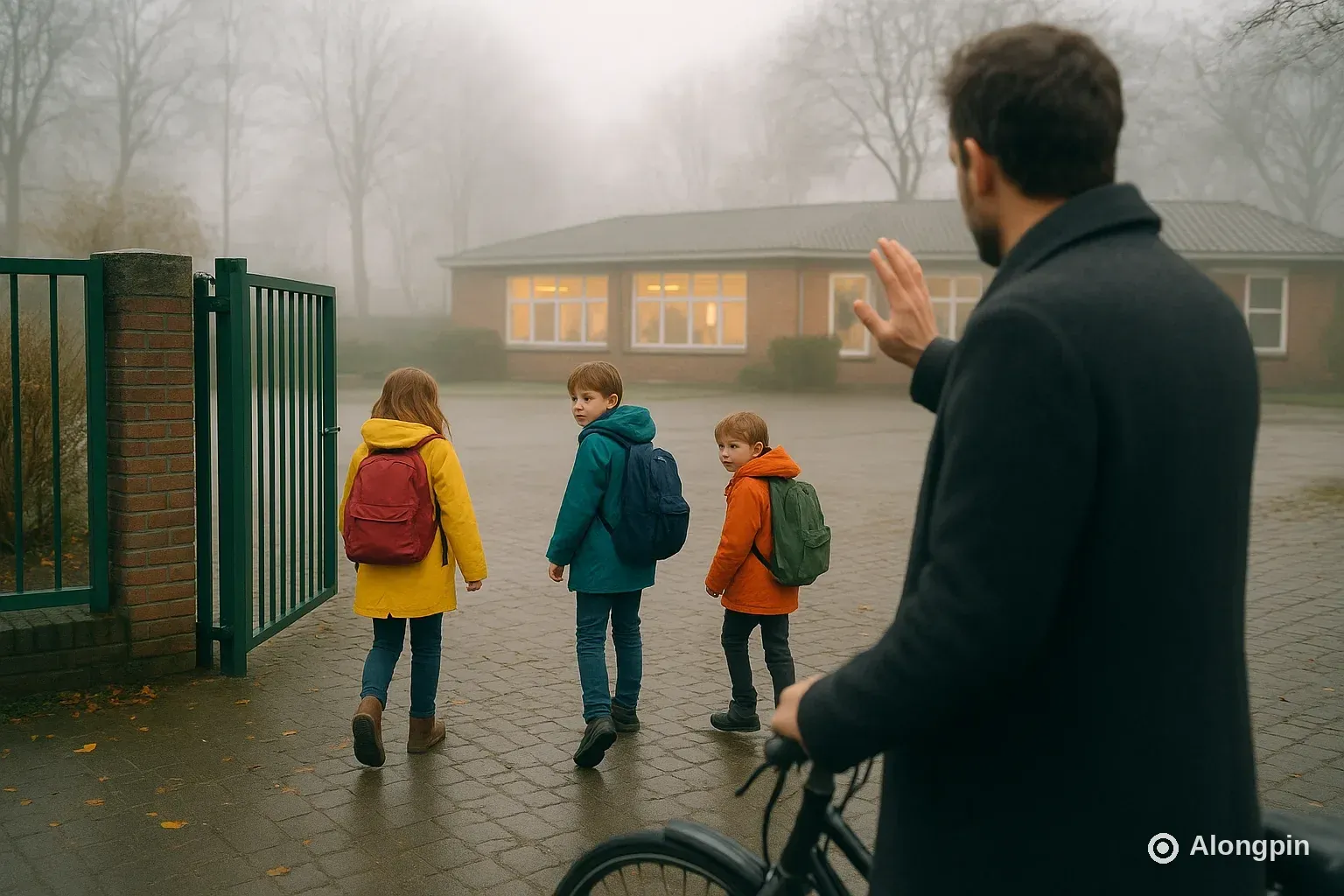
A school arrival alert from a GPS watch is a short message that reaches your phone when your child's watch enters the school zone, and another when it leaves. You set it up once: draw a safe zone around school, home and perhaps a grandparent's house, attach the zones to the watch, and create an alert rule for entering and leaving those zones, limited to school days with a calendar. After that you no longer need to open the map at ten to nine to see whether they made it. The message comes to you, and to the other parent or a grandparent if you add them.
Key takeaways
- Draw a zone for each place that matters: home, school, a grandparent's house. Attach every zone to the watch.
- One rule for Geofence enter and one for Geofence exit, each limited to the zones you care about.
- A calendar under Only during keeps the messages to school days and hours.
- Draw the school zone generously: indoors, watch positions are less exact.
- Anyone who should hear about it needs a user in your account, the watch shared with them and a place in the rule.
Why a message beats checking the map
Watching a dot cross town every morning wears parents out, and it is easy to miss the moment anyway. A rule turns the questions you actually have into messages: "Has she arrived?" becomes Arrived at school; "Has he set off?" becomes Left home. On the mornings nothing unusual happens, you get the two messages you expect and get on with your day. On the morning a message does not come, you know to look.
1. Draw zones for home, school and a grandparent's house
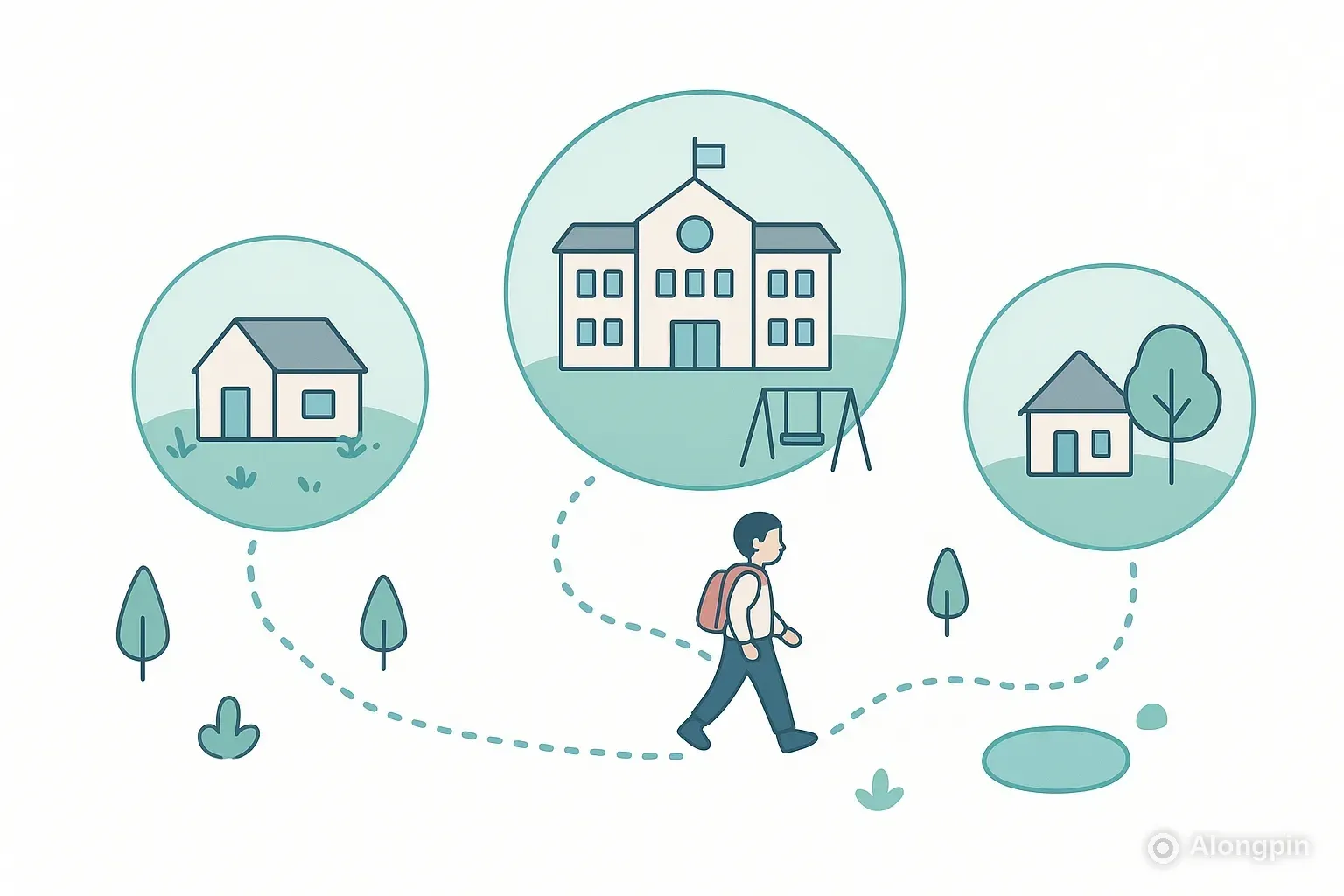
Open Geofences, choose New and pick the Circle tool. Click the middle of your home, then click again a little beyond the building's entrance. Name it "Home" and save. For a flat in a large building, make the circle cover the whole building and its entrance.
Do the same for the school, centred on the grounds and covering the gates, the playground and the buildings. Add one for any other place your child goes regularly: a grandparent's house, a sports club, a childminder.
If you want to know when your child leaves the usual way to school, a Route zone along the path does that. The step-by-step guide to safe zones for home, school and the way between covers the route corridor too.
2. Attach the zones to the watch
A zone works only for the devices it is attached to. Open each zone, and under Attached to choose Attach or detach and pick the watch. With two children, attach the zones to both watches, or put the watches in one group and attach the group. The geofences page explains shapes, sizes and attaching.
3. Create a rule that sends a message on entering or leaving
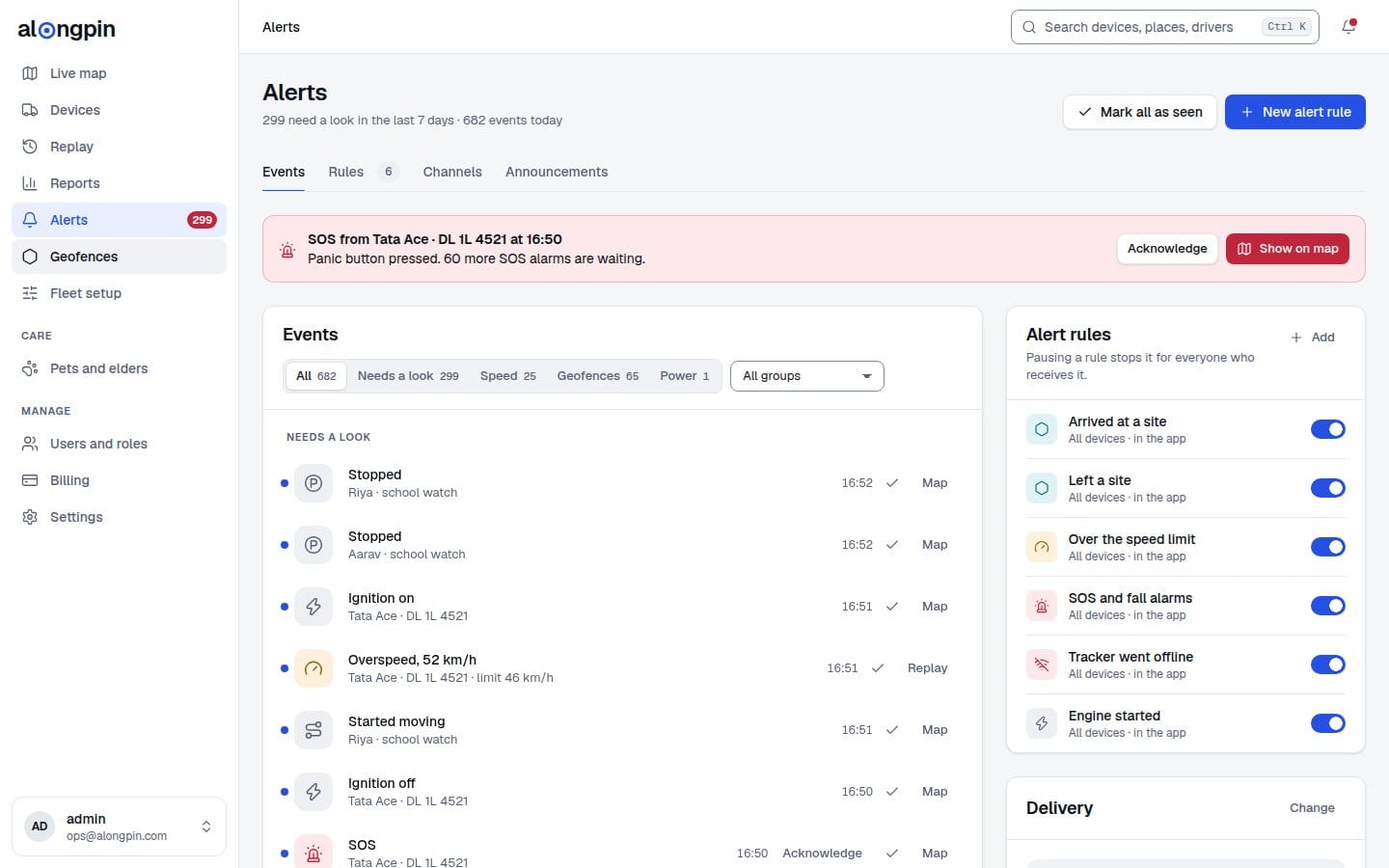
Open Alerts, go to the rules and choose New alert rule:
- Arrived at school: under When this happens, choose Geofence enter, and under Only these geofences tick the school.
- Left school: Geofence exit, with the school ticked.
- Left home and Back home: an exit and an enter rule for "Home", if you want those too.
You can tick several zones in one rule, for example one Geofence enter rule for school and the grandparent's house. The message names the zone, so you still know which one.
Under Tell people by, choose how the message reaches you: push to your phone, email, a text message or Telegram, depending on what your service has switched on. Choose Create rule, then under Devices and people pick the watch and the people who receive it. The alerts page lists every event and channel.
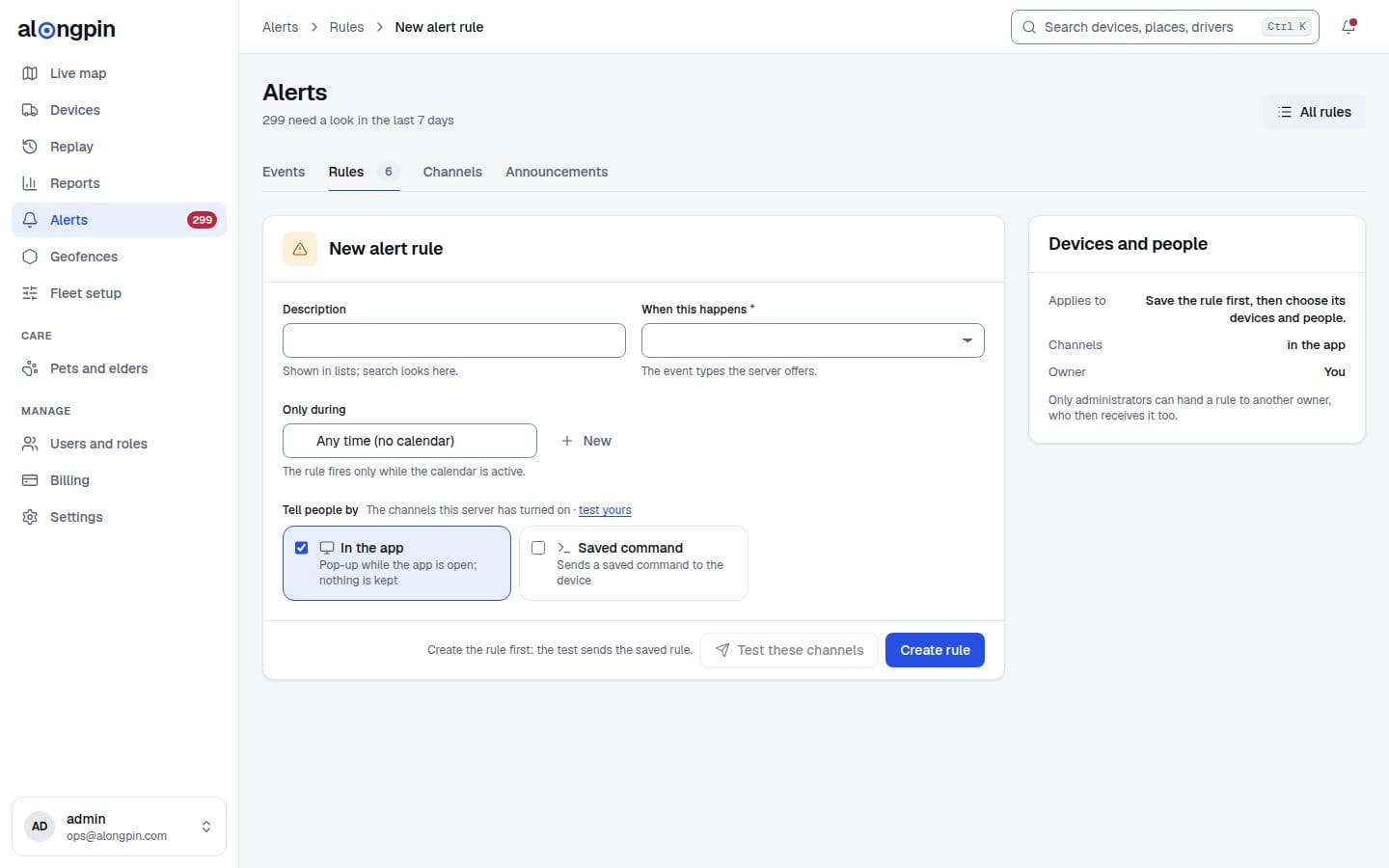
Before you rely on it, use Test these channels in the rule: it sends a test message on each channel you ticked, so you know the messages reach your phone. It does not move the watch or create a real event.
4. School days only: add a schedule
Without a schedule, the rule also fires on Saturday at the park next to the school and every evening when your child comes home from a friend's. A calendar fixes that.
- Open Fleet setup → Calendars and choose New calendar.
- Make a schedule for school days, for example Monday to Friday, 07:30 to 09:00 and 14:30 to 16:30.
- Save it, open the rule and choose the calendar under Only during.
The rule then fires only while the calendar is active. Outside those times it sends nothing. A simple weekly schedule does not know your school holidays: switch the rule off for the holidays, or build the calendar from an iCalendar file that leaves them out. Putting an alert rule on a schedule explains calendars in more detail.
Zone size and indoor accuracy
This is the part most parents get wrong at first. Outdoors with a satellite fix, a watch's position is usually close. Inside a school building, many watches cannot see the satellites and fall back to an estimate from mobile cells or Wi-Fi, which can be a street or more off. A school zone drawn tightly around the building will then report your child leaving school during maths, and arriving again ten minutes later.
Three habits help:
- Draw the school zone generously, covering the grounds and a margin around them.
- Draw home generously too, especially in a block of flats.
- Replay the first school day. Open Replay, pick the watch and the day, and look at where the positions fall during lessons. If they jump outside the zone, make the zone larger.
The watches page explains what different watches report and how they locate themselves indoors.
Who else gets the message
Arrival messages are often most useful to someone other than you: the parent who does the morning run, or a grandparent who collects on Wednesdays.
- Give them a user in your account, if your account can add users, and share the watch with them. They see it on their own map, read-only.
- Add them to the rule under Devices and people, and they receive the message on the channels the rule uses.
- For a one-off, such as a babysitter for a week, a share link to the watch with an end date is simpler than an account; it shows the map but sends no messages.
Agree who acts on what. If a message does not come, who calls the school? Two parents who both assume the other has it covered is the gap a rule cannot close.
When a message does not come
A missing arrival message has three usual causes:
- The watch was flat, off or out of signal. No positions, no events. An alert rule for the watch's Low battery alarm, where the watch reports it, helps you charge it in time.
- The rule's calendar was not active, for example on an inset day you forgot to add.
- The positions never fell inside the zone, because the zone is too small for the watch's indoor accuracy.
Look at the day's replay first: it shows at once which of the three it was.
Talk to your child about it
Tell your child that you get a message when they arrive at school and when they leave, and that this is all the zone does. Children who know about the zones are less surprised by a call when they take a detour to a friend's house, and more likely to keep the watch charged. The personal safety page has more on keeping it respectful.
How Alongpin helps
Alongpin (alongpin.com) is a GPS tracking platform you open in a browser or on your phone. A child's GPS watch or a teenager's phone shows on your family's map, geofences around home and school tell you about arrivals, and the SOS button reaches the people you choose. See how it works for family safety, check a watch in the device check, and read how Alongpin treats privacy.
Frequently asked questions
Can I get the message only when my child is late?
Not directly. A rule reacts to entering or leaving a zone. With a calendar limited to the arrival window, the message you expect comes in that window; if it does not, you know to check.
Do zone alerts drain the watch battery?
No. Zones are checked by the platform from the positions the watch already sends.
Can the grandparents get the message without an account?
Messages go to people in the rule, who need a user in your account. A share link lets someone watch the map without an account, but it does not send messages.