Kids and family safety
GPS watches for children who need extra support
A GPS watch can give early warning when a child with additional needs leaves home or school. How to choose for comfort, set leaving and low battery alerts, involve school and carers, and what a tracker cannot do.
Ashish Srivastava7 min read
A GPS tracker for a child with special needs is most useful as an early warning: a watch or small tracker the child will actually keep on, a zone around home and school that tells you within minutes when they leave it, and an alert before the battery runs out. It does not stop a child from leaving, and it does not replace the locked gate, the staff at the school door or the plan you already have. This guide is for parents and carers of children with additional needs, including autistic children, who sometimes leave a safe place without warning. It starts with the child, because a device that ends up in a drawer protects nobody.
Key takeaways
- Choose the device for the child's comfort first: weight, strap, texture, sounds and screen.
- Draw a zone around home and one around school, and add a Geofence exit alert for each.
- Turn on a low battery alert, so the watch is still on when it matters.
- Give the teaching assistant or carer a view of the watch, read-only, for as long as they need it.
- A tracker tells you where the child was a moment ago. Keep the safeguards you already rely on.
Start with the child's comfort and sensory needs
Many children with additional needs are sensitive to what they wear. A watch that is too heavy, a strap that itches, a buckle that pinches or a screen that lights up and buzzes can be pulled off within the hour. Before you look at features, look at the child:
- Weight and size. A light watch with a smaller face is easier to forget about. Children's GPS watches vary a lot here.
- The strap. Soft silicone suits some children; fabric hook-and-loop straps suit others. A strap the child cannot open alone may stop them taking it off, but check it is safe and comfortable for long wear.
- Sounds and vibration. Many watches ring, buzz or play messages. Where the model allows it, switch these off or set quiet hours for the school day. Some watches on the watch protocol take a Set quiet hours command from the portal; others are set in their own app.
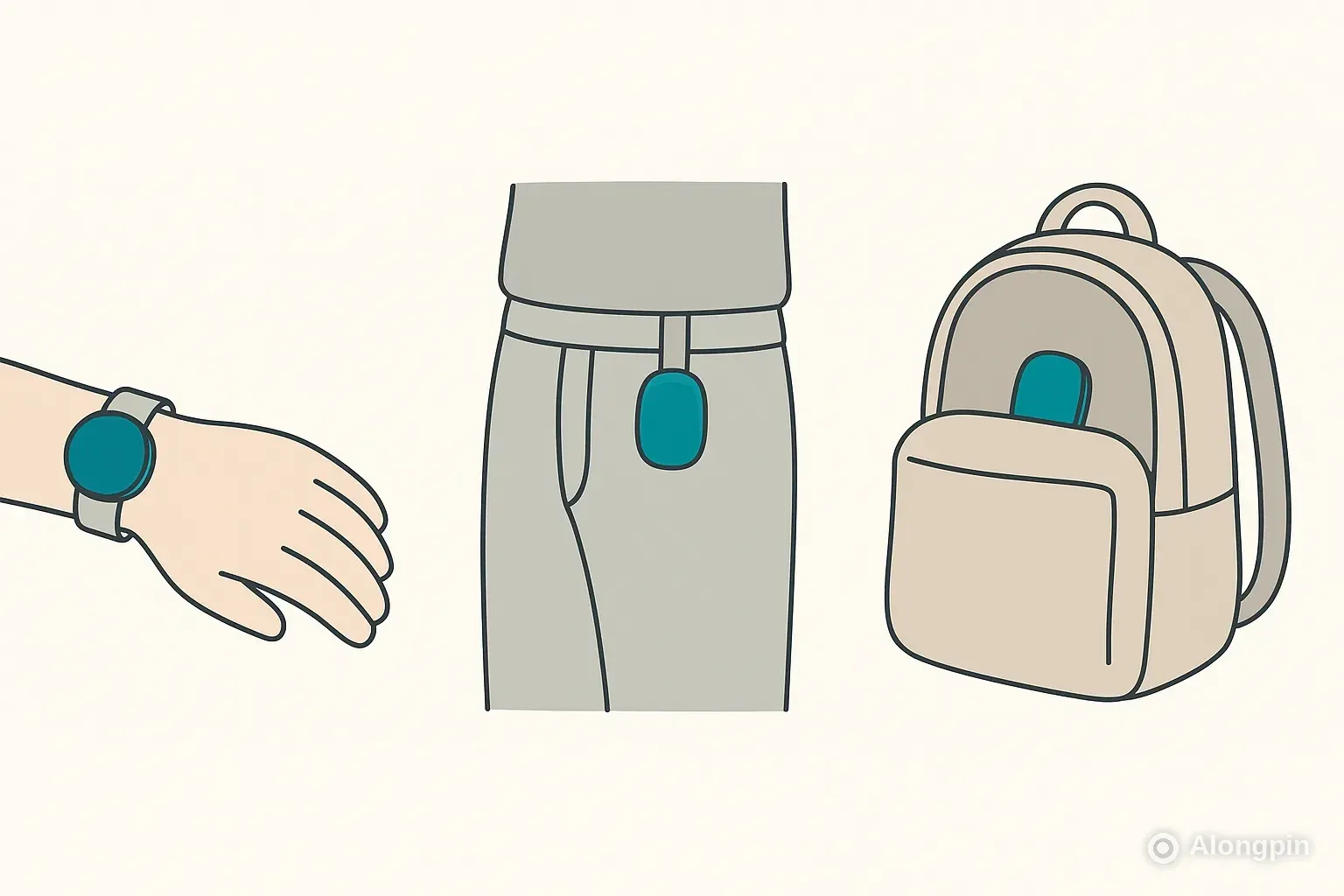
- Where it is worn. If a wrist does not work, a small tracker on a belt loop, in a jacket pocket or clipped inside a bag can still report position. It is easier to lose, so it needs a fixed place.
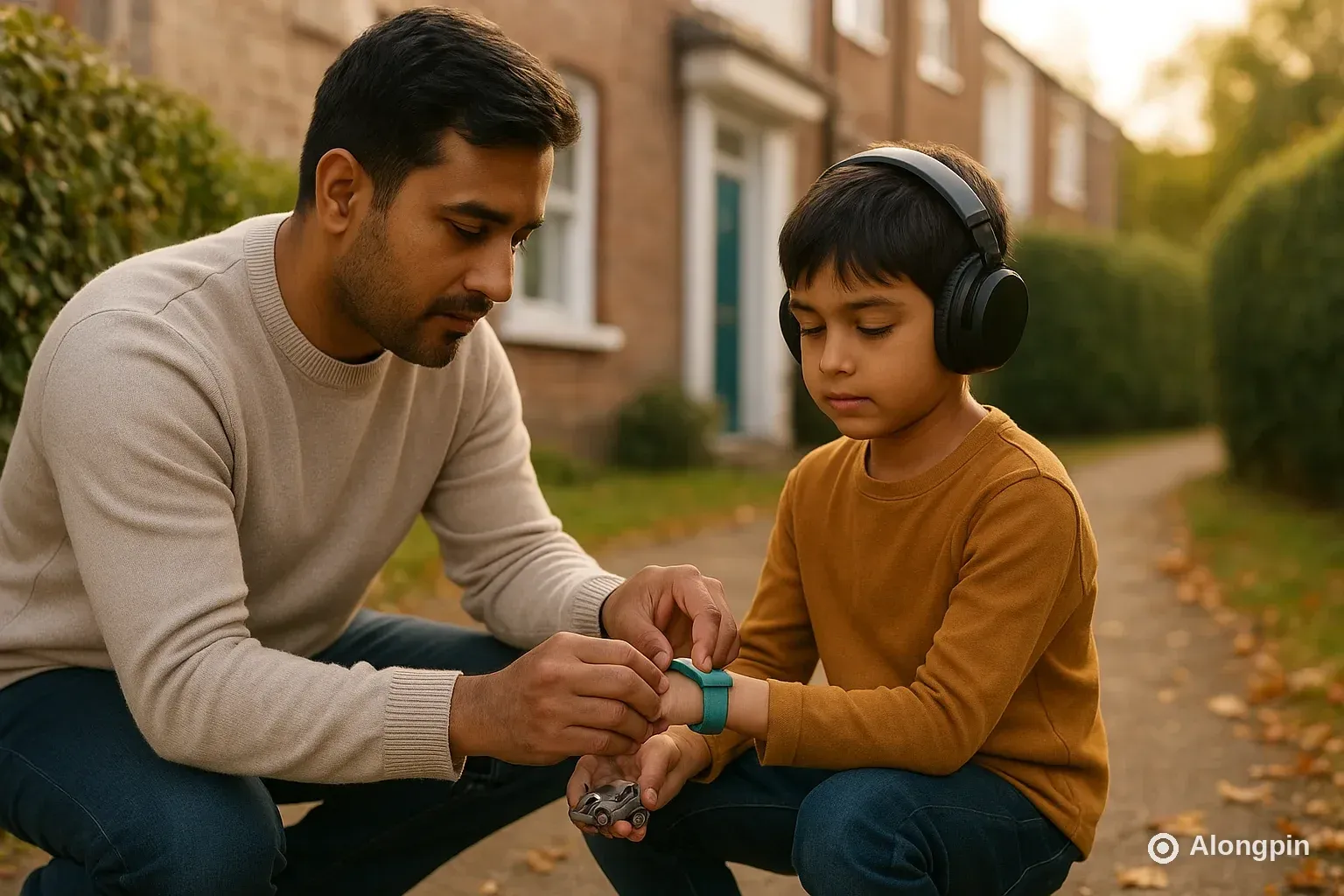
Introduce the device slowly, as you would any new piece of clothing. Wear it for short spells at home first, with something the child enjoys, and lengthen the time over a week or two. The watches and personal alarms page explains what these devices report, and the device check tells you whether a model's protocol is decoded before you buy it.
Zones around home and school with leaving alerts
A zone, or geofence, is an area you draw on the map. Draw a circle around home and one around the school grounds, attach both to the watch, and create an alert rule for Geofence exit limited to those zones. When the watch reports a position outside the zone after one inside, you get a message on the channels you chose: push to your phone, email, a text message or Telegram, depending on what the service has switched on.
Some points make leaving alerts calmer and more reliable:
- Make the zones generous. Indoors, many watches fall back to positions from mobile cells or Wi-Fi, which can be a street or more off. A tight zone around a classroom raises false alerts all day. Cover the whole grounds and the gates.
- Match the zone to the risk. If the worry is the front door at home, the home zone can be the house and garden. If the worry is the school gate, cover the playground and the entrance.
- Add a calendar where it helps. A zone can carry a calendar, so it raises events only on school days between drop-off and pick-up. Outside those hours, a trip to the park raises nothing.
- Know the delay. An alert comes after the watch reports a position outside the zone. A watch that reports every minute tells you sooner than one that reports every ten. More frequent reports cost battery, so find the balance for your child.
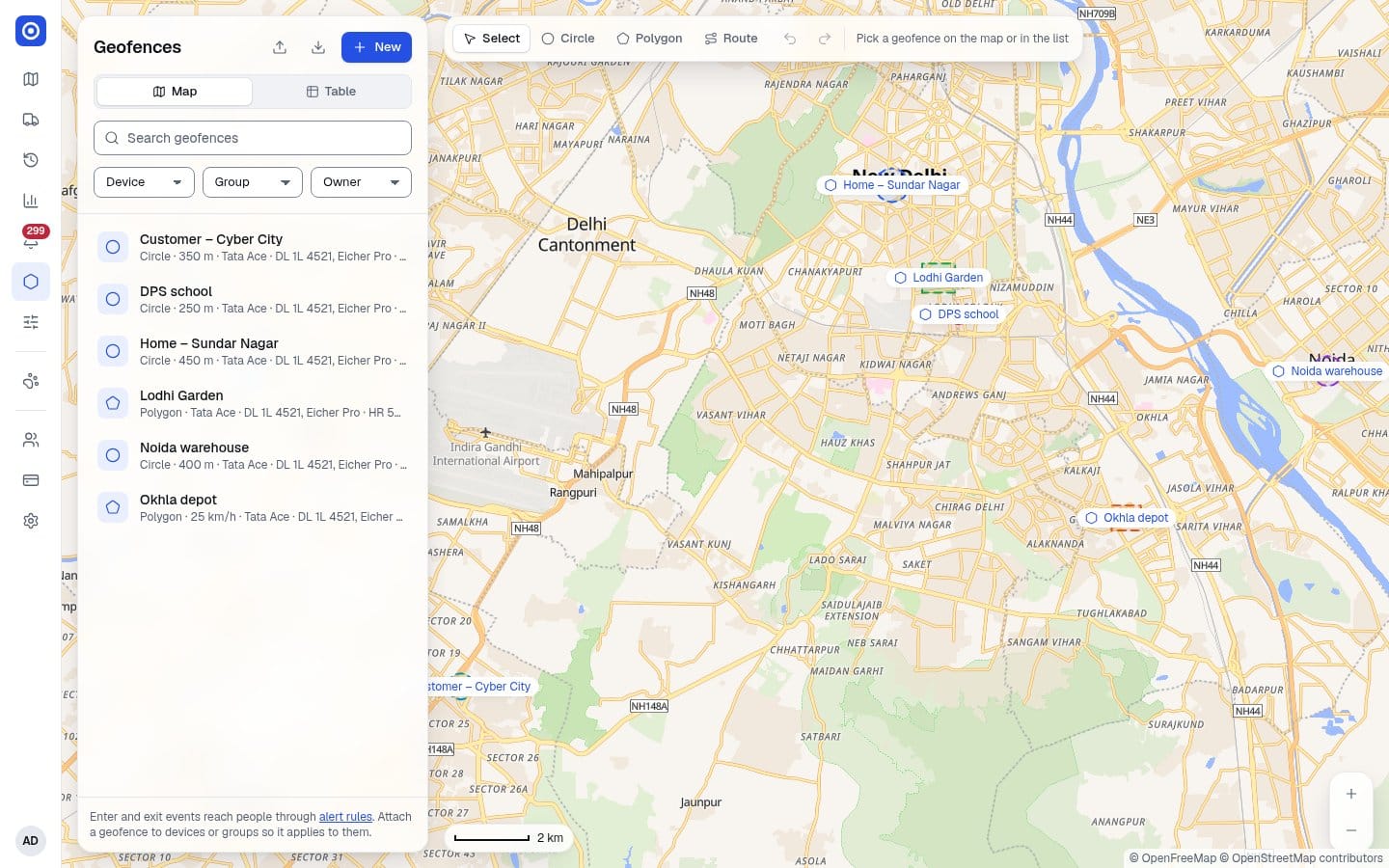
Setting safe zones for home, school and the way between walks through the zones and rules step by step, and the geofences page shows the shapes you can draw.
Low battery alerts so the watch stays on
A flat watch sends nothing: no position, no leaving alert, no SOS. For a child who may leave without warning, the battery is the first thing to get right.
- Charge at the same time every day, ideally overnight, with the charger in one fixed place. Put it on the bedtime checklist.
- Add a low battery alert. In Alerts, create a rule for Alarm and tick Low battery under Alarm kinds. You then hear when the watch reports a low battery, if the model reports one. The level at which it does so is set by the watch.
- Add an alert for a watch that stops reporting. A rule for Status unknown or Device offline tells you when the watch goes silent, whether the battery ran out or the watch was taken off and left somewhere without signal.
Some watches can also report that they have been taken off the wrist, where the model has a sensor for it. If yours does, an Alarm rule for that kind is worth adding. If not, watch for positions that stay in one place at home while the child is known to be out.
Sharing access with a teaching assistant or carer
The people with the child during the day are often the first to notice an empty chair. They can see the watch too, in two ways:
- A user in your account. If your account lets you add people under Users and roles, create a user for the carer and share the watch with them from its Settings, under Shared with. They see it read-only on their own map and can receive the same leaving alerts. This suits someone who is with your child every week.
- A share link. From the watch's Settings, under Share links, choose New link, add a label such as "Class 4 TA", an end date and, where your server offers one, a PIN. Anyone with the link sees the watch on a map without an account. Links have a maximum length set by the server (7 days on a new installation), so they suit a school trip or a respite weekend better than the whole term.
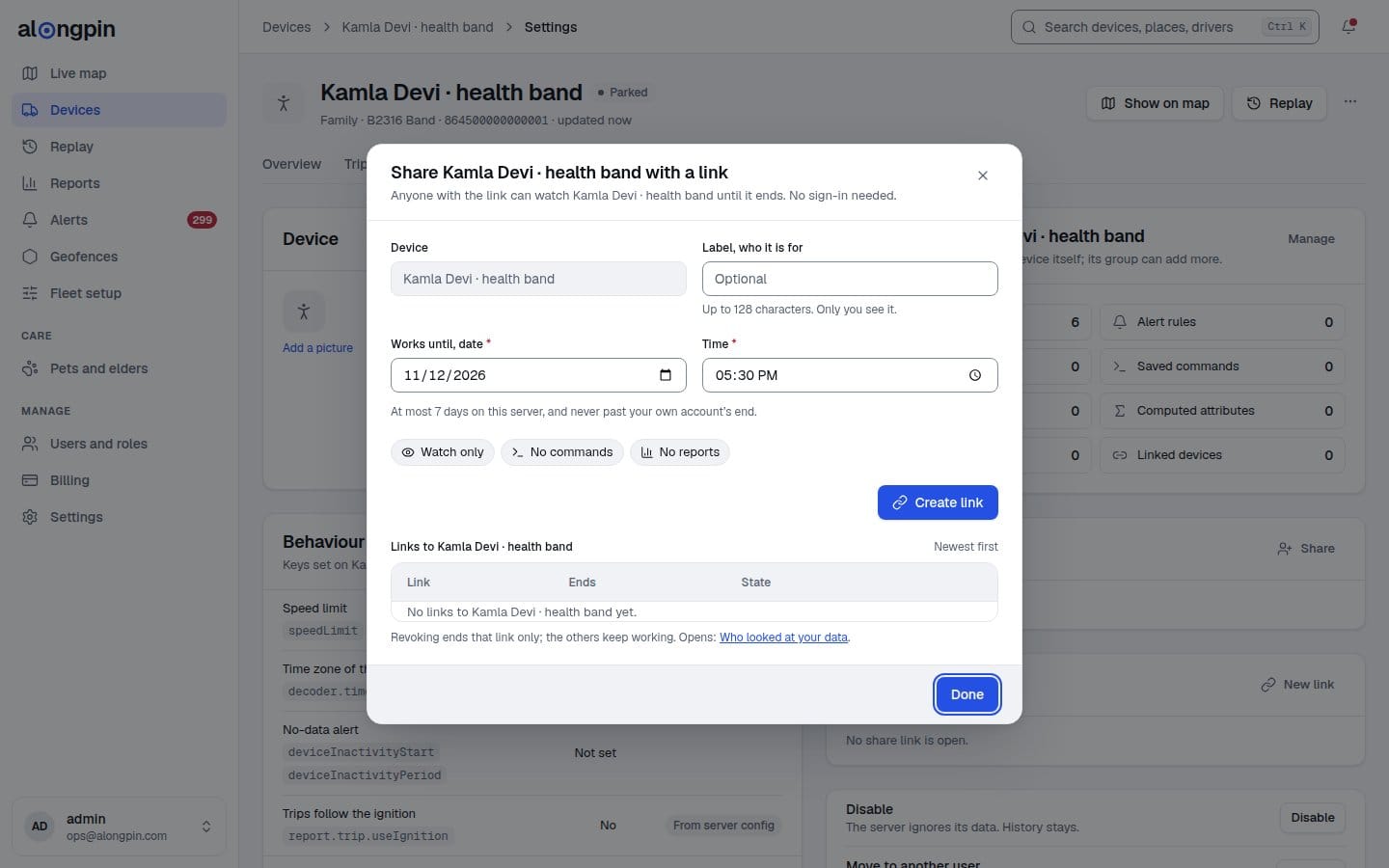
Agree with the school what the staff will do with an alert, and who rings whom. Write it down beside the school's own plan, not instead of it. Before you share, ask whether the school has its own rules about staff using personal phones or apps for pupils.
Involving the school
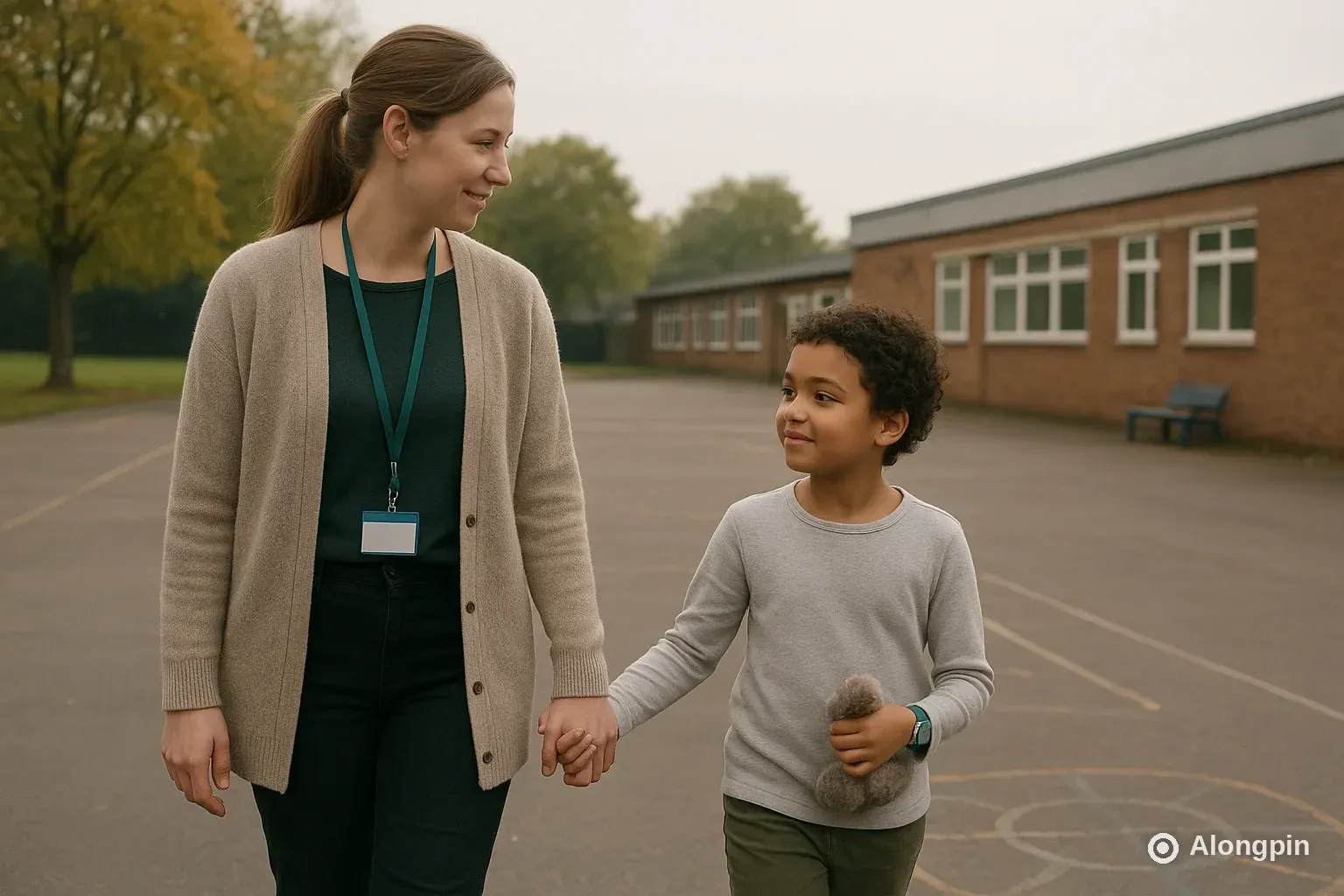
Most schools already have procedures for pupils who leave the site. A watch fits into them; it does not replace them. A short meeting with the class teacher or the special needs coordinator can settle:
- Whether the watch can be worn all day, and what happens in PE, swimming or quiet time.
- What the watch does in class. Ringing and messages are features of the watch and its SIM. Quiet hours during lessons keep it from becoming a distraction.
- Who receives the leaving alert for the school zone during school hours, and what they do first.
- Where the watch is charged if it needs a top-up during the day.
The personal safety page shows how families put zones, alerts and sharing together.
Limits of the technology, and keeping existing safeguards
Be clear-eyed about what a tracker can and cannot do:
- It reports where the watch was, a few seconds to a few minutes ago, depending on the reporting interval and the signal. It does not show where the child is going.
- Positions indoors are rough. A watch inside a building may show the wrong side of the street.
- It needs signal and charge. No coverage, no battery or a watch left on a bench means no alert.
- It is not a medical device and does not tell you anything about how your child is feeling.
- It does not prevent leaving. Door alarms, gates, the school's procedures and the people who know your child do that.
So keep everything you already do: secure doors, a recent photo ready to give to others, a card in a pocket with your phone number, and neighbours who know your child. The watch adds a fast, location-based alert on top of those. Many families find that it lets them relax a little, and that is reason enough.
Talking with your child about the watch
Even when a child cannot follow every detail, explain the watch in the way that works for them: a social story, pictures, or a simple sentence such as "the watch helps Mum find you". Children who understand that the watch is theirs, and not a punishment, are more likely to wear it. As they grow, revisit what it shares and who sees it.
How Alongpin helps
Alongpin (alongpin.com) is a GPS tracking platform you open in a browser or on your phone. A child's GPS watch or a teenager's phone shows on your family's map, geofences around home and school tell you about arrivals, and the SOS button reaches the people you choose. See how it works for family safety, check a watch in the device check, and read how Alongpin treats privacy.
Frequently asked questions
How quickly will I know my child has left the zone?
As soon as the watch reports its first position outside the zone, and the message goes out on your chosen channels. How soon that is depends on the watch's reporting interval and its signal at that moment.
Can the watch alert more than one person?
Yes. An alert rule can go to several people who have a user in your account and can see the watch, for example both parents and a carer.
What if my child will not wear a watch at all?
Try a small tracker clipped inside a bag or a coat pocket, in a fixed place the child uses every day. It reports position the same way, but it is only useful while it is with the child.