Elder care
How leaving-home alerts work for an older relative
A home zone is a circle or shape around a parent's home; when the watch leaves it, the carers you chose get an alert. How large to draw it, who is told, how to limit it to certain hours, and how to avoid false alerts indoors.
Ashish Srivastava6 min read

A leaving-home alert for an elderly relative works with a home zone: a circle or shape you draw on the map around their home. When their watch or personal alarm reports a position outside that zone, the platform raises a "Left home" alert and sends it to the carers you chose, so you know when they go out without watching a map all day. You decide how large the zone is, who is told, and, if you want, the hours in which leaving counts.
Key takeaways
- The home zone is a geofence around the home, chosen as the home in the person's care profile.
- The alert fires when the tracker reports a position outside the zone, and goes to the owner, family the profile is shared with, and contacts who receive alerts.
- Give the zone a calendar to limit alerts to certain hours, for example the night.
- Indoor positions can be less exact, so draw the zone with a margin to avoid false alerts.
- Agree the zone and the alert with the person it concerns.
What a home zone is, and how large to draw it
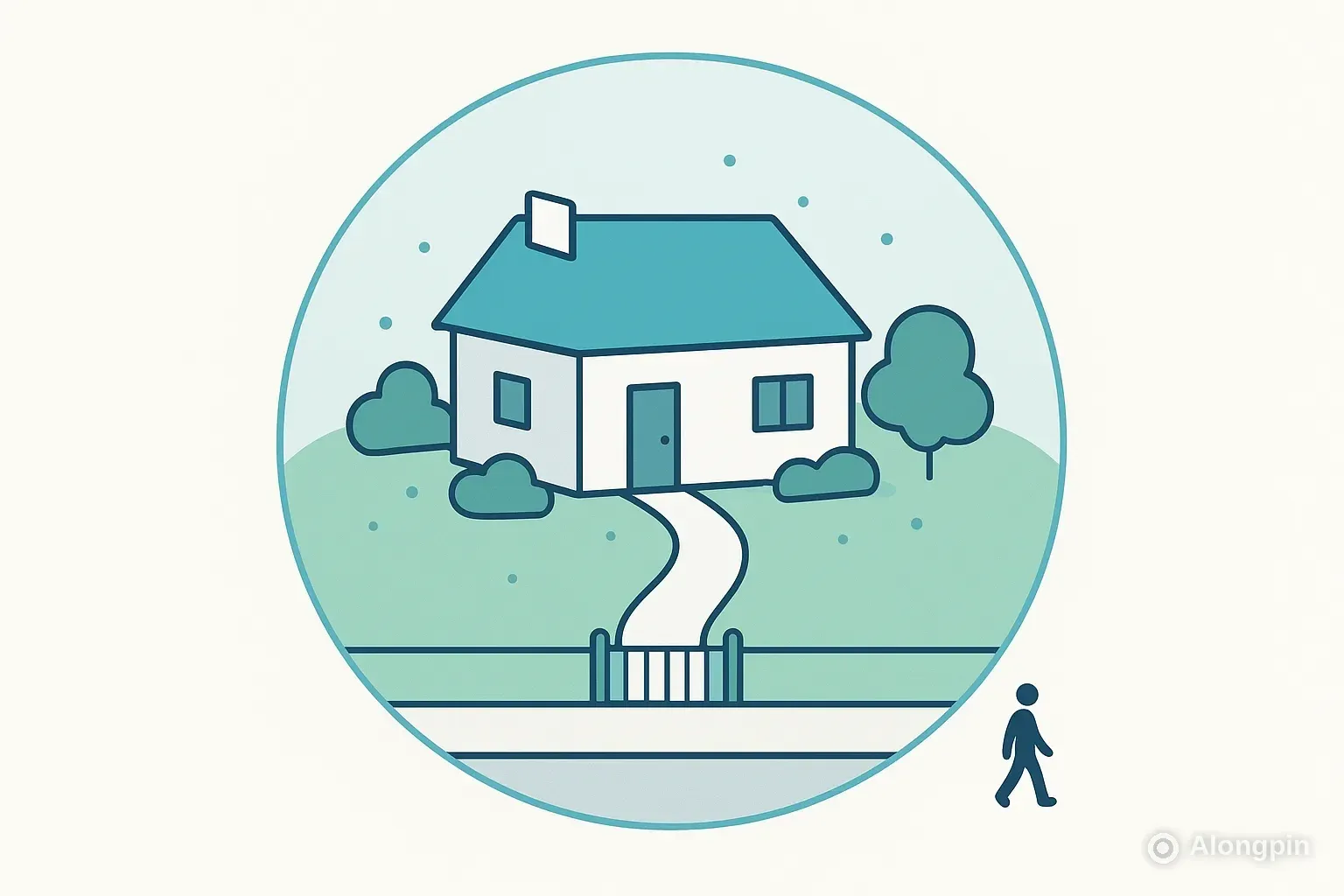
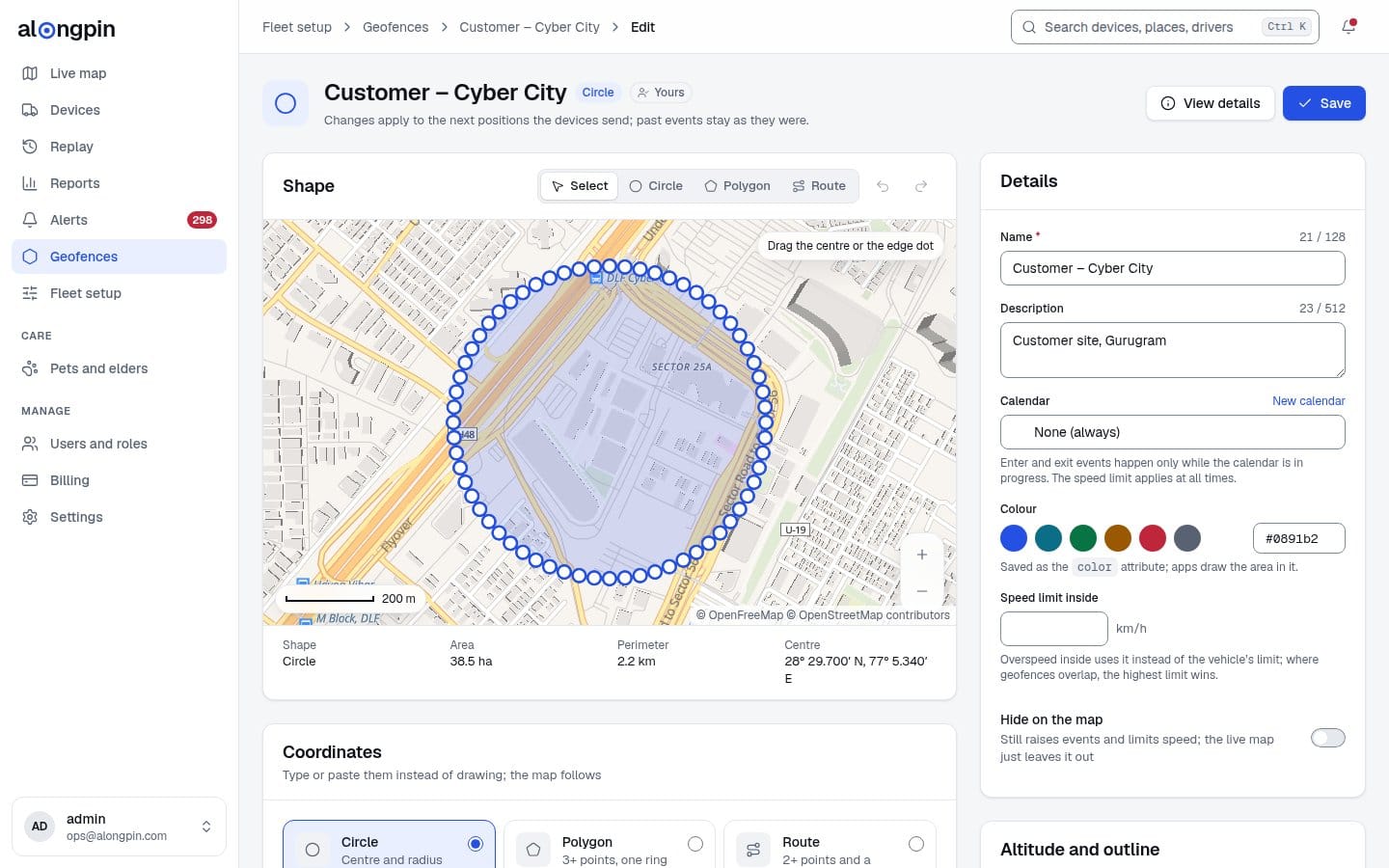
A home zone is an area on the map that stands for "at home". In the platform it is a geofence: a circle (a centre and a radius) or a polygon you draw point by point, under Geofences. You then choose it as the Home geofence in the person's care profile settings. Saving the profile links the home to the tracker, so leaving it raises an event. The same zone also counts the time at home in the daily wellness view.
How large to draw it is the most important choice:
- Include everything that is still "home": the building, the garden, the drive, the bins, a shared courtyard. A parent who goes out to the letterbox should not set off an alert.
- Add a margin for less exact positions. Indoors many watches cannot get a GPS fix and report a mobile cell or Wi-Fi estimate instead, which can land some distance away. A zone drawn tightly around the walls will produce alerts while your relative sits in the kitchen.
- Keep it small enough to mean something. A zone that covers the whole neighbourhood tells you she has gone far, not that she has gone out.
A practical way to size it: draw a generous circle first, leave it for a few days, and look at the positions in the replay to see how far the indoor positions wander. Then draw the zone just beyond them. A polygon lets you follow the shape of the garden rather than a circle that spills over the road.
What triggers the alert, and who receives it
The alert is raised when the tracker reports a position outside the home zone, having been inside it. The tracker reports at intervals, so the alert comes with the first report from outside, not the moment the front door closes. A shorter upload interval, where the watch takes that command, makes it quicker at the cost of battery.
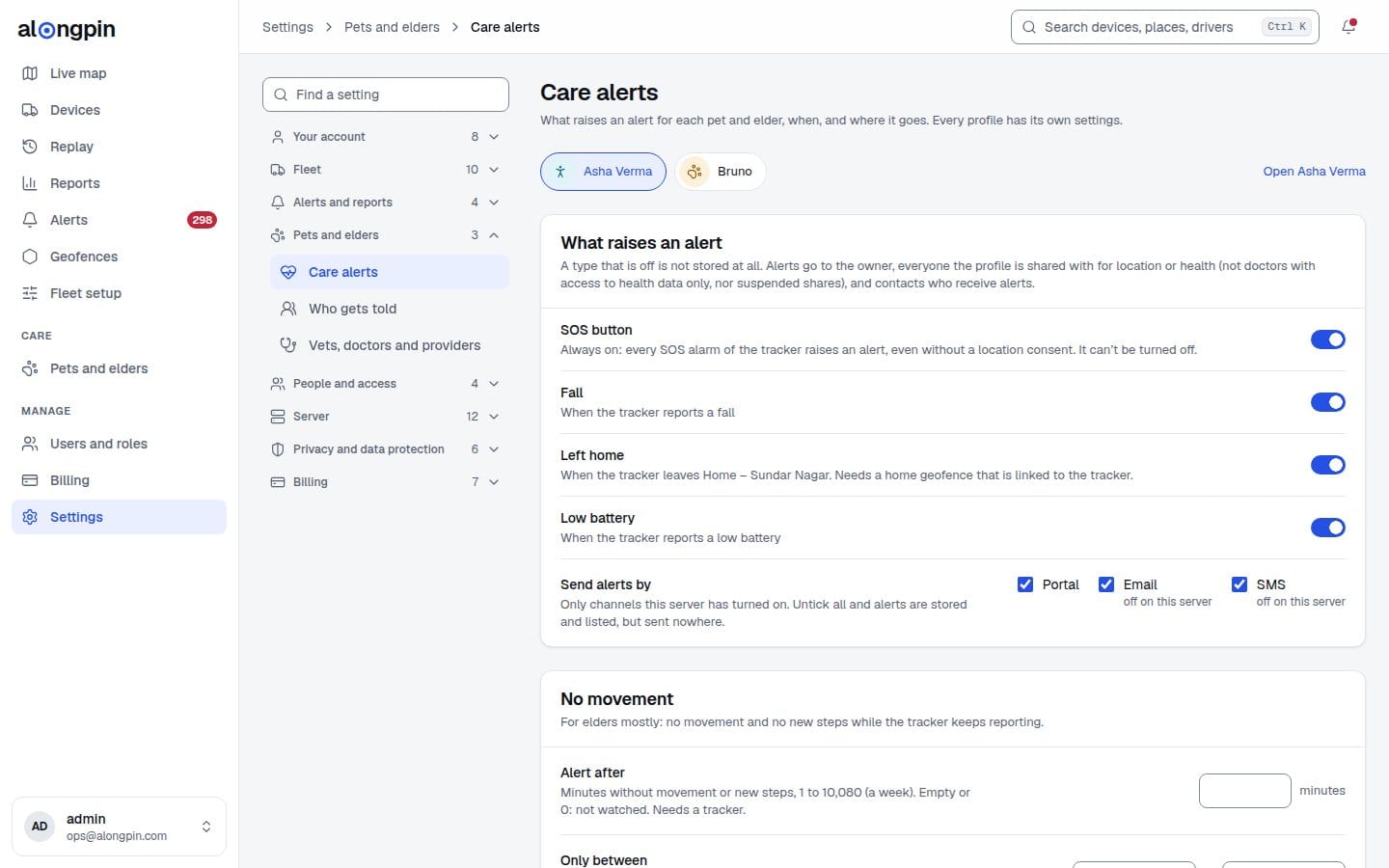
The "Left home" alert must be switched on in the care alert settings (Settings → Pets and elders → Care alerts), and a home must be chosen. The alert reads, for example, "Rose left home at 12:14" in the app. It goes to:
- you, as the owner of the profile;
- family members the profile is shared with;
- contacts you marked to receive alerts, such as a neighbour, who need no account.
You choose the channels for the profile: in the app, by email, or by text message where the SMS channel is switched on. By default, emails and text messages say only that there is a new alert and to open the app; the app shows the full alert. The alert stays open until someone acknowledges it, and you see who was notified and whether it arrived. The care profiles page explains contacts and sharing.
Limiting alerts to certain hours with a schedule
For many families, a parent walking to the shop at ten in the morning is good news, not an alert. What worries them is leaving at three in the morning. You can make the zone count only at certain times:
- Create a calendar for the hours that matter, for example every night from 21:00 to 07:00, under Fleet setup → Calendars.
- Open the home geofence under Geofences and choose that calendar in its Calendar field.
Enter and exit events then happen only while the calendar is in progress, so leaving home during the day raises no alert. The geofences page describes calendars on zones.
If you want daytime alerts too, but would like to know about the night ones differently, keep the zone without a calendar and agree in the family who responds when.
Why indoor positions can be less exact, and how to avoid false alerts
False alerts are the main reason families switch leaving-home alerts off, so it is worth preventing them:
- Indoor positions drift. A watch without a GPS fix indoors reports an estimate from mobile cells or Wi-Fi, which can fall outside a tight zone. The watches page explains what each device family uses.
- Draw with a margin, as above, and check a few days of positions before you rely on the zone.
- Do not make the zone too tight around a flat in a tall building, where GPS is weakest.
- Check after changes. A new router, a move to another room or a new watch can change how positions behave.
If alerts keep coming while your relative is at home, widen the zone before you think about switching the alert off.
Agreeing the zone with the person it concerns
A leaving-home alert tells other people when someone goes out. That is a real intrusion into an adult's life, even when it is done out of care. Talk to your relative about it:
- what the zone covers, and that a walk to the shop may send you a message;
- who receives the alert, and what they will do: a phone call, not a search party;
- whether it should apply only at night;
- that they can ask for it to be changed.
Where the platform asks for a recorded consent before it stores the location, you record it in their care profile, from them or their legal representative. Revisit the zone together when their needs change.
What a leaving-home alert does not do
It tells you the tracker left the zone. It does not tell you why, where she is going, or whether she is safe; open the live map for the current position. It needs the tracker to be worn, charged and in coverage. And it is not an emergency service. For the rest of the setup, see what to look for in a GPS tracker for a parent living alone, and for the alerts that matter after a fall, fall alerts on GPS watches. The elder care page shows the whole alert flow.
How Alongpin helps
Alongpin (alongpin.com) is a GPS tracking platform you open in a browser or on your phone. A parent's GPS watch or alarm becomes a care profile: SOS, fall, leaving-home and inactivity alerts reach the family and emergency contacts, and health readings, medication refills and appointments sit in one place you can share. See how it works for elder care, and check a watch in the device check.
Frequently asked questions
Will I get an alert every time she goes out?
Yes, unless the zone has a calendar. Each time the tracker leaves the zone while the calendar is in progress (or at any time without one), a Left home alert is raised.
Do I get an alert when she comes back?
No. The care alert is about leaving. Open the live map or the alert to see where the tracker is now.
Can two homes be watched, for example a daughter's flat at weekends?
The care profile has one home geofence. For a second place, a separate alert rule on that zone can tell you when the tracker arrives or leaves.