Personal safety
The late commute home: letting someone follow the journey
For late journeys by cab, auto, metro or night bus: let one person follow your phone or watch on a map, and let a home zone send the arrival message for you. Set up once, light enough to use every night.
Ashish Srivastava6 min read

To share your ride home late at night safely, set it up once rather than every evening: someone at home can see your phone or watch on a map while you travel, and a message tells them when you reach your home zone, so nobody has to wait up for a text that you forgot to send. For a cab, an auto, the metro or a night bus, the same two pieces work: a way to follow the journey, and an arrival message that closes it. This guide shows both, adds an SOS button for those who want one, and keeps the routine light enough to use every night.
Key takeaways
- Decide once who follows your late journeys, and give them a lasting share or a link per night.
- Draw a zone around home and add a Geofence enter rule: the person at home gets "arrived" without you typing anything.
- Put the rule on an evening calendar, so daytime arrivals send nothing.
- A phone reports location only. For an SOS button, wear a watch or carry a personal alarm.
- Keep enough battery for the journey home; a flat phone looks the same on the map as a phone switched off.
Sharing the journey before you set off
Night journeys are a daily reality in many cities: the last metro in Delhi, a late shift ending in Bengaluru, a night bus across London, a cab after a dinner in Madrid. The person who worries is usually the same one every time: a partner, a parent, a flatmate. Choose one of two ways to let them follow you.
A lasting share for the person at home
If the same person follows you every night, a lasting share with their own account is simplest. They sign in to the portal, see your phone or watch on the live map whenever they need to, and can set up their own alerts. Sharing a device with another user is done by whoever manages the accounts, for example the person who set up the family's account.
A link for one evening
If you only want to share occasionally, or with someone who has no account, create a share link: on the device's Settings, under Share links, choose New link, set Works until to an hour after you expect to be home, and send it. The person opens it in a browser and sees you move, read-only, until it ends. Sharing a device with a link has the steps.
Whichever you choose, it should be ready before you leave the office or the restaurant, not something you do on the platform with one hand on a pole.
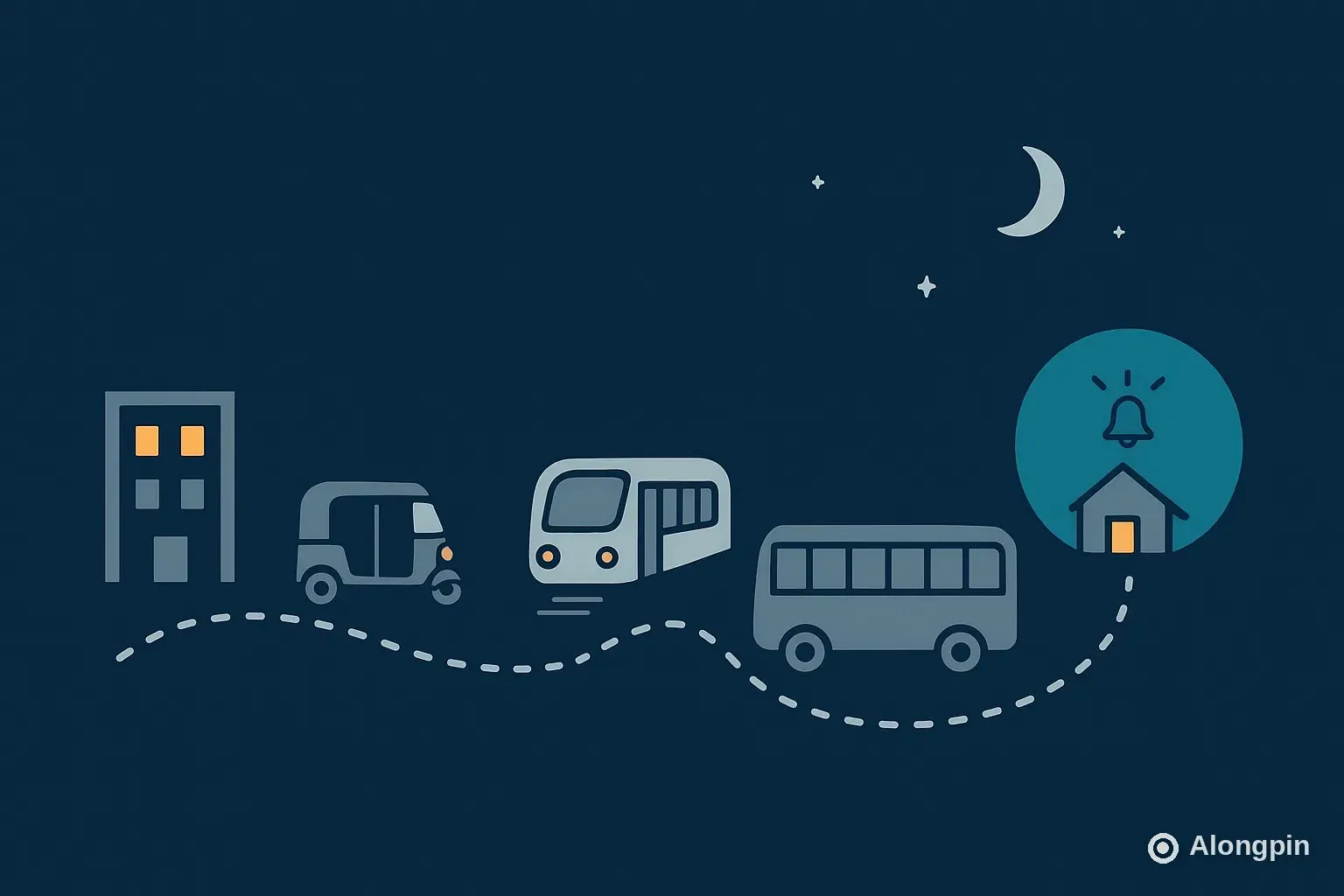
An arrival message when you reach your home zone
Following a dot on a map at midnight is tiring. An arrival message lets the person at home go to sleep, or at least stop watching, when you are in.
- Draw a home zone. Open Geofences and choose New, pick the circle and draw it around your building and the last stretch of the street. Make it big enough to cover the gate and the stairwell, because phone positions wander by tens of metres near buildings. Name it "Home" and save.
- Attach it to your device. Open the zone and use Attach or detach to attach it to your phone or watch. A zone only applies to the devices it is attached to.
- Add the rule. Under Alerts, choose New alert rule, pick Geofence enter under When this happens, and tick Only these geofences for the home zone. Choose the channels under Tell people by: push, email, a text message or Telegram, among those your server has switched on.
- Make sure it reaches the person at home. They need an account that can see your device and a rule of their own like this one, or to be added to yours under Devices and people by whoever manages the accounts.
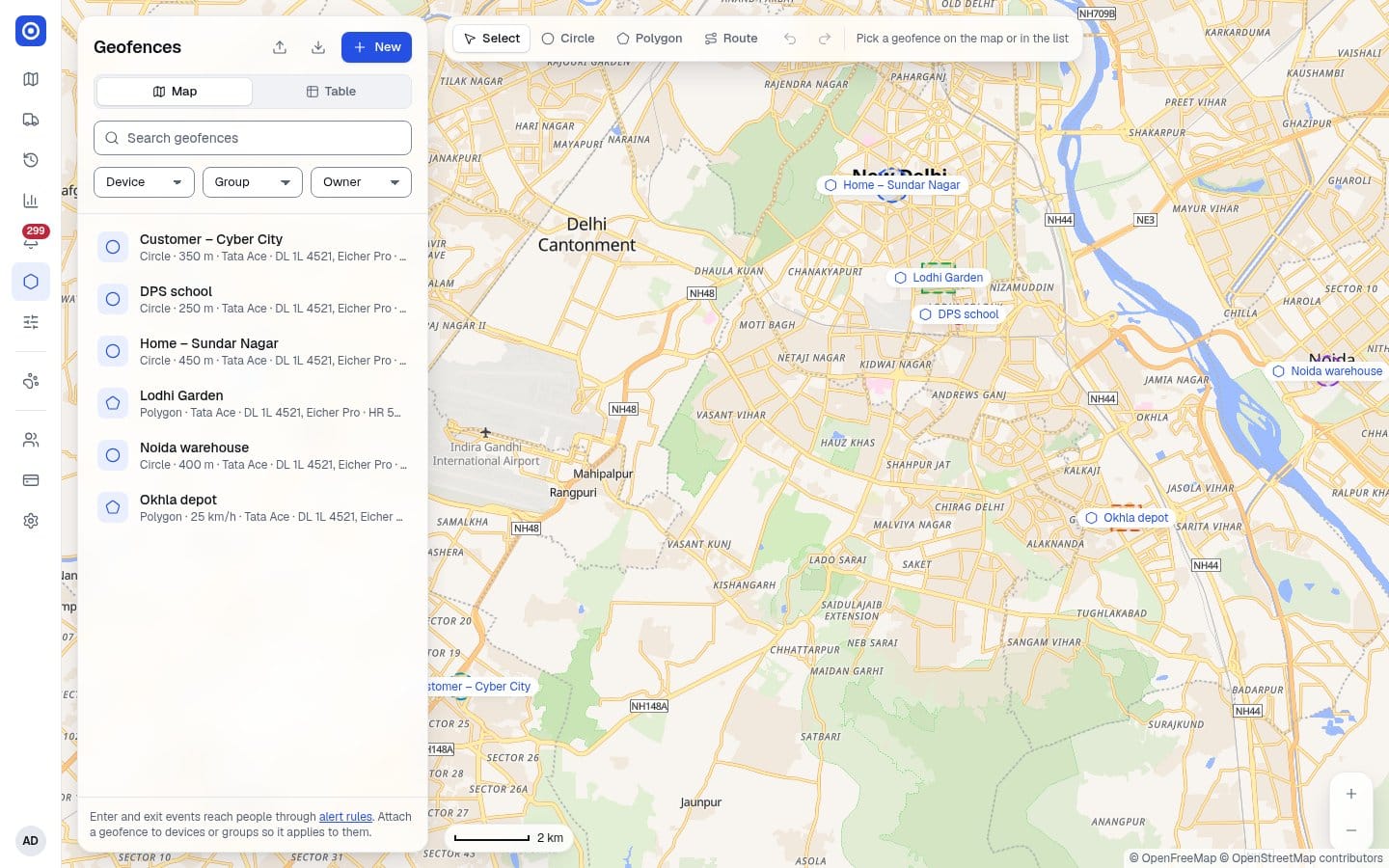
The geofences page explains zones and shapes, and setting a home zone for a person or pet helps with the size.
Only in the evening
A message every time you come home at 2 p.m. turns into noise quickly. Under Only during, put the rule on a calendar that covers your late hours, such as 21:00 to 03:00. The rule fires only while the calendar is active, so daytime arrivals send nothing.
Quiet hours on the other end
If the person at home has quiet hours set for the night, their quiet hours hold back the arrival message by email, text message, Telegram and push; it only shows in the app, and a held-back message is dropped, not sent later. Ask them to let Geofence enter through under Settings → Your account → Alerts and channels → Quiet hours, or to accept that the message only appears in the app.
Underground and in tunnels
A metro underground has no GPS and often no mobile data. Your position stops at the station where you went down and jumps to where you come up. That is normal, and the person following you should know it, so that ten minutes with no movement between two metro stations does not alarm them.
An SOS button on a watch or tracker
A phone used as a tracker reports its position only. It raises no SOS alarm on the platform, and in an awkward moment unlocking a phone and opening an app is slow. If you want a way to ask for help with one press, a GPS watch or a small personal alarm with an SOS button does that: the device sends an alarm with its position over its own SIM, and an alert rule for SOS tells the people you chose. The SOS page shows what happens from the button to the person who acknowledges it.
The platform alerts the people you chose; it does not call the police. If you are in danger and can call the emergency number, call it. In India 112 reaches the emergency services, as it does across the European Union.
Battery at the end of a long day
The journey home is the moment your phone is at its lowest. A few habits help:
- Charge at work in the afternoon. Thirty minutes at your desk is often enough for the trip home.
- Carry a small power bank on nights you know will be long.
- Report less often if you need to. A position every minute or two is enough for a journey; more often uses more battery.
- Add a "Status unknown" alert. A phone app does not keep a connection open, so when it stops sending, the phone shows as Unknown after a while. A rule for Status unknown tells the person at home that the phone has gone quiet, which may be a flat battery rather than trouble.
A watch or alarm with its own battery is independent of your phone, which is one more reason some people prefer one for the journey home.
Keeping the habit light enough to do every night
The routine only helps if it survives the third week. Set it up so that most nights need nothing from you:
- The share is lasting, or the link is a single tap on nights you need it.
- The arrival message comes from the zone, not from you.
- The calendar keeps the messages to the evening.
- The person at home knows what each message means, and what silence means.
Agree what happens if the arrival message does not come by a certain time: they call you, and if you do not answer, they call the friend you were with, or go and look at the last position on the map. Talk about it once, at a calm moment, not at 1 a.m.
The personal safety page shows how location sharing, safe zones and SOS fit together for adults and families.
How Alongpin helps
Alongpin (alongpin.com) is a GPS tracking platform you open in a browser or on your phone. A personal tracker, GPS watch or phone shares your position with the people you choose, the SOS button alerts your contacts with where you are, and a share link lets someone follow one journey and then expires. See how it works for personal safety, and check your device in the device check.
Frequently asked questions
Can the person at home see where I am without an account?
Yes, with a share link. It opens in a browser and works until the time you set.
Do I have to remember to start sharing every night?
No, if the person at home has a lasting share and the arrival rule is on a calendar. You only carry your phone or watch.
Will they see which cab or bus I am in?
No. The map shows your phone or watch, not the vehicle. Some people send the cab's details in a message as well.