GPS trackers and devices
Server address, port and APN: how a tracker reaches a platform
The three settings every GPS tracker needs, explained for non-engineers: the APN, the server address and the port of its protocol, and its IMEI, plus what happens to the first message of an unknown device.
Ashish Srivastava6 min read

Every GPS tracker reaches a platform with three settings: the APN, which gets it onto mobile data; the server IP and port, which tell it where to send its messages; and its device ID, usually the IMEI, which tells the platform who is talking. Get all three right and the tracker's position travels from the vehicle over the mobile network to the server and onto the map within seconds. Get one wrong and the tracker can look perfectly healthy, with lights blinking and signal bars full, while nothing ever arrives. This explainer goes through each setting in plain words, for installers and anyone who has to set up a GPS tracker server IP and port without being a network engineer.
Key takeaways
- A position travels: tracker → mobile network → server → map. Each step needs one setting to be right.
- The APN lets the SIM use mobile data. A wrong APN keeps the tracker offline even with full signal.
- The server address names the platform; the port names the protocol. Each protocol has its own port.
- The device ID, usually the IMEI, must match a device on the platform.
- A tracker whose ID no device has is not thrown away: it waits in the list of unverified devices until someone registers it.
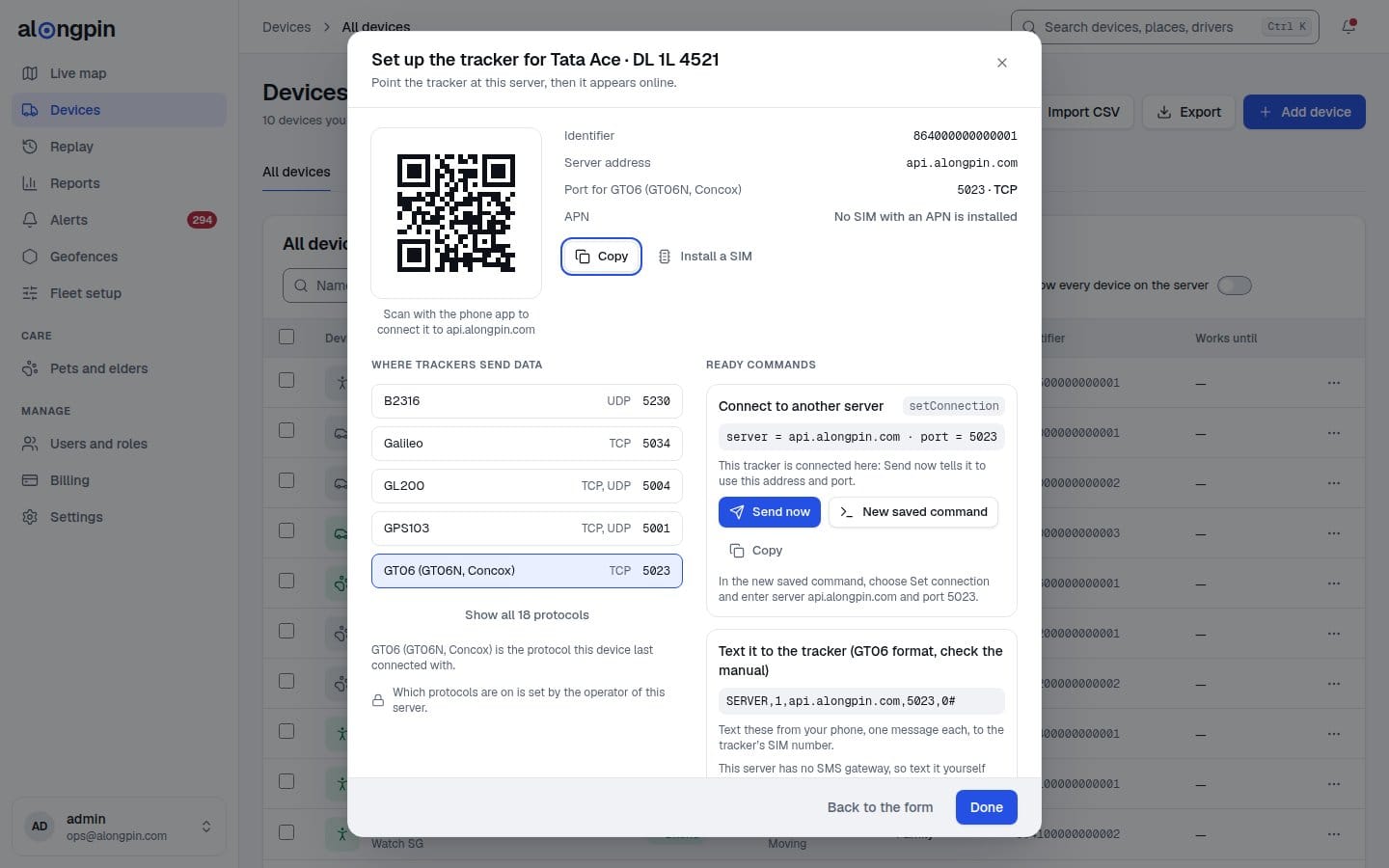
- Set up the tracker in the portal shows the address, the port and the APN for each device.
The journey of a position
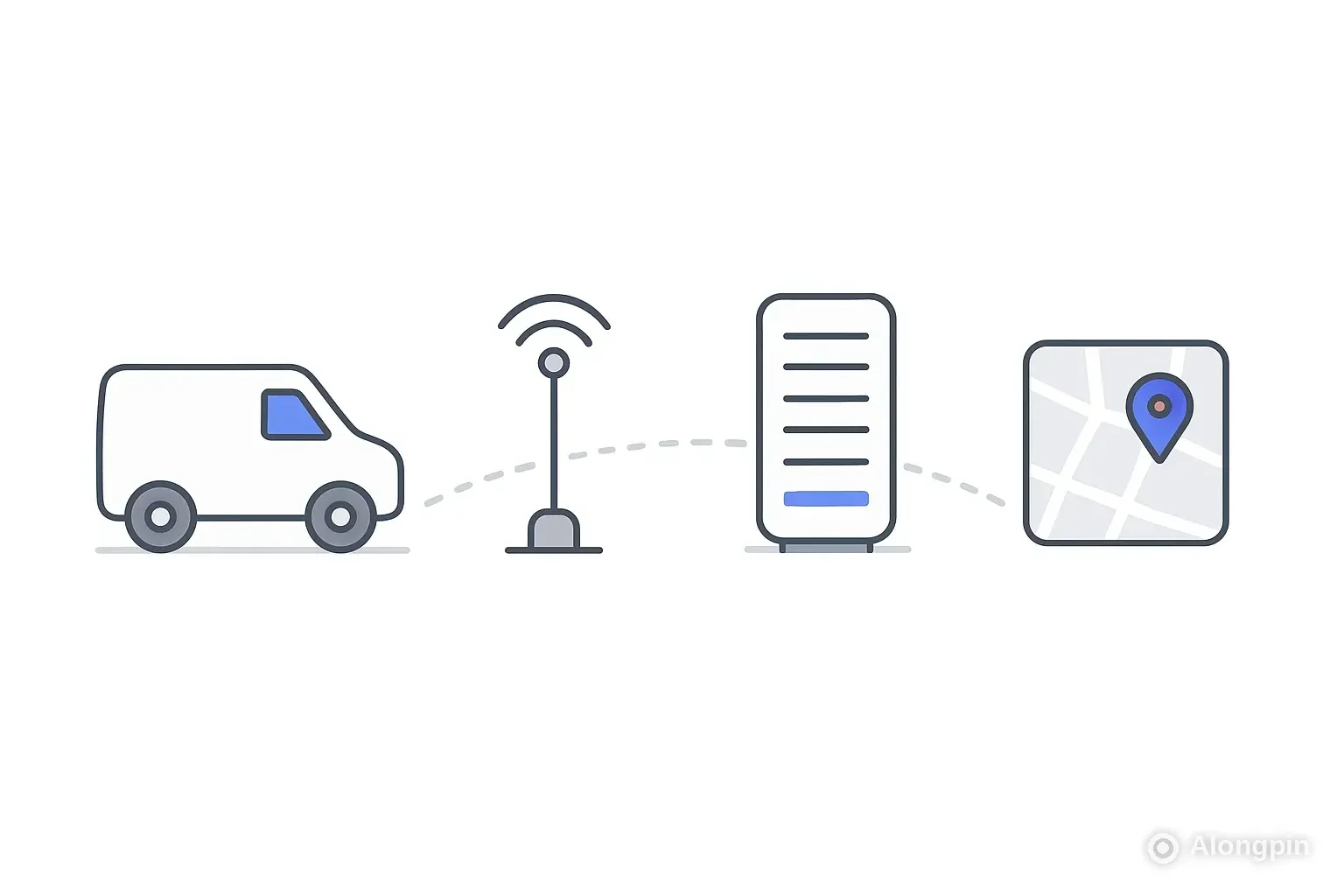
- The tracker works out its position from GPS and packs it into a message, together with its ID, the time, speed and status, in the format of its protocol.
- The mobile network carries the message. The tracker's SIM connects to mobile data through the operator's gateway, named by the APN.
- The server receives the message on the port the tracker sent it to. Behind that port waits a decoder for one protocol, which reads the message and looks up the device by its ID.
- The map: the platform stores the position, works out trips, stops and geofence events, and shows the vehicle on the live map a moment later.
Each step depends on the one before. That is also the order to check things in when a tracker stays offline.
The APN: getting onto mobile data
The APN (access point name) is the name of the gateway through which the SIM reaches mobile data, a short name such as internet or one specific to the operator. Some operators also use a user name and password with it.
Phones usually find their APN by themselves. Many trackers do not: the APN has to be entered in the tracker, by text message, with a configuration tool or in its app. With a wrong or missing APN, the tracker registers on the network and shows signal, but has no data connection, so nothing leaves it.
You find the APN on the operator's website or the SIM's paperwork. If your account records SIM cards with their provider and its APN, Set up the tracker shows the APN of the SIM installed in the device. More on choosing and setting up SIMs in choosing a SIM card for a GPS tracker.
Server address and port: one port per protocol
The server address is where the platform is: a host name such as tracking.example.com, or an IP address. A host name is the better choice where the tracker accepts one, because it keeps working if the server's IP address ever changes.
The port is a number that picks one door on that server. A tracking platform listens on many ports at once, one for each protocol it decodes, because the decoder behind each door understands only one format. A tracker sent to the wrong door reaches a decoder that cannot read it, and its messages are dropped.
In a standard setup the common ports are, for example, 5023 for GT06 trackers, 5027 for Teltonika, 5013 for H02, 5055 for phone apps that send over HTTP and 5015 for JT808 dashcams, with 5263 for their live video. An installation can use others, so always use the one Set up the tracker shows. The device connection guide has the table, and the transport each protocol uses: TCP, UDP or HTTP.
If you do not know your tracker's protocol, look the model up in the device check: the protocol decides the port.
The device ID, usually the IMEI
Every message a tracker sends carries its ID. Most trackers use their IMEI, the 15-digit number of their modem, printed on the label or the box; some use a serial number or, in the case of JT808 dashcams, a terminal ID. Phone apps use whatever identifier you type into them.
The platform looks for a device with exactly that ID. That is why, when you add a device under Devices → Add device, the field is the Identifier (IMEI): it must be what the tracker reports, digit for digit, and it must be unique on the server. One wrong digit and the tracker's messages belong to no device.
What happens with the first message of an unknown device
When a tracker connects with an ID no device has, the platform does not simply throw the message away. In a standard setup:
- The tracker is kept connected and listed under Devices → Unverified, with its identifier, the protocol it spoke, the address it connected from, when it was first and last seen, and its latest position.
- Nothing it sends becomes history: no trips, no events, no alerts. Only the latest position is kept, so you can see where it is.
- An administrator recognises it and registers it in one step, with a name and a group. Its history then starts with its next message.
- A record not seen again is removed after a while, 30 days by default.
So a new tracker can be set up in either order: add the device first and then configure the tracker, or configure the tracker first and register it when it turns up. Approving an unverified device shows the second way step by step. Some installations add unknown devices automatically instead, or switch the list off; your administrator knows which.
Where to find the settings for your account
- In the portal: open the device and choose Set up the tracker. It shows the Identifier, the Server address, the Port for the tracker's protocol (pick the protocol in Protocols this server accepts if the device has never connected) and the APN if a SIM is recorded. Copy all copies them in one go. For GT06 trackers it also shows the text messages to send.
- In the setup guides: the setup guides walk through each kind of device, from a wired GT06 tracker to a dashcam and a phone app.
- For a whole installation: administrators can list the protocols the server has enabled and their ports; finding the server address and port for a tracker explains where.
How Alongpin helps
Alongpin (alongpin.com) is a GPS tracking platform you open in a browser or on your phone. It is a platform, not a box: it works with the trackers, watches, phones, dashcams and collars whose protocols it decodes, so you keep the hardware you trust. Type a model into the device check, see the kinds of device and how a device connects, then sign up and add it by its IMEI.
Frequently asked questions
Why does my tracker have signal but never connect?
Most often a wrong APN, a SIM without data, or the wrong port. Check them in that order.
Can two protocols share one port?
No. Each protocol has its own port, because the decoder behind a port reads only its own format.
Do I need a fixed IP address on the SIM?
No. The tracker connects to the server, not the other way round, so the SIM's own address does not matter.