Devices and connection
Finding the server address and port for a tracker
Where the portal shows the server address and the port that belongs to a device's protocol, for the moment a tracker has to be set up, re-pointed or checked. Each protocol has its own port.
Ashish Srivastava4 min read
The GPS tracker server address and port for any of your devices are in the portal, in Set up the tracker. It shows the Server address, the Port that belongs to the tracker's protocol, and the APN of its SIM, ready to copy. Each protocol listens on its own port, so the port is the part to get exactly right.
Key takeaways
- Open the device, select Edit, and choose Set up the tracker from the menu of more actions.
- The address is the same for every tracker; the port depends on the protocol the tracker speaks.
- A tracker on the wrong port sends nothing the platform can read, or lands in the unverified list.
- Phone apps report over HTTP and connect by scanning the QR code in the same dialog.
- Not sure of the protocol? Look up the model in the compatibility check.
Open the tracker setup of the device
- Open Devices and select the device.
- Select Edit, then open the menu of more actions and choose Set up the tracker.
The dialog Set up the tracker for your device opens. When you add a new device, the same dialog follows straight after Add a device.
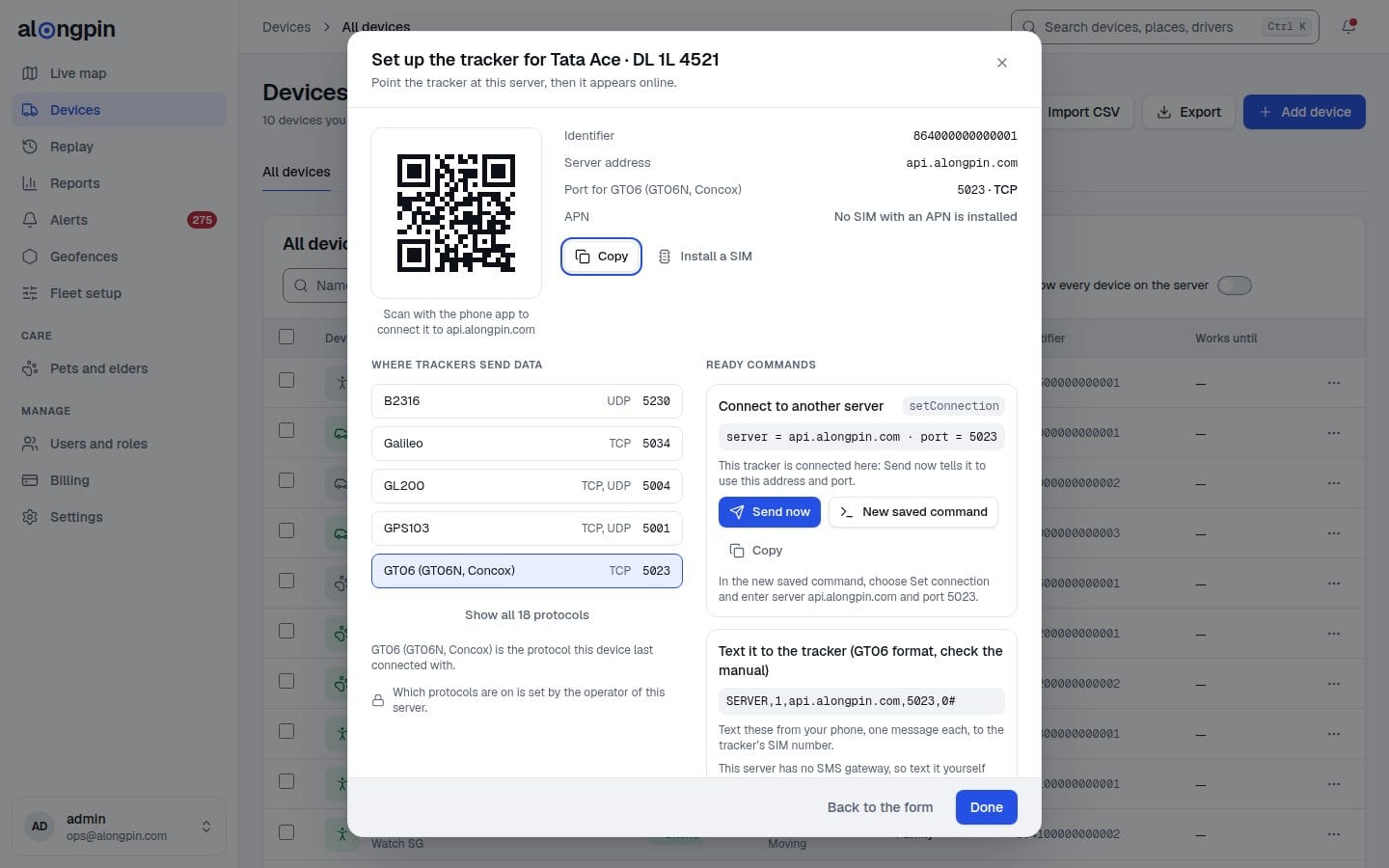
The server address and the port per protocol
The dialog shows:
- Identifier: what the tracker must report, usually its IMEI.
- Server address: the host name of your server, the same for every tracker.
- Port for the protocol: the port of this tracker's protocol. If the device has connected before, the protocol it last used is selected; if not, pick your tracker's protocol in the list Protocols this server accepts to see its port, with the transports it takes (TCP, UDP, HTTP).
- APN: from the SIM installed in the device, if your account records SIM cards.
Copy all copies these lines, so you can paste them into the tracker's configuration tool or a message to the installer. Under Ready commands, the dialog offers the text messages or commands that set the address and port for some protocols, or says that this protocol has none and the address and port go into the tracker's own settings or its app.
Which protocols are switched on is set by the operator of your server. If yours is not listed, an administrator can turn it on. The device connection guide lists the ports of common protocols in a standard setup; always use the one Set up the tracker shows, because an installation can use other ports.
Why the wrong port gives no data
The platform reads each port with one protocol's decoder. A tracker that sends to the right address but another protocol's port is not understood: nothing appears, not even in the unverified list. A tracker on the right port but with an identifier no device has does reach the platform, and waits under Devices → Unverified until someone registers it.
So when a tracker stays offline after setup, compare three things with the dialog: the address, the port, and the identifier.
Re-pointing a tracker that is already connected
To move a tracker to this server from another one of yours, the dialog's Connect to another server shows the command with this server's address and port. For a tracker already connected here, Send now sends it. You can also keep it as a saved command for several trackers. Where the tracker's protocol has text-message setup, Text it to the tracker lists the messages; with an SMS gateway on your server you can send them from the portal, otherwise text them from your phone to the tracker's SIM number.
Phone apps that report over HTTP
Phones running the tracking app do not keep a connection open: they send each position over HTTP to the server. For a phone, the dialog shows a QR code: scan it with the app to connect it to this server. Without the QR code, enter the server address and the port shown for the phone app's protocol in the app's settings.
Check the model or protocol first
If you do not know which protocol your tracker speaks, look its model up in the compatibility check: it names the protocol, and with it the port to use. For the complete first connection, with SIM, wiring and testing, the setup guides cover each kind of device.
Frequently asked questions
Is the port the same for all my trackers?
Only for trackers of the same protocol. Two models that speak the same protocol share a port; models with different protocols need different ports.
Can I see the ports without opening a device?
Yes: the device connection guide lists the common ones. The ports your server really uses are always the ones in Set up the tracker.