Driver privacy and compliance
Working-hours tracking: how calendars limit what is recorded
A working-hours calendar makes everything outside the hours private by itself: blurred, distance only or not stored. How to set it up for shifts and on-call, use it for alerts and zones, and check it in the audit log.
Ashish Srivastava6 min read

GPS tracking during working hours only works best when the hours themselves decide what is recorded, not a person remembering to press a button. In Alongpin you describe working hours as a calendar, choose it as the working-hours calendar in the driver privacy settings, and every position recorded outside those hours becomes private by itself: blurred, reduced to distance, or not stored at all, as you choose. The same calendars can limit alert rules and geofence events to working time, and the audit log shows when private trips were switched on or off.
Key takeaways
- The principle: track work, not life. A calendar of working hours draws the line automatically.
- Build the calendar as a simple weekly schedule, or upload an iCalendar file from your rota tool.
- Outside the hours, positions are stored privately in the mode you chose, and raise no zone or speed events.
- Different teams can have different calendars; shifts may end after midnight.
- Alert rules and geofences can follow calendars too, and the audit log records each private-trip switch.
The principle: track work, not life
A company van that goes home with its driver is a workplace from eight to five and a private car the rest of the time. Tracking the evening drive to a child's football match serves no business purpose, and in most countries it is hard to justify. A rule that says "drivers may switch tracking off after work" depends on everyone remembering, every day.
A working-hours calendar removes that burden. The platform compares the time of each position with the calendar: inside an occurrence the vehicle is tracked normally; outside it the position is private. Nobody presses anything, and nobody can forget.
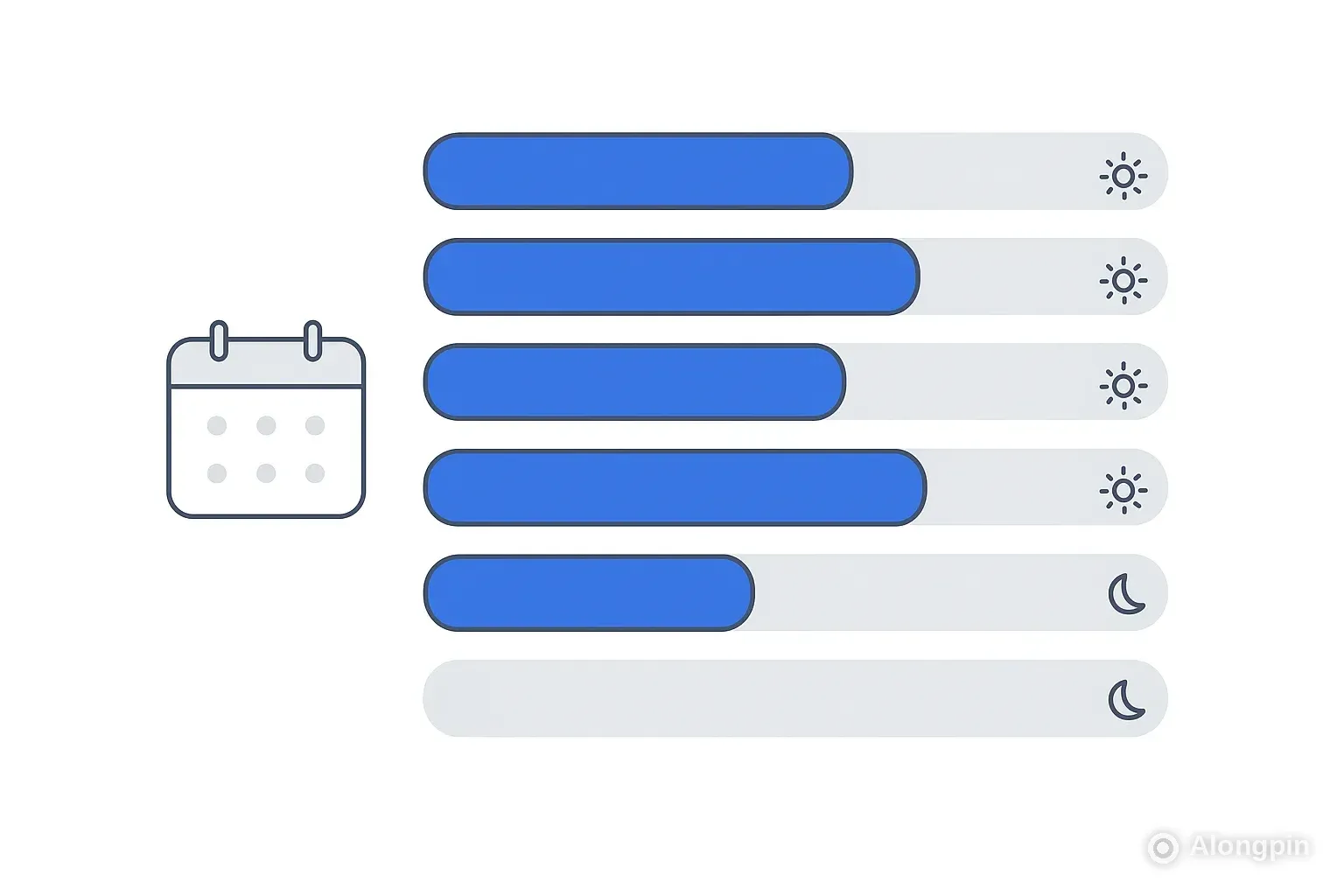
A weekly schedule or an imported calendar file
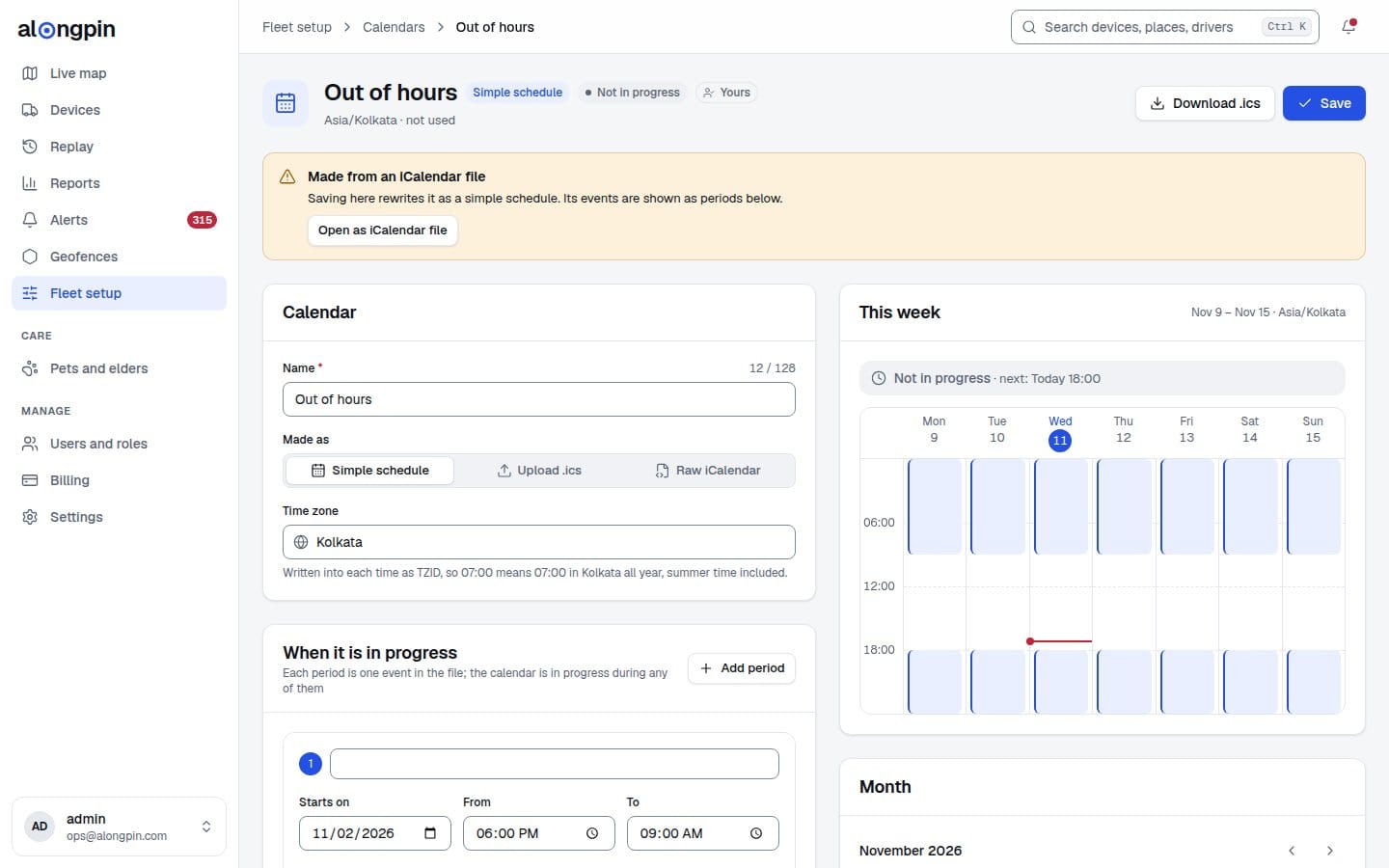
Calendars live under Fleet setup → Calendars. Choose New calendar, give it a name people will recognise, such as "Depot shifts", and decide how it is made:
- Simple schedule: pick the days (for example Mon–Fri) and the hours (07:00 – 17:00). Hours that run past midnight are allowed, so a 22:00 – 06:00 shift is one occurrence that ends the next day. Set the calendar's time zone to the one your drivers work in.
- Upload .ics: if your rota already lives in a calendar tool, export it as an iCalendar file and upload it. The calendar then follows the file's events and their time zone.
The calendar page shows the week ahead, whether an occurrence is in progress now, and a Used by list of everything that relies on it. The setup is described step by step in setting working hours so time off is private.
Then open Settings → Privacy and data protection → Driver privacy and private trips, switch on Automatically outside working hours and choose the Working hours calendar. If no private mode is chosen yet, choose one under What private mode does; that turns private trips on. These settings are the defaults for every vehicle; a group or a single vehicle can carry its own.
What private means outside the hours
The calendar decides when a vehicle is private. The mode decides what is kept while it is:
| Mode | What is stored outside working hours |
|---|---|
| Store positions blurred to 1 km | Each position rounded to a grid of about a kilometre, with no address and no speed |
| Store only the distance | No location at all; distance and odometer keep counting, so a tax logbook still adds up |
| Stop storing positions | Nothing between the start and the end of the private trip, apart from theft alarms |
In every mode a private position raises no geofence, overspeed or harsh-driving event, and addresses are never looked up for it. Trip reports show a private trip as "Private trip" with its distance and no places. The three modes are compared in detail in private trips explained.
One more switch matters here: Live location outside working hours. With it off, managers see no point at all for a vehicle in the blurred mode outside the hours, only "Outside working hours", and history has no route for that time. Distance still adds up.
Shift work, on-call and several calendars
Real rotas are rarely Monday to Friday, nine to five. Some patterns and how to handle them:
Several teams, several calendars
Make a calendar per pattern ("Day shift", "Night shift", "Weekend crew") and give each group of vehicles its own working-hours calendar. A vehicle's own setting wins over its group's, and a group's over the account default. Keep names clear: the Used by list shows which devices and groups use each calendar as working hours.
Rotating shifts
If the shift plan changes every week, maintain it where the rota is made and upload a new .ics when it changes. A simple weekly schedule is the better choice when the hours really are fixed.
On-call and call-outs
Decide whether on-call time is working time for tracking purposes. If an on-call engineer should be tracked only while actually called out, leave on-call hours out of the calendar and let the driver end the private trip when a call comes in: switching private off outside working hours keeps the vehicle tracked until the next working hours start, and it becomes private again by itself the evening after. This needs drivers to be allowed to switch their own vehicle, which you set under Private trips.
An SOS from the device also ends a private trip, by default, so help can find the driver.
Public holidays
Holidays are where calendars most often go wrong. Add them as exceptions, or upload a rota that already leaves them out, before the day comes.
Don't delete a calendar that is in use
A vehicle whose working-hours calendar no longer exists counts as outside working hours all the time. Check the Used by list before deleting one.
The same calendars limiting alerts and zones
Calendars are not only for privacy. The same calendar can limit:
- Alert rules: a rule with a calendar only alerts while an occurrence is in progress. An overspeed rule for working hours, for example.
- Geofences: a geofence with a calendar only raises enter and exit events during its occurrences. See limiting a geofence to working hours.
- Scheduled reports: each report is mailed when an occurrence of its calendar ends.
Working-hours privacy and alerts interact. Positions outside the hours raise no zone or speed events, so a "left the depot at night" alert based on a geofence will stay silent. Ignition and motion events are still raised during private trips, with the reduced position, so a rule that warns about the engine starting outside working hours still works. The alerts page describes the rule types, and limiting alerts to working hours with a calendar shows the steps.
Checking it works: the audit log
Trust comes from being able to show the settings do what you told drivers they do. Three places help:
- The audit log records each private-trip switch as a change of the device, on or off, and an automatic end at the start of working hours as a change by the system. Changes to the privacy settings are recorded with the keys that changed.
- The trips report shows private trips as "Private trip" with only their distance. Look at a vehicle's evening for a week after you switch on, and check it shows what your notice says.
- The driver's own view: drivers who can switch see whether their vehicle is private, since when and why, and the working hours ahead.
Do a test before rollout: one vehicle, one evening, and a look at the live map, the trips report and the audit log the next morning.
Getting it right with drivers
Tell drivers what the calendar is, what happens outside it, and what still goes out (an SOS with the real location, theft alarms in the pause mode). Publish it in the driver notice and keep the calendar in step with the rota. Where employee representatives have a say, agree the hours and the mode with them; the privacy and GDPR page and the driver privacy page describe the rest of the controls.
How Alongpin helps
Alongpin (alongpin.com) is a GPS tracking platform you open in a browser or on your phone. It is built for tracking that drivers can live with: private trips and working hours, a published driver notice, roles that limit who sees what, an audit log, and retention periods you set. Read how it handles privacy and data protection and security, then see the fleet solution.