Geofences
Limiting a geofence to working hours
Put a calendar on a geofence so enter and exit events happen only during the hours you choose, such as weekdays 08:00 to 18:00, and how this differs from a calendar on the alert rule.
Ashish Srivastava4 min read
A geofence schedule makes a zone raise enter and exit events only during the hours you choose. In Alongpin it is a calendar: create one under Fleet setup → Calendars with a simple schedule such as weekdays 08:00 to 18:00, then choose it in the zone's Calendar field and save. Outside the calendar, vehicles still drive in and out, but no enter or exit event is raised, so no alert goes out.
Key takeaways
- A calendar on the zone stops the events themselves outside its hours; a calendar on the alert rule only stops the messages.
- The zone's speed limit applies at all times, with or without a calendar.
- A simple schedule is written with a time zone, so 08:00 means 08:00 there all year, summer time included.
- One calendar can serve many zones, rules and scheduled reports.
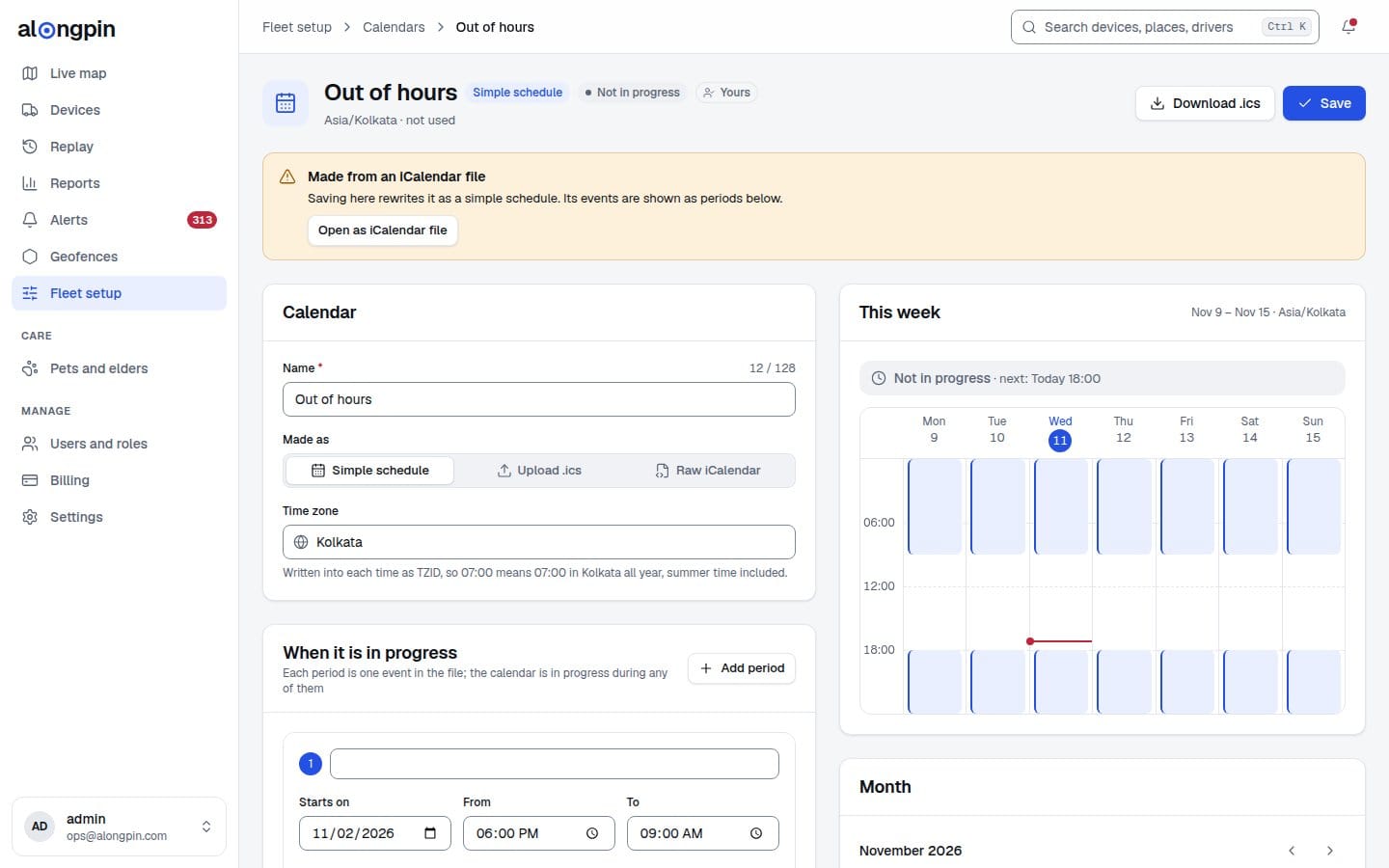
Create a calendar from a simple schedule or an iCalendar file
- Open Fleet setup in the menu and the Calendars tab, then choose New calendar.
- Give it a Name, such as "Working hours".
- Choose Simple schedule. Under When it is in progress, set the first period: the day it starts, From 08:00 to 18:00, Repeats weekly, and tick Monday to Friday.
- Check Time zone (see below).
- Add more periods if you need them, for example Saturday mornings, and Exceptions for public holidays.
- Press Save calendar. The preview shows this week and the next occurrences, so you can check it before saving.
If you already keep the schedule in a calendar program, choose Upload .ics and upload an iCalendar file instead. You can create a calendar from the zone itself too: the Calendar field offers New calendar.
Choose the calendar on the geofence
- Open Geofences in the menu and pick the zone.
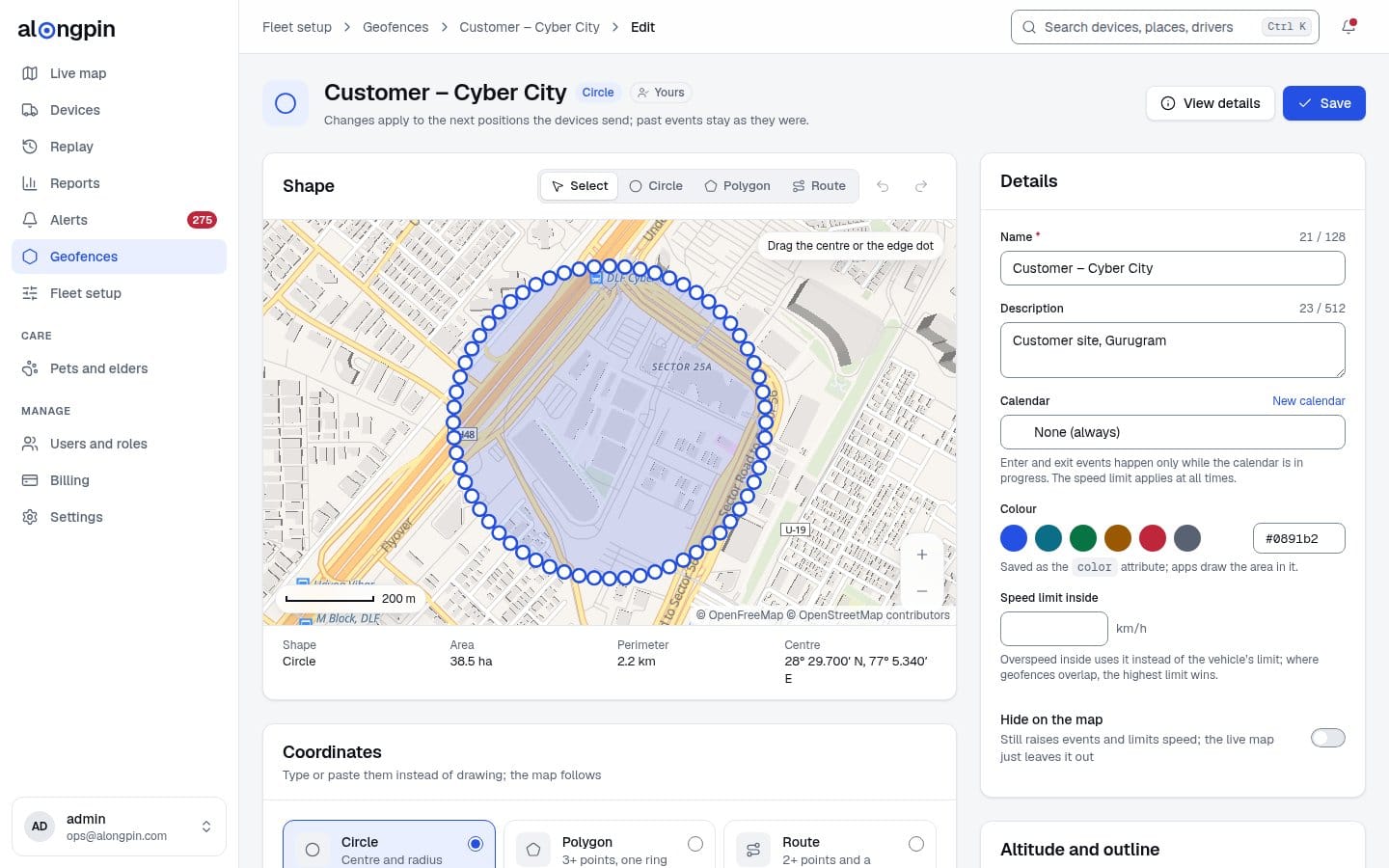
- In the panel or on the full form, choose the calendar under Calendar. None (always) means the zone raises events at any time.
- Press Save.
The zone's page then says that enter and exit events happen only while the calendar is in progress, and the list's Calendar column shows its name. You can choose only calendars you can read: your own and those shared with you.
What happens outside the calendar
Outside the calendar's hours:
- No Geofence enter or Geofence exit event is raised, so no rule fires and nothing appears in the events list.
- The vehicle's route still shows that it was inside, and positions still record the zone.
- The zone's Speed limit inside still applies, so overspeed events still come.
- Stays that start outside the hours have no enter event, so they may be missing from the geofence report.
The check uses the time of the GPS fix of each position. A vehicle that arrives at 07:50 and leaves at 18:30 raises neither event: the arrival came before the calendar started and the departure after it ended.
Difference from a calendar on the alert rule
An alert rule has its own calendar, under Only during. The two do different things:
| Calendar on | Outside its hours |
|---|---|
| The geofence | No enter or exit event for this zone at all, for every rule and report |
| The alert rule | Events are still raised and recorded; this rule just sends no message |
Use the zone's calendar when entries and exits outside working hours don't matter to anyone, for example a customer site you only care about during deliveries. Use the rule's calendar when you want the record but not the messages at night, or when different people need different hours. More on rules is on the alerts page.
Time zone of the calendar
A simple schedule writes each time with the calendar's Time zone: 08:00 in Asia/Kolkata stays 08:00 in Kolkata, and a zone in Europe follows summer time. If your vehicles work in another time zone than you, set the calendar to theirs. In an uploaded iCalendar file, times that name a zone are taken as written; times without one are read in the calendar's time zone, else the server's.
Calendars and private trips
Calendars are also used as working hours for driver privacy: outside them, a driver's trips can be private. That is a separate setting; a calendar on a zone does not make trips private. See driver privacy, and the geofences page for more on zones.
Frequently asked questions
Can I use the same calendar on many zones?
Yes. Changing the calendar changes it for every zone, rule and report that uses it; its page lists them under Where it is used.
What if I delete the calendar?
Zones that used it go back to raising events at any time.