Fleet management
How to set speed limits and overspeed alerts for a fleet
Set a speed limit per vehicle and per zone, turn overspeed events into alerts people act on, review them in the events report and on trip replay, and talk to drivers about the data fairly.
Ashish Srivastava6 min read
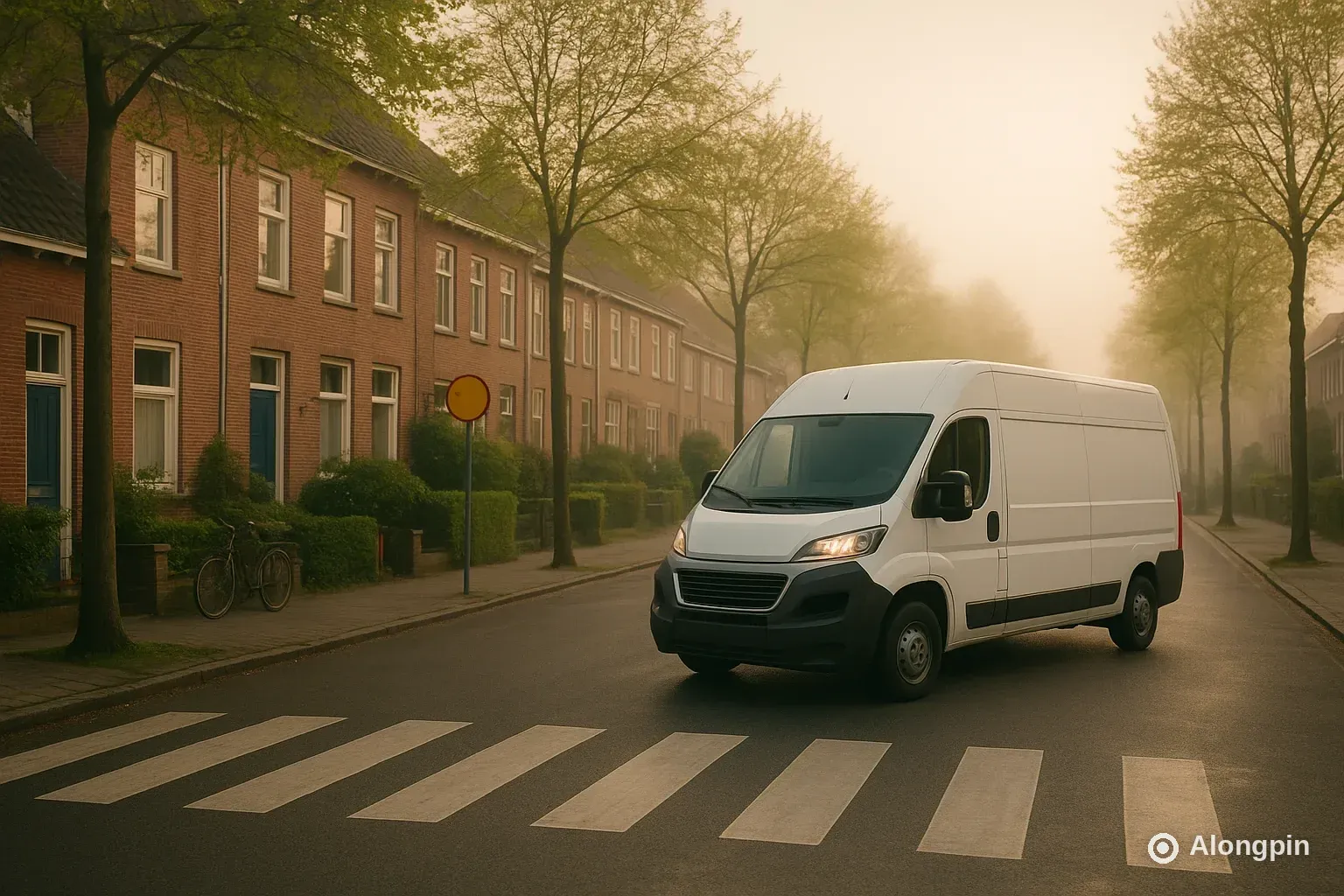
Fleet speed limit alerts start with a limit the platform can compare each position against. In Alongpin you set it in two ways: a speed limit on the vehicle (or its group), which applies on the road, and a speed limit inside a zone, which replaces the vehicle's limit while it is in a depot, a yard or a school street. Every time a vehicle goes over the limit that applies, an overspeed event records the speed and the limit; an alert rule decides who hears about it, by which channel and when.
Key takeaways
- Set a road limit on each vehicle, or once on a group for every vehicle in it.
- A zone's Speed limit inside wins over the vehicle's limit while the vehicle is inside, higher or lower.
- An overspeed event records the speed and the limit that applied, and the zone when a zone's limit applied.
- An alert rule for Overspeed can be narrowed to chosen zones and to a calendar.
- Reports → Events lists every overspeed of a period; replay the trip to see the context.
- Tell drivers what is recorded and read patterns, not single events.
A limit on the vehicle versus a limit inside a zone
A speed policy usually has two parts: a general limit for driving on the road, and lower limits for places where speed is dangerous, such as your own yard where people walk between vehicles.
The vehicle's limit. Open the vehicle under Devices, choose Edit and set Speed limit; its Settings tab shows the limit in force under Behaviour, with where it comes from. Leave it empty and the vehicle takes its group's limit; set it on the group's settings and every vehicle in the group and its subgroups follows, except those that set their own. With no limit on the vehicle, the group or the server, a vehicle raises no overspeed events at all. A limit of 0 means no limit.
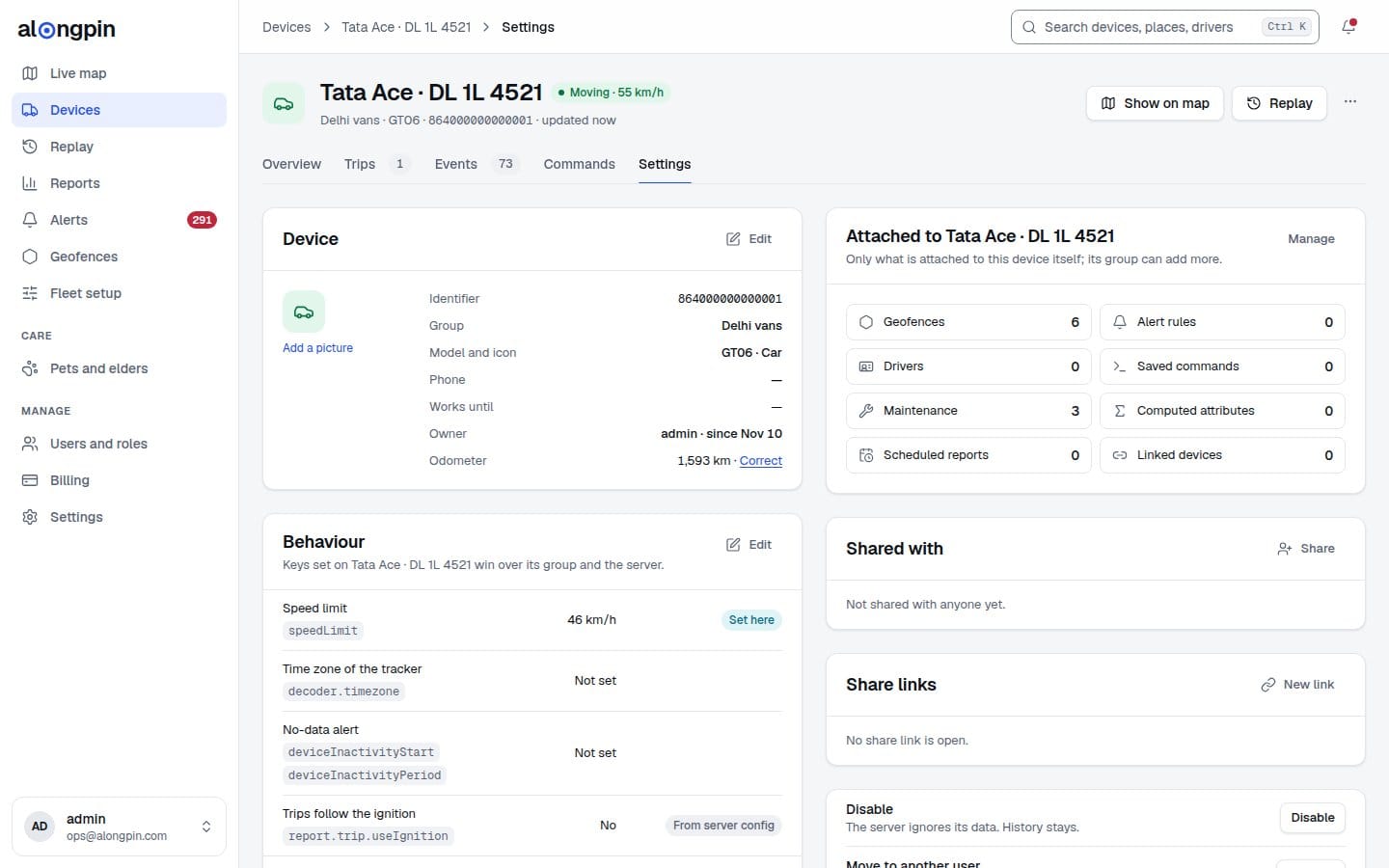
The zone's limit. Open the zone under Geofences and enter Speed limit inside. Inside the zone this limit replaces the vehicle's own, whether it is lower or higher. The zone must be attached to the vehicle or its group; for vehicles it is not attached to, it does nothing. How to set a speed limit inside a zone goes through it step by step.
At any moment, the limit that counts is chosen in this order:
- The Speed limit inside of a zone the vehicle is in. Where zones with limits overlap, the highest of them applies, unless your administrator has set the server to use the lowest.
- A limit the tracker reports for the road, on trackers that report one.
- The vehicle's own limit, else its group's, else the server's.
What an overspeed event records
Each overspeed event carries the speed measured and the limit that applied, so a row reads like "72 km/h, limit 50 km/h". When a zone's limit applied, the event also names the zone. The event is raised when the speed stays above the limit for a minimum time set on the server, so a brief peak while overtaking does not count; ask your administrator what applies on yours.
Speed comes from the tracker's GPS, which measures speed over ground. It often differs a little from the speedometer, which many vehicles set to read slightly high. Allow for that when you choose a limit: a road limit set exactly at the legal limit flags drivers who believe they are at it.
Zone limits for depots, yards and school streets
Zone limits are where a speed policy does most good, because they target the places where low speed matters:
- Your depot or yard. People walk between parked vehicles, forklifts cross and drivers reverse. A low limit inside, such as walking pace plus a little, catches vehicles that cut across the yard.
- Customer sites. Some customers set their own site limits. Draw the site, set its limit and attach it to the vehicles that visit.
- School streets and residential areas on regular routes. Draw the street as a route corridor, a line with a width, and set its limit.
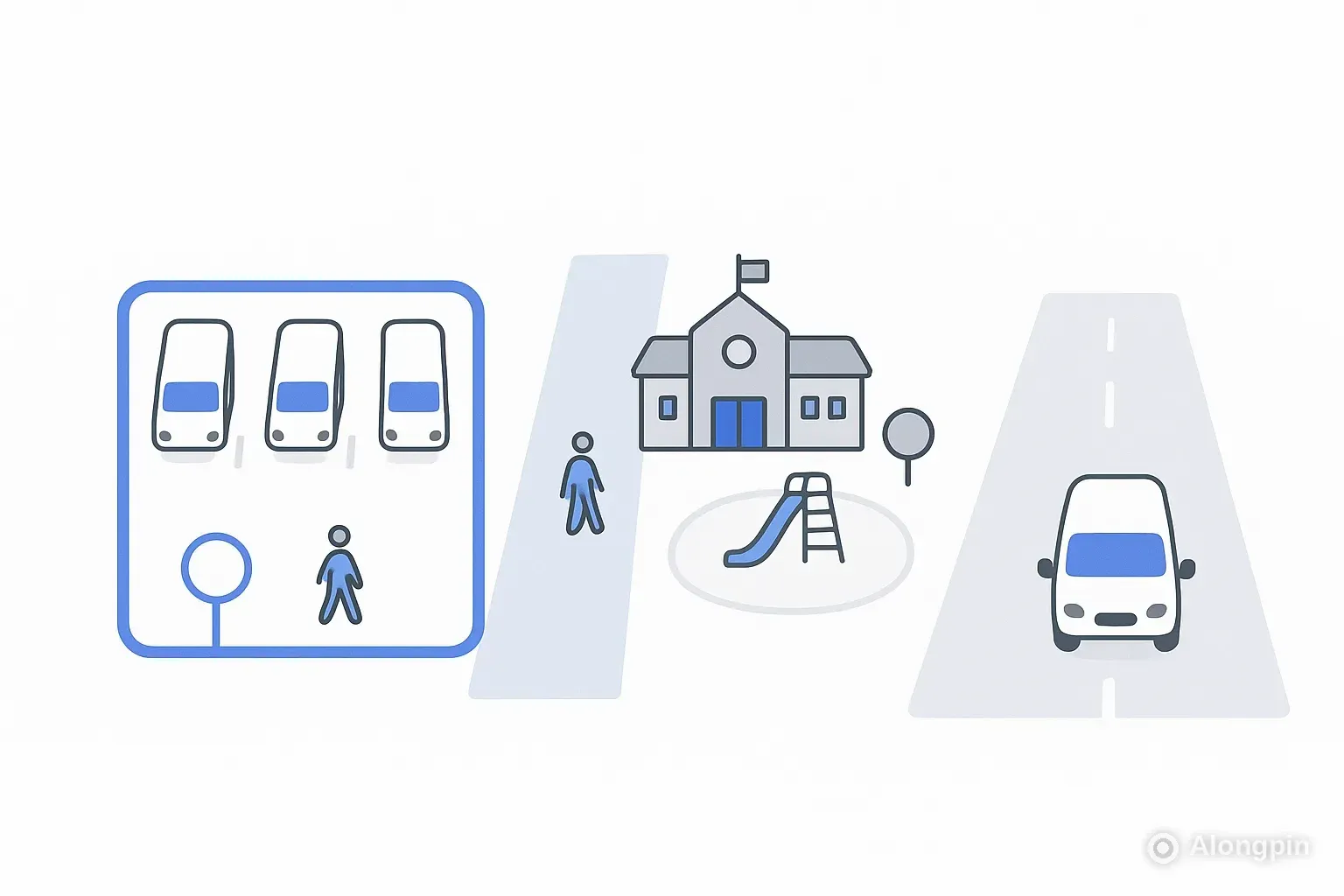
A zone's calendar limits only its enter and exit events; its speed limit applies at all times. If you only want to hear about speeding in a school street during school hours, put the calendar on the alert rule instead, as below. The geofences page explains the zone shapes.
Choosing who is alerted, by which channel and when
Overspeed events are recorded whether or not anyone is told. An alert rule turns some of them into messages. Open Alerts, the Rules tab, choose New alert rule, and under When this happens choose Overspeed. Then decide:
- Where. With no zone ticked, the rule fires for every overspeed, on the road and in zones. Under Only these geofences, tick the yard to hear only about speeding there. Two rules, one for the yard and one for the road, can go to different people.
- When. Under Only during, choose a calendar, such as working hours or school hours. The rule fires only while it is in progress.
- How. Under Tell people by, tick the channels: In the app, e-mail, and push, text messages or Telegram where your administrator has switched them on.
- Who. Under Devices and people, attach the vehicles or group, and under Who receives it tick the people who will act on it.
Be careful with instant messages for road speeding. A manager who gets a push for every overspeed across thirty vehicles soon stops reading them. Many fleets send yard and school-street overspeeds immediately, because someone may need to step in, and review road speeding weekly from a report instead. The alerts page covers channels and quiet hours.
Reviewing overspeeds in the events report and on trip replay
Open Reports, the Events tab, choose the vehicles or groups and the period, and under Event types choose Overspeed. The table lists every overspeed with When, Device, Event, Details (speed and limit) and Where. To see only one zone, choose it under Only in geofence. Press Schedule to receive the same list by e-mail every week.
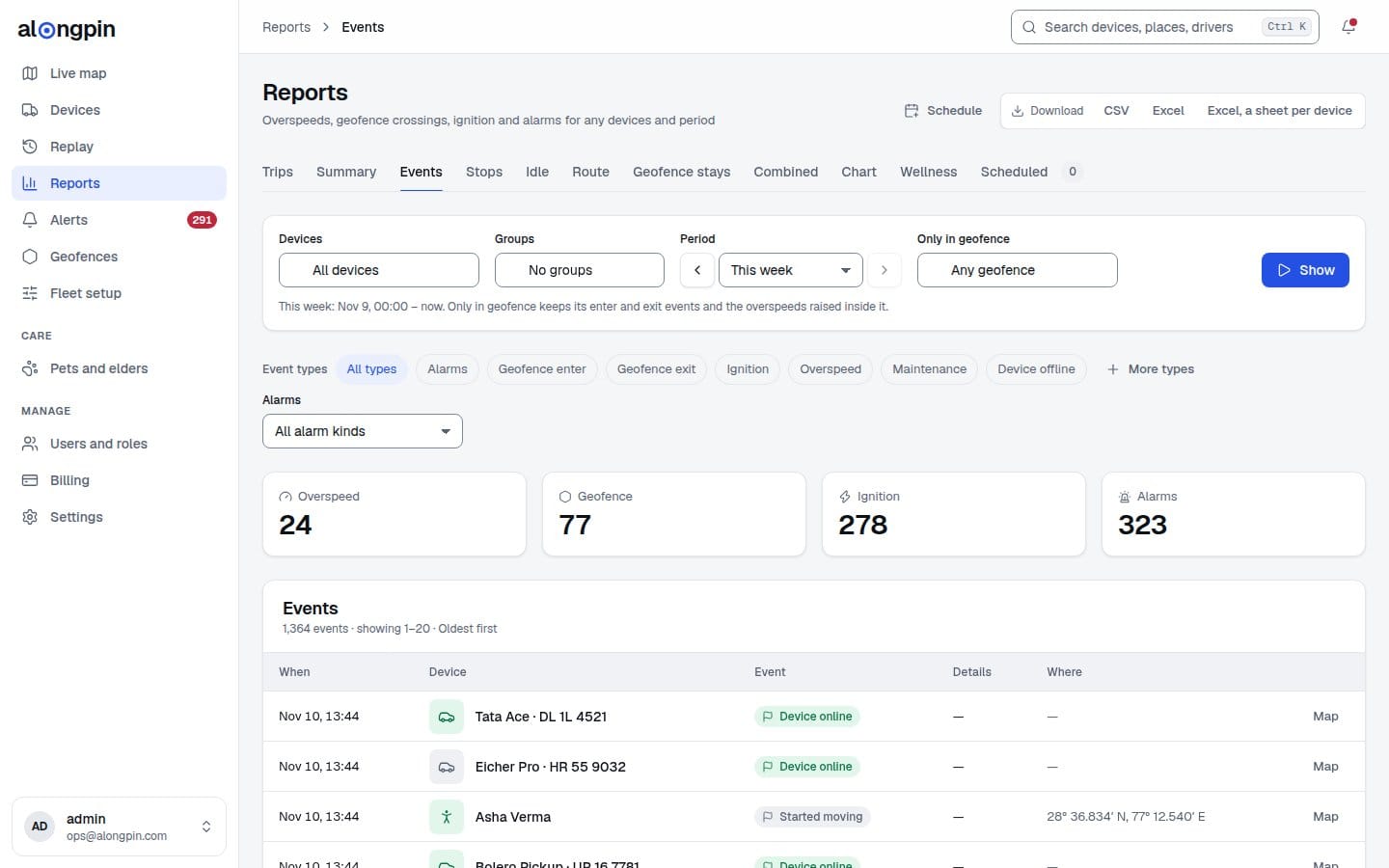
A row is a moment, not a story. Map on the row shows where it happened. To see what came before and after, open Replay for that vehicle and day and play the trip around the event's time: a single overspeed on an empty dual carriageway reads differently from a run of them through a village. Listing overspeed and harsh driving events explains the report in detail, and the driver behaviour page shows harsh braking, acceleration and cornering alongside speed, where the tracker reports them.
Talking to drivers about the data fairly
Speed data changes how drivers feel about tracking. Handled fairly, it improves safety without souring relations:
- Tell drivers first. Before the limits go live, explain which limits apply, where the zone limits are, what is recorded and who sees it. Your account can publish a driver notice that drivers confirm in the driver app.
- Read patterns, not single events. Look at a few weeks before you raise it. One overspeed on a slip road is not a habit.
- Show the evidence. Sit down with the replay of the trip rather than a number on a list.
- Allow for measurement. GPS speed and the speedometer differ slightly, and the minimum duration filters out short peaks; a limit set a little above the legal one avoids arguments about a few km/h.
- Respect private time. Where your fleet allows private trips, positions on a private trip raise no overspeed events; that time is the driver's own.
How Alongpin helps
Alongpin (alongpin.com) is a GPS tracking platform you open in a browser or on your phone. Your trackers, in the vans, trucks and cars you already run, show on one live map with trips, stops, idle time and alerts; reports and scheduled reports answer the questions this article raises, and users and roles let each depot see its own vehicles. Check your trackers in the device check, read how it works for fleets, and start on the pricing page.
Frequently asked questions
Can a zone have a higher limit than the vehicle?
Yes. Inside the zone its limit replaces the vehicle's, so a motorway corridor drawn as a zone could carry a higher limit than a van's general one.
Why did a vehicle raise no overspeed event?
It has no limit set on the vehicle, its group or the server; the zone is not attached to it; the overspeed was shorter than the minimum time; or it was on a private trip.
Does the platform know the legal limit of every road?
No. It uses the limits you set, plus a road limit only on trackers that report one.