Fleet management
Fleet alerts that matter: avoiding notification overload
Fleet alerts work when there are few of them and each asks for an action. How to sort events into act now, look at today and report only, match the channel to the urgency, use calendars and quiet hours, and move the rest into a scheduled report.
Ashish Srivastava6 min read
Fleet alerts work when there are few of them and each one asks for an action. The way to avoid notification overload is to sort every event into one of three groups (act now, look at today, report only), send only the first group as alerts, send them to the person who can act through a channel that suits the urgency, and move everything else into a scheduled report. A fleet manager who gets five alerts a week reads all five. One who gets five hundred reads none.
Key takeaways
- Alert fatigue comes from rules that fire on normal events, go to everyone, use every channel and run around the clock.
- Sort events: act now (alarms, out-of-hours movement, a tracker going silent), look at today (overspeed, maintenance due) and report only (ignition, stops, arrivals).
- Match the channel to the urgency: push, SMS or Telegram where your installation has switched them on for act-now; email or the app for the rest.
- Put rules on a calendar with Only during, and set your own quiet hours with exceptions for SOS and power cut.
- Send each rule to the person who can act, and let a scheduled report carry everything else.
Why alert fatigue happens
A new tracking platform invites you to switch everything on. Ignition on, ignition off, geofence enter, geofence exit, started moving, stopped, overspeed: each sounds useful, and each fires dozens of times a day across a fleet. Within a week the phone buzzes so often that people mute it, and the alert that mattered (a van leaving the yard at 3 a.m.) arrives in the same muted stream as forty ignition-on messages from the morning shift.
The usual causes are easy to spot in a rules list:
- Rules on normal events. Ignition on at 7 a.m. is not news. It is the day starting.
- Every rule to everyone. The owner, the dispatcher and the workshop all get the same messages.
- Every channel at once. Email, SMS and push for the same event, three times over.
- No schedule. A geofence arrival at a customer during the working day fires the same alert as one at midnight.
Sorting events: act now, look at today, report only
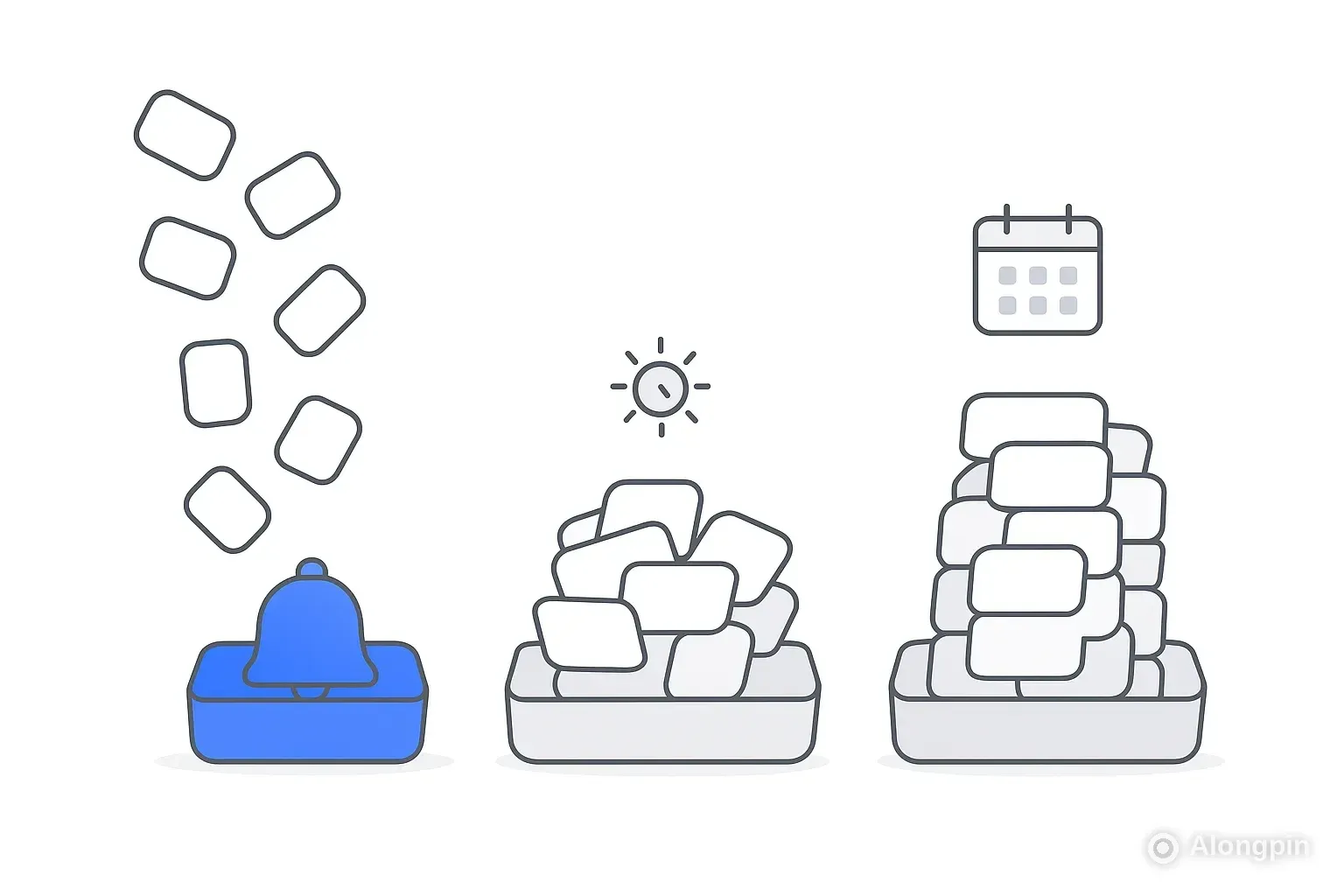
Go through each event type you might use and put it in one of three groups. Be strict: an event belongs in "act now" only if someone will do something within the hour.
| Event | Group | Why |
|---|---|---|
| Alarm: SOS, power cut, tow | Act now | A person or a vehicle may be in trouble |
| Ignition on or Started moving, out of hours | Act now | Possible theft or unauthorised use |
| Geofence exit from the yard, out of hours | Act now | Same, with the place |
| Device offline or Status unknown, for vehicles that should be reporting | Act now or look at today | A tracker may have been cut off, or just lost signal |
| Overspeed | Look at today | A conversation with the driver, not an emergency |
| Maintenance due | Look at today | Book the service this week |
| Queued command failed | Look at today | Check the tracker |
| Geofence enter or exit at customers, during the day | Report only | Proof of visit, read in the report |
| Ignition on and off, Started moving, Stopped | Report only | The rhythm of a normal day |
| Driver changed | Report only, unless vehicles must not change hands | Who drove is in the trips report |
Your table will differ. A refrigerated fleet may put a temperature alarm in "act now"; a rental business may treat every out-of-zone movement as urgent. What matters is that the "act now" group stays short.
Matching the channel to the urgency
A rule has its own channels under Tell people by. Which ones you see depends on what your installation has switched on: the app itself is always there, and email, text message, Telegram, push and webhooks appear when the operator has configured them.
- Act now: push to the phone of the person on duty, or a text message where push is not reliable. Telegram suits teams that already work in a group chat.
- Look at today: email, or just the app. Nobody needs a text message for an overspeed at 11:14.
- Report only: no alert at all. The event is still recorded and shows in reports and on the vehicle's page.
Text messages cost money for every message, so keep them for the few rules that justify them. A webhook sends events to your own system, which suits a control room that already has its own alarm screen.
Before relying on a rule, use Test these channels in its editor. It sends a test message through each of the rule's channels to you alone, so you can see that the push arrives and the email is not in spam. It does not raise a real alarm.
Schedules and quiet hours by calendar
Time is the second filter. Two tools handle it.
A calendar on the rule
Under Only during, a rule can be limited to a calendar. The rule fires only while the calendar is active. Build calendars for the periods you care about, for example "Working hours" (Monday to Friday, 7:00 to 18:00) and "Out of hours" (everything else). There is no "only outside these hours" switch, so the out-of-hours calendar is its own calendar. The setup guide on limiting alerts to working hours with a calendar shows how to build both.
Your own quiet hours
Each person can also set quiet hours for themselves in Settings → Your account → Alerts and channels, for example 22:00 to 06:00. During that window, email, text messages, Telegram and push are held back, and they are not sent later; everything still shows in the app. SOS and power cut alarms get through by default, and you choose what else may. The help article on setting quiet hours for your alerts covers the choices.
The difference matters: a calendar on a rule changes when the rule fires for everyone; quiet hours change what reaches one person.
Sending each alert to the person who can act
An alert sent to five people is often acted on by none, because each assumes another will. For each rule, ask who will do something when it fires:
- Out-of-hours movement: whoever holds the night phone, not the whole office.
- Overspeed: the line manager of the drivers concerned.
- Maintenance due: the workshop or whoever books services.
- Tracker offline: the person who looks after the hardware.
In the rule's Devices and people, link it to the vehicles or groups it covers, and add the people you manage who should receive it. Each person gets it through the rule's channels, for the vehicles they can see. A rule that is no longer needed for a while can be paused; pausing stops it for everyone who receives it. If someone else's rule is shared with you and you no longer need it, Stop receiving removes only you.
Moving the rest into a scheduled report
Everything in "report only" and much of "look at today" belongs in a report that arrives at a fixed time. From a report page, Schedule this report sends a link to the report by email when a calendar period ends: every night, every Monday, the first of the month. Trips, summary, events, stops, route, combined and geofence stays reports can be scheduled.
Two routines cover most fleets:
- Each morning: the events report for yesterday, filtered to overspeed and alarms, and the stops report.
- Each month: the summary per vehicle, with distance, driving time and idle time.
The scheduled reports page shows what each report holds. Scheduled reports go out by email, so the email channel must be switched on for your installation.
A monthly check on your rules
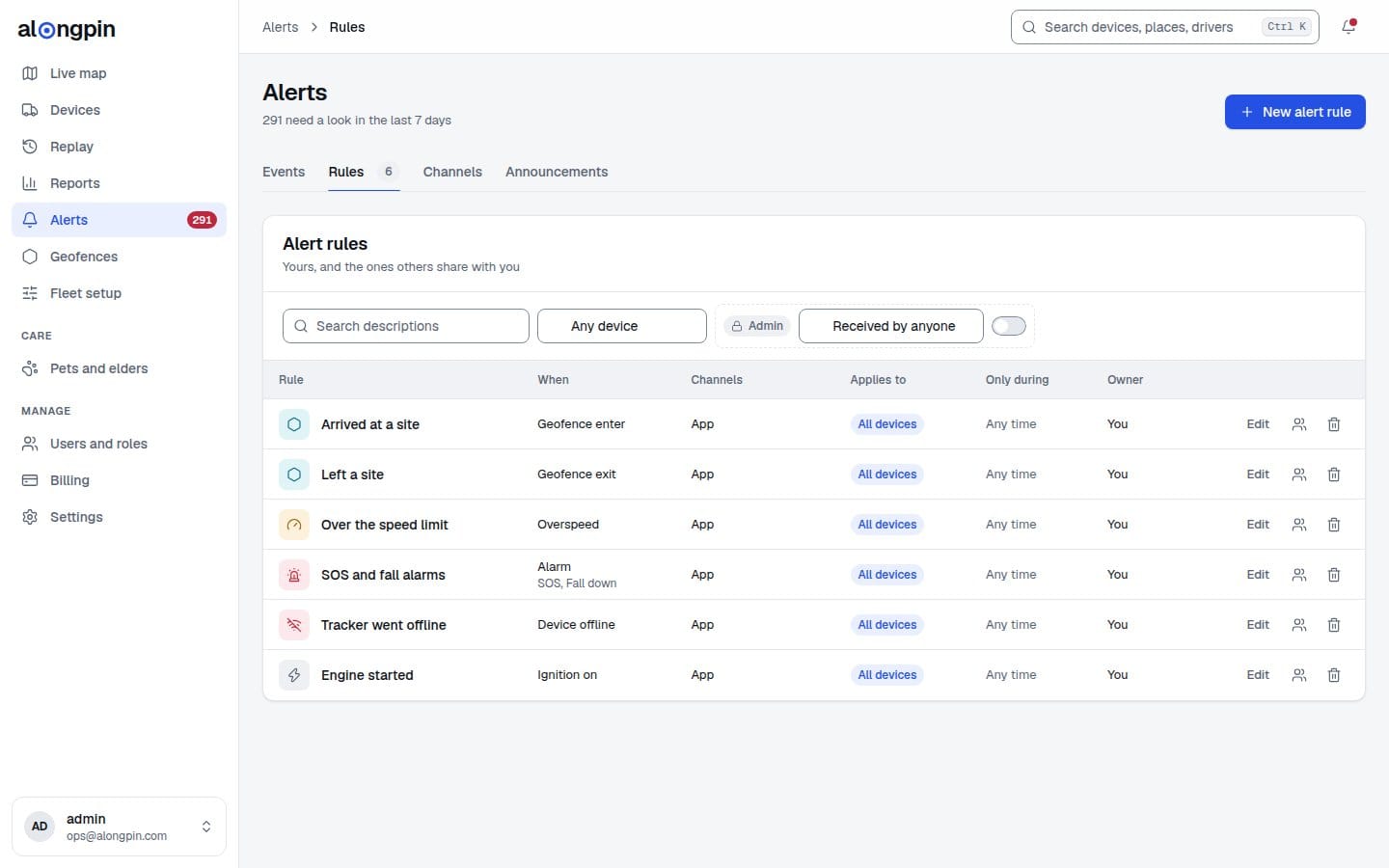
Once a month, open Alerts → Alert rules and ask of each rule: did it fire, did anyone act, would we miss it? Pause rules nobody acted on. Narrow rules that fired too often to fewer vehicles, a geofence or a calendar. Add a rule only when someone has missed something that mattered.
The fleet solution page and the alerts page show where alerts fit with the live map, zones and reports.
How Alongpin helps
Alongpin (alongpin.com) is a GPS tracking platform you open in a browser or on your phone. Your trackers, in the vans, trucks and cars you already run, show on one live map with trips, stops, idle time and alerts; reports and scheduled reports answer the questions this article raises, and users and roles let each depot see its own vehicles. Check your trackers in the device check, read how it works for fleets, and start on the pricing page.
Frequently asked questions
How many fleet alert rules should we have?
There is no right number, but the "act now" group is usually a handful of rules. If people mute their phones, there are too many.
Can an alert go to one person by day and another at night?
Yes: make two rules with the same event, one on a working-hours calendar and one on an out-of-hours calendar, each sent to a different person.
Do muted events disappear?
No. Events are recorded whether or not a rule sends them. They appear in the events report and on the vehicle's page.