Alerts and SOS
Setting quiet hours for your alerts
How to set quiet hours, for example 22:00 to 06:00, during which alerts reach you only in the app, except the ones you let through. SOS and power cut get through by default.
Ashish Srivastava3 min read
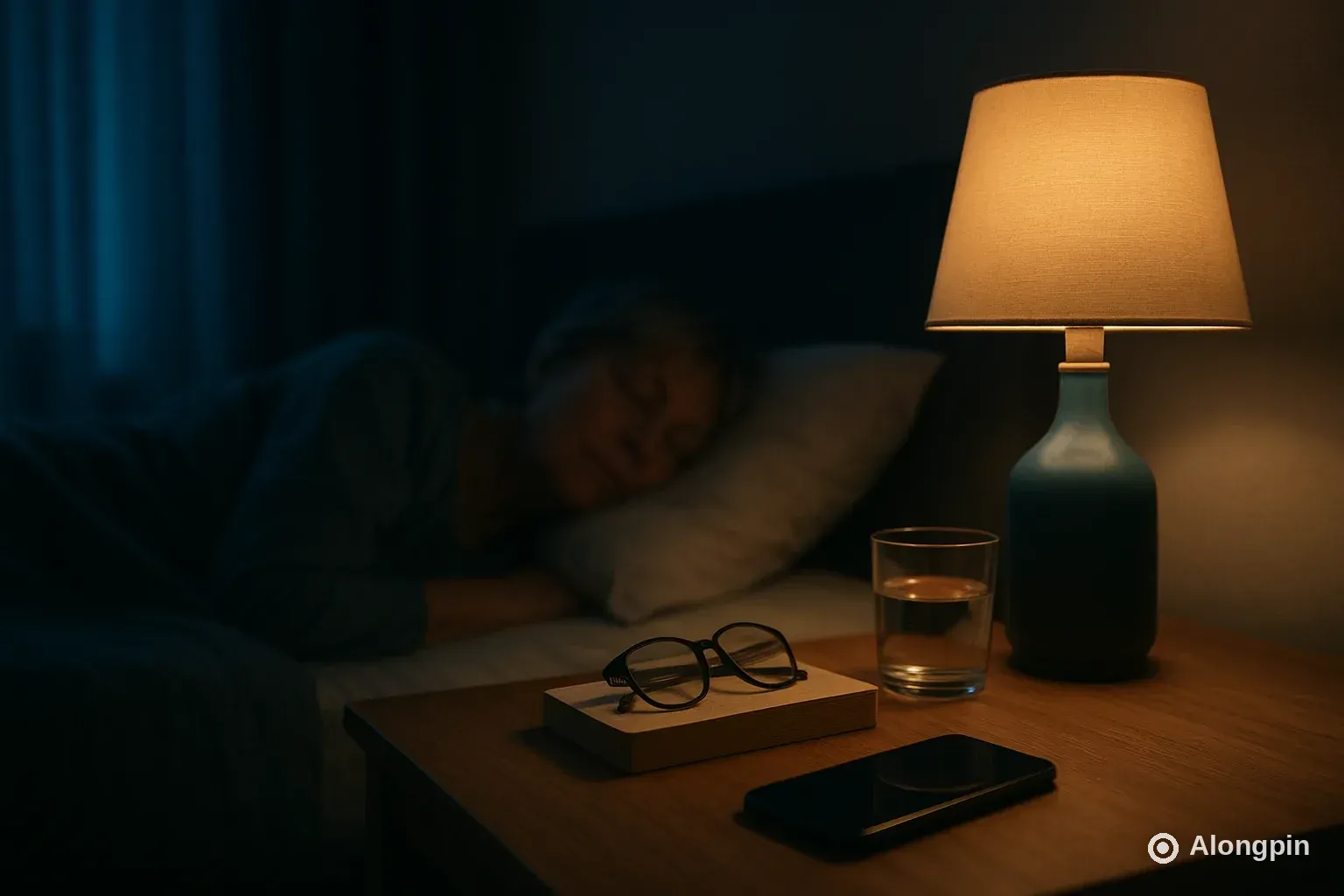
Quiet hours for alerts are a daily window, for example 22:00 to 06:00, in which alert messages stay quiet: e-mail, text messages, Telegram and push are held back, and alerts reach you only in the app and the portal. The alerts you let through still go out; SOS and power cut are on that list by default, so an emergency still wakes you. You set quiet hours once, for yourself, and they apply to every alert rule you receive.
Key takeaways
- Quiet hours are under Settings → Your account → Alerts and channels → Quiet hours, or More → Notifications → Quiet hours in the app.
- SOS and power cut alerts still go out by default; you can add others or remove them.
- A held-back alert is not sent later. It still shows in the app and the portal.
- Quiet hours are per person: they never change what anyone else on the same rule receives.
How to set your quiet hours
- Open Settings → Your account → Alerts and channels and go to Quiet hours.
- Switch on Hold back messages in this window.
- Set From and Until, for example 22:00 and 06:00. A window that ends before it starts runs past midnight; the start and the end must differ.
- Check the list under Still goes out (see below).
- Save.
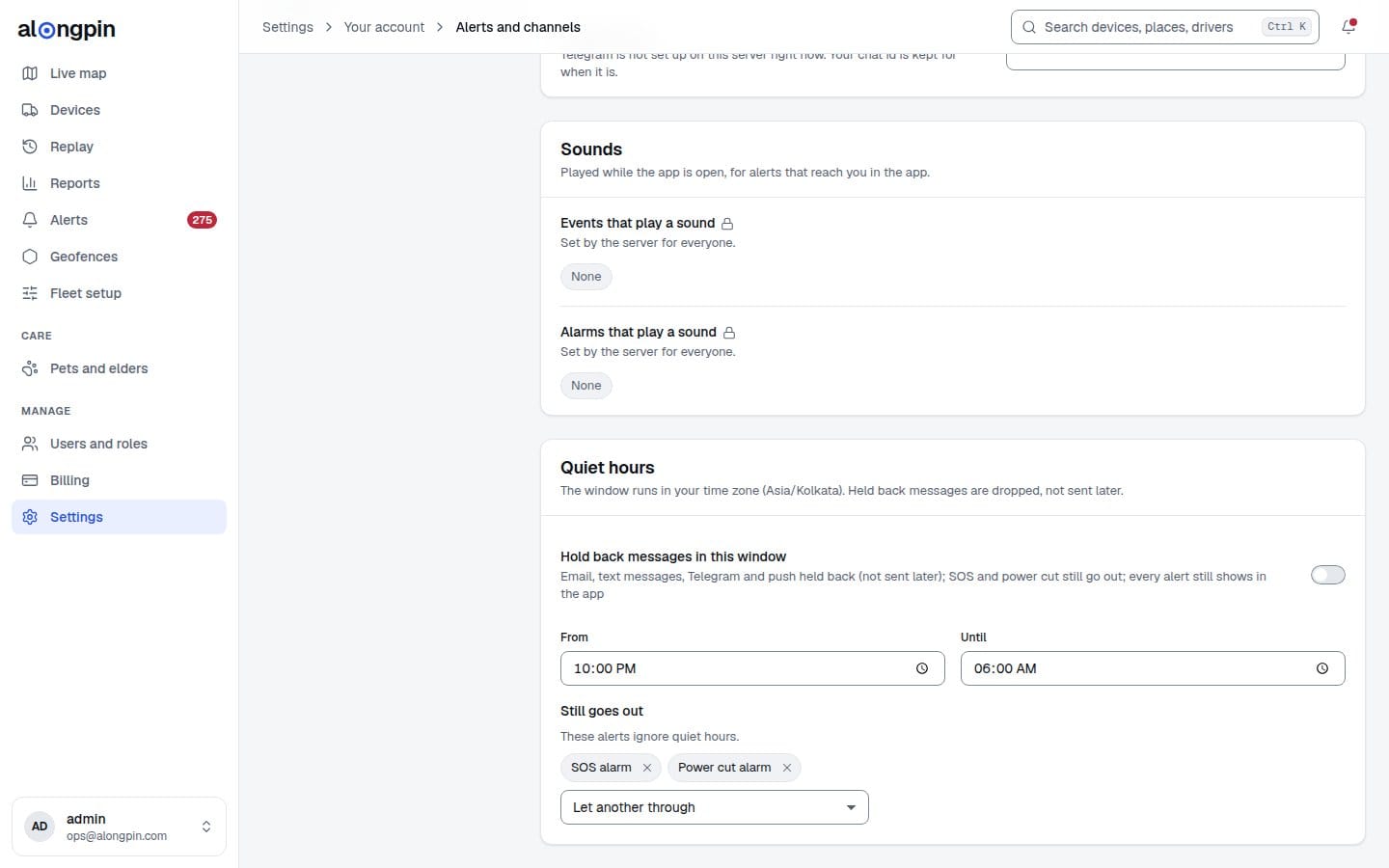
The window runs in your own time zone, which the page names. If it says the window runs in UTC, set your time zone under Map and display first, so that 22:00 means 22:00 where you are.
In the mobile app the same setting is under More → Notifications → Quiet hours: Hold back alerts, From, To and Always let through.
Which alerts still get through
Still goes out lists the alerts that ignore your quiet hours. It starts with SOS alarm and Power cut alarm: a panic button pressed, or a tracker's power cut, which can mean someone is tampering with it.
- To let another alert through, use Let another through and pick it: an alarm kind such as Fall down alarm, Every alarm, or an event such as Geofence exit.
- To hold one back after all, remove it from the list.
- With nothing in the list, every alert in the window is held back, SOS included. Think carefully before you do this if you look after someone.
For a family carer, a good list is usually SOS, fall down where the watch reports falls, and leaving a geofence such as home at night. Read more about how SOS alerts reach the people who need them.
A held-back alert is not sent later
When quiet hours end, nothing is sent in a batch. Each alert held back in the window is dropped from e-mail, texts, Telegram and push for you. It still shows in the portal's alerts list and in the app, so in the morning you can see what happened overnight.
What quiet hours do not hold back:
- alerts in the app and in the portal, which always show;
- a rule's webhook and saved command, which go to a system or to the device, not to you;
- test messages and announcements;
- care alerts and care reminders from care profiles, which follow the care profile's own alert settings.
Quiet hours are per person, not per rule
Your quiet hours affect only messages to you. On a rule that also reaches a colleague or another family member, they receive everything as usual, unless they set their own quiet hours. To have a rule itself send only at certain times, put it on a calendar instead (Only during in the rule): that changes it for everyone who receives it.
How it shows in the delivery log
Open an alert from Alerts. Under Sent to, a message your quiet hours held back reads, for example, Push · held back (quiet hours) or Email · held back (quiet hours), next to In the app · sent. That is how you tell a quiet-hours hold from a failed delivery. Learn more about alerts and channels.
Frequently asked questions
Can I have different quiet hours at weekends?
No: there is one window per person, every day. For different times on different days, put the rule on a calendar.
Will a fall alert wake me at night?
Only if it is in Still goes out. Add Fall down alarm if your watch reports falls.