Fleet management
How to know who drove which vehicle: driver cards and keys
In a fleet of shared vehicles, a card or key read by the tracker puts a driver's name on every trip. How driver identification works, how to register drivers, where the name appears, the hardware it needs and what to do without a reader.
Ashish Srivastava6 min read
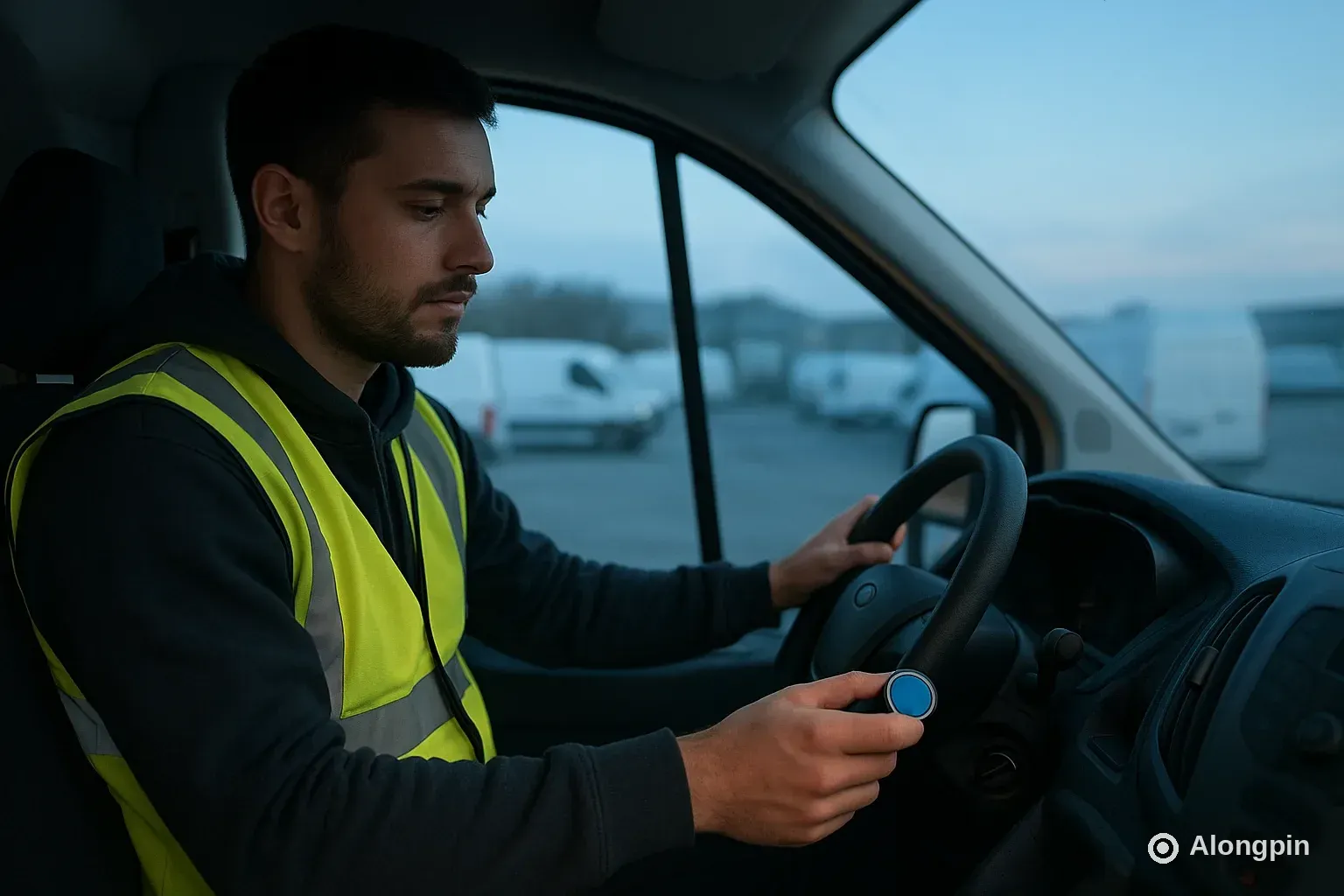
To know who drove which vehicle, give each driver a card or key that the tracker reads, and register that card's number in the platform. Driver identification in fleet tracking works like this: the driver swipes an RFID card or touches an iButton key to a reader wired to the tracker, the tracker sends the number with its positions, and the platform puts the matching name on every trip, event and export. Without a reader there are fallbacks, but none is as exact.
Key takeaways
- Shared vehicles make trip data hard to use: a speeding event or a long detour means little until you know who was at the wheel.
- Register each driver in Fleet setup → Drivers with the identifier the tracker reports for their card or key, and attach the driver to the vehicles or groups they use.
- Names then appear in the trips report, in Driver changed events and in exports, and reports can be filtered by driver.
- It needs a tracker with a driver ID reader, or an input for one. Check this before you buy.
- Without a reader, use a fixed assignment or a rota, and tell drivers what is recorded in your driver notice.
Why shared vehicles make trip data hard to use
A tracker reports the vehicle, not the person. In a fleet where every van has one regular driver, that is close enough. In a pool of vans that change hands at every shift, it is not. Tuesday's trips report shows a van that left the depot at 6:10, idled for forty minutes at a customer and went over the speed limit on the ring road, and nobody can say who drove it without checking a paper logbook.
Driver identification closes that gap. It also helps drivers: a fair record of who drove settles questions that would otherwise fall on whoever is easiest to blame.
How a card or key puts a name on a trip
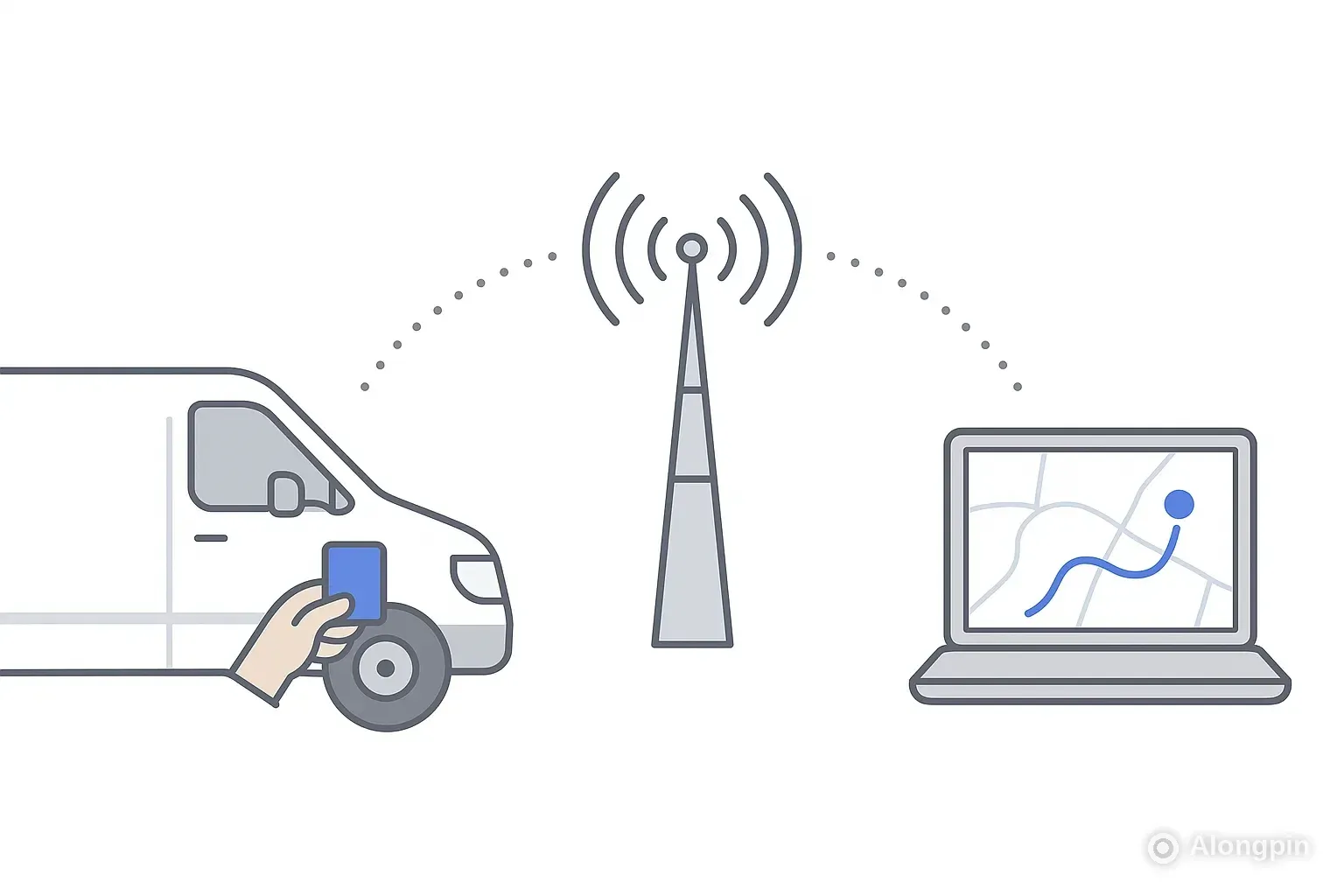
- The vehicle has a reader next to the steering column, wired to the tracker: an RFID card reader or an iButton (Dallas key) socket.
- The driver swipes the card or touches the key when they start.
- The tracker reads the number and sends it with its positions as the driver identifier.
- The platform looks the number up in its list of drivers and shows the name on trips, events and reports.
- When a different card is used, the platform records a Driver changed event, with the new driver and the one before.
The number on the card is all the tracker knows. The link between number and person lives in the platform, so you can reissue a card without touching the vehicle.
Registering drivers by the card or key number the tracker reports
In the portal, open Fleet setup → Drivers and choose Add driver:
- Name: the driver's name as you want it on reports.
- Identifier: the number the tracker reports when the driver swipes the card or key. It must be unique: no two drivers can share one.
- Phone and Licence valid until, if you want them on file.
- Then attach to: the devices or groups this driver uses. The driver is recognised on the devices you attach them to, and on the devices in those groups. For a pool of vans, attach drivers to the group.
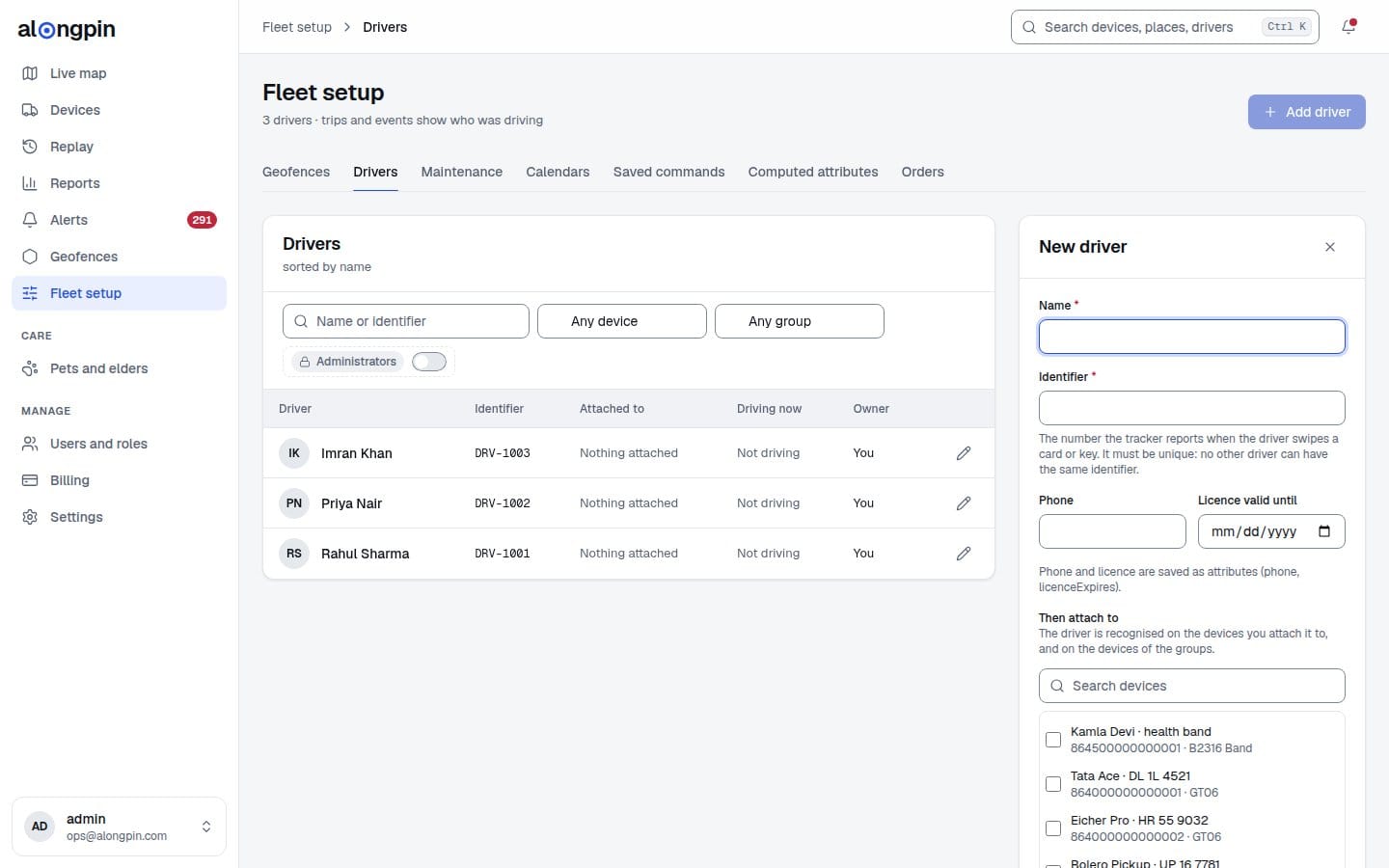
The identifier must match exactly what the tracker sends, which is not always what is printed on the card. The reliable way to find it: swipe the card in a vehicle, then open that vehicle's events. A Driver changed event for a card that is not registered yet shows the raw identifier; copy it into the driver. The setup guide on registering drivers by card or key shows each screen.
The Drivers list also shows who is driving now, which is handy at the start of a shift.
Where the name then appears: trips and exports
Once drivers are registered, the name follows the data:
- Trips report. Each trip carries the driver of its start position, in a Driver column. Use the Driver filter to see only one driver's trips across every vehicle they drove.
- Events. A Driver changed event marks each handover. Overspeed and alarm events in the same period now have a person behind them.
- Exports. The trips report downloads as CSV or Excel with the Driver column, for payroll, client billing or an expenses check.
- Alerts. A Driver changed rule can tell a dispatcher when a vehicle is taken by someone else.
The reports page lists every report and what it holds. Overspeed and harsh-driving events are recorded per vehicle as they happen; the platform does not turn them into a driver score, as the driver behaviour page explains.
The hardware requirement and how to check it
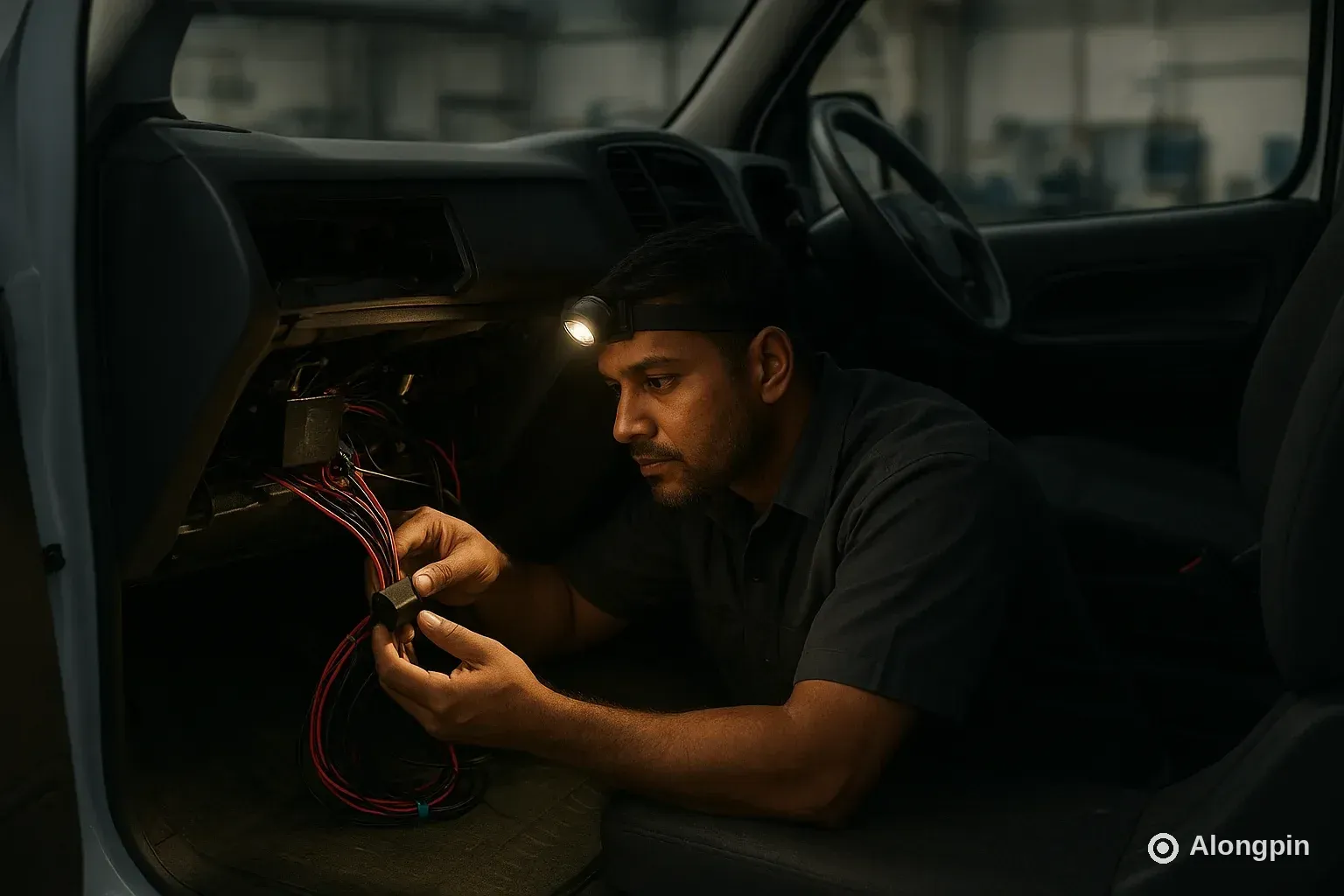
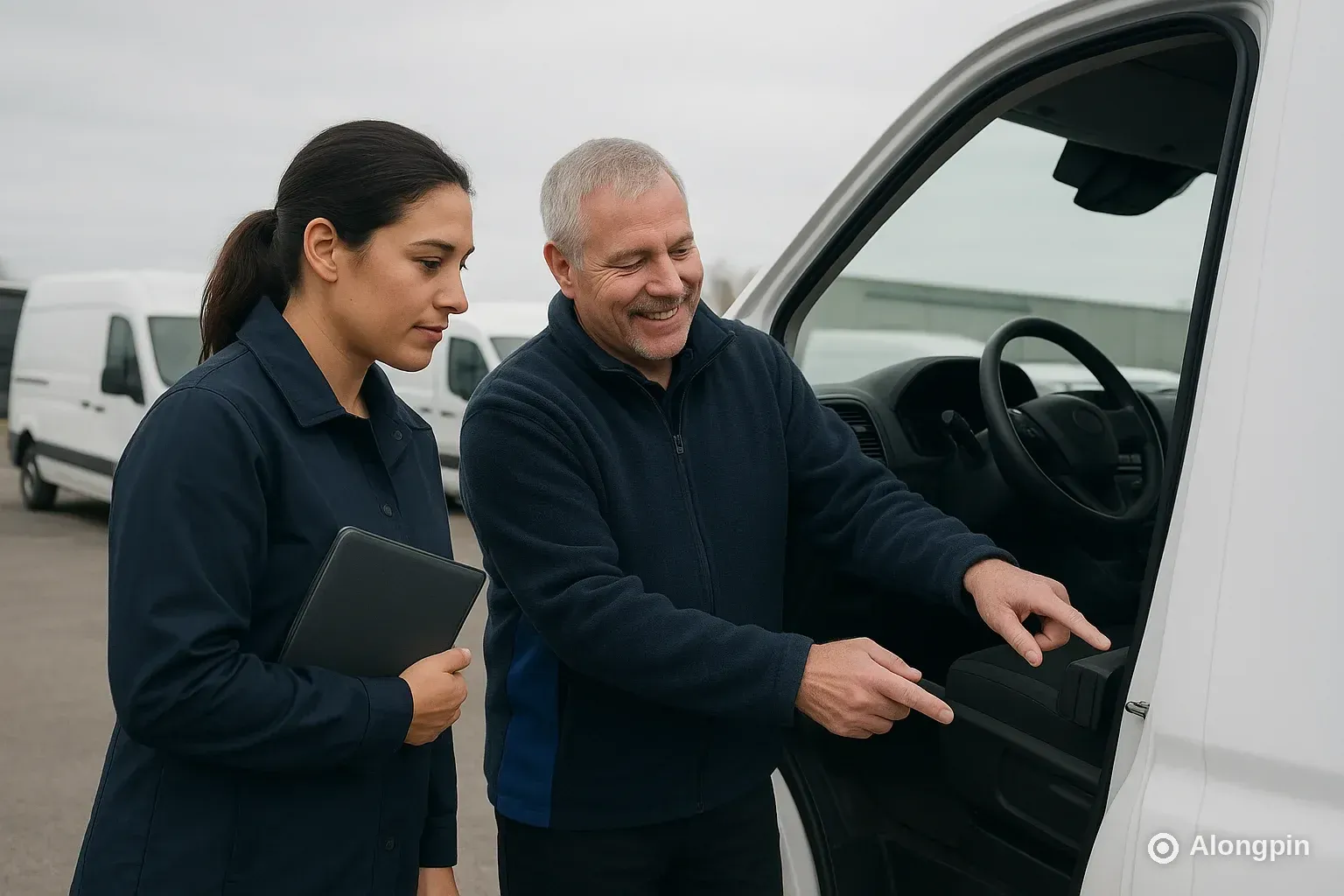
Driver identification needs hardware in the vehicle. Many wired trackers have an input for an RFID reader or an iButton socket, sold as an accessory; many cheap trackers have none. Before buying:
- Read the manual for "RFID", "iButton", "driver ID" or "1-Wire", and check that the tracker sends the driver number in its messages, not only uses it to unlock the ignition.
- Ask the supplier which reader fits and how it is wired.
- Check the protocol in the device check, and test one vehicle with two cards before you fit the fleet.
The vehicle trackers page lists what a typical tracker reports and what depends on the model.
Fallbacks without a reader
If your trackers cannot read a card, you still have options, each with limits:
Fixed assignment
Where a vehicle has one regular driver, add the driver's name to the vehicle's name ("Van 12 · Priya"), and the question rarely arises. An administrator can also switch on a server option that gives a position without an identifier the first driver attached to the device, which suits vehicles with exactly one driver. It is a server-wide setting, so ask your administrator before relying on it.
A rota
For shared vehicles, keep a rota of who had which vehicle on which shift, and match it against the trips export by date and time. It works, but it is manual and depends on the rota being right.
Upgrading over time
Fit readers when trackers are replaced, starting with the vehicles that change hands most often.
Privacy points to cover in the driver notice
Putting a name on every trip turns vehicle data into personal data about each driver. Before you start:
- Tell drivers what is recorded: the card number, the trips and events linked to it, and who can see them.
- Explain the purpose: settling who drove, payroll, safety follow-up. Avoid collecting more than that purpose needs.
- Limit who sees driver names with roles, so a dispatcher sees what they need and no more.
- Set how long trips and events are kept, through the retention settings.
- Cover private use if drivers may use vehicles after hours: working hours and private trips can keep that time out of the record.
- Check local rules: in some countries a works council must agree before tracking starts.
The article on writing a vehicle tracking notice for drivers goes through what such a notice covers.
How Alongpin helps
Alongpin (alongpin.com) is a GPS tracking platform you open in a browser or on your phone. Your trackers, in the vans, trucks and cars you already run, show on one live map with trips, stops, idle time and alerts; reports and scheduled reports answer the questions this article raises, and users and roles let each depot see its own vehicles. Check your trackers in the device check, read how it works for fleets, and start on the pricing page.
Frequently asked questions
Can I tell who was driving without a card reader?
Only indirectly, by matching trips to a rota or by assigning one driver per vehicle. An exact record needs a reader that sends the driver's number.
What if a driver forgets to swipe?
The trip carries no driver, or the previous driver if the tracker keeps the last card. Make swiping part of the start-of-shift routine, and check trips without a driver in the report.
Does a driver ID card replace the ignition key?
Not by itself. Some installations wire the reader so the engine starts only after a swipe; that is a wiring choice made with the installer, not a platform setting.