Privacy and data
Reading and acknowledging the driver privacy notice
How a driver reads the privacy notice that applies to them and acknowledges it, and how a manager publishes a new version and sees who acknowledged which. The wording of the notice is yours to write.
Ashish Srivastava3 min read

The driver privacy notice for vehicle tracking is a versioned text you publish in Alongpin under Settings → Privacy and data protection → Driver privacy and private trips. Drivers read it when they sign in to the driver app and on the Private trip page of the portal, and confirm with I have read this, which records the time. You then see, per driver, which version they acknowledged and when. The wording of the notice is yours to write.
Key takeaways
- Managers publish a notice for their own users; administrators publish a server-wide one and any manager's.
- A published version can't be changed or deleted: a mistake is fixed by publishing the next version.
- Each driver acknowledges a version once, with the server's time; a new version asks them again.
- The platform records who acknowledged what; what the notice says is for you and your adviser.
Where the notice appears for a driver
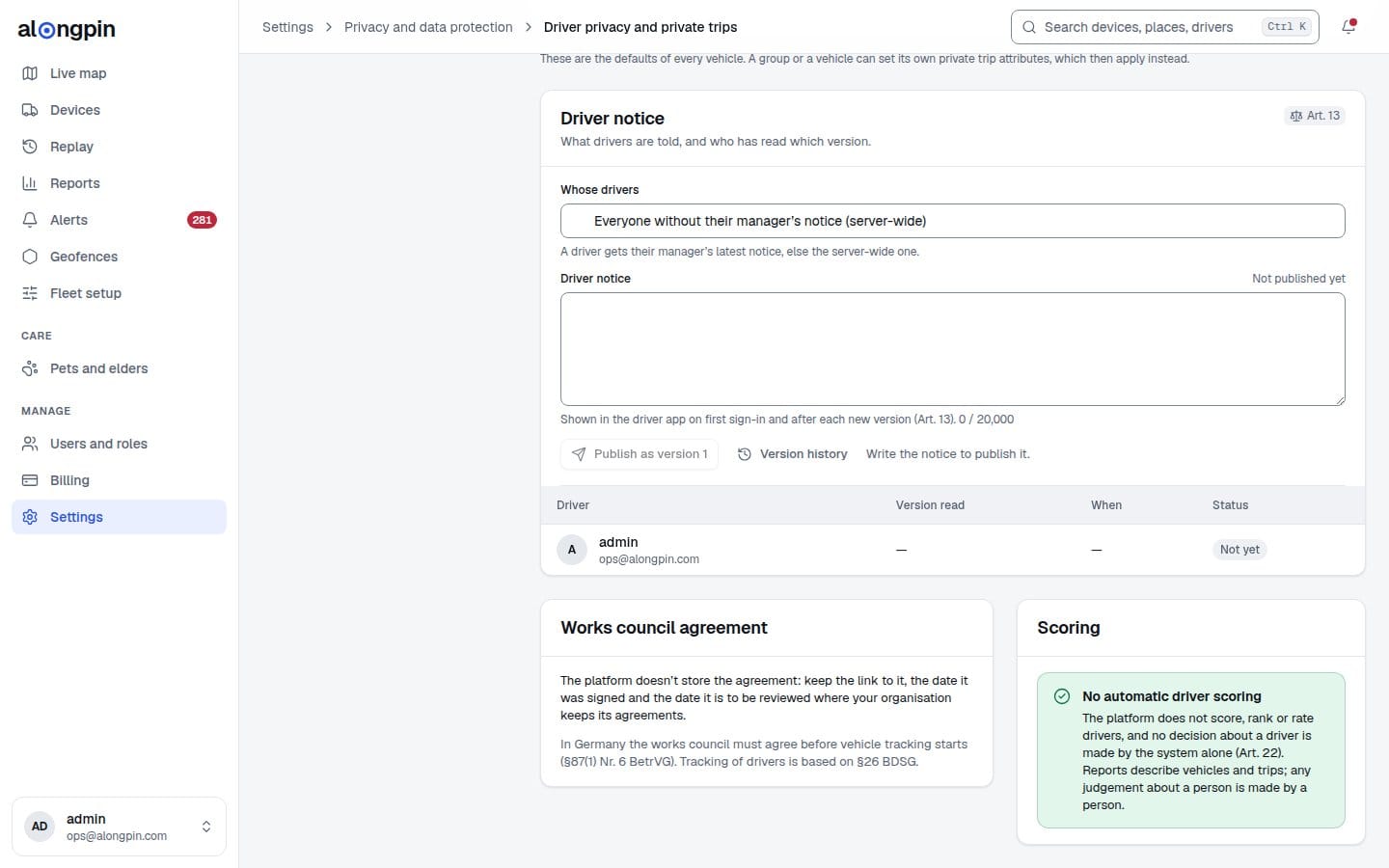
A driver sees the notice that applies to them: the latest version their manager published, or, without one, the latest server-wide version. It appears in the driver app at sign-in and again after each new version, and on the Private trip page, which drivers open in the portal on their phone. There it reads Driver notice, version 2, for example, with Not read yet or You read it on and the date.
If no notice has been published for the driver's scope, nothing is shown.
Acknowledge it; the time is recorded
The driver reads the text and taps I have read this. The portal confirms with Your reading is recorded. The time comes from the server, not the phone, and the acknowledgement is recorded once and never changed. When a newer version is published, the driver sees A newer version of the notice applies. Read it again.
Only the driver can acknowledge: the button is not offered when a manager is logged in as the driver, or through a share link.
Publish a new version for your users
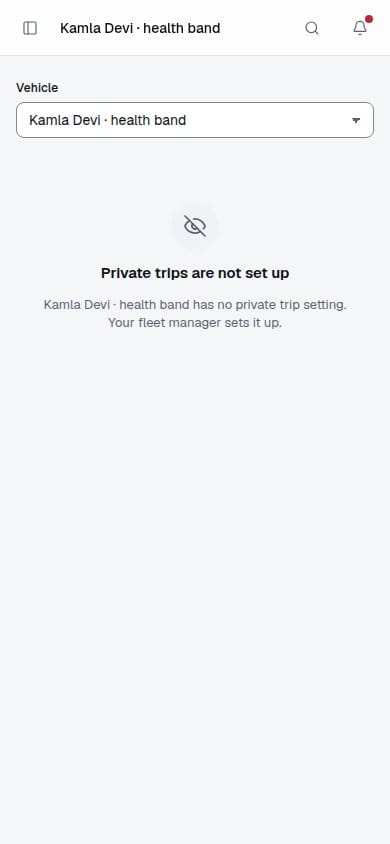
- Open Settings → Privacy and data protection → Driver privacy and private trips and go to Driver notice.
- Under Whose drivers, administrators choose a manager's users or Everyone without their manager's notice (server-wide). Managers publish for their own users.
- Write or change the text, up to 20,000 characters, and choose Publish as version 3 (the number is the next one).
- Confirm. Drivers see it at their next sign-in and are asked to read it.
Version history lists every published version with when and by whom, and shows each version's text. Read-only accounts can read the notices and acknowledgements but can't publish.
See who acknowledged which version
The table Acknowledgements per driver lists each user of the scope with the Version read, When and a Status: Read v3, Needs v3 for someone who read an older version, or Not yet. Use it to follow up with drivers who have not read the current version, for example before tracking starts for a new team.
What a notice usually explains
The text is yours. Most notices answer the questions drivers ask first:
- What is tracked: the vehicle's position, speed and trips, and anything else the tracker reports, such as ignition, harsh braking or a driver ID tag, where your trackers and package provide it.
- When: during working hours, and what happens outside them.
- Private trips: whether drivers can switch a trip to private, how, and what you see then. The page above sets private mode; see switching a private trip on or off and choosing a private mode.
- Who sees the data, for what purposes, and how long it is kept.
- Who to contact with questions, and how drivers can see, correct or object to their data.
Employment and privacy rules for tracking employees differ between countries, and in some, employee representatives must agree before tracking starts. Have your adviser review the wording before you publish.
The driver privacy page shows how private trips and the notice fit together, and the privacy page and privacy policy describe Alongpin's own commitments.