Privacy and data
Restricting the processing of a person's data
How a data protection officer starts a restriction that keeps a person's data while the platform stops using it, what stops while it is in place, and how to lift it with a reason.
Ashish Srivastava3 min read

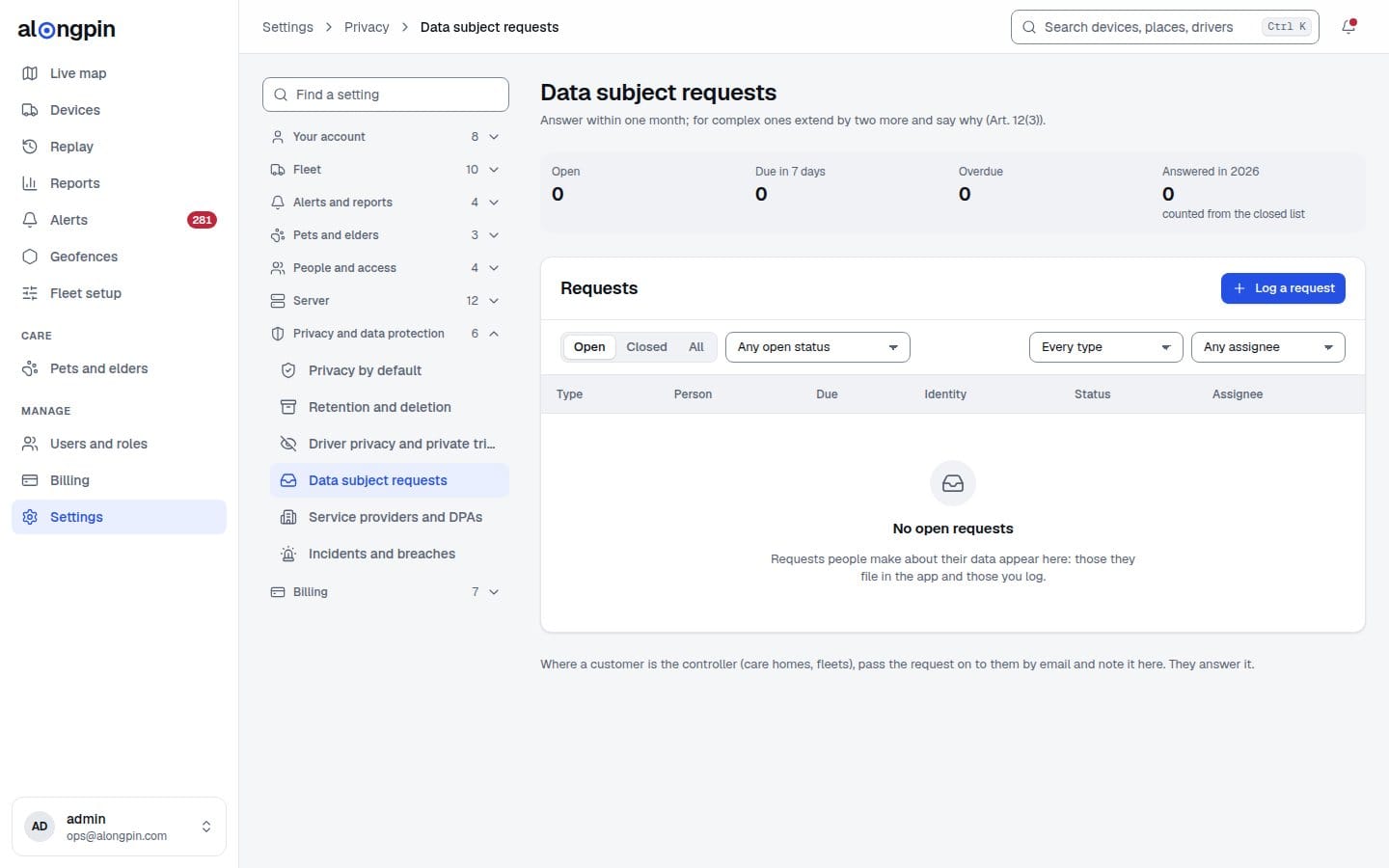
To restrict processing of personal data in Alongpin, a data protection officer or administrator opens the person's restriction or objection request under Settings → Privacy and data protection → Data subject requests and chooses Restrict processing, with a reason. The person's stored data stays as it is, but the platform stops using it: their devices' positions are no longer stored and nobody but the person reads their history, events, reports or exports. When the question is settled, Lift ends it, again with a reason.
Key takeaways
- A restriction is for a request still being examined: the data is kept but not used.
- Start it from the request it answers; the request then moves to In progress.
- While it is in place, new positions of the person's devices are not stored, and managers, administrators and share links see none of their data.
- Lifting it e-mails the person first that their data will be processed again.
When a restriction is used
A person may ask you to stop using their data while something is looked into: they say a record is wrong, they object to being tracked outside working hours, or they need the data kept for a claim. Deleting it would destroy what you need to examine; carrying on would ignore the request. A restriction sits in between. Whether a request calls for one is your judgement; the platform carries it out.
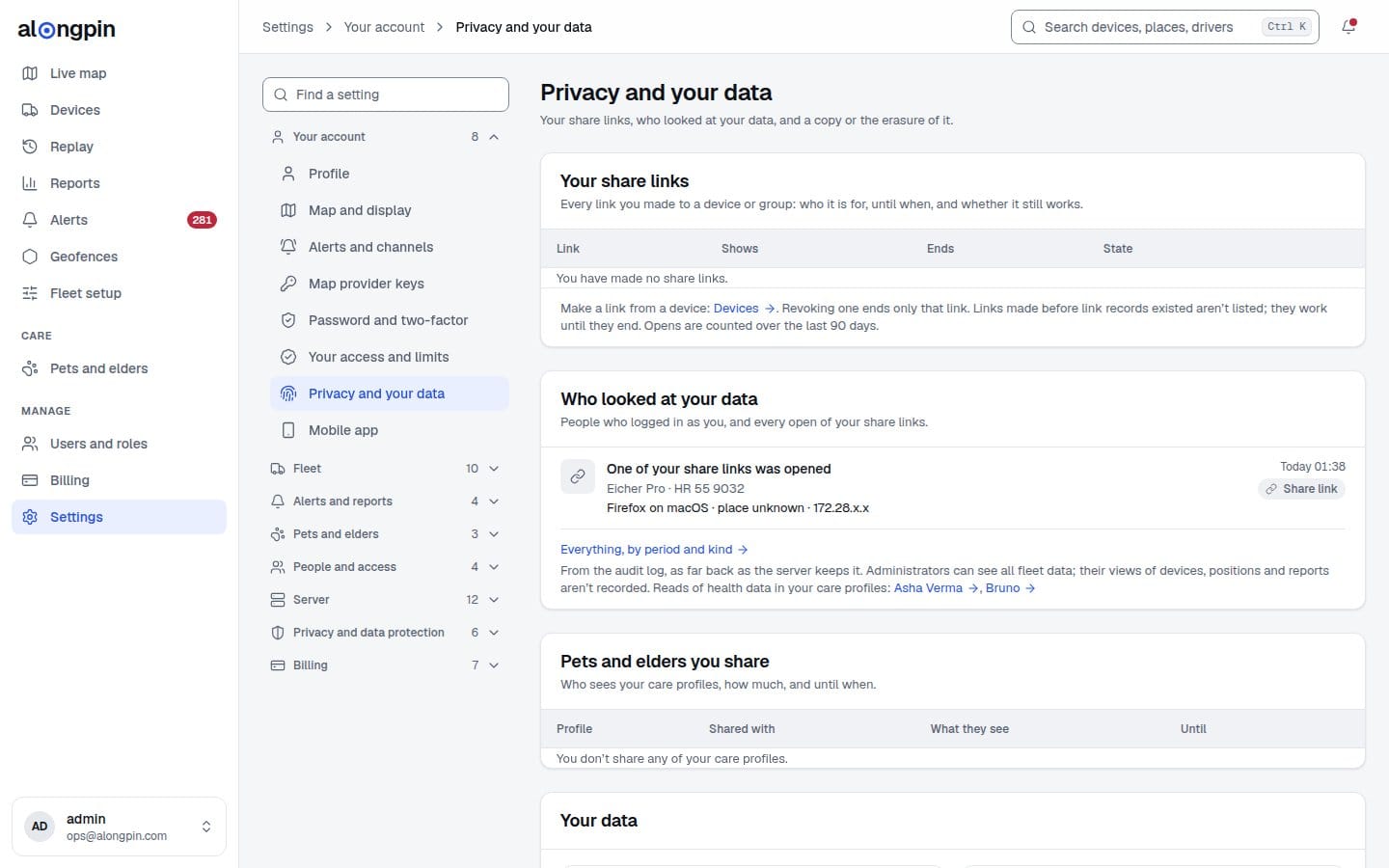
A user asks for one under Privacy and your data → Your privacy requests → File a request, choosing Restriction or Objection. A request that came by e-mail or letter is logged with Log a request; see exporting your data or a person's data for how logging and the identity check work.
Start it with a reason
- Open the request in Data subject requests. It must be a restriction or objection request, still open, about a person with an account.
- In Restriction of processing, choose Restrict processing.
- Choose the Kind: Restriction (Art. 18) or Objection (Art. 21).
- Write the Reason, up to 1,000 characters, and confirm.
The restriction applies within about a minute. A person has one active restriction at a time: if another request already restricted them, lift that one first. Starting and lifting are recorded in the audit log, without the person's name or e-mail.
What stops while it is in place
For a restricted user:
- New positions of their devices are not stored, with their photos, so no events, alerts or notifications come from them either.
- Nobody but the user reads their history, events, reports or exports: not their manager, not administrators, not share links.
- No new share links can be made to their devices, or by them. Existing links keep working but show none of the restricted data.
- Their devices still appear in the device list.
Nothing is deleted. Data already stored stays as it was, and the retention periods still apply to it. The person's own data export still includes everything, so they can always get a copy.
The platform can also restrict a driver (positions recorded while that driver drives) or a care profile (its tracker's positions and its health records); these are started through the platform's API rather than from a request in the portal.
Lift it and record why
When the matter is settled, open the request and choose Lift next to the active restriction. Write why, such as "accuracy confirmed with the user". The user is e-mailed first that their data will be processed again. If that e-mail can't be sent, the restriction stays in place: tell the person yourself, tick I told the person some other way, and lift again. Then close the request with a summary of the answer.
Where the register of restrictions is
Each request shows its restrictions, active ones first, with the kind, the reason, when it started and, once lifted, when and why. Restrictions are never deleted, so the history stays with the request. The register is open to administrators and to users holding the privacy read or write right for the whole account; others don't see it.
The privacy page and the security page describe how Alongpin protects personal data, and the data processing agreement who decides what. If the person goes on to ask for deletion, see erasing an account or a person's data.