Privacy and data
Reading the audit log
What the audit log records (sign-ins, changes, commands, reports, exports and media views), what it doesn't, how to filter and download it, and who may read it.
Ashish Srivastava3 min read

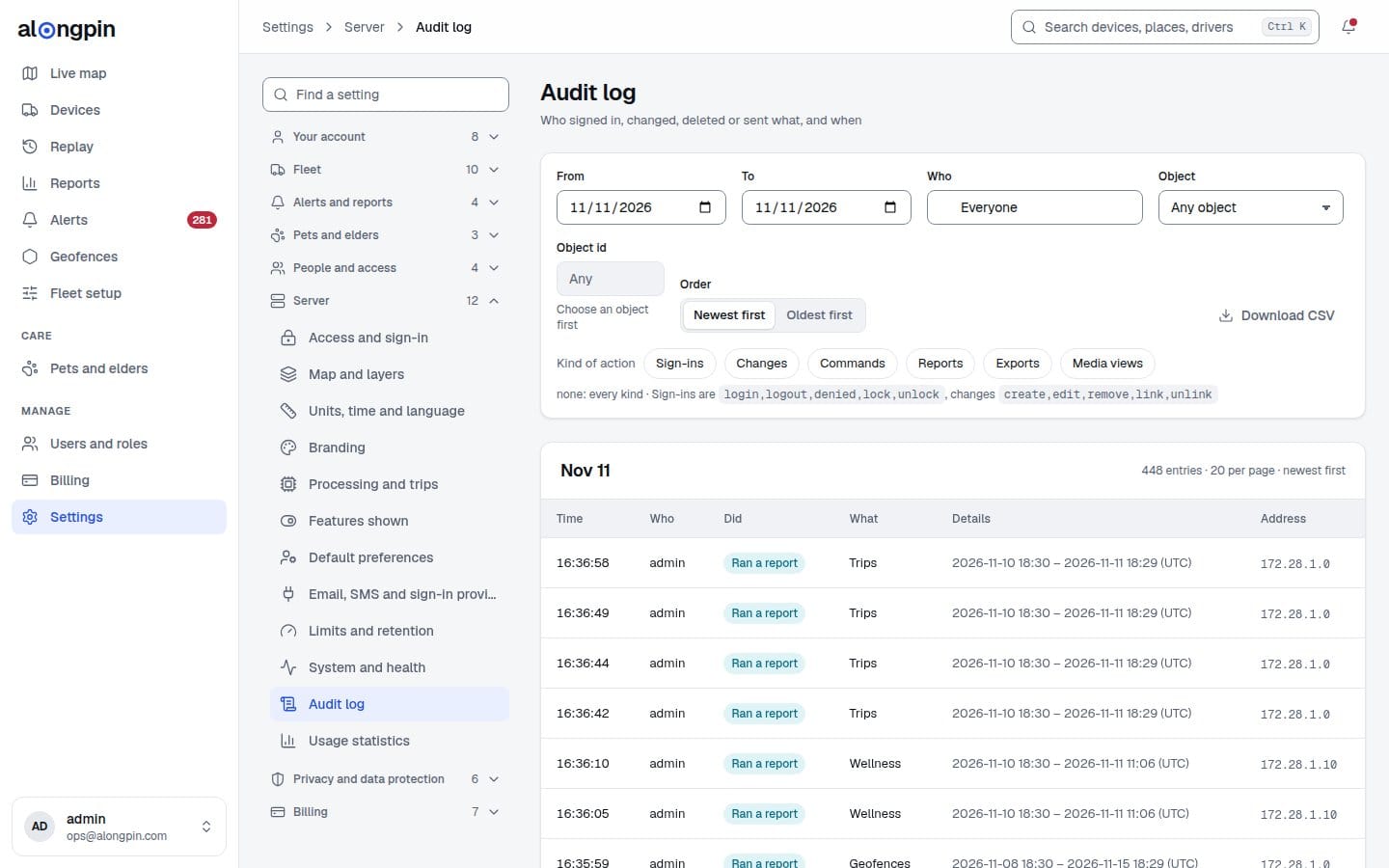
The audit log of the GPS tracking platform records who did what and when: sign-ins and failed sign-ins, every log in as another user, changes to devices, users, roles and settings, commands sent to devices, reports run, data exports and, where switched on, views of photos and video. Administrators read it under Settings → Audit log, filter it by person, kind of action, object and time, and download it as CSV.
Key takeaways
- Each entry has the time, who, what they did, what it was about, the details and the network address.
- Filter by Who, Kind of action, Object and the period; download what you filtered with Download CSV.
- Commands, reports and media views are recorded; simply looking at the map or a device page is not.
- Only administrators read the audit log; no role grant opens it.
What is recorded
| Kind of action | Examples |
|---|---|
| Sign-ins | Signed in, Failed sign-in, Logged out, Logged in as another user (with the reason given), Opened a share link, Account locked after too many wrong passwords |
| Changes | Created, Changed, Deleted, Linked, Unlinked: devices, groups, geofences, users, roles, alert rules, share links, API tokens, server, privacy and retention settings |
| Commands | Sent command, with the command type and the device or group |
| Reports | Ran a report, with the type, period and devices, including scheduled reports |
| Exports | A user's data downloaded, with the period when limited |
| Media views | A photo, clip or live stream viewed, once per person, file or stream and five minutes |
Requests about personal data, erasures, legal holds placed and released, and odometer and engine-hour corrections are recorded too. Entries usually arrive within a second of the action.
What is not recorded
- Looking. Opening the live map, a device page, the route or a list is not recorded entry by entry. Administrators can see all fleet data, and their views of devices and positions are not logged.
- Media views while switched off. Views of photos and video are recorded only while the privacy setting that logs media views is on.
- Reading the audit log itself.
- Personal texts from the privacy registers. Names and e-mail addresses in data protection requests, restriction reasons and incident descriptions are kept out of the log.
Filter by person, action and time
Open Settings → Audit log and set:
- From and To: the period.
- Who: one person, or Everyone. A log in as someone is filed under the person who logged in.
- Object and Object id: entries about one device, user, geofence, share link and so on.
- Kind of action: tick Sign-ins, Changes, Commands, Reports, Exports or Media views; none ticked means every kind.
- Order: Newest first or Oldest first.
The columns read Time, Who, Did, What, Details and Address. Download CSV saves the filtered entries, in UTC, for a limited period and number of entries at a time: narrow the filters if the portal asks you to.
Commands and video views in the log
Each command sent to a tracker, from the portal or the API, is an entry with the device, the command type and who sent it, so you can answer "who stopped this engine, and when?" with a filter on Commands and the device. Each view of a dashcam photo, clip or live stream, where logging media views is on, names the device, the file or the channel, and the viewer.
Who may read it
Only administrators. No role grant opens the audit log, so a data protection officer who is not an administrator reads it through an administrator, or is made one. Other users see their own part elsewhere: everyone's Who looked at your data lists logs in as them and openings of their share links; see seeing who looked at your data. How roles are set up is on the users and roles page and in roles and scopes.
Using it for a data protection question
- Who looked at a driver's trips last month? Filter on Reports and the period; each entry names the devices.
- Who changed the retention periods? Filter on Changes and the server object: the entry lists the changed settings with old and new values.
- Did someone log in as this user? Filter on Sign-ins with the period and read the Logged in as entries.
- Who watched this clip? Filter on Media views and the device.
Entries are kept as long as your retention settings say, 365 days on a new installation, and their addresses for less, 180 days by default. When an account is erased, its entries stay without the name, e-mail and address. The security page and the privacy page describe how Alongpin uses the log.