Devices and connection
Saving commands for a device or group
How to save a command you send often, attach it to devices or groups, let people who may only use saved commands send it, and have an alert rule send it when it fires.
Ashish Srivastava4 min read

Saved commands let you set up a GPS tracker command once, with its parameters, and send it with one click from any device or group it is attached to. They are also how you let some people send commands without giving them free choice, and how an alert rule sends a command by itself when it fires. You manage them under Fleet setup → Saved commands.
Key takeaways
- A saved command has a Description, a Type, its Parameters and how it is delivered.
- Attach it to devices or groups and it shows first in Send command for them.
- Users with the Saved commands only restriction can send saved commands but no others.
- An alert rule with the Saved command channel sends its command to the device that raised the event.
- Engine stop needs a tracker and wiring that support it, and care with local rules.
Create a saved command
- Open Fleet setup and the Saved commands tab, then select New command.
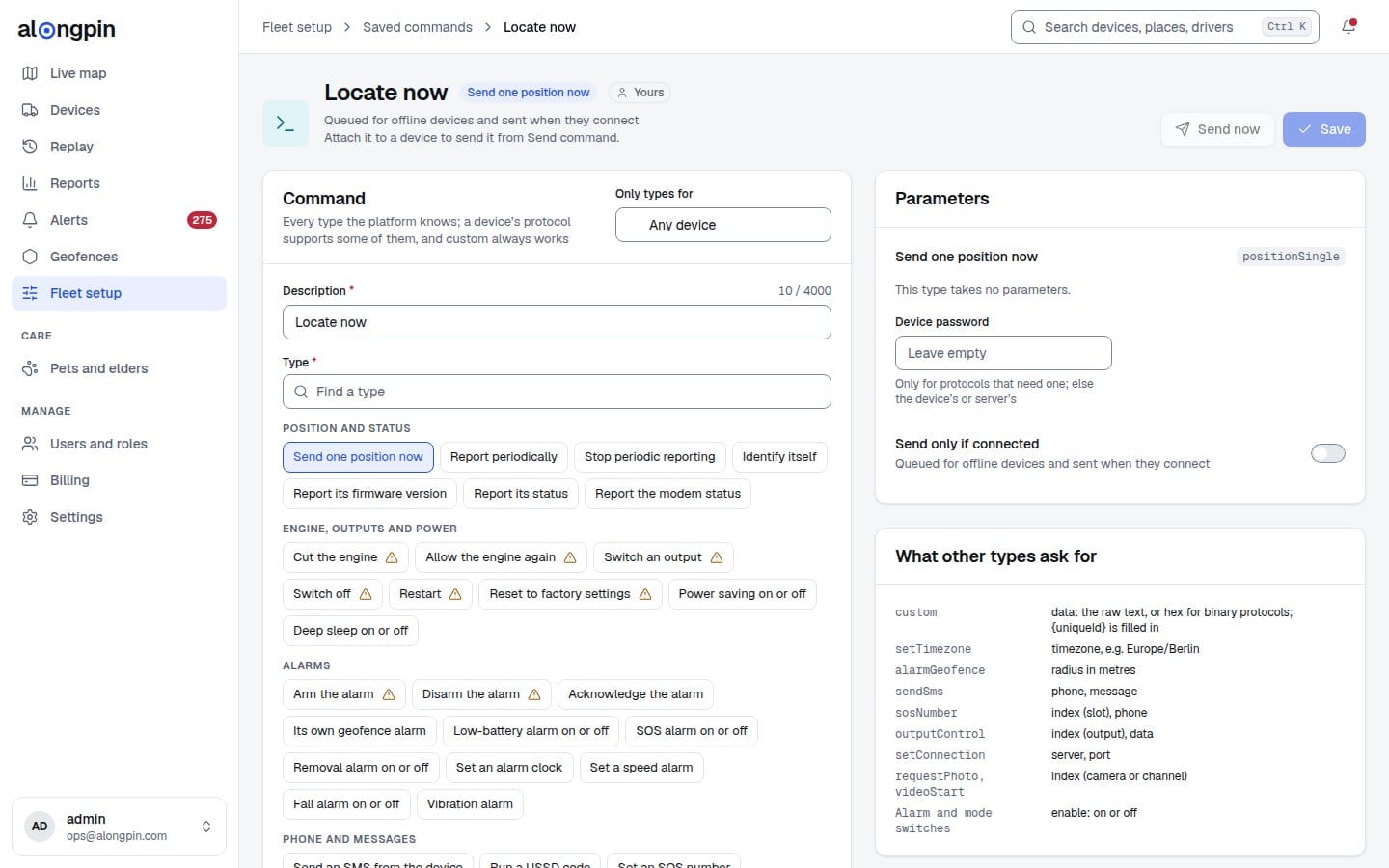
- Enter a Description: the name people see in lists and in the send dialog, for example "Report every 60 s".
- Choose the Type. The list holds every type the platform knows; with Only types for a device, you see only the types that device's protocol takes, which avoids saving a command your trackers cannot run.
- Fill in the Parameters the type asks for, for example Report every 60 seconds.
- Decide how it is delivered: Send only if connected off means it is queued for offline devices and sent when they connect; on means it is sent only to devices connected at that moment. Where your server has an SMS gateway, Send by text message sends it to the tracker's phone number instead.
- Select Create command.
Attach it to devices or groups
On the saved command's page, under Offered on, select Attach or detach and choose the devices and groups. From then on, it is listed first in Send command for those devices, and on their Commands tab under Saved commands. You can also attach saved commands to several devices at once from the device list. Attaching to a group covers every device in it, including those added later.
A saved command can still be sent to any device you may command; attaching only decides where it is offered. Under Shared with, you can share it with the people who should use it.
Users limited to saved commands
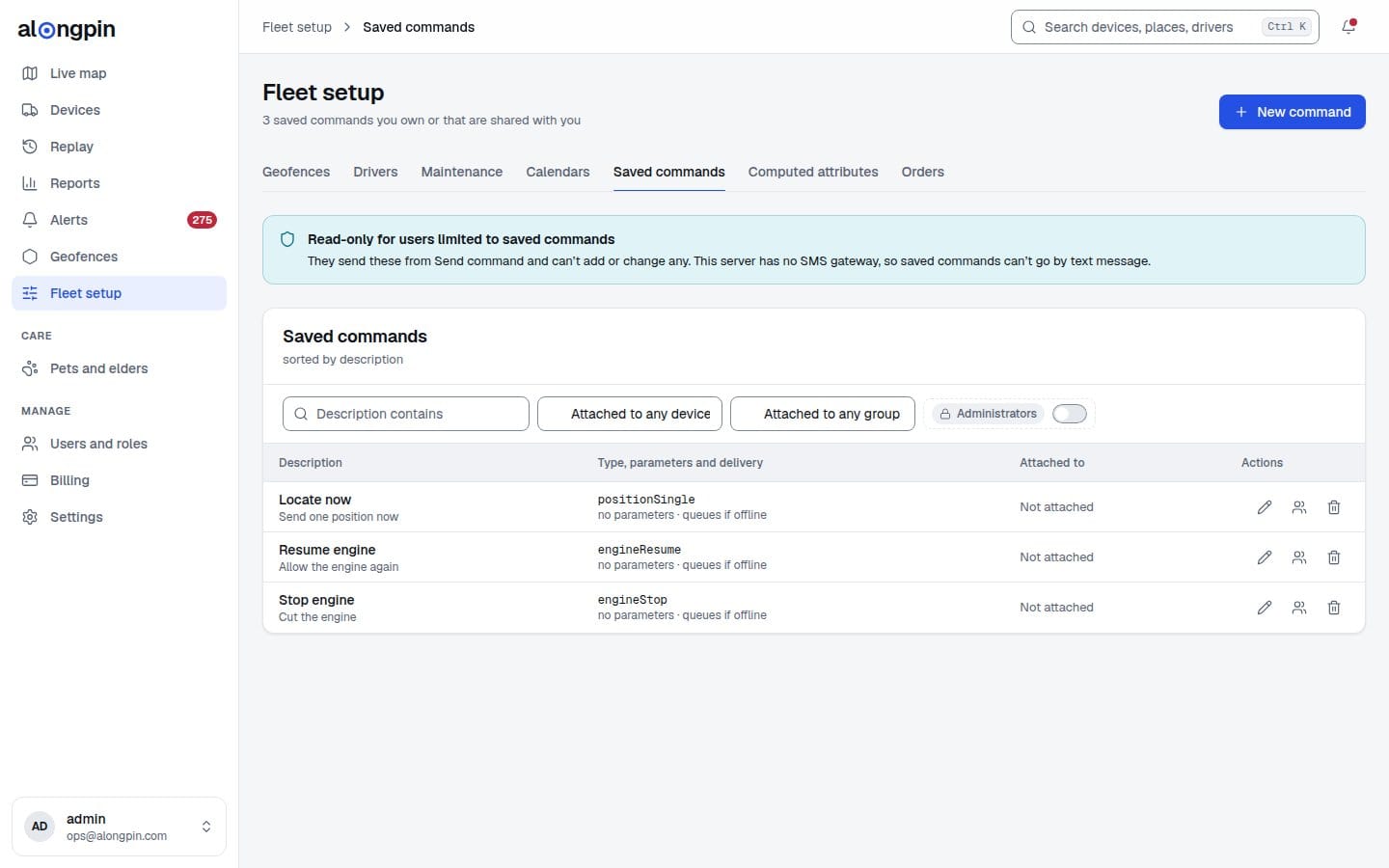
For people who should send only prepared commands, such as a dispatcher who may ask for a position but not cut an engine, an administrator sets the Saved commands only restriction on their user. They then see only the saved commands attached to their devices in Send command, cannot write their own, and cannot add or change saved commands. The list of saved commands tells them You're limited to saved commands. A read-only account cannot send commands at all. How restrictions and roles work is described under users and roles.
Let an alert rule send a saved command
An alert rule can send a saved command by itself when it fires, for example to ask for a photo when an SOS comes in, or to start frequent reporting when a vehicle leaves a geofence:
- Open the rule under Alerts → Rules, or create one.
- Turn on the Saved command channel.
- Under Saved command to send, choose the command, or create one with New saved command.
- Save the rule.
The command goes once per event to the device that raised it, and is queued until the device is online. It is sent only if the rule's owner may send that command to the device at that moment. The device's Command history shows such commands with Rule as the sender. More about rules is on the alerts page.
Take care with engine stop
Saving Cut the engine as a command, or letting a rule send it, needs particular care:
- Device support: only some trackers have an output for it, and only if their protocol offers the command.
- Wiring: the tracker's output must be wired to a relay that interrupts the starter or fuel pump, fitted by a qualified installer.
- Safety and law: stopping a moving vehicle can be dangerous, and rules on remote immobilisation differ by country. Ask your installer how the relay is wired, for example whether it only prevents the engine from starting again, and check what applies where you operate.
The send dialog asks for confirmation before a command that acts on the vehicle, and a queued command runs whenever the tracker reconnects, possibly much later. Keep engine stop in a saved command only for the people who need it, and do not attach it to automatic rules without careful thought. See remote commands for an overview.
Frequently asked questions
What happens to queued commands if I edit or delete a saved command?
Nothing: copies already in a device's queue still go out. Cancel them on the device's Commands tab if needed.
Who can create saved commands?
Administrators, and users whose role allows managing saved commands. Users limited to saved commands and read-only accounts cannot.