Billing and account
Locked out after too many wrong passwords
Why the sign-in page says Account locked after several wrong passwords, how long the lock lasts, how to get back in sooner, and how managers unlock users or make the limits stricter.
Ashish Srivastava3 min read

When your GPS tracking account is locked, the sign-in page shows Account locked with the message "Too many wrong passwords. Try again after 14:32, or ask your administrator to unlock your account." Several wrong passwords in a row lock the account for a while; the lock lifts by itself at the time shown. An administrator or the person who manages your user can unlock it sooner, and so does setting a new password with a reset link.
Key takeaways
- Stop trying while it is locked: even the right password is not accepted until the lock ends.
- In a standard setup, 10 wrong passwords in a row lock the account for 30 minutes.
- Forgot password? and a new password end the lock at once.
- Managers see a Locked badge on the user and can select Unlock.
What the sign-in page shows
| Message | What it means |
|---|---|
| "Too many wrong passwords. Try again after 14:32, or ask your administrator to unlock your account." | The lock ends by itself at that time, shown in your time zone. |
| "Too many wrong passwords. Ask your administrator to unlock your account." | Your server keeps accounts locked until someone unlocks them. |
The count is of wrong passwords in a row: a right password (and the right two-factor code) sets it back to zero. Wrong two-factor codes count too. In a standard setup the tenth wrong attempt locks the account for 30 minutes; your administrator may have chosen other numbers.
While the account is locked, the password is not checked at all, so the right one fails as well. Every new attempt is wasted until the time shown.
How to get back in
- Wait until the time on the message, then sign in with the right password.
- Reset your password. Select Forgot password?, open the link in the email and choose a new password. That ends the lock straight away. See Resetting a forgotten password in the help center if the email does not come.
- Ask to be unlocked. Your administrator, or whoever manages your user, can unlock you at once.
What keeps working meanwhile: sessions you already have, such as the mobile app on your phone or a browser that is still signed in. Signing in with your organisation's single sign-on also still works, because the lock concerns password sign-ins only.
If you did not type any wrong passwords yourself, someone else may have tried your address. Tell your administrator. The security overview explains how sign-in is protected.
For managers: seeing and unlocking a locked user
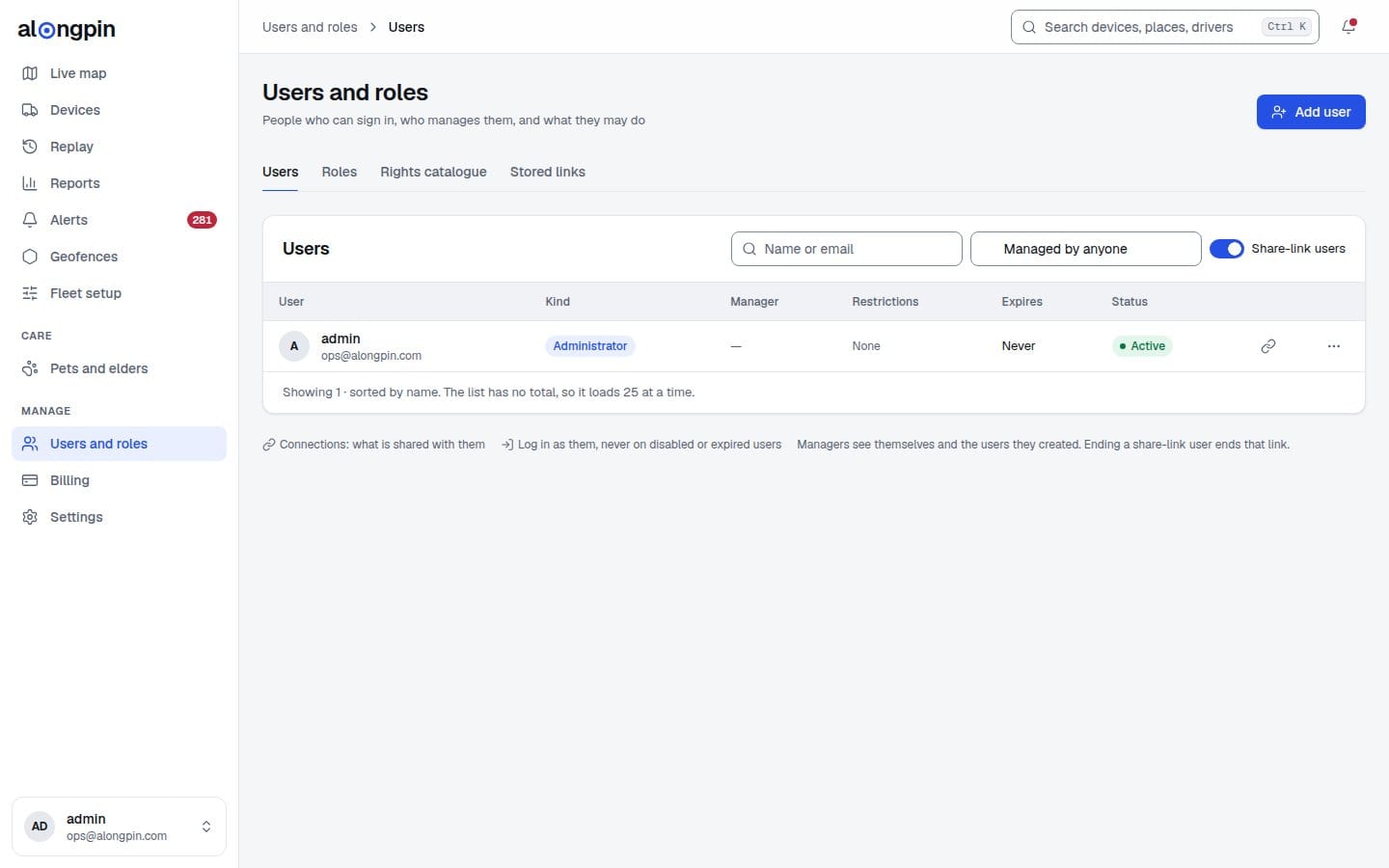
Open Users and roles. A locked user carries the badge Locked, or Locked until 14:32 when the lock ends by itself. Open the user and select Unlock, then confirm Unlock
You can unlock the users you manage; administrators can unlock anyone. Read-only accounts cannot. How managers and the users under them fit together is explained under users and roles.
For managers: stricter limits for your users
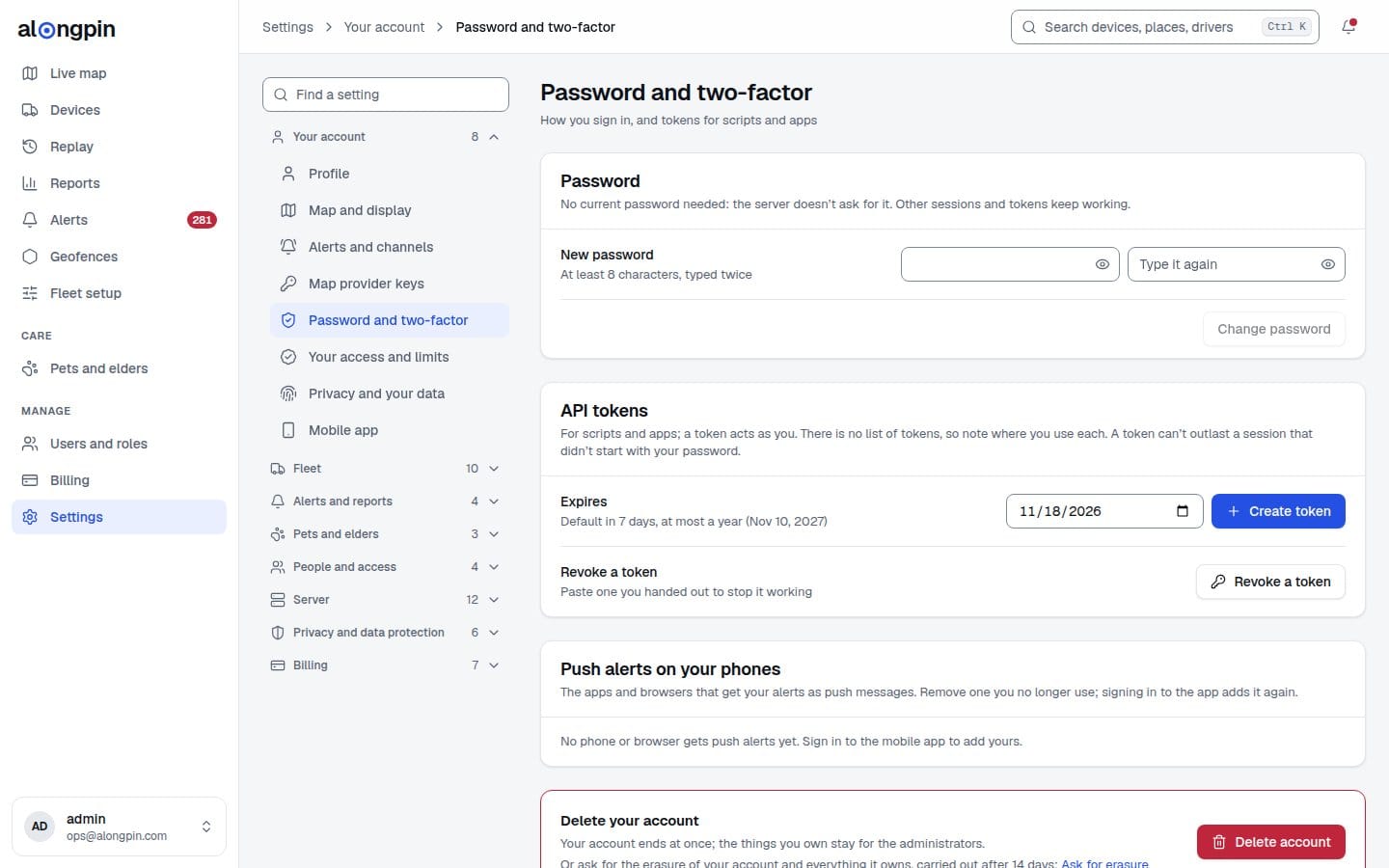
Administrators set how many wrong passwords lock an account and for how long, for the whole server. As a manager you can make it stricter for yourself and the users you manage: open Settings → Your account → Password and two-factor and find Sign-in protection. There you set Lock after wrong passwords (fewer than what applies now) and Lock for (longer than what applies now), and select Save. Empty fields keep what applies without your own value; Clear goes back to it. You can only tighten the limits, never loosen them.
Frequently asked questions
How long does the lock last?
Until the time on the message: 30 minutes after the last wrong attempt in a standard setup. On servers set to lock until someone unlocks, it lasts until an administrator or your manager does.
Will waiting longer and trying again lock me for longer?
The lock ends at the time shown. After it, the count starts from zero, so take care with the next attempts or reset your password instead.
Where are more answers about signing in?
In the help center, under Billing and account.