Billing and account
A payment failed: what to do
What happens when a subscription payment fails or an invoice goes overdue, how you are told, how to pay the open invoice or change the card, how long the subscription keeps working, and what to do if it has already ended.
Ashish Srivastava4 min read

When a subscription payment failed, the subscription does not stop at once: the invoice stays open, you are told in the portal and by e-mail, and the device or account keeps working for a short grace period. Open Billing, find the open invoice and pay it, or change the card, before the date the portal shows as Works until. If the subscription has already ended, you can still sign in to billing and subscribe again.
Key takeaways
- You get a "Payment failed" message in the portal and by e-mail, and a warning before the subscription ends.
- Billing → Subscriptions shows the overdue invoice at the top with what to pay and by when.
- Pay online on the invoice, by bank transfer with the invoice number, or change the card where offered.
- Paid in time, nothing stops. Unpaid after the grace period, the subscription ends and must be started again.
How you are told
- A message in the portal and an e-mail: "Payment failed: package", when a card payment at the provider fails or a bank-transfer invoice passes its due date. E-mail is sent where the server sends e-mail.
- A banner in Billing: "Invoice number for device or account is overdue: amount", with "keeps working until date while the invoice is open".
- A last warning: "Subscription ending: package", a few days before the subscription would end (three in a standard setup), once.
Find the open invoice
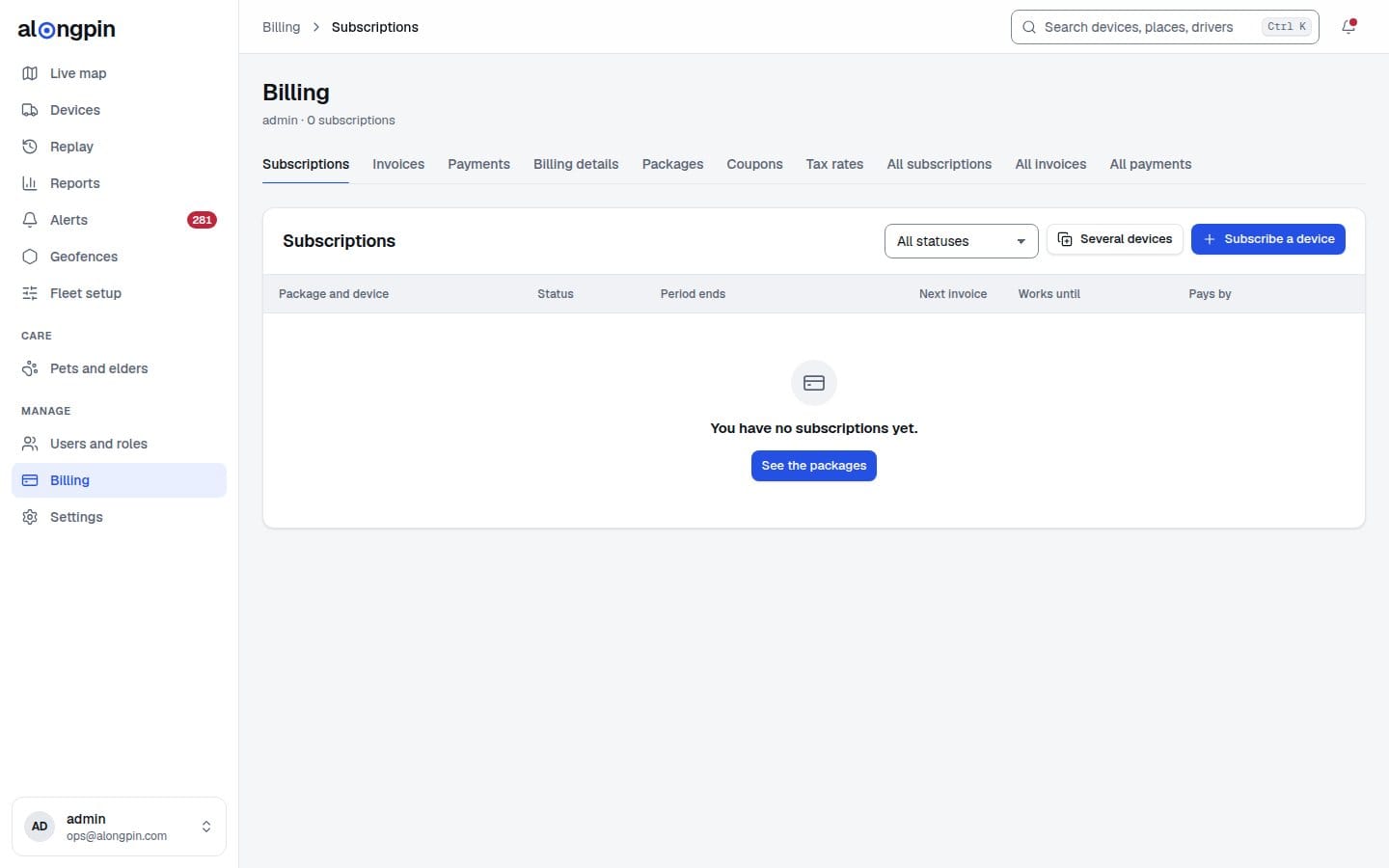
Open Billing in the menu. On Subscriptions, the overdue invoice is shown at the top, and the subscription's status says that a payment is due. Open the subscription: its page reads Pay amount by date, with the invoice number, when it was issued and when it is due.
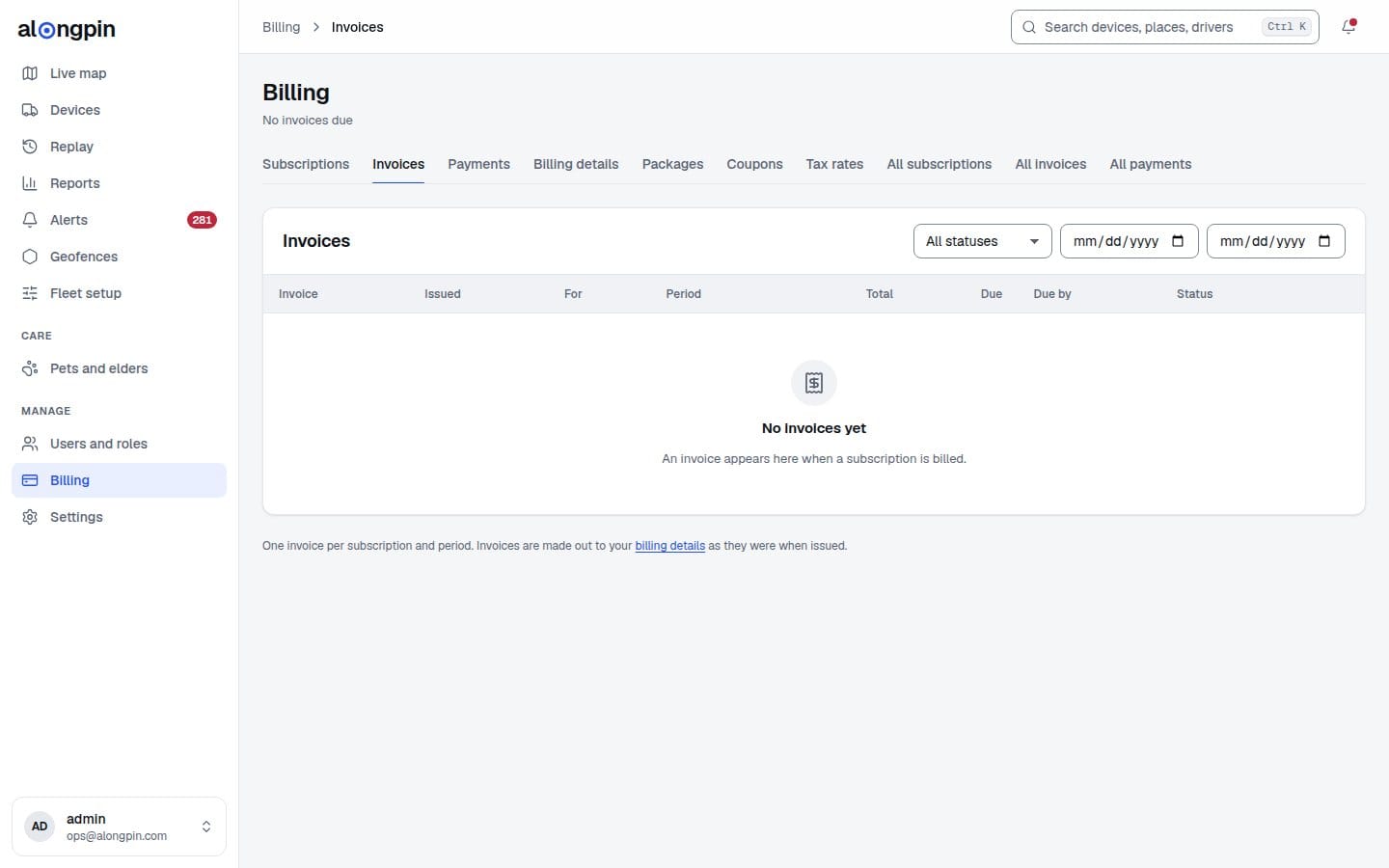
You can also open Billing → Invoices: open invoices show Due by, and an overdue one is marked overdue.
Pay again or change the payment method
How you pay depends on how the subscription is paid:
- Card or PayPal at an online provider. Select Pay on the subscription, or View or pay online on the invoice. The provider's page takes the payment; the invoice shows as paid once the provider confirms it, usually within seconds.
- A card that no longer works (Stripe). Open Billing → Payments and select Manage payment methods. Change the card on Stripe's page; the provider then charges the new card.
- A card that no longer works (Razorpay). On the subscription, select Change the card. Razorpay charges the open invoice again on the new card; the subscription is active again once the payment is confirmed.
- Bank transfer. Pay the amount with the invoice number as the reference ("Pay by bank transfer with the invoice number as reference"). An administrator records the payment and the invoice shows as paid.
Once the invoice is paid the subscription is running again and the period carries on as if nothing had happened.
How long the subscription keeps working
While the payment is due, the device or account works until the invoice's due date plus the grace period, three days in a standard setup. The exact date is the Works until on the subscription. Until it is paid you cannot change the package or pause the subscription ("Pay the open invoice first to change the package"); you can still apply a coupon to later invoices, move a device subscription to another device, or cancel.
If the subscription has ended
Unpaid after the grace period, the subscription ends: the invoice turns unpaid and can still be paid, but paying it alone does not restart the subscription. Subscribe again from the pricing page.
- A device subscription: the device stops; the server ignores its new data and its history stays.
- An account subscription: you are signed out of the tracking app. Signing in shows "Your subscription has ended: sign in to billing to renew it". Select Sign in to billing, with the same e-mail and password, to open a billing-only session for one hour: pay the unpaid invoice, choose a package, and the rest of the portal opens again as soon as the account is renewed.
Frequently asked questions
Why did my card fail?
The payment provider decides; the portal only hears that it failed. Common reasons are an expired card, a limit or a bank's security check. Check with your bank, then pay again or change the card.
Can I get more time?
Ask your billing administrator: they can give extra days on some subscriptions.
I paid by bank transfer, but the invoice still shows open.
An administrator has to record the transfer when it arrives. If it is close to the end date, contact us with the invoice number. More billing answers are in the help center.