Alerts and SOS
SMS alerts not arriving
Text-message alerts work only when the SMS channel is switched on for your account and your account has a phone number. This article goes through both, then the test, quiet hours, the rule's schedule and the delivery log.
Ashish Srivastava3 min read

GPS tracker SMS alert not received? First check the two conditions text messages always need: the SMS channel must be switched on for your account, and your account must have a phone number. Then send yourself a test, check your quiet hours and the rule's schedule, and read the delivery log of the alert, which says whether the text was sent or why it failed.
Key takeaways
- If Text message is not offered among a rule's channels, SMS is not switched on for your account.
- Text messages go to the phone number of your own account; without one, every text alert fails.
- Send test on the Text message row checks the whole path to your phone.
- The delivery log shows "SMS · no phone number", "gateway refused" or "held back (quiet hours)" when something stopped it.
1. Is the SMS channel offered?
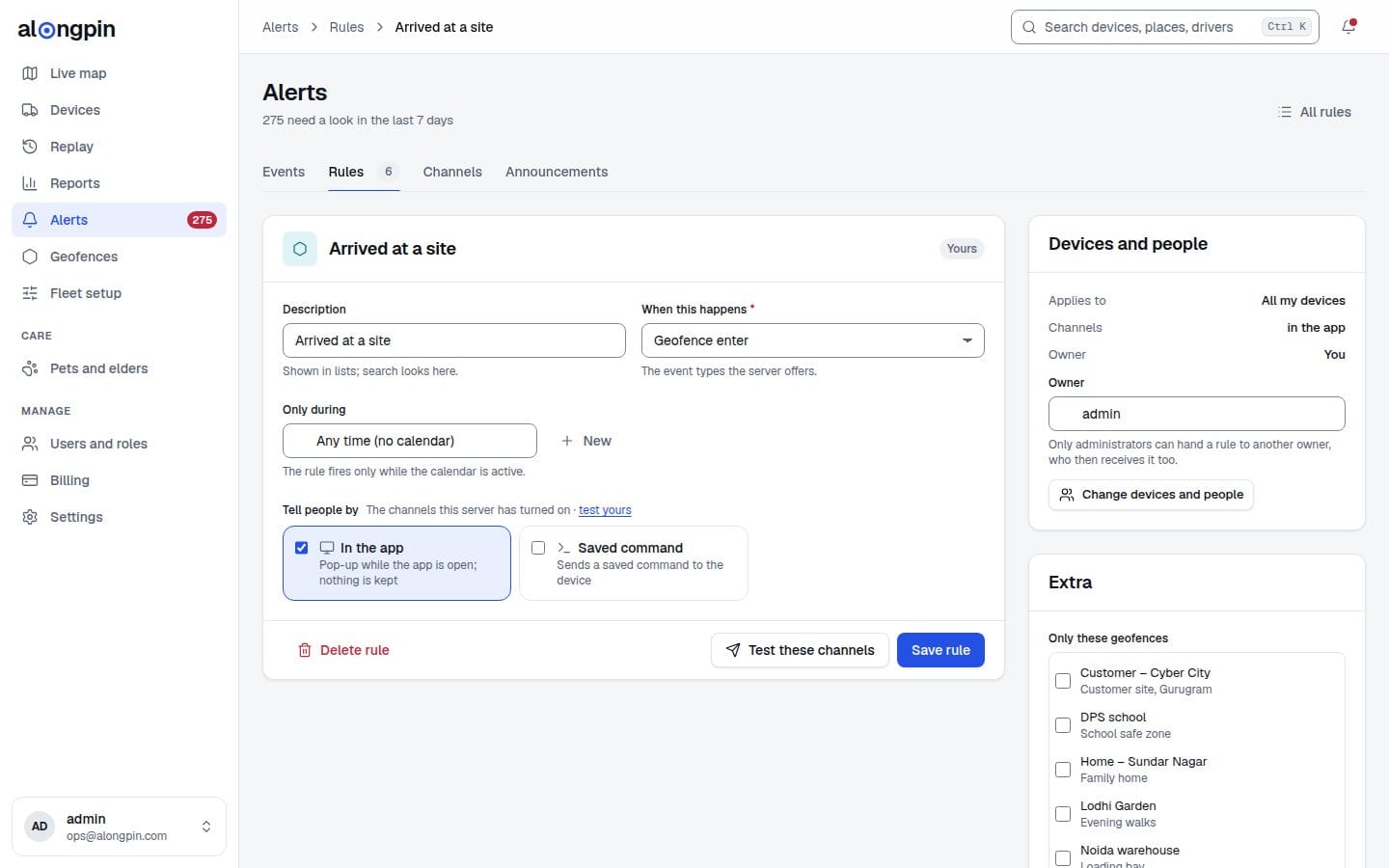
Open Alerts, then the rule, and look under Tell people by. If Text message is not in the list, the SMS channel is not switched on for your account, and no rule can send texts. A rule that still names it shows it as "off on this server", and nothing goes out on it until it is switched on again. SMS is connected by your service's operator, so ask your administrator. As pricing explains, SMS and Telegram alerts depend on the channels switched on for your account.
2. Add a phone number to your account
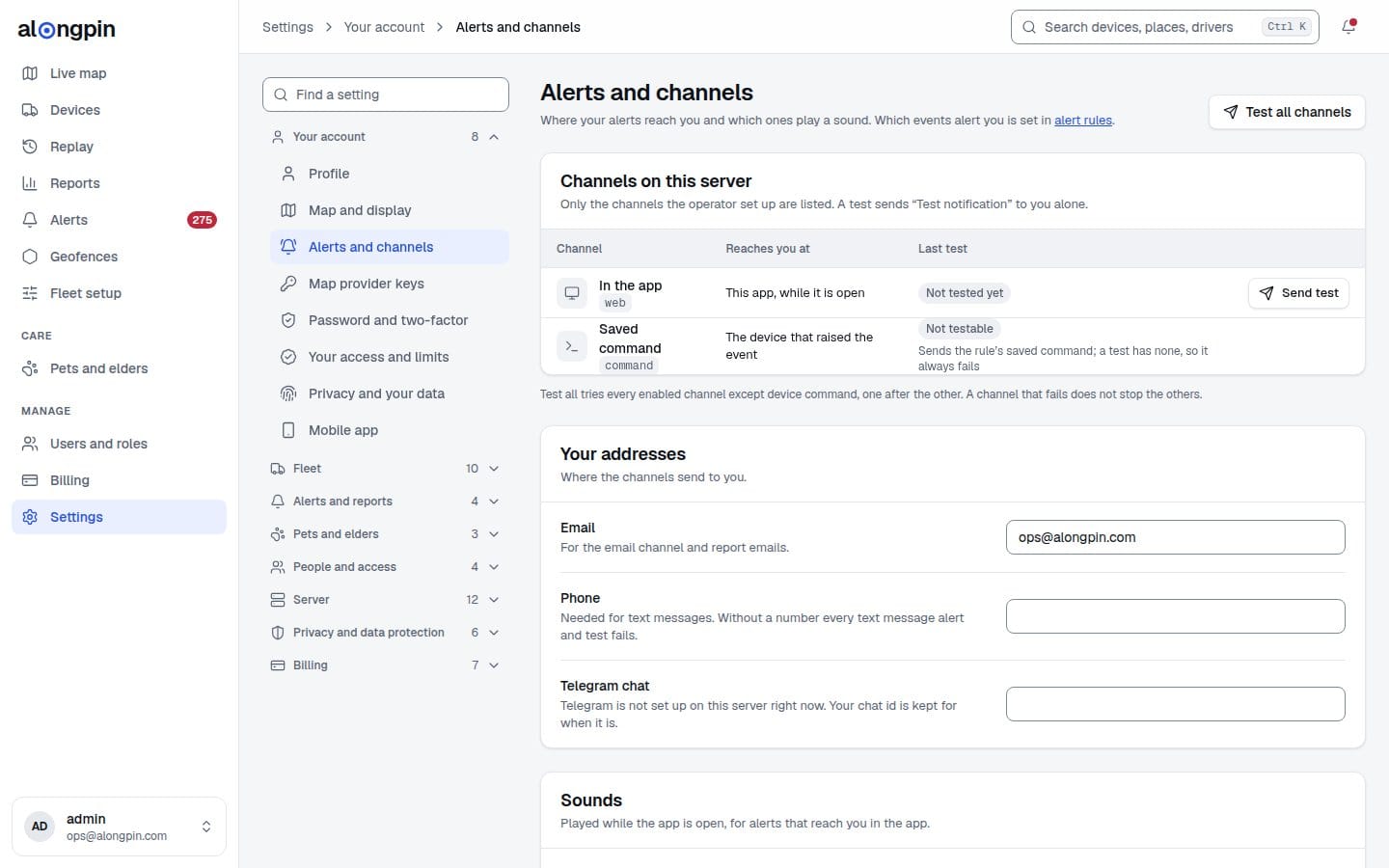
Open Settings → Your account → Alerts and channels. Under Your addresses, Phone is "needed for text messages": without a number every text-message alert and test fails. Write the number in international format, with the country code (for example +91 for India, +44 for the United Kingdom), so the SMS gateway can route it.
A read-only account cannot change its own phone number; ask the person who manages users in your account. The same applies to colleagues: each person needs a number on their own account to receive texts.
3. Send a test message by SMS
On the same page, Channels on this server has Send test on the Text message row. The test sends "Test notification" to you alone.
- Delivered: the gateway accepted it. If no text arrives, check the number for a typing error and whether your phone blocks unknown senders.
- Could not deliver, "there is no phone number on your account": step 2.
- Could not deliver, "the provider refused the message (status 400)" or similar: the number may be in the wrong format, or the gateway's settings need your administrator.
- "The provider could not be reached": a setting on the sending side, for your administrator.
4. Quiet hours and the rule's schedule
Your quiet hours hold back text messages, except the alerts you let through (SOS and power cut by default), and a held-back text is not sent later. A rule with a calendar under Only during sends only while that calendar is in progress. Check both if texts arrive by day but not at night, or the other way round.
5. Read the delivery log
Open the alert from Alerts. Under Sent to, each person has an entry per channel, for example:
- SMS · sent: the gateway accepted the text.
- SMS · no phone number: add one, step 2.
- SMS · gateway refused (400): check the number's format, then ask your administrator.
- SMS · held back (quiet hours): step 4.
- SMS · channel off: step 1.
A failed text is not sent again. Read more about alert channels and how SOS alerts reach several people.
Frequently asked questions
Why is the text so short?
By default, texts carry only the device and what happened, with a link to the alert where the server has one. With full message detail, set by an administrator, the text also carries the address, and may then take more than one text message.
Can I get texts and push at the same time?
Yes. A rule can send through several channels; tick each one under Tell people by.