Alerts and SOS
Marking alerts as seen
How the Not seen marker and the count on the Alerts badge work, how to mark one alert or all of them as seen, and why seen is personal while acknowledging is shared with your colleagues.
Ashish Srivastava4 min read

To mark alerts as read in the portal, open Alerts and select Mark all as seen, or open a single event and select Mark as seen. Every event that is new to you carries a Not seen marker, and the count on the Alerts item in the menu and on the bell in the header tells you how many such events you have from the last 7 days. Marking something as seen only changes your own view: it does not tell your colleagues that the alert was handled. That is what Acknowledge is for.
Key takeaways
- The badge counts the events of the last 7 days that you have not seen yet, up to 999+.
- Mark all as seen clears everything up to now; Mark as seen clears one event.
- Seen is personal and follows you across your open sessions; each colleague has their own.
- Acknowledge is shared: everyone who sees the event learns who handled it and when.
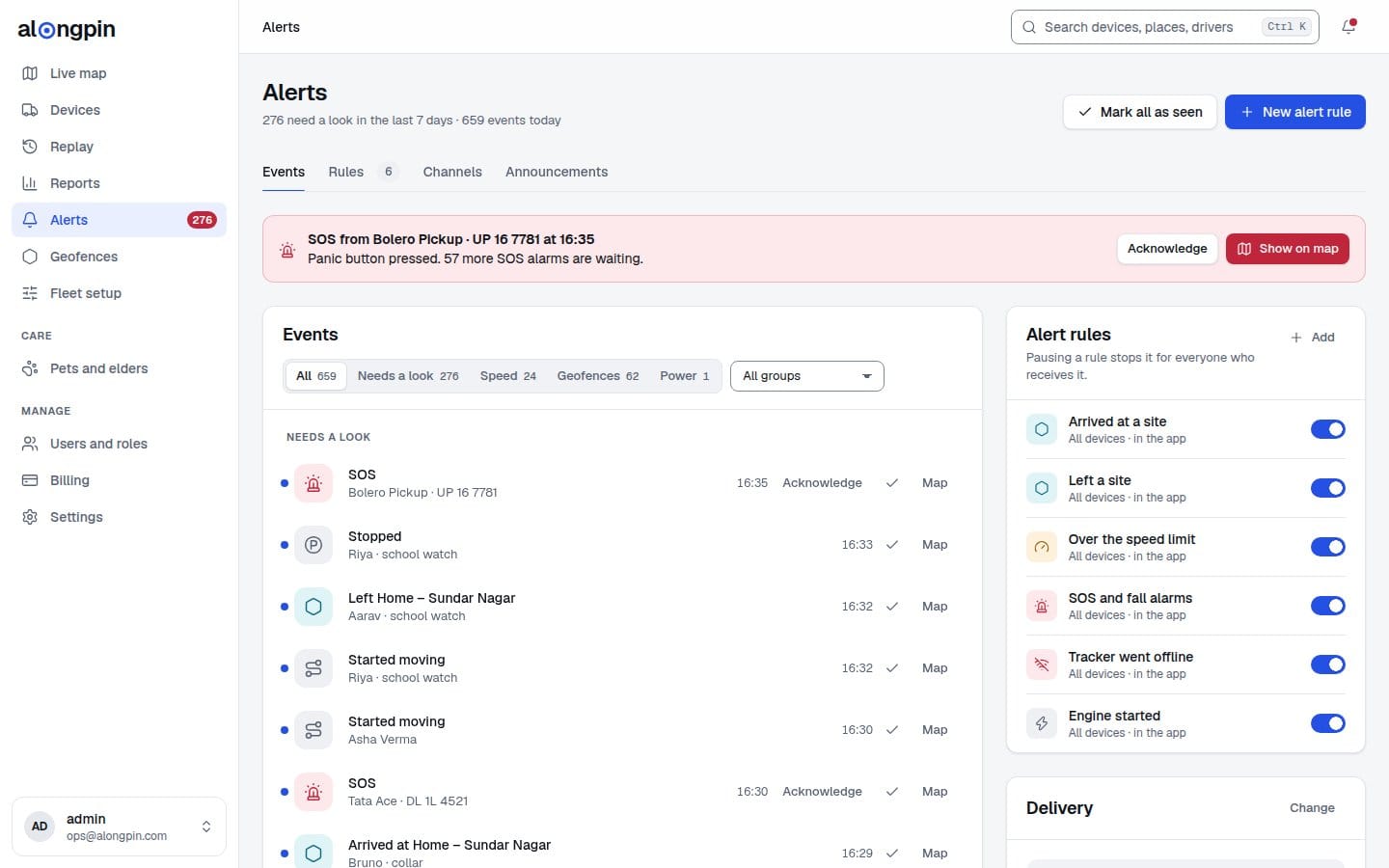
The Not seen marker and the badge count
An event counts as new to you until you mark it, or until you use Mark all as seen. The portal shows this in three places:
- The badge. A number on the Alerts item in the left-hand menu and on the bell in the header. It counts only the events of devices you are allowed to see, and only those of the last 7 days: older events count as seen. Above 999 it shows 999+.
- The page header. On the Alerts page the header reads, for example, "12 need a look in the last 7 days", or "Nothing new in the last 7 days".
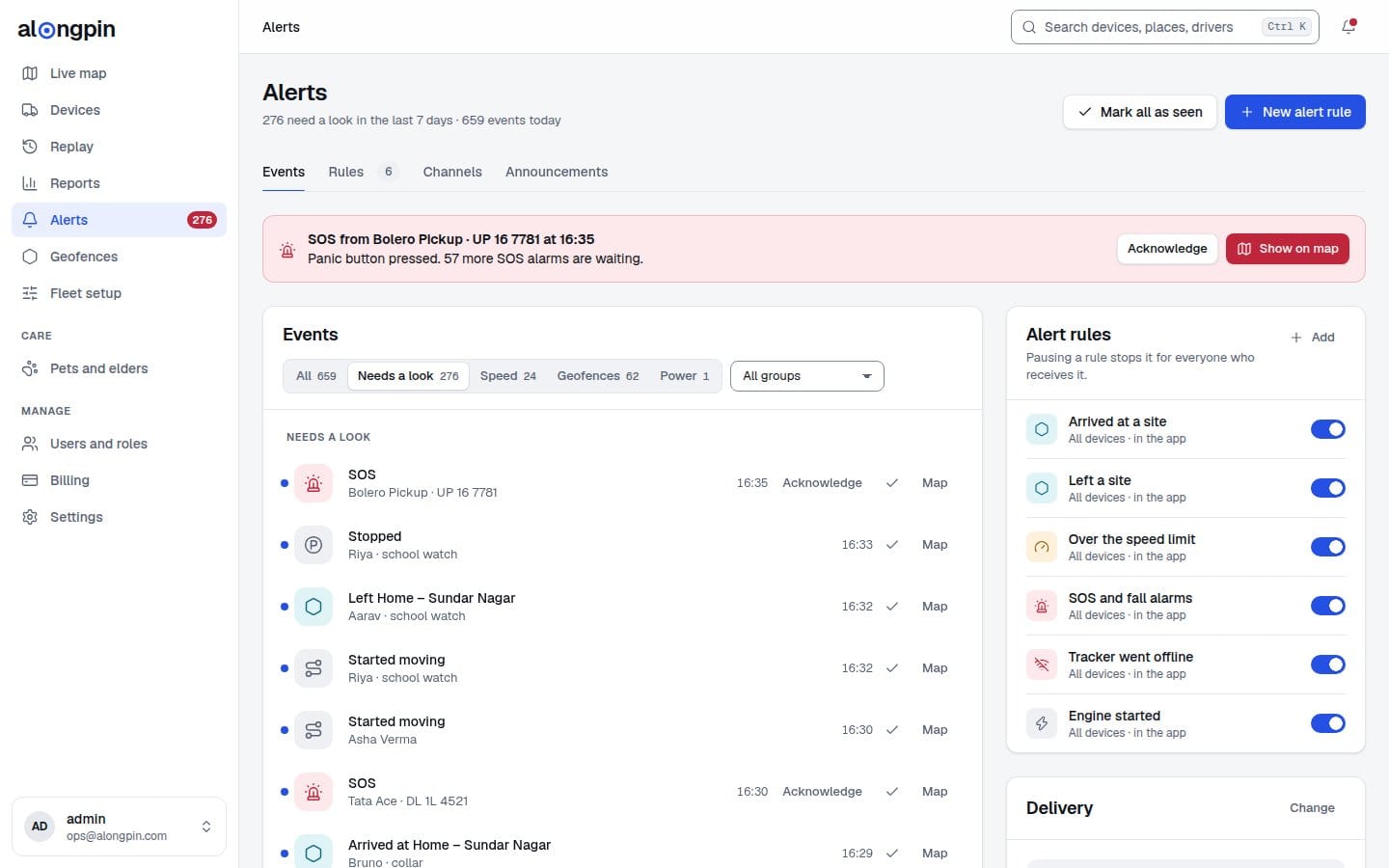
- The marker. In the list of events, and in an event's details, an event you have not seen shows Not seen. The Needs a look filter above the list shows only those events.
A new user starts with nothing new: events from before the account was created never count as unseen.
Mark one alert as seen
- Open Alerts in the menu, or select the bell in the header.
- Find the event in the list. Needs a look narrows the list to the events you have not seen.
- Mark it as seen from the list, or open it and select Mark as seen in its details.
The marker disappears and the badge goes down by one. Changed your mind? An event you marked on its own can be set back with Mark as not seen. That is not possible for events that Mark all as seen covered, because that action moves a line in time rather than marking events one by one.
Mark all alerts as seen
On the Alerts page, select Mark all as seen at the top. The portal confirms with "Every alert up to now is marked as seen" and the badge returns to zero. Events that arrive afterwards are new again, so nothing that happens later is hidden from you.
This is the quick way to start a shift with a clean slate, for example after a weekend when the list has filled up with ignition and geofence events you do not need to look at one by one.
Kept in step across your browser and phone
Your seen state belongs to your user, not to one browser. When you mark one event, or all of them, your other open sessions update within seconds: a second browser tab, the portal on another computer, or the mobile app where you are signed in with the same user. You do not have to clear the same badge twice.
Seen is personal; acknowledged is shared
The two look alike but answer different questions.
| Seen | Acknowledged | |
|---|---|---|
| Who it is for | Only you | Everyone who may see the event |
| What it says | "I have looked at this" | "Someone has handled this" |
| How it shows | The Not seen marker and the badge disappear for you | "Acknowledged by Priya at 10:12" for everyone |
| Can it be undone | Mark as not seen on events you marked one by one | No: the first acknowledgement stays |
| Recorded | No | Yes, in the audit log |
Use Acknowledge for alarms that need an owner, such as an SOS or a power cut on a vehicle: your colleagues see on their open screens that you are on it, and nobody calls the driver twice. If someone was faster, the portal tells you that they acknowledged it already. The Alerts page shows an SOS in a banner at the top with its own Acknowledge button. Read more about how alarms reach your team on the alerts feature page and the SOS page.
A user whose account is read-only can still mark events as seen, because that only changes their own view, but cannot acknowledge them.
Frequently asked questions
Why does the badge show a number when the list looks empty?
The list shows the period you chose, while the badge covers the last 7 days. Choose Needs a look, or a longer period, to find the remaining events.
Does marking as seen stop the alert rule or its messages?
No. Rules, e-mails, push and text messages carry on as before. Seen only changes your own markers and count.
Will marking all as seen hide an SOS that arrives a minute later?
No. Mark all as seen covers events up to the moment you select it; anything newer is shown as new.
More answers about alerts and notifications are in the help center.