Alerts and SOS
Getting an alert when a device stops reporting
A device with no signal or a flat battery cannot send an alarm. How to add an offline alert and a low-battery alert, so that silence is noticed, and what to do when one arrives.
Ashish Srivastava3 min read

A GPS tracker offline alert tells you when a watch or tracker stops reporting, because a device with no signal or a flat battery cannot send an SOS or any other alarm. Add two alert rules: one for the device going offline or silent, and one for a low battery where the device reports it. Then silence itself becomes something you hear about, and you can call, charge or check before it matters.
Key takeaways
- Use the events Device offline and Status unknown: which one a device raises depends on how it connects.
- Add an Alarm rule with Low battery for devices that report a low battery.
- Choose channels that reach you when the portal is closed: push, text message or e-mail.
- Short gaps in tunnels, lifts or basements are normal; act on the alert, not on every gap.
1. Add a rule for the device going silent
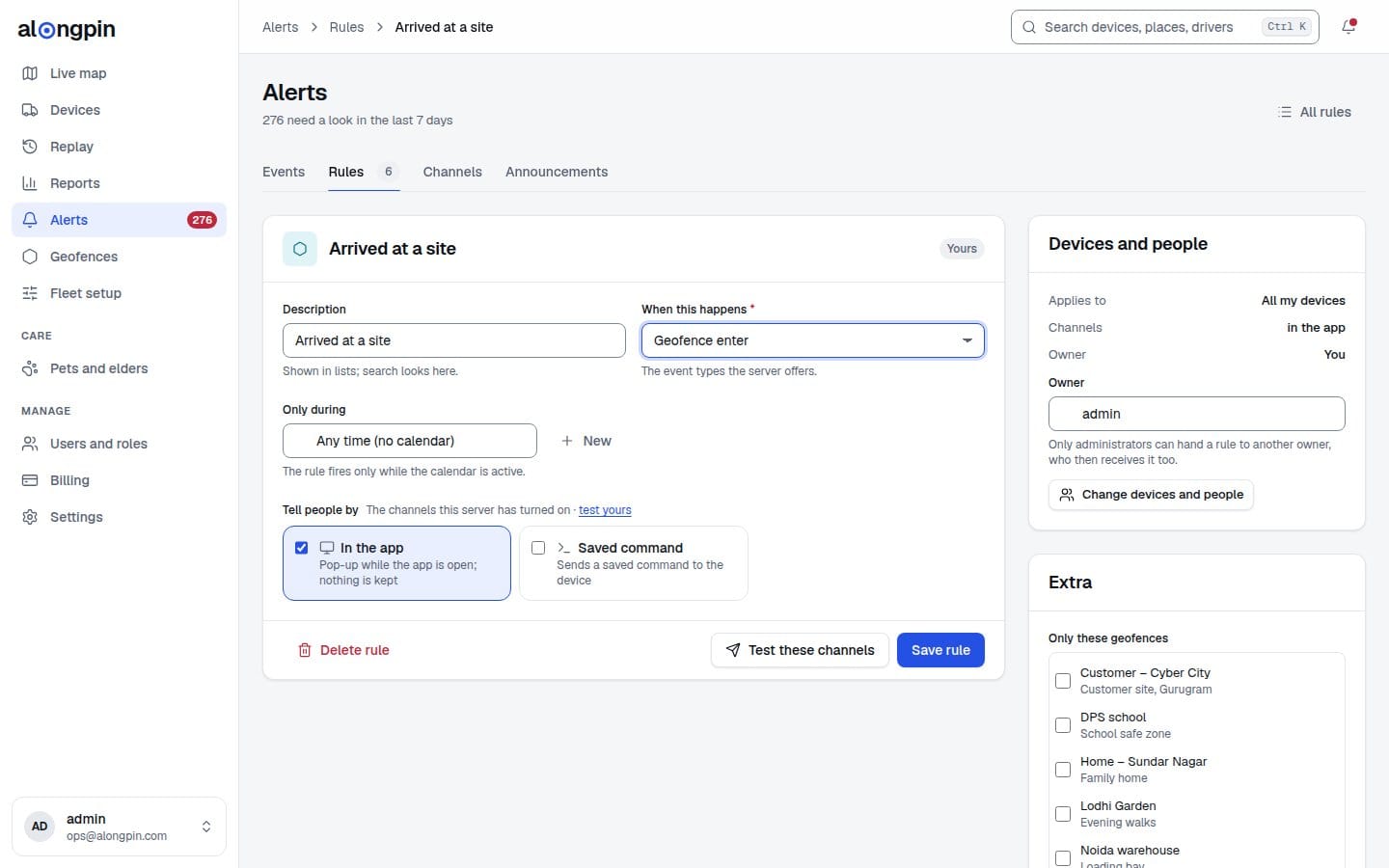
Open Alerts → New alert rule. Under When this happens, the Device status group offers:
- Device offline: the device closed its connection. Most watches and vehicle trackers that keep a connection open raise this.
- Status unknown: nothing has arrived for a while (ten minutes in a standard setup). Phones and trackers that send without keeping a connection open never go offline; they raise this instead.
- Device inactive: nothing has arrived for a longer time that your administrator sets, for example 12 hours, with a reminder every so often. It is raised only where that time is set.
A rule has one event, so make one rule for Device offline and a second for Status unknown, or use Device inactive if your administrator has set it and you only want to hear about longer silences. Save the rule, then attach the devices under Devices and people, or choose All my devices.
2. Add a low-battery rule
Many watches and trackers report a low battery as an alarm. Make a rule with When this happens: Alarm, and under Alarm kinds tick Low battery, and Low power for vehicle trackers that report their supply running low. Whether a device sends these depends on the device; the watch pages say what each kind of watch reports.
If the watch belongs to a care profile, the profile's own care alerts can also warn about a low battery; set those in the profile.
3. Choose channels and who receives it
Under Tell people by, tick channels that reach you when the portal is closed: Push notification, Text message or Email, as far as they are switched on for your account. In the app alone shows the alert only while the portal is open.
Under Devices and people, Who receives it lists the people the rule goes to. Administrators and managers can add the people they look after, for example a second family member, so that an offline alert does not depend on one phone. Then press Test these channels in the rule to send yourself a test of each channel.
If you use quiet hours, an offline alert at night is held back unless you add Device offline or Status unknown under Still goes out.
Why short offline spells are normal
A tracker needs mobile signal to report. In a tunnel, a lift, an underground car park, a hospital basement or a rural valley it may lose signal for a few minutes and report again when it is back, sending what it recorded on the way. Status unknown after a short gap is therefore not a reason for alarm on its own. If short gaps happen often on one route, rely on Device inactive with a longer time, or wait a few minutes before acting.
What to do when the alert arrives
- Open the device on the live map and look at its last position and time, and at its battery where it reports one.
- Call the person who wears the watch or drives the vehicle.
- If the battery was low, ask them to charge it; many watches need charging every day.
- If there is no answer and the last position is unexpected, act as you would for an SOS. Read how SOS alerts reach people.
- When the device reports again, the status changes back to online; a Device online rule can tell you so.
Learn more about alert rules and channels.
Frequently asked questions
Why did I get "Status unknown" but never "Device offline"?
The device sends without keeping a connection open, as phones do. Use Status unknown for it.
Can I be alerted about a low battery before it is flat?
Only if the device reports a low battery; when it does, the alarm comes while there is still some charge.