Live map and trips
Showing who drove a trip: drivers by card or key
How to register drivers with the identifier their tracker reads, such as an RFID card or iButton key, attach them to vehicles or groups, and see their names on trips, events and reports.
Ashish Srivastava3 min read
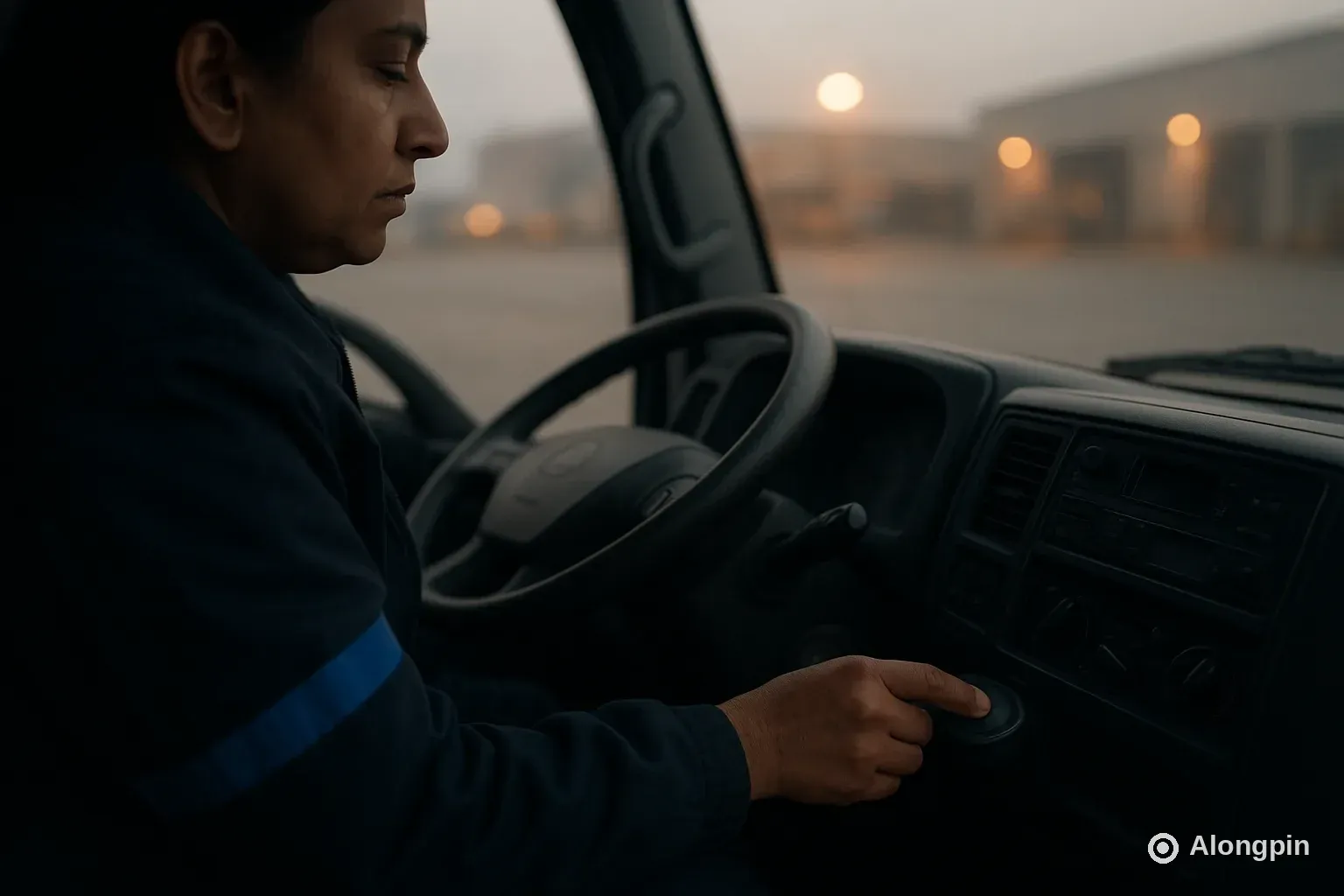
Driver identification in GPS tracking lets trips and events show who was driving, not only which vehicle. In Alongpin you register each driver with the identifier their tracker reads, such as the number of an RFID card or an iButton key, and attach the driver to the vehicles or groups they drive. From then on, when the driver presents the card or key, trips, events and reports carry their name. It works only with trackers that read a driver identifier and report it.
Key takeaways
- The tracker needs a card reader, key reader or driver login, and must report the identifier.
- Add the driver under Fleet setup → Drivers with a name and the exact identifier.
- Attach the driver to the devices or groups they drive.
- The name appears on the live map, in trips, in Driver changed events and in reports; the trips report filters by driver.
- No name on a trip usually means no reader, no card presented, or an identifier that does not match.
What you need first
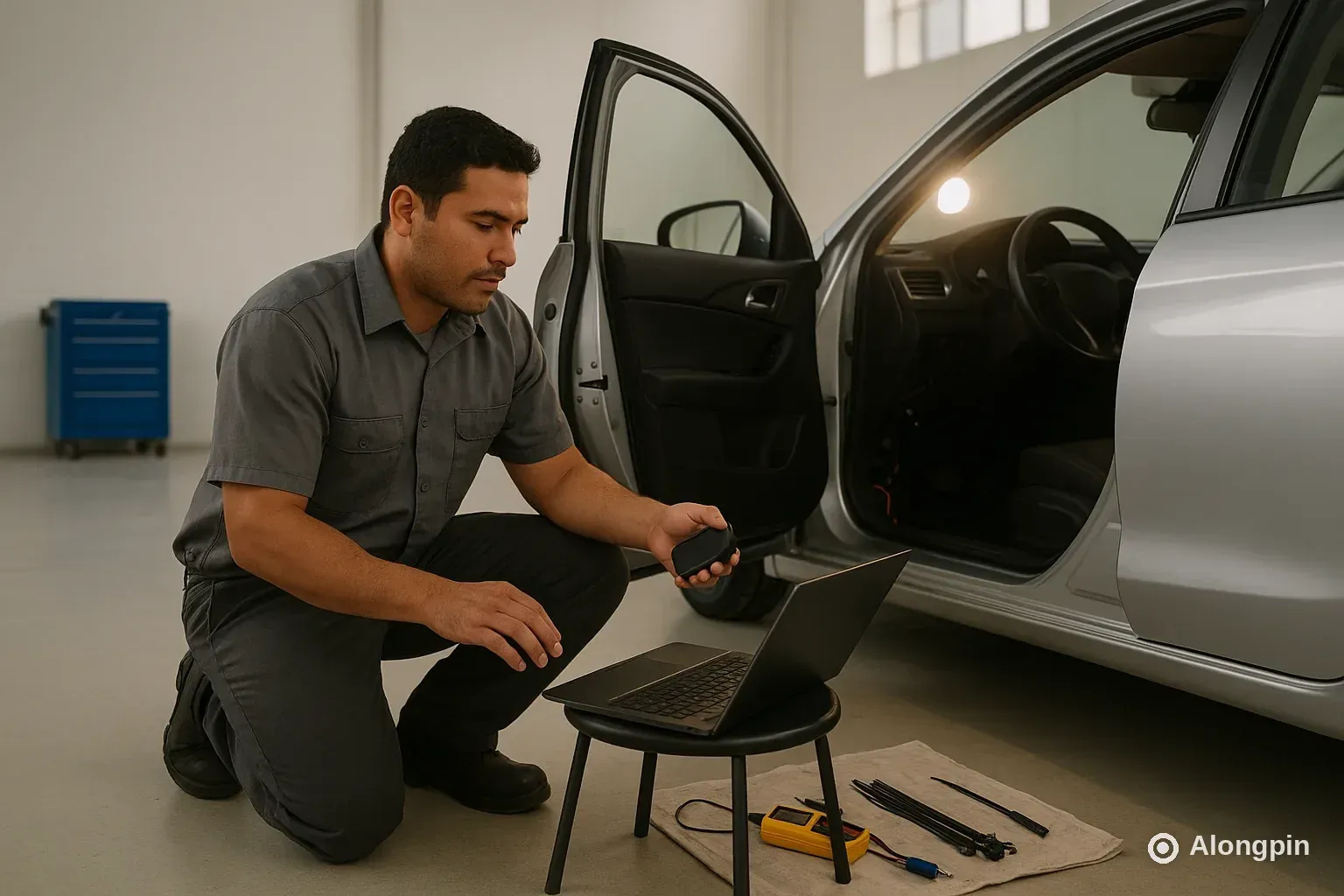
Driver identification depends on the hardware. The tracker must have an RFID reader, an iButton (touch key) reader or a driver login, connected and set up so that it reports the identifier with its positions. Many vehicle trackers support this with an extra reader fitted by your installer; trackers without one cannot tell drivers apart. Ask your installer which identifier format the tracker sends, because the number printed on a card is not always the one the tracker reports.
Register a driver
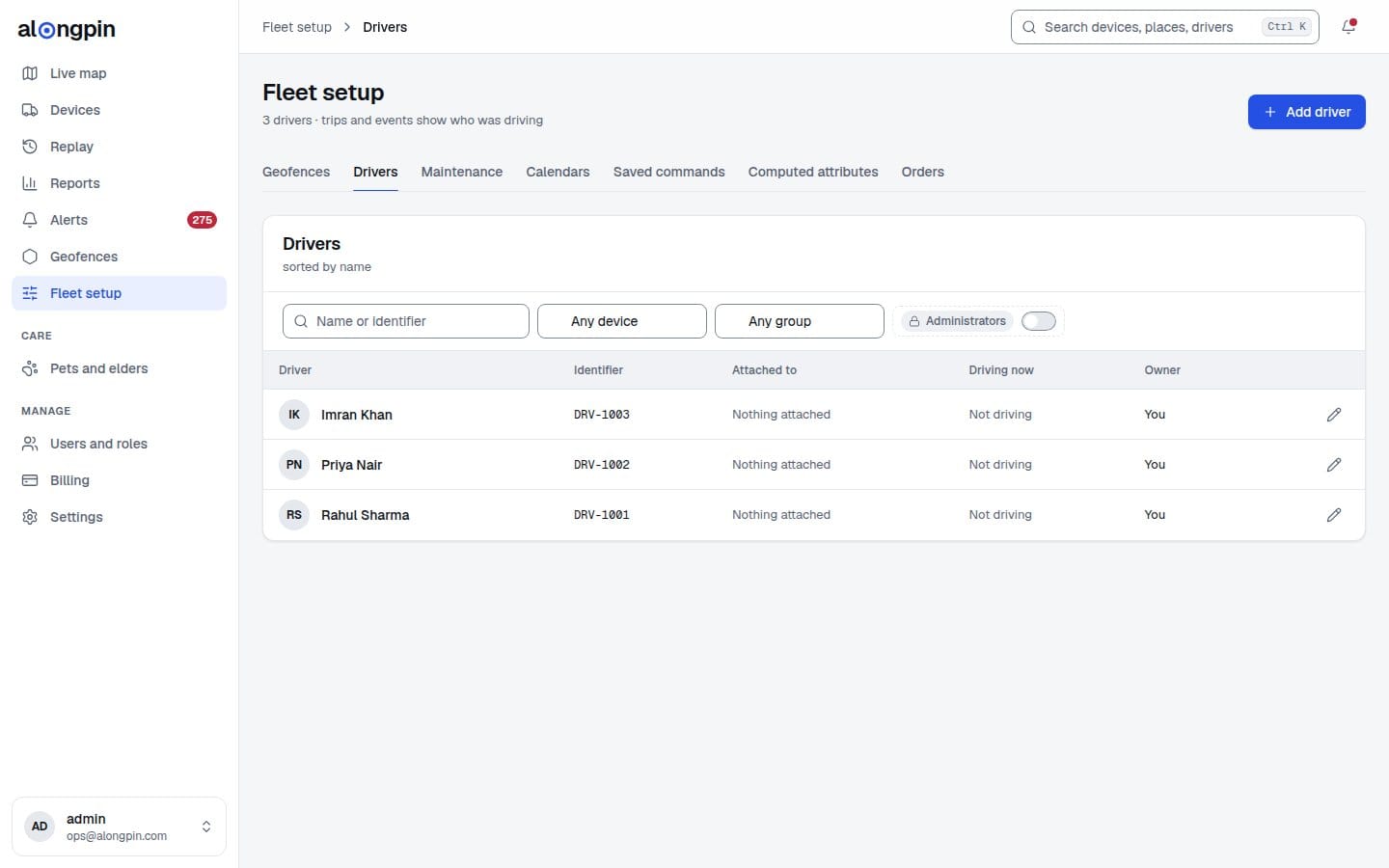
- Select Fleet setup in the menu, then the Drivers tab.
- Select Add driver.
- Enter the Name and the Identifier: the number the tracker reports when the driver swipes the card or touches the key. Each identifier can belong to one driver only.
- Optionally add a Phone and the date Licence valid until.
- Under Then attach to, choose the Devices and Groups the driver uses, and select Add driver.
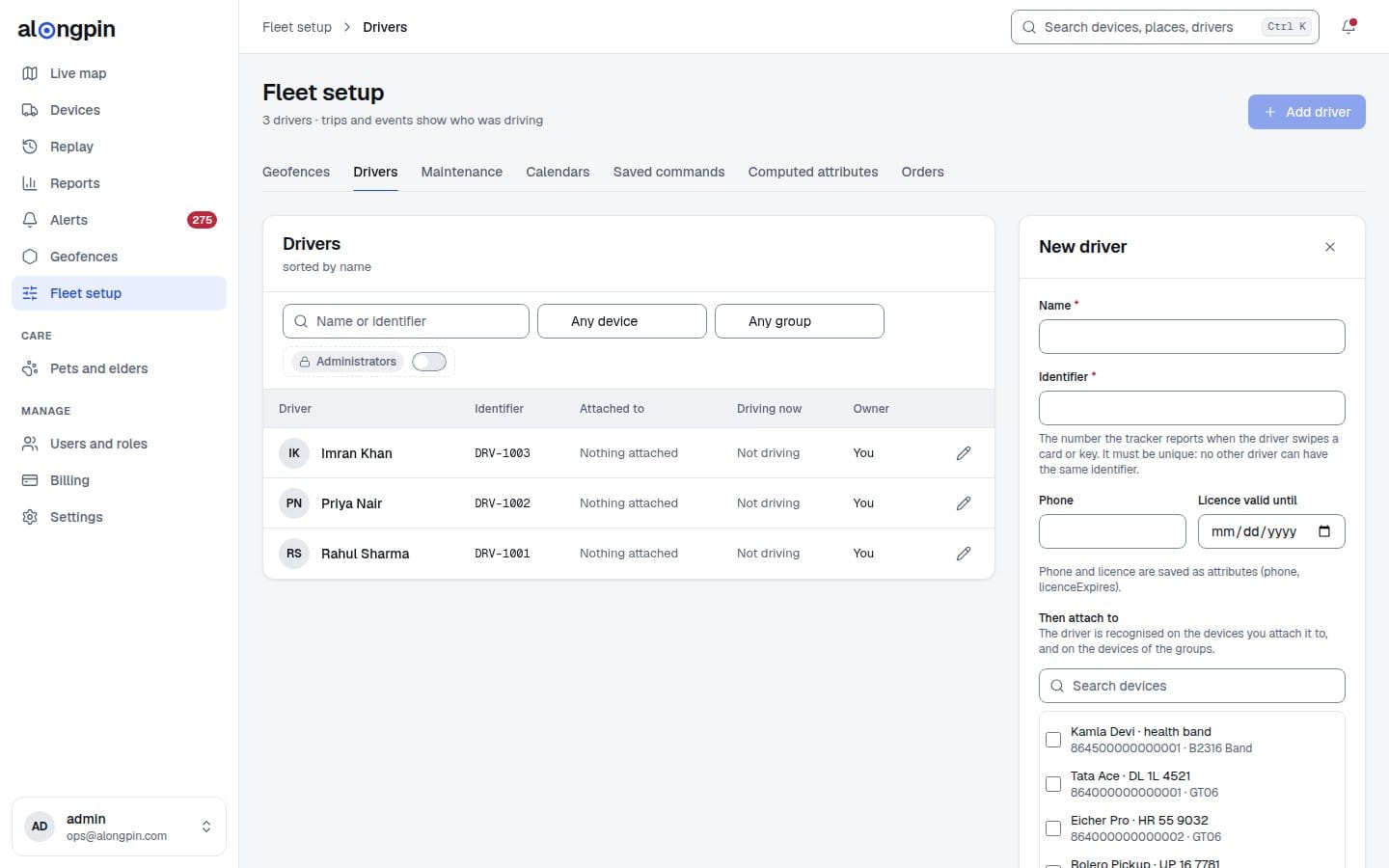
Attaching matters: a driver is recognised on a device only when attached to that device or to its group. Attaching a driver to a group covers every vehicle in it, which suits pool cars. You can change the attachments later on the driver's page under Attach or detach.
Where the name appears
Once a tracker reports a known identifier:
- Live map: the device's panel shows who is driving, and the fleet search finds vehicles by driver name.
- Events: a Driver changed event is raised whenever the identifier changes, with the previous driver where known. It is also marked in the replay.
- Trips: each trip carries the driver of its start, in the device's Trips tab, the trips report and its downloads.
- The driver's page: who is driving now, the last change, and the trips of the last seven days with Replay.
Filter a report to one driver
In Reports, the trips report has a Driver filter, set to Any driver by default. Choose one driver to list only the trips where they were driving, across every vehicle you chose. Stops, the route and events can be narrowed to one driver in the same way. More on the reports is on the reports feature page.
Why a trip shows no driver
- No reader or no identifier. The tracker has no reader, or it is not set up to report the identifier.
- The card or key was not presented. Most readers only report when the driver swipes or touches at the start of the trip.
- The identifier does not match. The number registered differs from what the tracker sends: extra zeros, a different format, or a reversed byte order. Open Position details of a position from that trip and look for the driver identifier among All attributes, then copy that value into the driver.
- The driver is not attached. A trip shows the identifier but not the name when no driver attached to the device or its group has it.
Your administrator can also switch on a server option that gives positions without an identifier the first driver attached to the device, which suits vehicles with one fixed driver.
Identifying drivers is part of how fleets look at driver behaviour. Reports describe trips and vehicles; the platform does not score or rank drivers.
Frequently asked questions
Can two drivers share one card?
No. Each identifier belongs to one driver, so trips can be told apart. Give each driver their own card or key.
Does it work with the phone app?
Driver identification works with trackers that report an identifier. A phone running the tracking app reports as itself, so register it as its own device.