Live map and trips
Why part of a route is missing from the replay
Why a replayed route has a gap or a straight line: private trips, a tracker offline, unpowered or asleep, no satellite fix, long reporting intervals, or history beyond the retention period, and how the events tell them apart.
Ashish Srivastava4 min read

When GPS trip history is missing for part of a route, the replay is showing what was stored, and something stopped positions from being stored in that stretch. The usual reasons are a private trip, a tracker that was offline, switched off or asleep, a tracker that had no satellite fix, positions sent far apart so the line jumps, or history older than your plan or your administrator keeps. The events of the period usually tell you which one it was.
Key takeaways
- A gap labelled Private trip is privacy at work, not a fault.
- No coverage, no power or sleep mode leave a gap; many trackers send buffered positions later, which then fill it in.
- Long reporting intervals draw straight lines across corners.
- History reaches back only as far as the plan and the retention settings allow ("History from" a date).
- Check the device's Events for offline, status and power events in the same period.
Private trips and time outside working hours
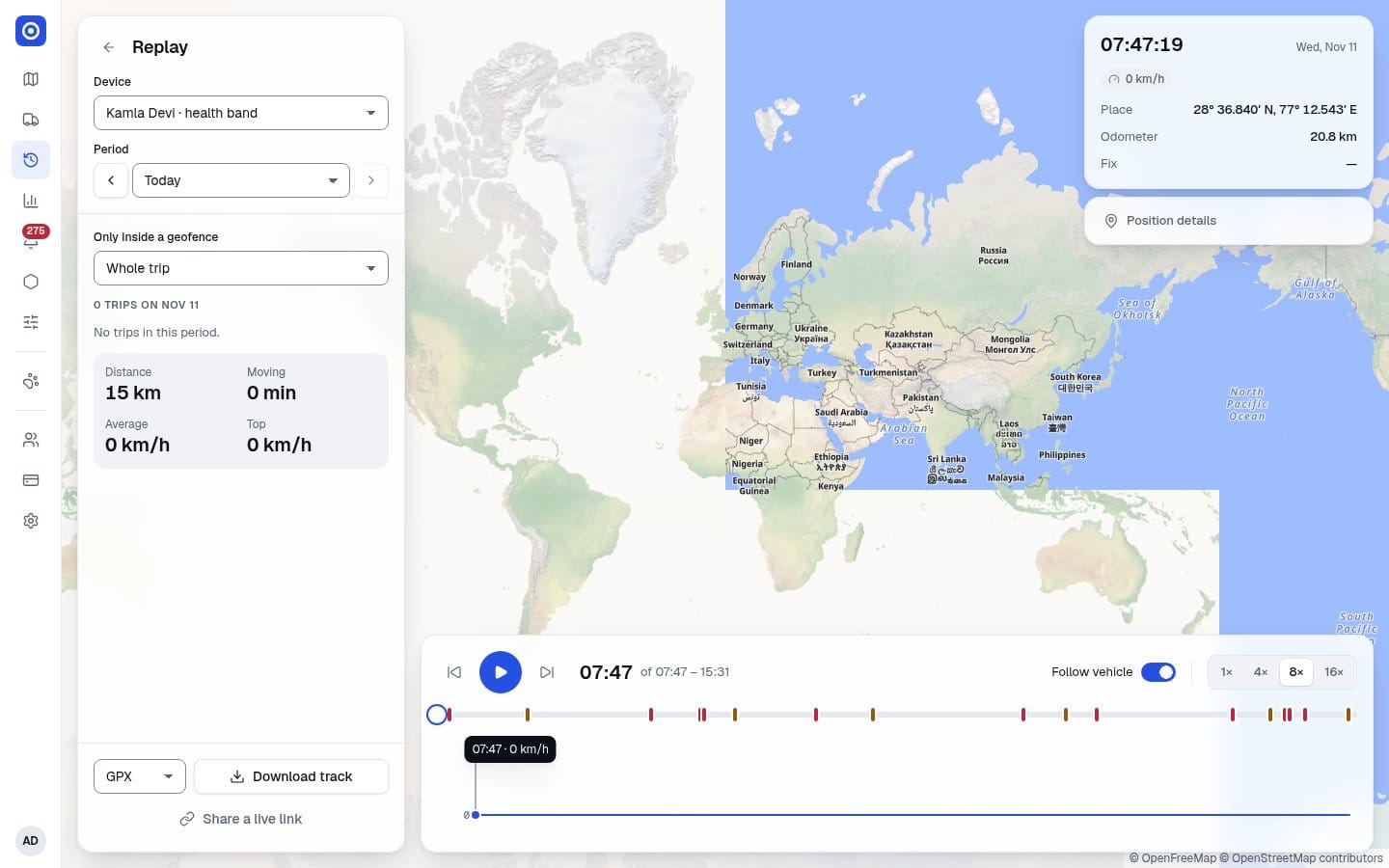
Where driver privacy is set up, a stretch the driver kept private, or the time outside working hours, is not replayed as a route. The replay labels the gap Private trip instead of drawing a line across it, and a trip on the list reads "Private trip" with its distance. Depending on the private mode, the stretch has no positions at all, positions without a location, or positions blurred to about a kilometre without an address. If a whole period was private, the replay says there is no route to replay. See driver privacy for how private trips work, and /help for what each private mode keeps.
Gaps while the tracker had no coverage or power
A tracker can only send what it records, and only send when it has a connection:
- No mobile coverage (an underground car park, a tunnel, a remote road): many trackers keep their positions and send them when they reconnect. They then appear in the history in the right place, a little later. Trackers without that memory leave a gap.
- No power: a tracker that was unplugged, lost its fuse or ran its backup battery flat records nothing until it is powered again.
- Sleep mode: battery trackers and some vehicle trackers report rarely, or not at all, while parked, to save power. A parked night is a normal gap; a gap while driving is not.
- No satellite fix: indoors, under heavy cover or right after power-up, the tracker may not know where it is. Depending on how the server filters positions, fixes it marked as invalid may not be stored.
Long reporting intervals draw straight lines
The replay connects one position to the next with a straight line. If the tracker reports every two minutes on a winding road, the line cuts corners and may cross buildings. That is the reporting interval, not a missing trip. Shorter intervals give a smoother line at the cost of more data; many trackers can also report on each turn. The setting lives on the tracker, sent from Send command on devices that support it, or in the tracker's own tool.
How far back the history reaches
Positions are not kept forever on every account:
- Your plan. If the device's plan keeps a limited history, the replay says "History from" and a date, and earlier positions are not shown.
- Retention settings. Your administrator can set how long positions and events are kept; older ones are deleted by a nightly run. A device's latest position stays.
- Deleted positions. Someone with the right to do so may have deleted positions of a period from the device's settings.
How long your account keeps data is described in privacy and data. The trip history feature page explains what is stored and replayed.
Check the events of the period
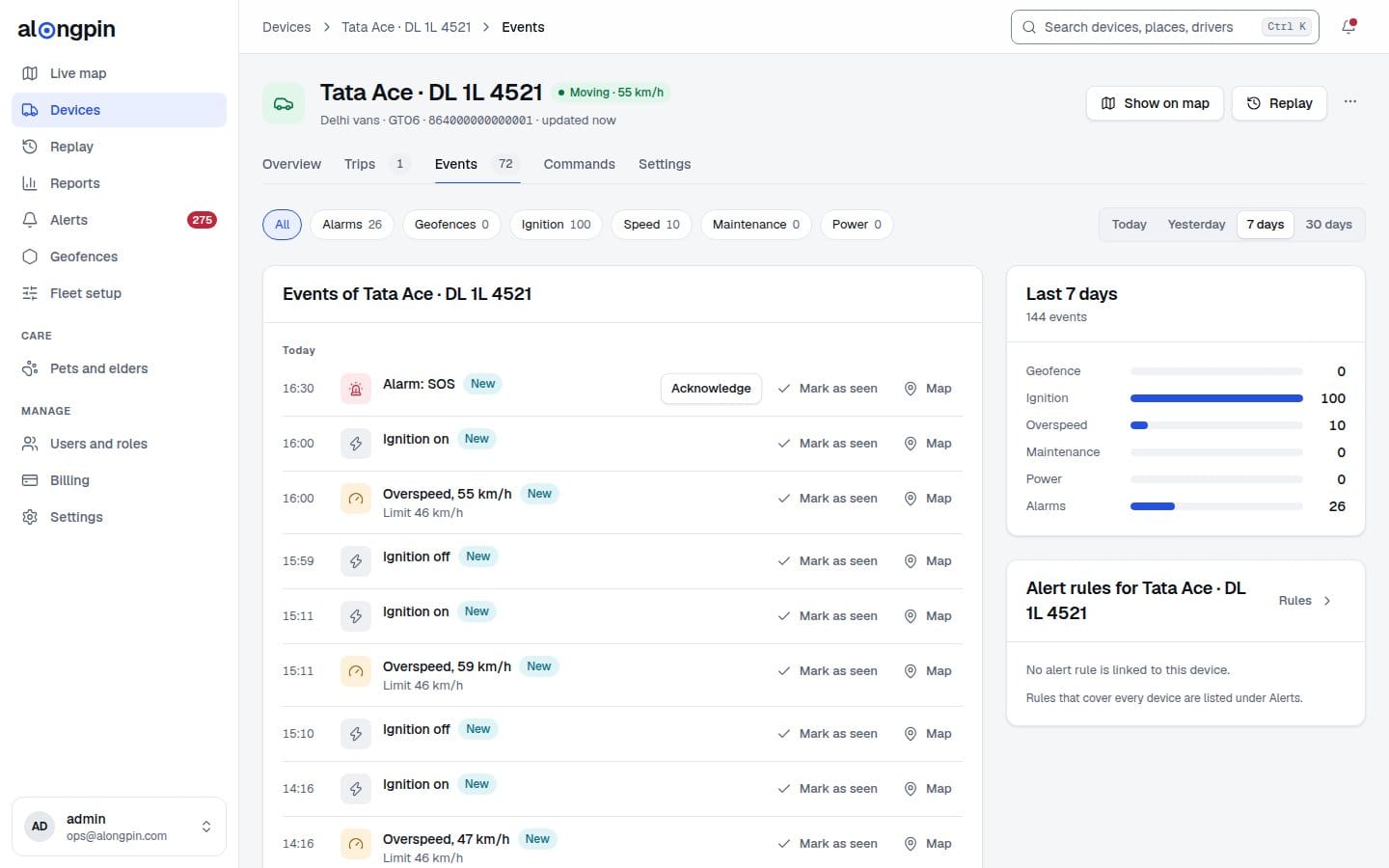
Open the device, then its Events tab, and set the same period. Look for:
- Device offline or Status unknown: the tracker lost its connection or stayed silent.
- Device online: when it came back.
- Alarm events such as a power cut, where the tracker reports them.
- Ignition on and off around the gap.
If the tracker went offline right where the gap starts, coverage or power is the cause. If it stayed online and reported invalid fixes, it was the satellite fix. If none of that explains it, open Position details at the edges of the gap: the fix time and the time received show whether positions arrived late.
Frequently asked questions
The gap filled in the next day. Why?
The tracker stored the positions while it had no coverage and sent them once it reconnected. Late positions take their place in the history.
Can I get back a stretch that is missing?
Only if the tracker still holds it and sends it later. Positions that were never sent, were kept private or were deleted by retention cannot be restored.