Live map and trips
Reading the details of a position
What the details of one position show: device, fix and received times, coordinates and accuracy, address, speed and ignition, every sensor value the tracker sent, and the towers and Wi-Fi it saw.
Ashish Srivastava4 min read
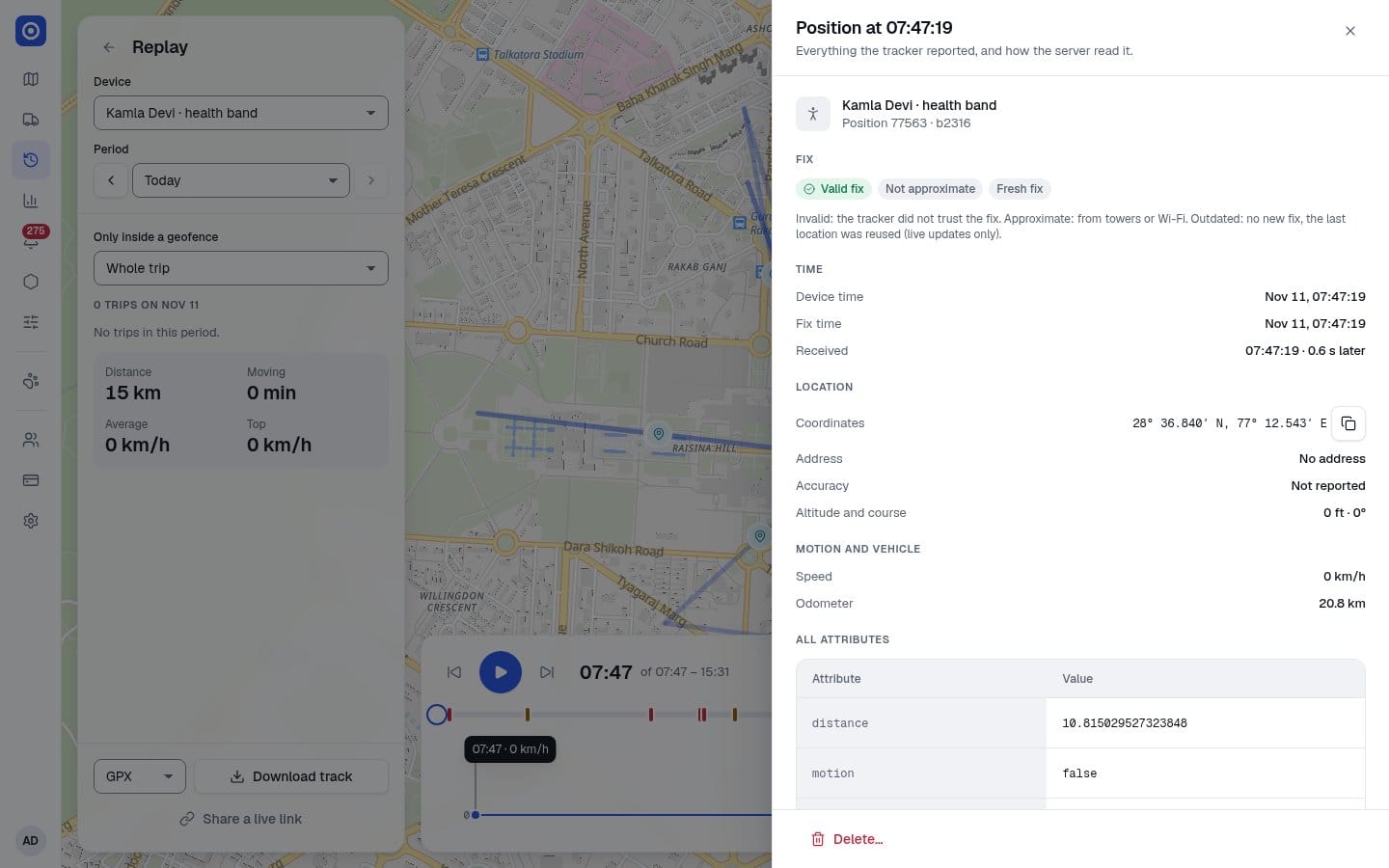
GPS position details show everything one stored position holds: when the tracker took it and when it arrived, the coordinates and how accurate they are, the address, the speed and ignition, every sensor value the tracker sent, and the cell towers and Wi-Fi it saw. Open them when a value on the map or in a report looks wrong and you want to see exactly what the tracker reported.
Key takeaways
- Open a position from the replay or from an event (Position details); the Route report lists positions row by row.
- Three times: Device time, Fix time and Received. A big difference between them points to a late or buffered position.
- Accuracy and the fix flags say how far to trust the location.
- All attributes lists every raw value: battery, ignition, fuel, inputs, a driver identifier, where the tracker reports them.
- The geofences a position was in are recorded with it and drive the geofence filters.
Open a position
- From the replay: move the playhead to the moment you want and select Position details in the box under the map.
- From an event: an event's page has Position details for the position where it happened.
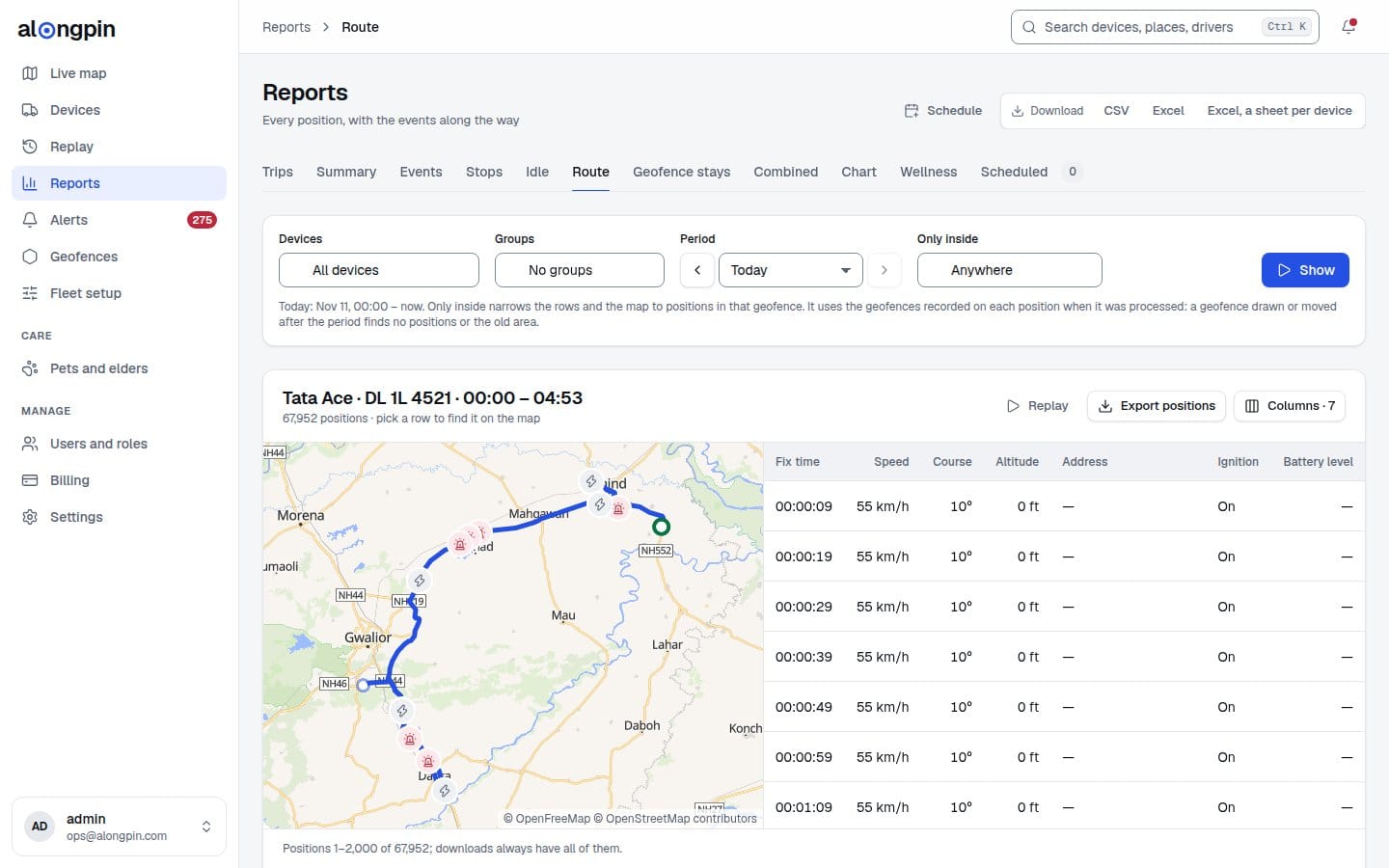
- From the Route report: under Reports → Route, each row is one position with its time, place, speed and attributes; select a row to find it on the map. It is the quickest way to scan many positions at once.
The details open in a side panel. Copy coordinates copies the latitude and longitude; Open in replay plays the minutes around the position. Users with the right to delete positions also see Delete….
The fix: can this location be trusted?
At the top, three flags describe the fix:
- Valid fix or Invalid fix: whether the tracker itself trusted its satellite fix.
- Approximate or Not approximate: an approximate location comes from cell towers or Wi-Fi, not from satellites, and can be hundreds of metres off.
- Fresh fix or Outdated: outdated means the tracker had no new fix and the last known location was reused (seen in live updates).
Device time, fix time and received
- Device time: the time the tracker wrote into its message.
- Fix time: when the satellite fix was taken. History and replay are ordered by this time.
- Received: when the server got the message.
Normally they lie seconds apart. If Received is minutes or hours later, the tracker stored the position while it had no connection and sent it afterwards. If the device time is off by whole hours, the tracker may be reporting local time instead of UTC, which your installer can correct.
Location, accuracy and address
Coordinates show latitude and longitude. Accuracy is the radius in metres the location is good to, with the number of satellites where the tracker reports them. Altitude and course follow. The Address is looked up when the position arrives if address lookup is on; otherwise Show address looks it up on demand.
Motion and vehicle
Speed is shown in your units, with a note when it was over the device's speed limit. Ignition, Odometer and Engine hours appear where the tracker reports them or the server works them out.
All attributes: every sensor value
All attributes is a table of every value that arrived with the position, under its raw name. Typical ones are the battery level, ignition, satellites, signal strength, the distance since the last position and the total distance, alarms, inputs and outputs, fuel level, temperatures and a driver identifier. Which ones you see depends entirely on the tracker and how it is wired and configured. If a value on the map looks wrong, this table shows whether the tracker sent it that way. Our vehicle trackers page lists what common models report.
Cell towers and Wi-Fi seen
Network lists the cell towers and Wi-Fi access points the tracker saw, with their codes and signal strength, when the tracker reports them. Most satellite fixes come without them; trackers that locate themselves indoors use them.
Geofences the position was inside
When a position arrives, the server records which of the device's geofences contained it. Those records drive geofence alerts and the Only inside a geofence filters of the replay and the route report. They are not updated later: a geofence drawn or moved afterwards does not change old positions.
Private trips
A position recorded on a private trip says so and why: switched on by the driver, outside working hours or switched on in the vehicle. It is stored reduced, so the details show what was kept and no more, for example No location (private trip).
To see positions in context, use the live map for now and trip history for the past.
Frequently asked questions
Why does the speed say 0 while the vehicle was moving?
Some trackers report no speed with certain messages, such as heartbeats. Compare the neighbouring positions in the replay.
Can I change a wrong value?
No, positions are stored as received. A position that is plainly wrong can be deleted by someone with that right.