Geofences
Sharing a geofence with another user
How to share a geofence with a colleague or family member so they see it and can use it on their own devices. Shared zones are read-only for the person who receives them.
Ashish Srivastava3 min read
To share a geofence with another user, open the zone's full form under Geofences, choose Share next to Shared with, add the user under People who can see it, and press Save changes. They see the zone in their own list and on their map and can attach it to their own devices, but they cannot change, delete or reshare it. You can share only with users you manage, and only administrators and users who manage other users can share.
Key takeaways
- Sharing is read-only for the receiver.
- Sharing does not make the zone apply to their vehicles; they attach it themselves.
- Shared with on the zone's form lists whom it is shared with.
- Stop sharing in the same dialog; the receiver can also remove it from their own list.
Share a geofence with a user
- Open Geofences in the menu and pick the zone, then open All fields (or select its name in the list and choose Edit).
- Under Owner, links and sharing, find Shared with and choose Share. The dialog Attach and share opens.
- Under People who can see it, choose Add a user you manage and pick the person. They show as Will see it.
- Press Save changes.
To share several zones at once, tick them in the list and share the selection with the same users.
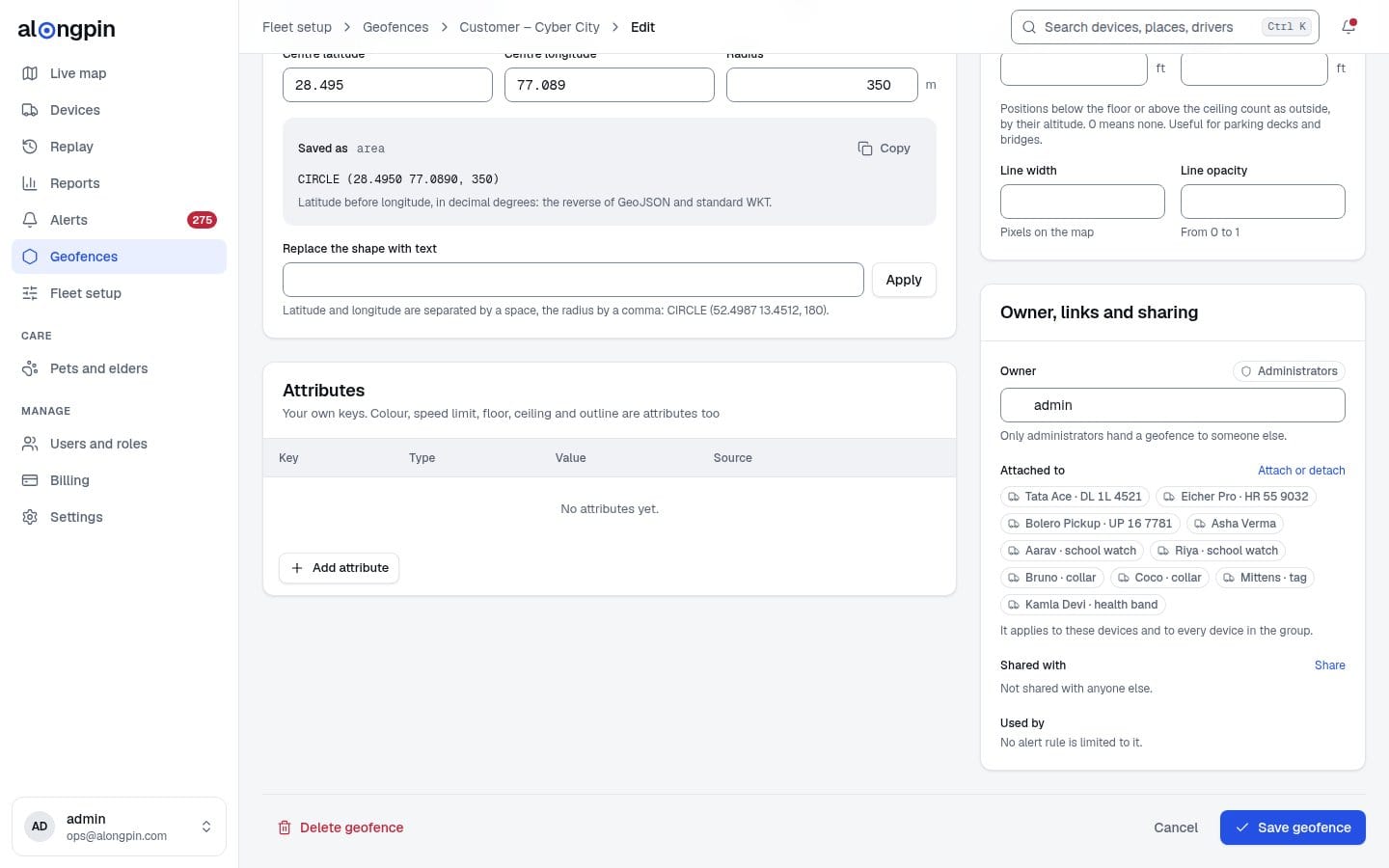
Who can share: the zone's owner, or someone allowed to change it, and only if they are an administrator or manage other users. If you manage nobody, the dialog says You manage no users to share it with. Who manages whom is set under Users and roles; see users and roles.
What the other person can and cannot do with it
They can:
- see the zone in their geofences list and on their map, marked Shared with you and Read-only;
- attach it to their own devices and groups, so their vehicles raise enter and exit events for it;
- use it in their own alert rules and reports, and choose it as the home of a pet or elder they care for.
They cannot move it, rename it, change its colour, speed limit or calendar, delete it, or share it with anyone else. If the owner changes the zone, the change reaches them at once.
See whom a geofence is shared with
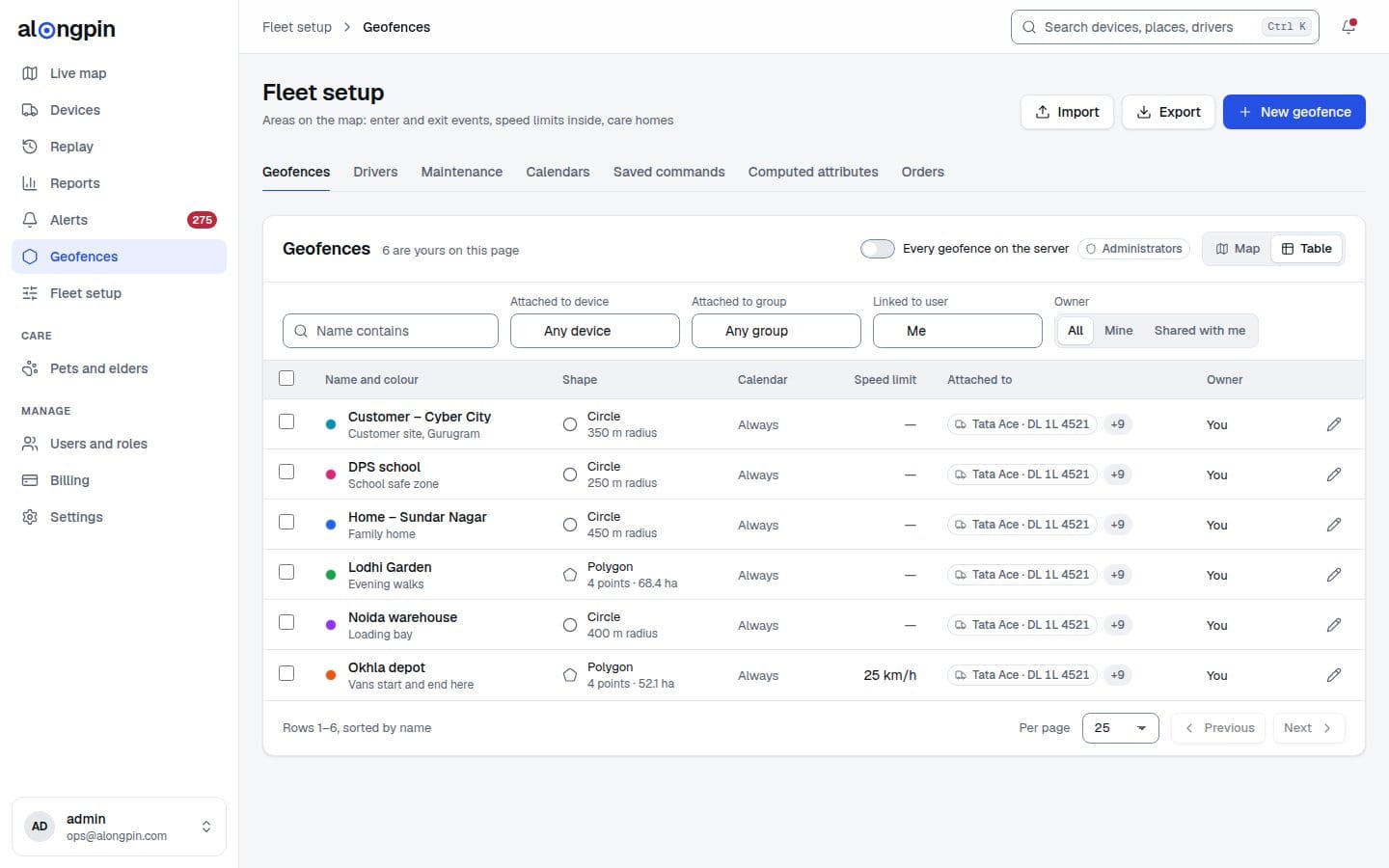
On the zone's full form, Shared with lists the users you can see, with and N more when it is also shared with users you don't manage, for example by an administrator. The zone's page shows the count ("shared with 2 users"). In the list, the owner filter separates Mine, Shared with me and, for administrators, Owned by others.
Stop sharing
Open Share again, choose Stop sharing with the person so they show as Will stop seeing it, and press Save changes. The zone leaves their list and stops applying to their devices; they are not told. Users someone else shared it with stay; you can't unshare them here.
The receiver can also end it from their side: Remove from my list on a zone shared with them takes it out of their list and off their devices. The owner and everyone else keep it.
Sharing versus attaching to a device
The same dialog does two different things:
| Attaching to a device or group | Sharing with a user | |
|---|---|---|
| Effect | The zone applies to those devices: they raise enter, exit and overspeed events | The person sees the zone and can use it |
| Changes their vehicles? | Yes | No, until they attach it themselves |
| Section in the dialog | Devices and groups it applies to | People who can see it |
So if a colleague needs alerts for the depot on vehicles they manage, share the zone with them and attach it to those vehicles (or let them attach it). For a whole team using the same zones, an administrator can also share the devices or groups themselves. More on zones is on the geofences page, and other help articles are in the help center.
Frequently asked questions
Can I give someone the right to edit my zone?
Not by sharing. Only administrators can hand a zone to another owner; a role with the right to change geofences also lets users edit zones.
Does the receiver see my vehicles in the zone?
No. Sharing a zone shares only the zone, not your devices.