Getting started
Setting your time zone, units and map defaults
How to set your time zone, distance, speed and fuel units and the map you start on, so times in lists and reports read correctly, and why some fields may be locked by your administrator.
Ashish Srivastava3 min read
To change the time zone in GPS tracking, open Settings → Your account → Map and display in the portal and pick your zone under Time and units. The same section sets the units for speed, distance, altitude and fuel volume. Further down, On the map sets where the map opens. Everything is saved with your account, so it follows you to other computers and to the app.
Key takeaways
- Time zone and units are under Map and display, in the Time and units section.
- Reports, exported files and alert texts use your time zone and units too, including where a daily summary splits the days.
- A field with a lock is set by the server for everyone; only an administrator can change it.
- Use the server defaults clears your own choices if you want to start again.
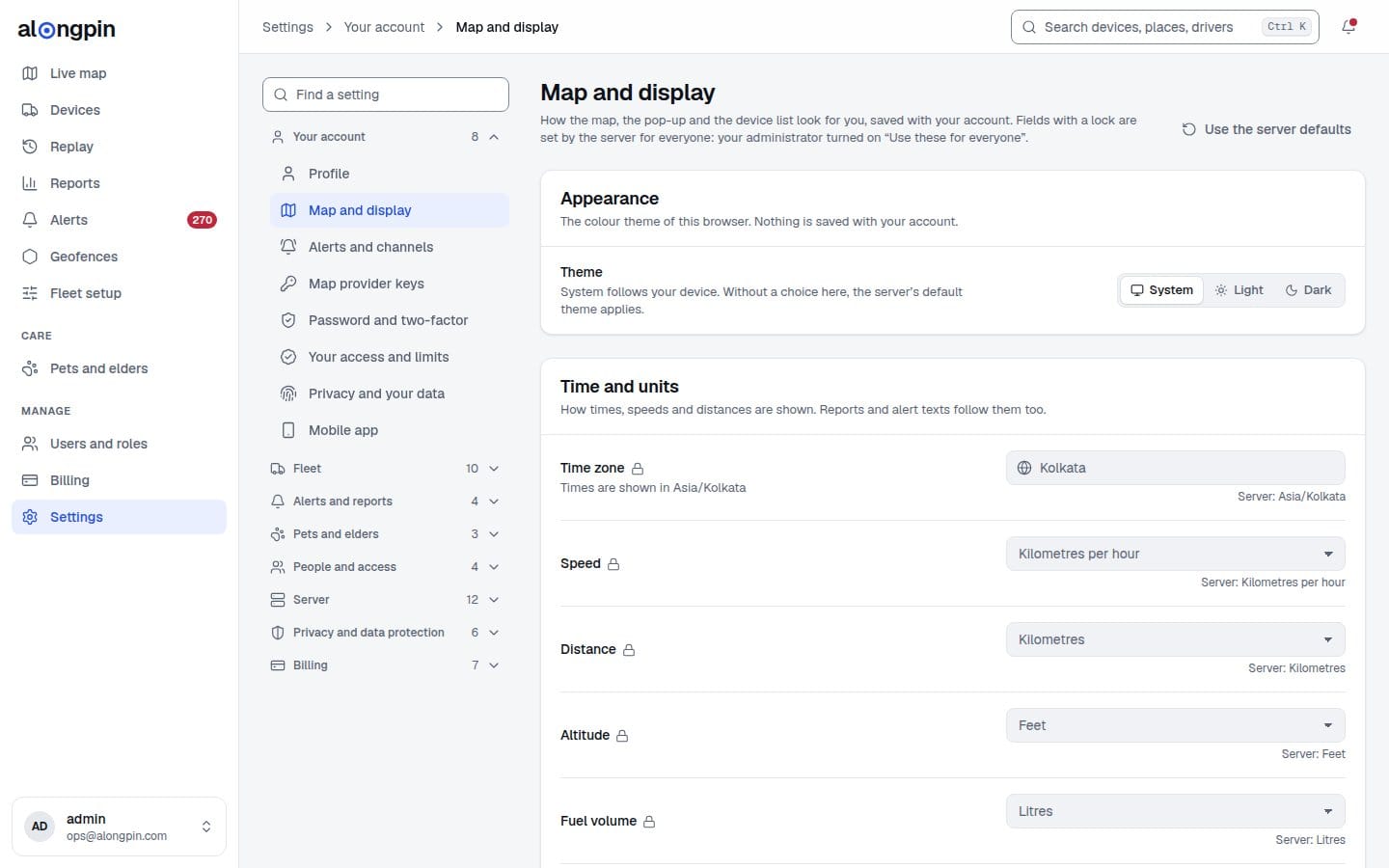
Where your preferences are
In the portal: open the account menu (your name at the bottom of the menu), choose Profile and settings, then Map and display. Make your changes and save.
In the app: open More → Display and units for the time zone and units, and More → Map for the map settings. They are the same settings as in the portal, stored with your account.
Your time zone, and why reports depend on it
Time zone decides how every time in the portal reads: the live map, the alerts list, replay, and reports. It also decides where a day begins and ends. A daily summary report splits the days at midnight in your time zone; so do times in CSV and Excel exports, and the times in alert messages.
If you have not chosen a time zone, the portal uses the server's. When neither is set, reports fall back to the zone the server is configured with, which may be UTC. That is the usual reason for a report that seems to start or end a few hours off: set your own zone and run the report again.
Do not confuse your time zone with Time zone of trackers on a group or device. That setting is for trackers that report local time instead of UTC, so the platform reads their positions correctly. It does not change how times are shown to you.
Distance, speed and fuel units
In the same section, choose:
- Speed: kilometres per hour, miles per hour or knots.
- Distance: kilometres, miles or nautical miles.
- Altitude: metres or feet.
- Fuel volume: litres, US gallons or imperial gallons.
- Coordinates: how latitude and longitude are written.
The live map, device pages, replay and reports all follow these units. Each person chooses their own, so a dispatcher in miles and a manager in kilometres can share the same fleet.
The map you start on
Under Map styles, Default map is the style the map opens with. Under On the map:
- Default map centre: a latitude and longitude, such as your depot or your town. Leave it empty, or at 0 and 0, and the map fits your devices instead.
- Default zoom: how close the map starts. 0 lets the map decide.
- Zoom when you pick a device: how close the map goes when you choose a device from the list or search.
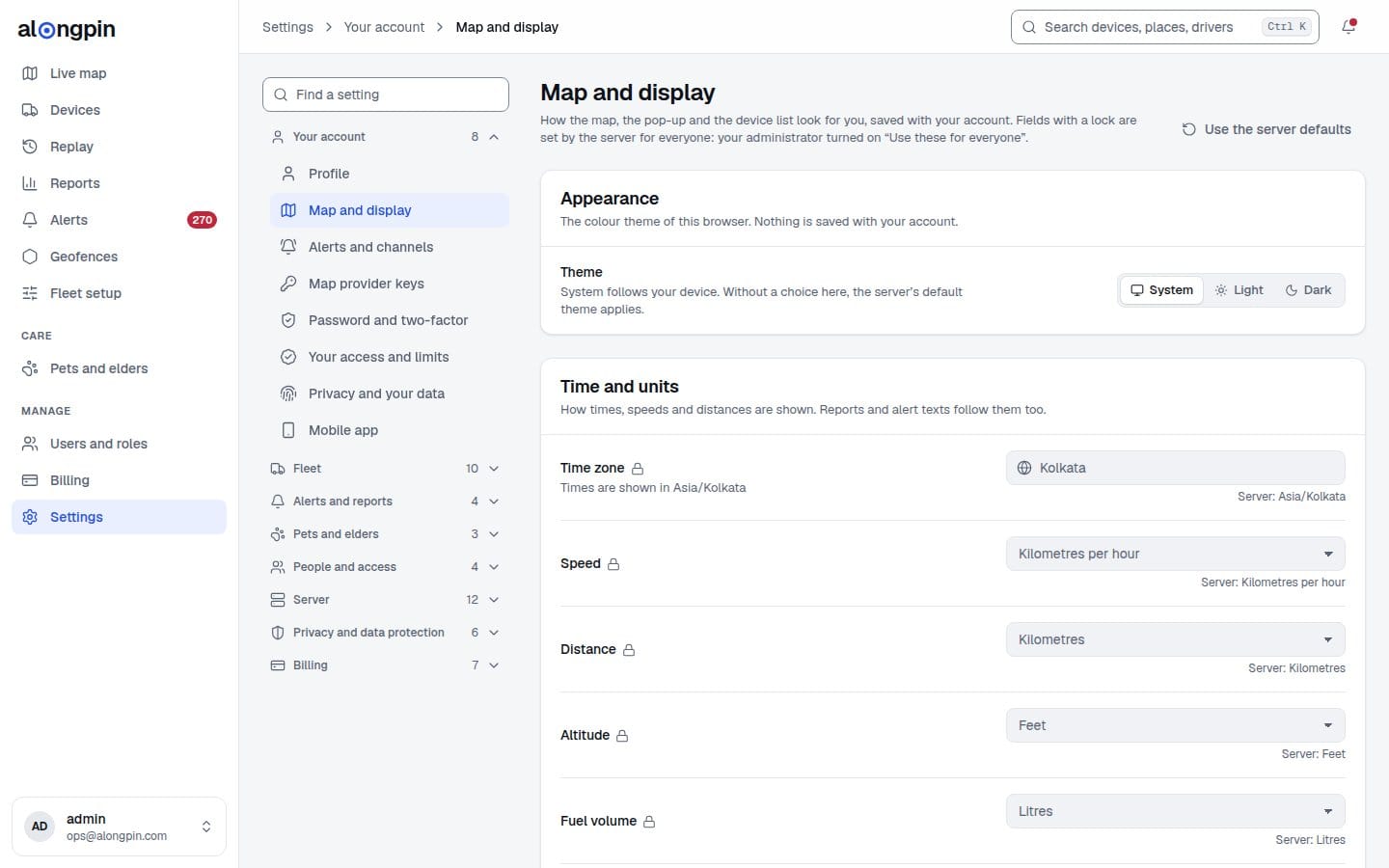
For a fleet spread over a region, an empty centre is often best: the live map then opens showing all your vehicles. For a single site, a fixed centre and zoom saves a step each morning.
Preferences locked by the server
If a field shows a lock and Set by the server for everyone, your administrator has set it for the whole server and turned on Use these for everyone. You see the value but cannot change it. This is common where everyone has to read reports in the same time zone and units.
Administrators set these server-wide values under Settings, in Units, time and language and Default preferences. Values the server leaves empty stay each person's own choice. An administrator can also open a user under Users and roles and change that person's preferences for them.
Starting again
Use the server defaults at the top of Map and display removes your own changes, so every setting goes back to what the server says. Your map provider keys stay.
More help on getting started is in the help center.
Frequently asked questions
My report shows the wrong times. What do I check first?
Your time zone under Map and display. If it is empty, the report may be using the server's zone or UTC.
Do my units change what my colleagues see?
No. Units and time zone are personal, unless the server sets them for everyone.