Getting started
Using the portal in a phone browser
The Alongpin web portal works at phone width without installing anything. How to use the live map, alerts and replay in a mobile browser, and when the app is the better choice.
Ashish Srivastava4 min read
GPS tracking in a phone browser works without installing anything: open your portal's address in Safari, Chrome or another mobile browser, sign in, and the portal fits the screen. The live map, the device list, alerts and replay are all there. What the browser cannot do is send push notifications to your phone; for that you need the app.
Key takeaways
- Use the same address and account as on your computer; nothing to install.
- The map takes the screen, with the device list in a sheet you pull up from the bottom.
- New alerts show while the portal is open; push notifications need the app.
- Tick Keep me signed in on this device only on your own phone.
Open the portal and sign in
- Open your phone's browser and go to the portal address you use on your computer. Your administrator or your welcome email has it.
- Enter your email and password and select Sign in. If your account uses single sign-on or two-factor sign-in, the same steps follow as on a computer.
- Decide about Keep me signed in on this device (see below).
Tip: add the page to your home screen from the browser's share or menu button, so it opens like an app next time.
The live map at phone width
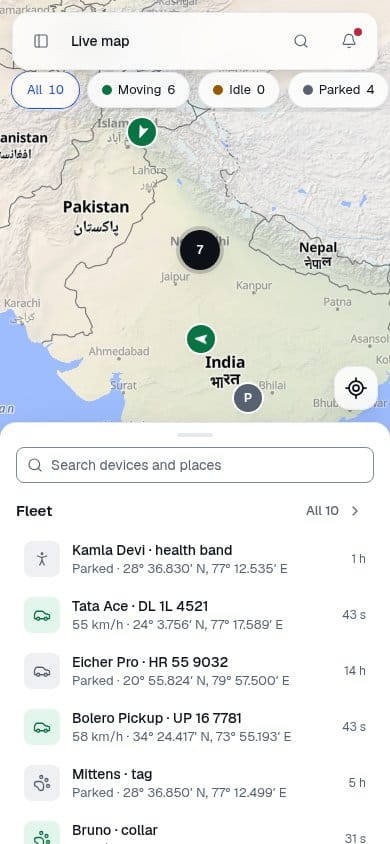
The live map fills the screen. Above it are the menu button, search and the alerts bell, and under them the status chips: All, Moving, Idle, Parked and Offline (with Unknown when some devices are in that state), each with its count. Tap a chip to see only those devices.
At the bottom is a sheet with the search and the device list. Pull it up to see more of the list, push it down to see more of the map. Tap a device, in the list or on the map, and the sheet shows its state, today's figures and the buttons Replay today, Details and, where you may, Send command. Show my location puts your own position on the map, after the browser asks for permission.
The menu and the other pages
Tap the menu button in the top bar to reach the rest of the portal: Devices, Replay, Reports, Alerts, Geofences and the others your role allows. Pages stack their content to fit the width, and wide tables scroll sideways. Small edits, such as renaming a device or pausing an alert rule, work well on a phone. Long jobs, such as drawing a detailed geofence or building a report with many columns, are easier on a larger screen.
Alerts on a phone
The bell in the top bar shows a dot when there is an alert you have not seen, and new alerts pop up while the portal is open. Tap the bell or Alerts in the menu for the list, and open one to see it on the map.
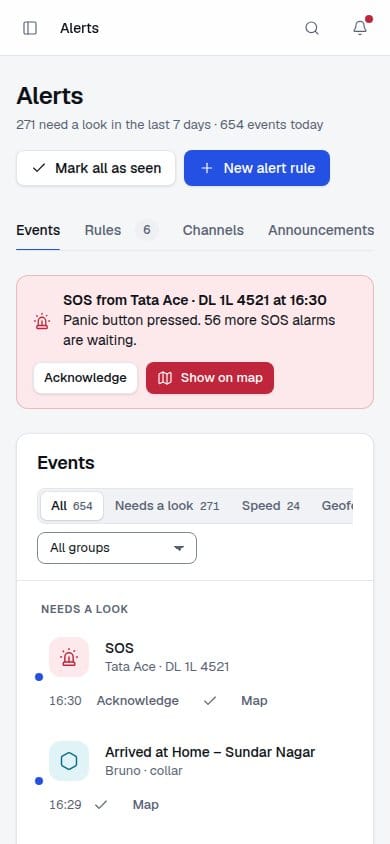
When the browser is closed or the phone is locked, the portal cannot reach you. That is where the app helps: with push switched on for your server, alerts arrive on the lock screen like any message. Email and text messages are other ways to be told without an app, where they are switched on for your account.
Keep me signed in on your own phone only
On the sign-in page, Keep me signed in on this device keeps you signed in while you use it. Left unticked, you are signed out when the browser closes. Tick it on your own phone; leave it unticked on a shared or borrowed phone, and sign out from the account menu when you are done.
Opening a share link on a phone
A share link someone sends you opens straight in the phone's browser, with no account needed: you see the shared vehicle or person on the map until the link ends. If the link has a PIN, enter the one you were given. When a link has expired or been revoked, the page says so; ask the person who shared it for a new one. If the Alongpin app is on your phone, the link may open there instead.
When the app is the better choice
Choose the app if you want push notifications on your phone, a full-screen alert for an SOS from a care watch, or quicker access every day. Choose the browser for a quick look on a phone you do not normally use, or when you would rather not install anything. Both use the same account and show the same devices. The help center explains what the app does and what stays on the web.
Frequently asked questions
Does the portal use a lot of mobile data?
The map loads its tiles like any map site, and live updates are small. Watching the map for a long time on mobile data uses more than a quick check.
Can I replay a trip on my phone?
Yes. Tap Replay today on a device, or open Replay from the menu and choose a period.