Getting started
Changing a device's name, icon and picture
How to edit a device after it has been added: its name, the map icon that its category sets, its phone number, model and contact, and the picture on its card, and why you may not be allowed to.
Ashish Srivastava3 min read
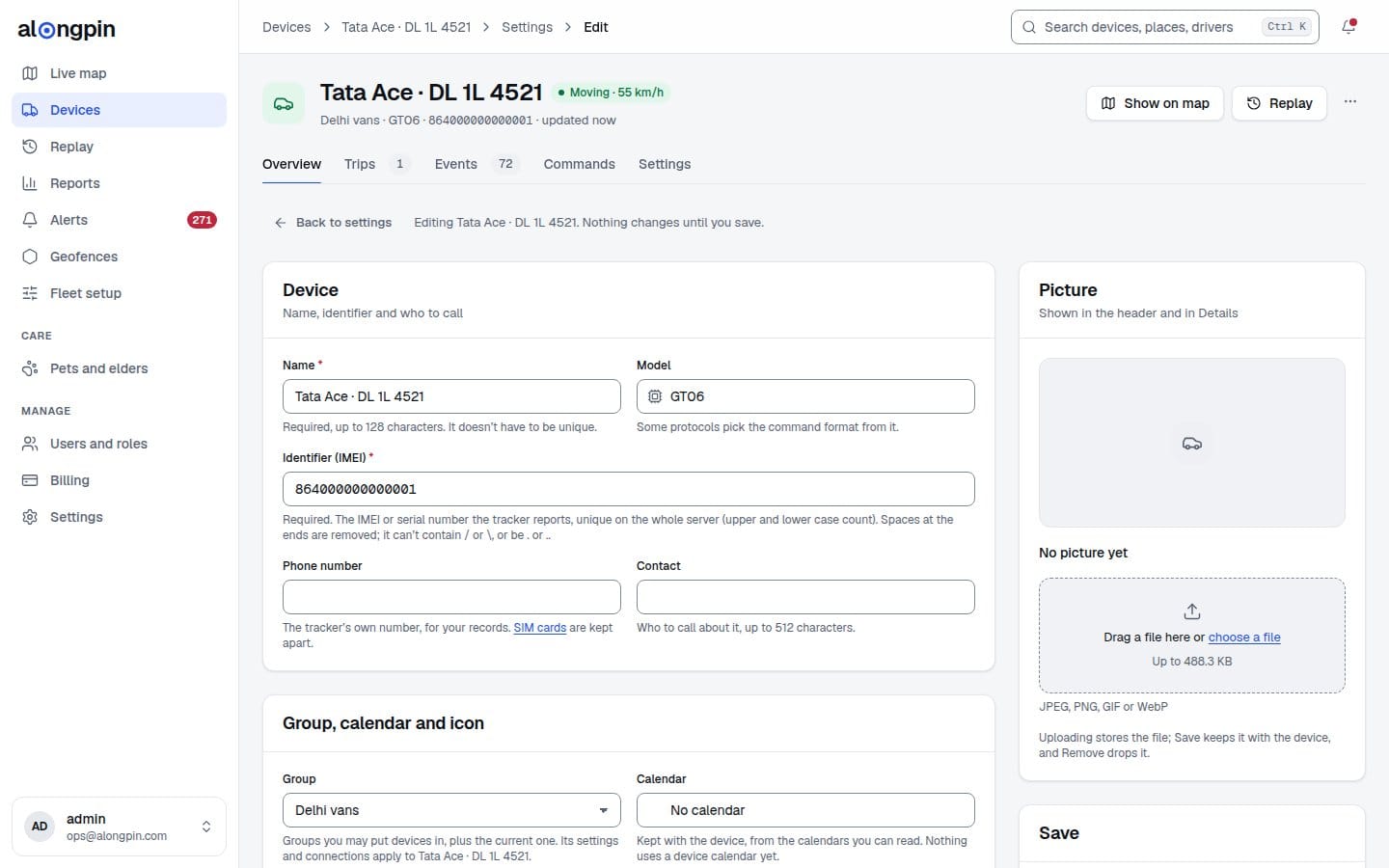
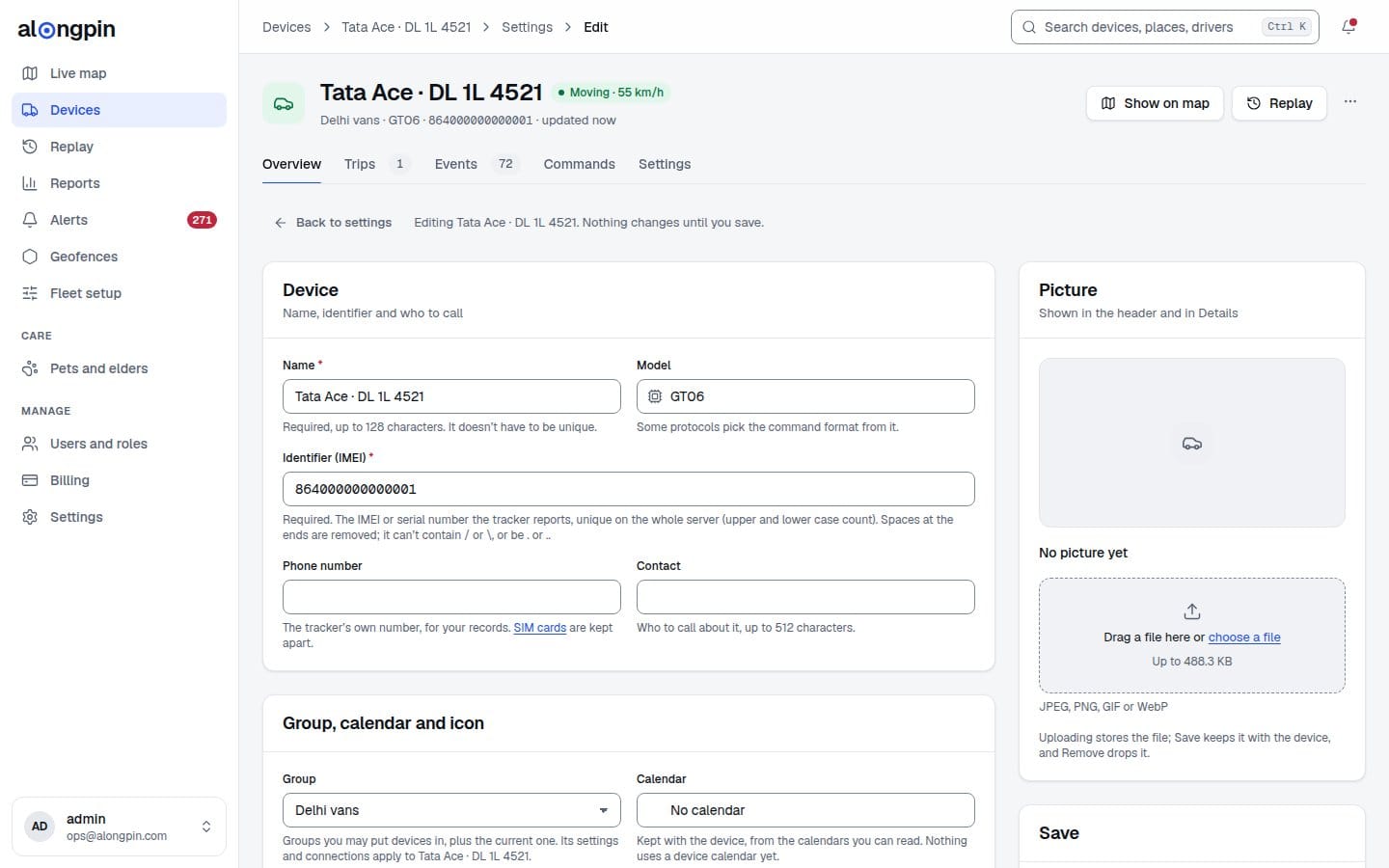
To change a tracker's name and icon, open the device, select Settings, then Edit. The edit page holds the device's Name, its Map icon (the category that decides the symbol on the map), its Phone number, Model and Contact, and a Picture for its card. Nothing changes until you select Save changes.
Key takeaways
- Edit a device from its page: Settings → Edit.
- The Map icon sets the symbol on the live map: a car, van, truck, bus, bicycle, boat, person, animal and more.
- A picture can be JPEG, PNG, GIF or WebP, up to 500 kB.
- If the page says you can see the device but not change it, your account or the device's owner is the reason.
Open the device and edit its details
- Select Devices in the menu and open the device, or pick it on the live map and open its details.
- Select Settings at the top of the device page, then Edit.
- Change what you need and select Save changes.
The edit page says Editing and the device's name while you work. If someone else changed the device at the same time, their changes are kept, except in a field you changed too.
The name
Name is what the device is called everywhere: on the map, in lists, alerts and reports. It can have up to 128 characters and does not have to be unique, but a clear name helps: "Tata Ace · DL 1L 4521", "Asha's watch" or "Bruno · collar" say more than an identifier. Many fleets put the vehicle and its registration or depot in the name, so a search finds it either way.
Choose the icon for the map
Under Group, calendar and icon, Map icon sets the device's category, and the map draws a matching symbol: Car, Van, Truck, Bus, Motorcycle, Scooter, Bicycle, Tractor, Trailer, Crane, Boat, Ship, Plane, Helicopter, Train, Tram, Camper, Person, Animal or Default. The colour of the marker still shows its state (moving, idle, parked or offline), so the icon tells you what it is and the colour what it is doing.
A tracker linked to a pet or elder profile gets Animal or Person automatically.
Upload a picture
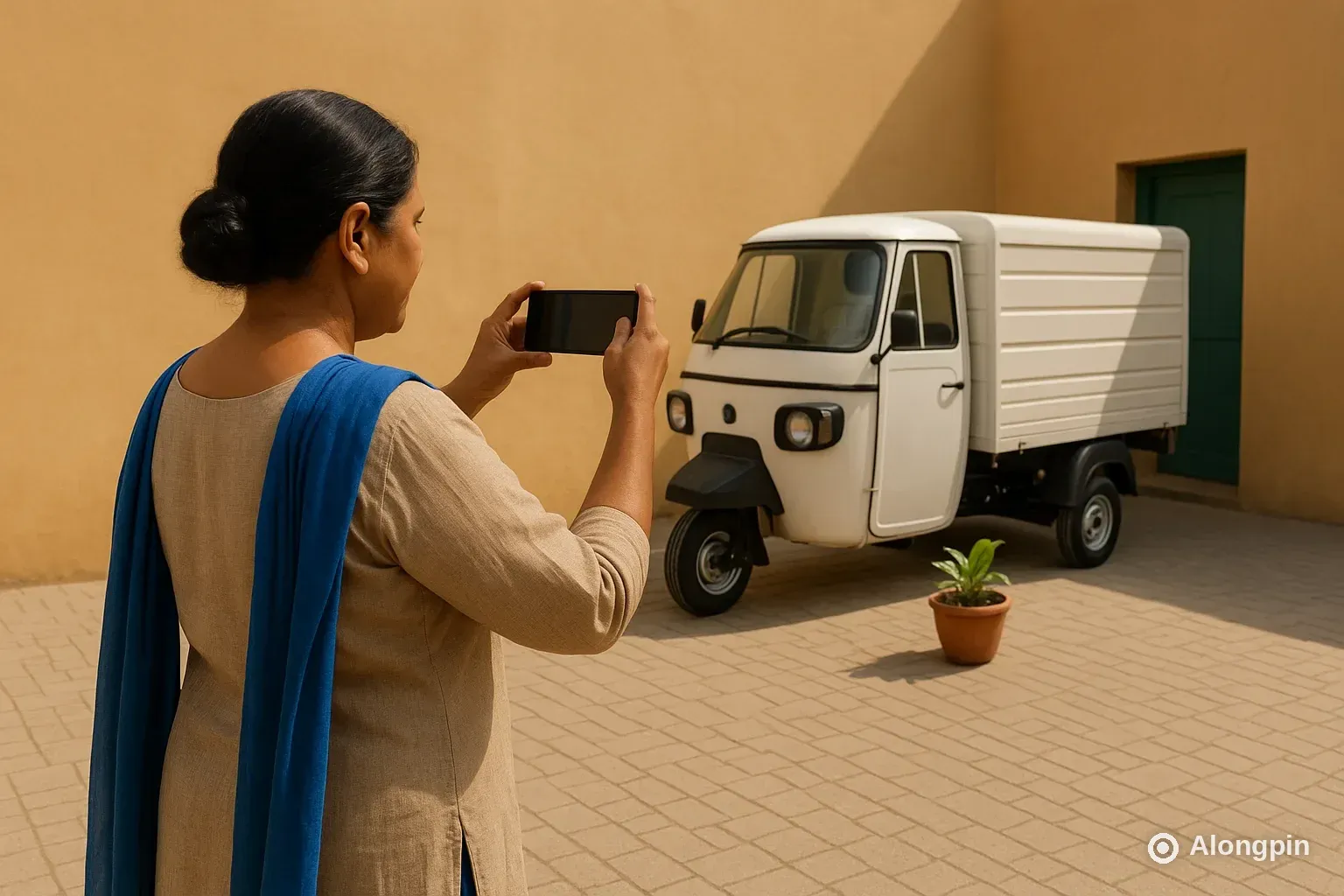
The Picture section adds a photo to the device's card, shown in the device header and in its details. A photo of the vehicle or the pet helps a new driver or a family member recognise it at a glance.
- Under Picture, choose a Picture file: JPEG, PNG, GIF or WebP, up to 500 kB.
- Wait until the page says the file is uploaded.
- Select Save changes to keep it with the device. Remove drops it again.
If you have just changed the device's identifier, save that first: the picture is stored under the new identifier.
Phone number, model and contact
- Phone number: the tracker's own number, for your records. SIM cards are managed separately.
- Model: the tracker model. Some protocols use it to choose the command format, so enter it as the tracker's maker names it.
- Contact: who to call about the device, such as a driver, a depot or a pet sitter, up to 512 characters.
The edit page also holds the Identifier (IMEI). Change it only when you swap the tracker: positions from the old one stop, and the new one connects as this device from its next message.
Why you may not be allowed to edit
If the page says You can see the device but not change it, one of these applies:
- The device belongs to someone else and was shared with you to view.
- Your account is read-only: you can look at everything you may see, but change nothing.
- Device changes are switched off for your account: you may still use everything else, but not create, edit or delete devices or upload their pictures.
Settings → Your account shows this under What your account allows: Device changes reads Read-only when it is switched off. Ask whoever manages users in your account if you need to change it.
Where to go next
Not added the device yet? The setup guides take you from the box to the map, and the devices overview shows which trackers, watches, phones, dashcams and collars work with the platform.
Frequently asked questions
Will renaming a device change its old reports?
No. Reports and history keep their data; they show the device's current name.
Can I choose my own icon image?
No. Pick the closest category from the list; the marker colour still shows the state.