Getting started
Checking whether the service is running
What to check when the portal or the app seems slow or empty: the public status page first, then your own connection and sign-in, and what to send support so they can help quickly.
Ashish Srivastava3 min read

To check the GPS tracking service status, open the public system status page first. It shows each part of the service, such as the web app, the API, live updates, tracker connections, notifications and reports, as Operational, Degraded or Down, checked from inside the platform and refreshed every minute. If everything is operational, the cause is most likely on your side: your connection, your session or one device.
Key takeaways
- The status page says whether the service itself is affected; it refreshes every minute.
- One device showing offline is almost always that device, not the service.
- Reload, then sign out and in again, before anything else.
- Tell support the device identifier, the time with its time zone, and what you expected to see.
Step 1: open the status page
The status page lists each part of the service with its state and when it was last checked. Planned maintenance and incident reports are published on the blog under the incident tag, linked from the status page once there is one.
- Degraded or Down for live updates or tracker connections: positions may arrive late or not at all for a while. Nothing on your side needs changing; data that trackers buffer usually arrives once the service is back.
- Degraded or Down for notifications: alerts may arrive late by email, text message or push, but still show in the portal.
- Everything operational: carry on with the next steps.
Step 2: tell a service problem from one device being offline
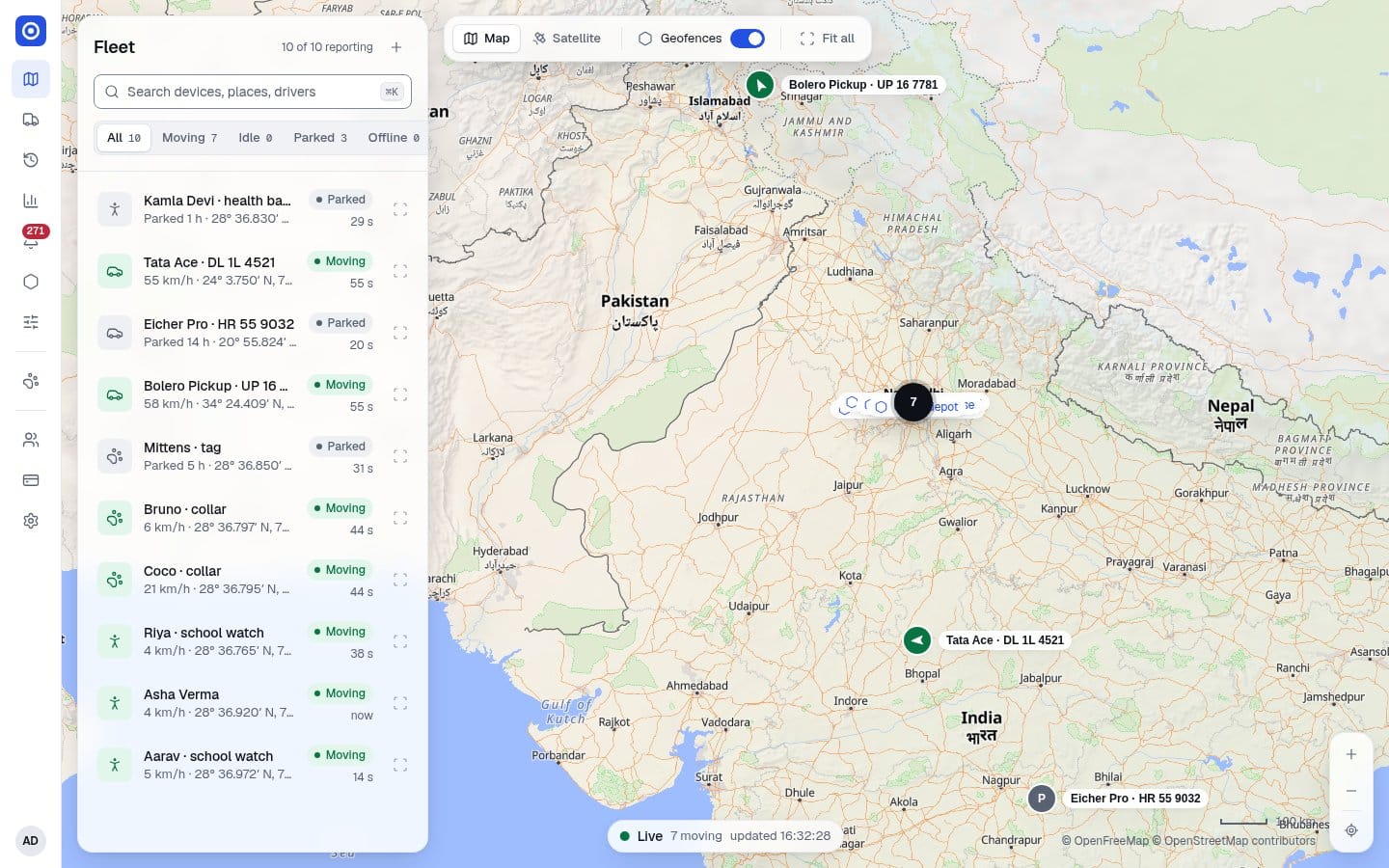
Look at the live map:
- The whole map is empty or frozen and the live indicator says Reconnecting or Offline: the portal has lost its connection to the server. Check your own internet first. When the server cannot be reached, a banner says so and what you see may be out of date; it updates again by itself once the server answers.
- Most devices move normally, one does not: the problem is that device. It shows Offline when its connection closed and Unknown when nothing has arrived for a while. Common causes are power, mobile signal, an expired SIM or data plan, or the tracker set to the wrong server address or port.
- A device never appeared at all: it may never have reached the server. The setup guides walk through the server address and port for each kind of device.
Step 3: reload, then sign out and in again
- Reload the page, or close and reopen the app.
- If lists stay empty, sign out from the account menu and sign in again.
- If the sign-in page says your session has ended, sign in again; a session expires after a while, and ends when you sign out elsewhere or a manager or administrator signs you out.
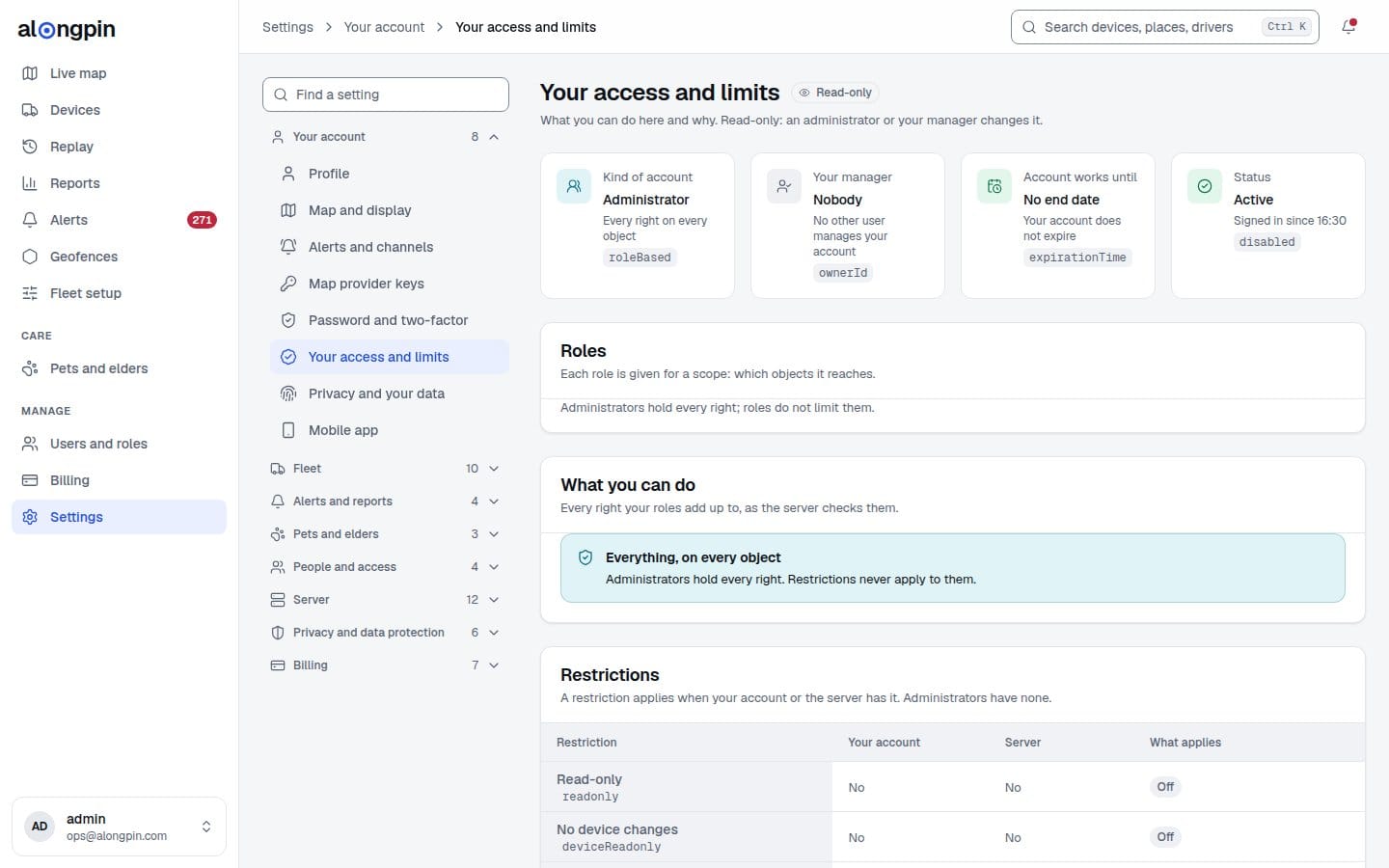
If signing in reports that your subscription has ended or your account has expired, the service is running: the account needs attention. Your role may also hide an area; Settings → Your access and limits shows what you may see.
Step 4: contact support with the details that help
If the status page is green, your connection works and the problem stays, write to support from the contact page and choose the support topic. Include:
- Your account email, so support finds your account.
- The device identifier (IMEI or serial) and its name, if one device is affected.
- The time you noticed it, with your time zone.
- What you expected and what you saw: "Van 12 has shown parked at the depot since 09:40, but the driver has been on the road since 10:00."
- Where you saw it: portal or app, browser or phone model, and the version shown under Settings → Your access and limits.
- A screenshot, if it helps, with nothing private on it.
Say in the subject if the problem is urgent for a running fleet.
Where else to look
The help center has articles by topic, and the setup guides cover each kind of device, from the box to the map.
Frequently asked questions
The status page says operational, but nothing loads.
Check your own internet connection, try another network, and reload. If a company firewall blocks the portal, your IT team can tell you.
One vehicle stopped updating. Is the service down?
Unlikely, if the others update. Check that vehicle's state and last update on the live map.