Dashcam and video
Requesting a photo from a dashcam
How to ask a dashcam for a photo with a command, where the photo appears a few seconds later, what happens when the camera is offline, and why some cameras offer fewer commands.
Ashish Srivastava3 min read
To request a photo from a dashcam remotely, open the vehicle's device, choose Send command, pick Take a photo and the Camera number, and send it. On a compatible camera that is connected, the photo arrives a few seconds later as a media event and in Devices → Media, marked Requested. It is useful to check a load, a parking spot or the cab after an alert, without phoning the driver.
Key takeaways
- The command is Take a photo, in the Camera and video group of Send command.
- The photo shows in Media and in the device's events, labelled Requested.
- An offline camera gets the command when it reconnects, unless you sent it only for a connected device.
- Which commands a camera offers depends on its protocol. Photo requests work with JT808 dashcams.
Sending the request
- Open Devices and select the vehicle's dashcam, or select it on the Live map.
- Choose Send command.
- Pick Take a photo. The list shows only the types the camera's protocol supports, grouped; this one is under Camera and video.
- Type the Camera number: 1 for the first camera, 2 for the second, and so on, as the camera numbers its channels. A road-facing and a cabin-facing camera are usually two channels.
- Under How to send it, keep Over the data connection. Tick Only if the device is connected now if a photo taken later is no use to you.
- Choose Send and confirm.
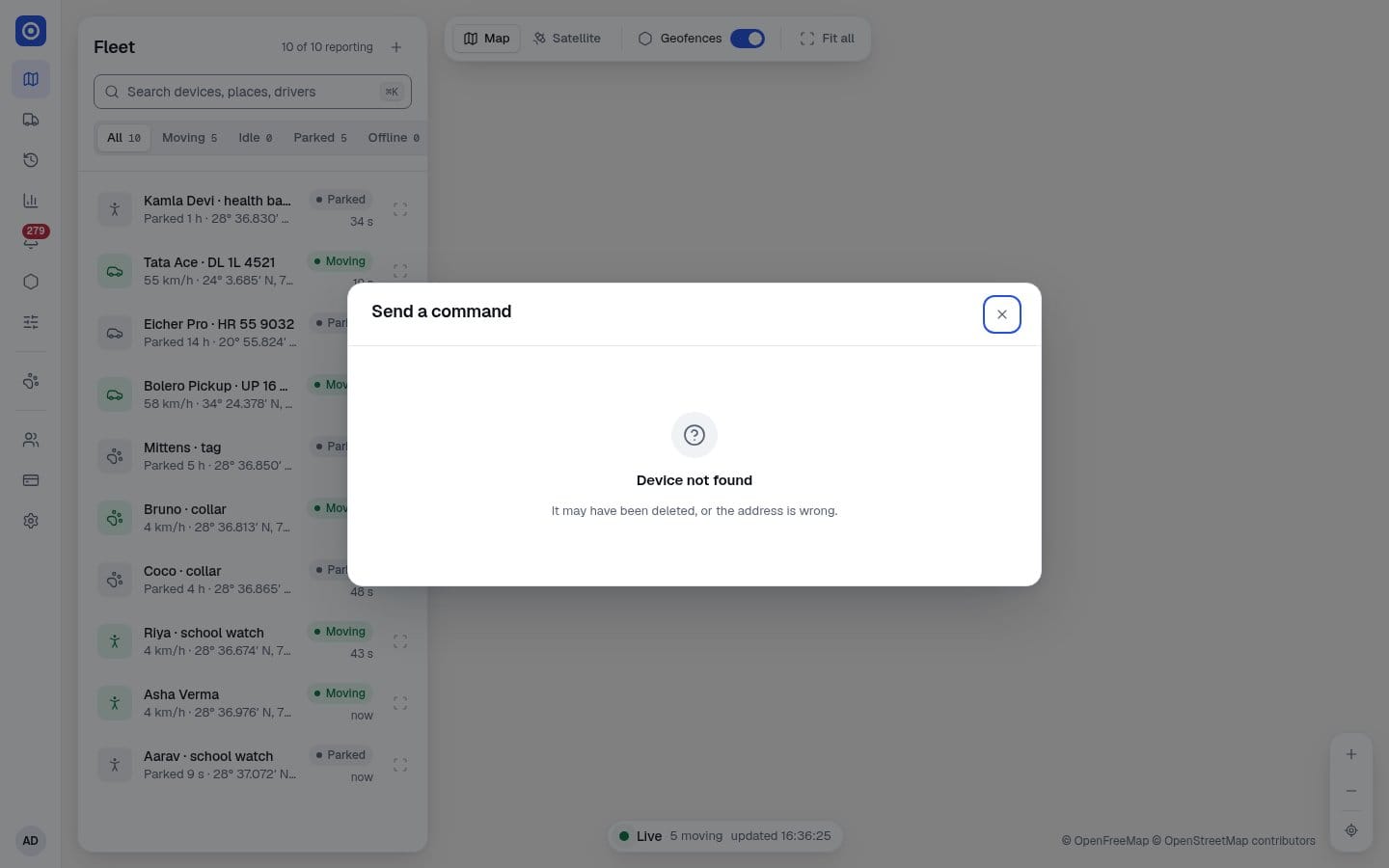
The dialog then tells you the outcome: Delivered means the camera received the command; Waiting in the queue means it can't take it right now.
Where the photo appears
The camera takes the photo and uploads it, which usually takes a few seconds on a good connection. It then:
- appears in Devices → Media, at the top for that device, titled Requested photo (a photo the camera took for its own reason within the same minutes keeps that reason);
- is an event of the device, with the position where it was taken;
- shows the camera channel it came from.
Opening it is a view, which is written to the audit log if your administrator keeps that on. The photo is kept like every other upload: by the capture policy (requested photos are kept in a standard setup) and the media retention, 30 days by default.
When the camera is offline
A camera that is switched off with the ignition, or out of coverage, can't take the command. Unless you ticked the connected-only option, it waits in the queue for up to 7 days and goes out when the camera connects again, and the photo is taken then. That is often minutes or hours later, when the vehicle may be somewhere else. If you need the picture now or not at all, send it for a connected device only, and send again later. Queued commands are listed on the device's Commands page, where you can cancel one.
Why some cameras offer fewer commands
Send command lists what the device's protocol can carry. JT808 dashcams offer Take a photo, and with JT1078 also Start live video; other trackers with a camera may offer a photo command or not at all, and a camera that has never connected offers every type because its protocol is not known yet. Even when the type is listed, the camera's firmware decides whether it answers. Check your model on the dashcams page.
Whether you can send commands at all depends on your role: a read-only account or a role without commands won't see Send command. The remote commands page explains who may send what, and the dashcam page covers recordings and live video.
Frequently asked questions
Can I request a photo from several vehicles at once?
Yes, by sending the command to a group under Devices → Groups. Each device's result is shown; those that can't take it are listed as failed or queued.
Can I ask for a video clip instead?
The command takes a photo. For moving pictures, open live video on a camera that supports it.