Dashcam and video
Keeping a clip for an insurance claim
How to stop a dashcam clip, an event or a period from being deleted by retention: place a legal hold with a reason and a claim number, and release it when the case is closed.
Ashish Srivastava4 min read

To keep dashcam footage for a claim, place a legal hold on it. A hold keeps one clip or photo, one event, or everything a device recorded in a period out of the automatic clean-up until someone releases it, and it records why (a reason and, if you like, a case or claim number). Without a hold, photos and clips go once they are older than the retention period, which is 30 days on a fresh installation.
Key takeaways
- Media files are deleted after the retention period your installation keeps, 30 days by default, so act soon after an incident.
- A legal hold keeps a media file, an event or a period of one device, with a reason and an optional case or claim number.
- Holds are placed and released under Settings → Privacy and data protection → Retention and deletion, in Legal holds.
- Releasing a hold is recorded with who released it and why; the next clean-up then deletes what is past its period.
- A hold does not stop someone deleting the device, deleting positions by hand, or erasing the person who owns the device.
How long photos and clips are kept
Photos, audio and video clips that dashcams upload are kept for a set time and then deleted by a nightly clean-up. A fresh installation keeps media files for 30 days and positions and events for 365 days; your administrator may have set other periods, and an account can have its own. The periods are on the Retention and deletion page, where those allowed to change them also see a preview of what the next run would delete.
The clip a claim needs is usually tied to a date that is easy to miss: an insurer may ask for it weeks after the collision. Placing a hold the same day removes the race against the clean-up. More on how the dashcam feature records and uploads is on its own page.
Find the clip first
Open the Media page under Devices. It lists the photos, clips and recordings your devices uploaded; filter by Type, Device and Period, and pick a file to play it. The details next to the player show the Device, the Event that raised it (for example Collision or Harsh braking), when it was Recorded, Where, the Camera channel and the File name. Note the file name: the hold needs it.
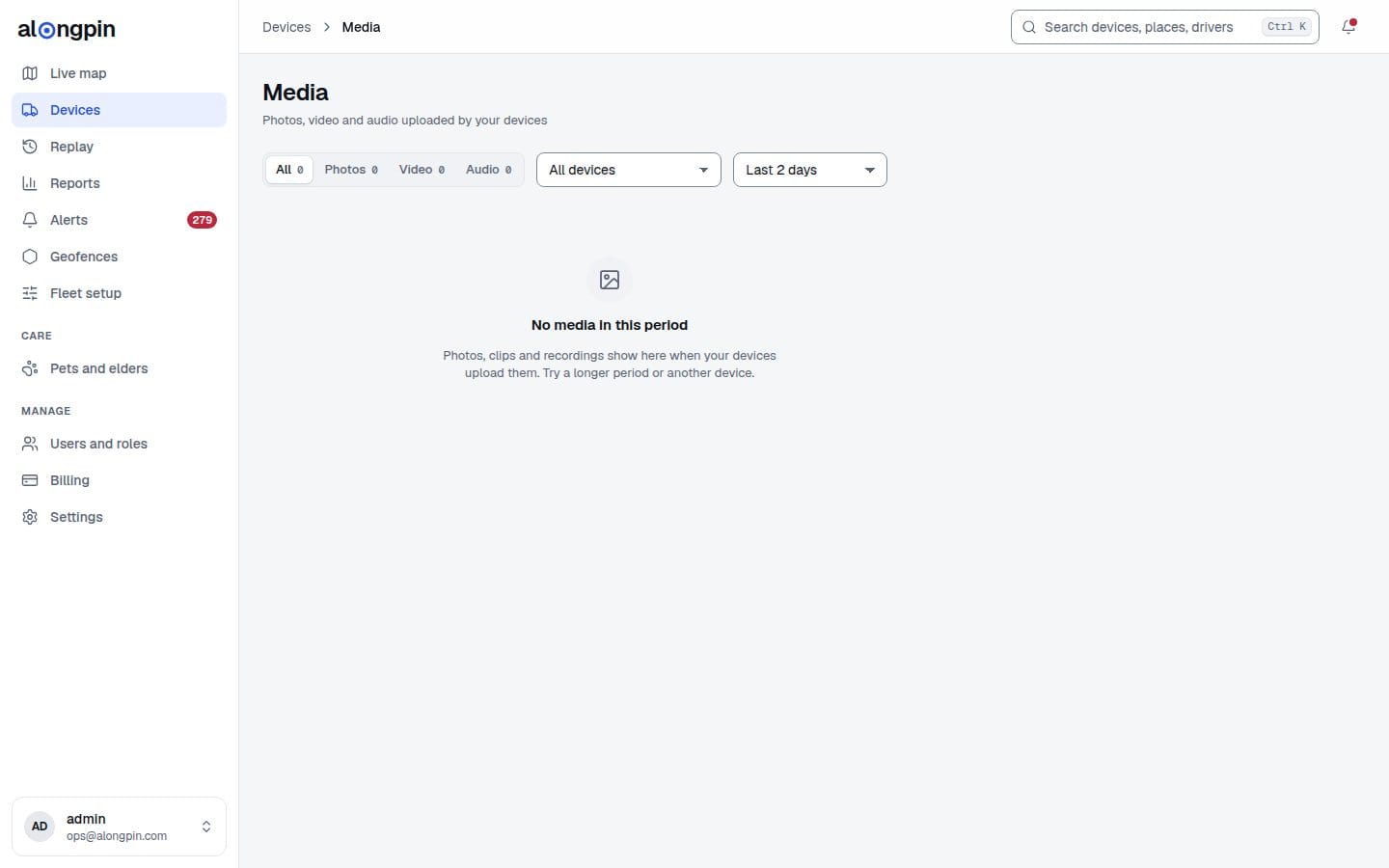
Download keeps your own copy for the insurer, which is often what a claim needs anyway. The hold makes sure the original stays on the platform as well.
Place the hold
- Go to Settings → Privacy and data protection → Retention and deletion and scroll to Legal holds.
- Select Place a hold.
- Choose the Device.
- Under Keep, choose what to hold:
- Media file: one photo or clip; enter its File name as the Media page showed it.
- Event: one event with its position; enter its Event number.
- Period: every position and event of the device From one moment To another, both included.
- Enter the Reason, for example "Collision, insurance claim", and the Case or claim number if you have one.
- Select Place hold.
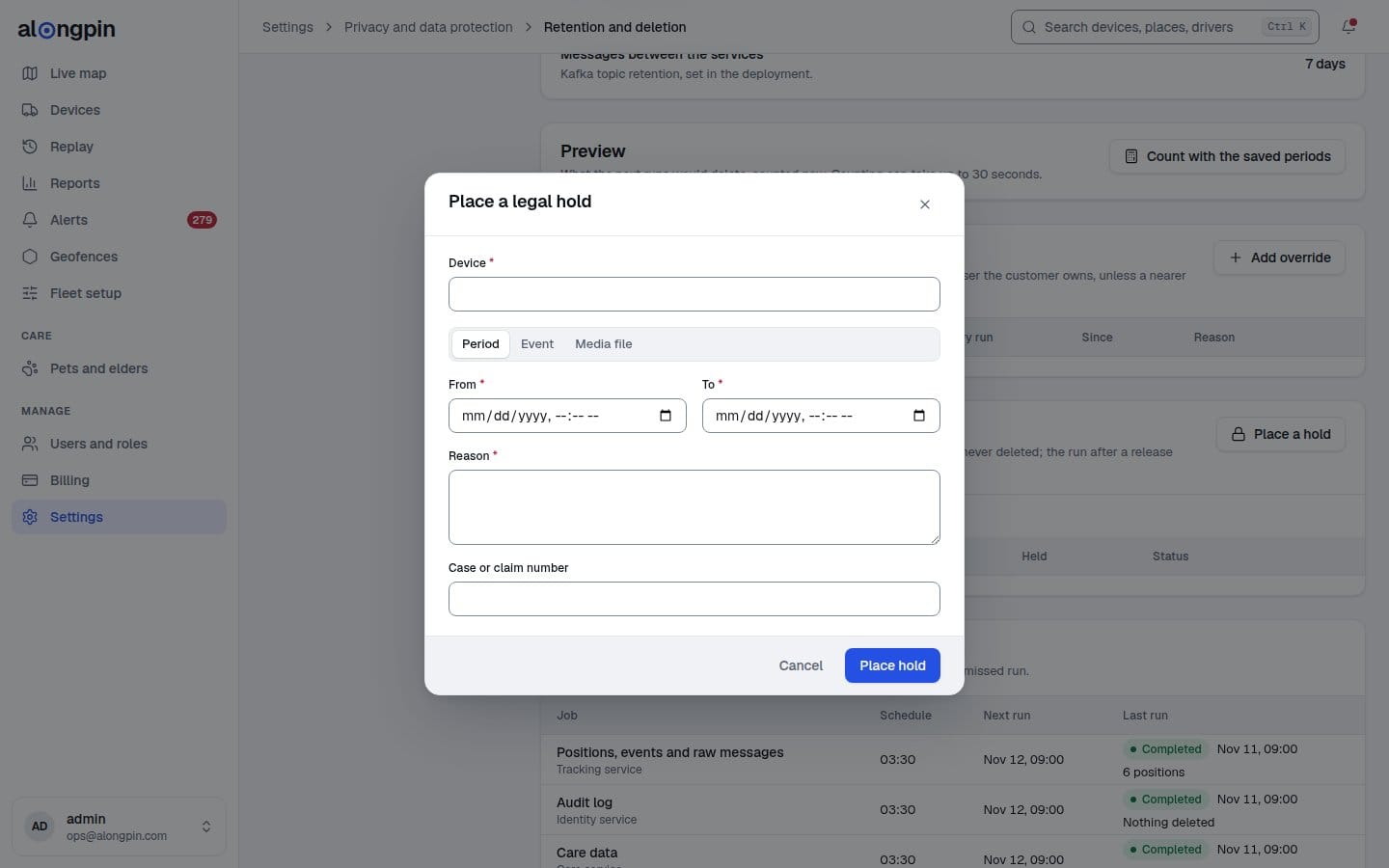
A held media file keeps its event and position with it, so the clip still opens on the map where it was recorded. The hold shows in the list with who placed it and when; Show switches between active and released holds.
Who can place and release holds
Holds are for administrators and for people whose role lets them change the events of that device; a read-only account cannot place or release one. The Retention and deletion page itself opens for administrators and for those with the privacy rights of the account, so a fleet manager without them asks an administrator. Every hold placed and released is written to the audit log.
Release the hold when the claim is settled
When the case is closed, select Release on the hold, enter Why it is released (for example "Claim settled") and confirm with Release hold. The hold stays in the list as released, with who released it and when; holds are never deleted. From the next clean-up on, whatever it kept is deleted if it is older than the retention periods.
What a hold does not do
A hold only protects data from the automatic clean-up. It does not stop:
- someone with the right deleting the device, which removes its positions, events and media;
- someone deleting positions of a period by hand (the delete dialog warns when a hold covers the period);
- the erasure of the person who owns the device.
So for evidence that matters, keep the downloaded copy with the claim, and tell colleagues not to delete the vehicle until the case is closed. How the platform handles retention and erasure in general is described under privacy, and how fleets use cameras with events and holds is shown in video telematics.
Frequently asked questions
Can I hold a clip that has already been deleted?
No. Once the clean-up has deleted a file, a hold cannot bring it back. Check whether you or the driver downloaded a copy.
Does a hold keep the live video?
No. Live video is not recorded on the platform; a hold covers files the camera uploaded, events and positions.
Can I hold everything from the day of the accident?
Yes: choose Period and set the day as From and To. That keeps the positions and events of that period; to keep a clip as well, also place a Media file hold on it.