Alerts and SOS
Push notifications not arriving on the phone
What to check when alerts do not reach your phone as push messages: push on this phone, the phone's notification settings, the rule's channels, quiet hours, whether push is switched on, and the delivery log.
Ashish Srivastava4 min read
GPS tracking push notification not working? The cause is nearly always one of six things: push is not turned on for this phone in the app, the phone blocks notifications for the app, the alert rule does not send by push, your quiet hours held the message back, push is not switched on for your account, or the message failed on the way. Check them in this order; the last step, the delivery log, tells you which one it was for a particular alert.
Key takeaways
- In the mobile app, More → Notifications shows whether this phone gets push, with a button to turn it on and a test.
- An alert reaches your phone by push only if its rule has Push notification among its channels.
- Quiet hours hold back push messages (except SOS and power cut by default), and held-back messages are not sent later.
- The event's Sent to list says, per channel, whether a message was sent, failed or held back, and why.
1. Turn on push for this phone in the app
Open the Alongpin app and go to More → Notifications. Under How alerts reach you, the Push row says what this phone does:
- "This phone gets the alerts your rules send by push": push is on.
- "Alerts don't reach this phone when the app is closed": tap Turn on alerts on this phone.
- "This phone couldn't be registered for push": tap the button again, with a working internet connection.
Then press Test on the Push row, or Test all. A test sends "Test notification" to you alone. If it arrives, the phone side works and the problem is in the rule or the timing.
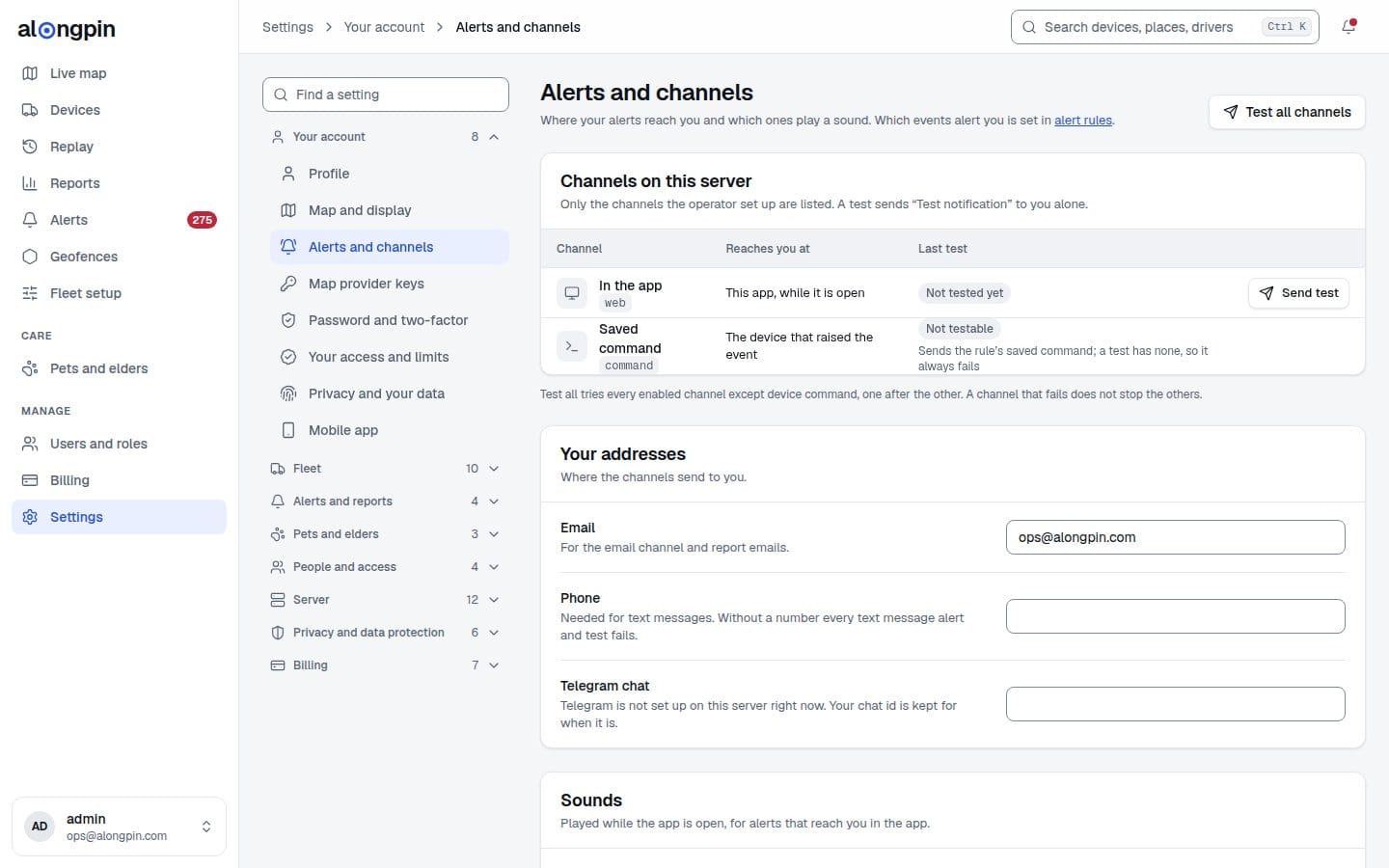
In the portal, Settings → Your account → Alerts and channels lists your Phones and browsers for push. Apps register themselves when you sign in; if you removed a phone there, push stops going to it until you sign in on it again.
2. Allow notifications for the app on the phone
If the app says "Notifications are off for Alongpin in this phone's settings", tap Open settings and allow notifications. Also check the phone's own Do Not Disturb or Focus mode and any battery saver that stops apps in the background.
Under More → Notifications → Which alerts reach this phone you choose, per kind of alert, whether it plays a sound, arrives silently or is off on this phone. Make sure the kind you are missing is not set to off.
3. Check that the rule sends by push
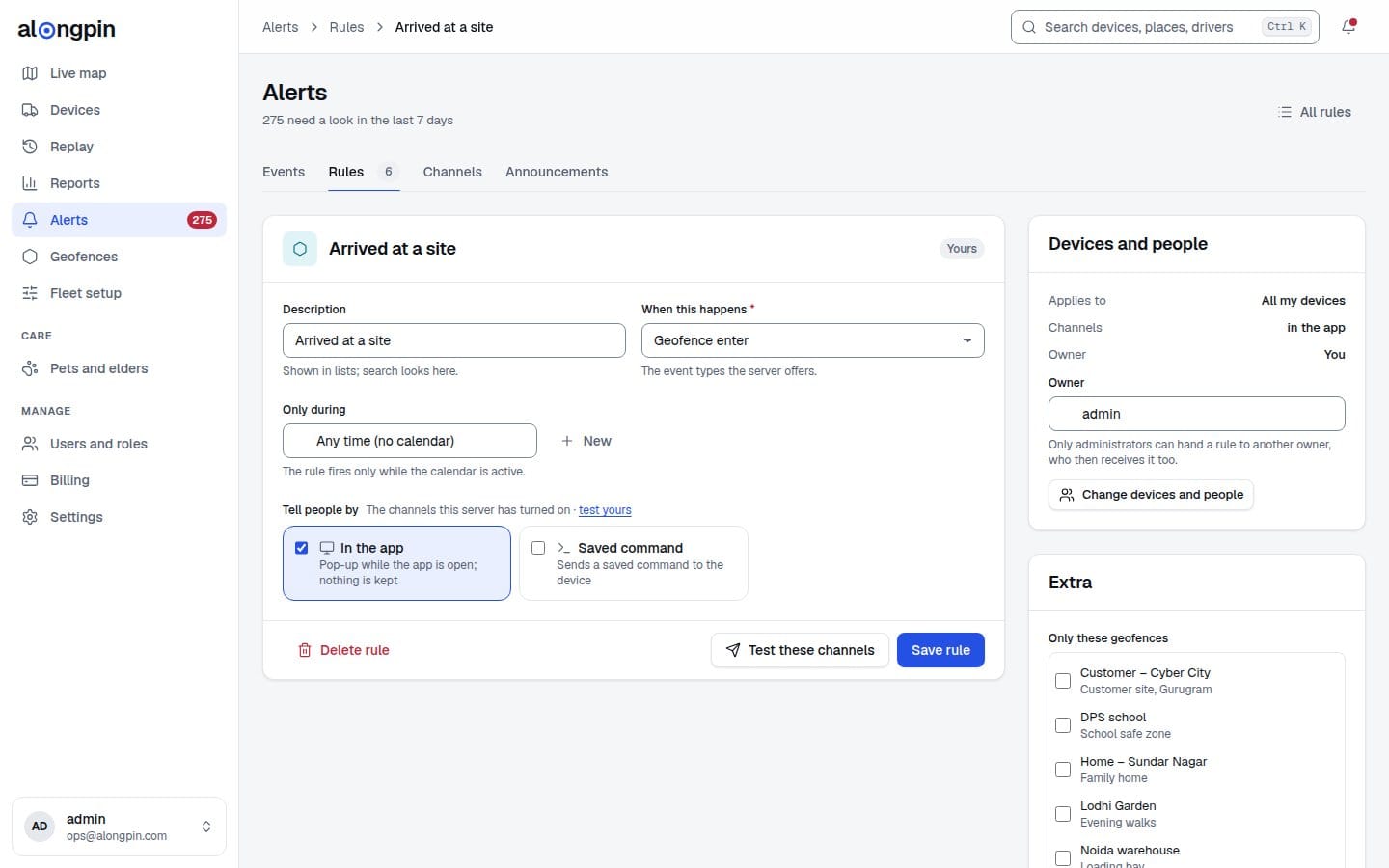
Alert rules decide which events reach you and how. In the portal, open Alerts, then the rule (for example "SOS from the watch"). Under Tell people by, Push notification must be ticked. In the app, Rules that notify you shows "Push on" or "Push off" for each rule.
Also check that the rule is not Paused, that it applies to the device (its Devices and people), and that you are among the people who receive it. A rule someone else shared with you is read-only: ask its owner to add push.
4. Look at your quiet hours
During your quiet hours, push, email, text messages and Telegram are held back, except the alerts you let through (SOS and power cut by default). A held-back alert is dropped, not sent when the quiet hours end; it still shows in the app and the portal. If push stops at night, this is the first thing to look at, in Alerts and channels → Quiet hours.
5. Check that push is switched on for your account
Push works only where it is switched on for your account. When it is not, Push notification is missing from Tell people by, and Phones and browsers for push says "Push is not set up on this server". Ask your administrator; they cannot switch it on per person.
6. Read the delivery log of the alert
Open the alert from Alerts. Under Sent to, each person has one entry per channel:
| What you see | What it means |
|---|---|
| Push · sent | The message left the platform for your phone. If it never showed, look at step 2. |
| Push · no phone or browser for push | No phone is registered for you: step 1. |
| Push · held back (quiet hours) | Your quiet hours held it back: step 4. |
| Push · channel off | Push is not switched on: step 5. |
No Push entry at all means the rule does not send by push, or did not fire for you. Read more about how alerts and their channels work.
Frequently asked questions
The alert shows in the portal but not on my phone. Why?
The portal shows every alert while it is open, whatever the channels. Push depends on the rule's channels, this phone's registration and your quiet hours.
Will an SOS reach my phone during quiet hours?
Yes, as long as SOS stays in the list of alerts that still go out. See how SOS alerts reach people.
Where can I find more answers?
The help center has an article per channel: email, text messages and Telegram.