Getting started
Organising devices into groups
How to create groups such as a depot or a family, nest them and move devices between them, and why settings and connections stored on a group apply to every device in it.
Ashish Srivastava3 min read
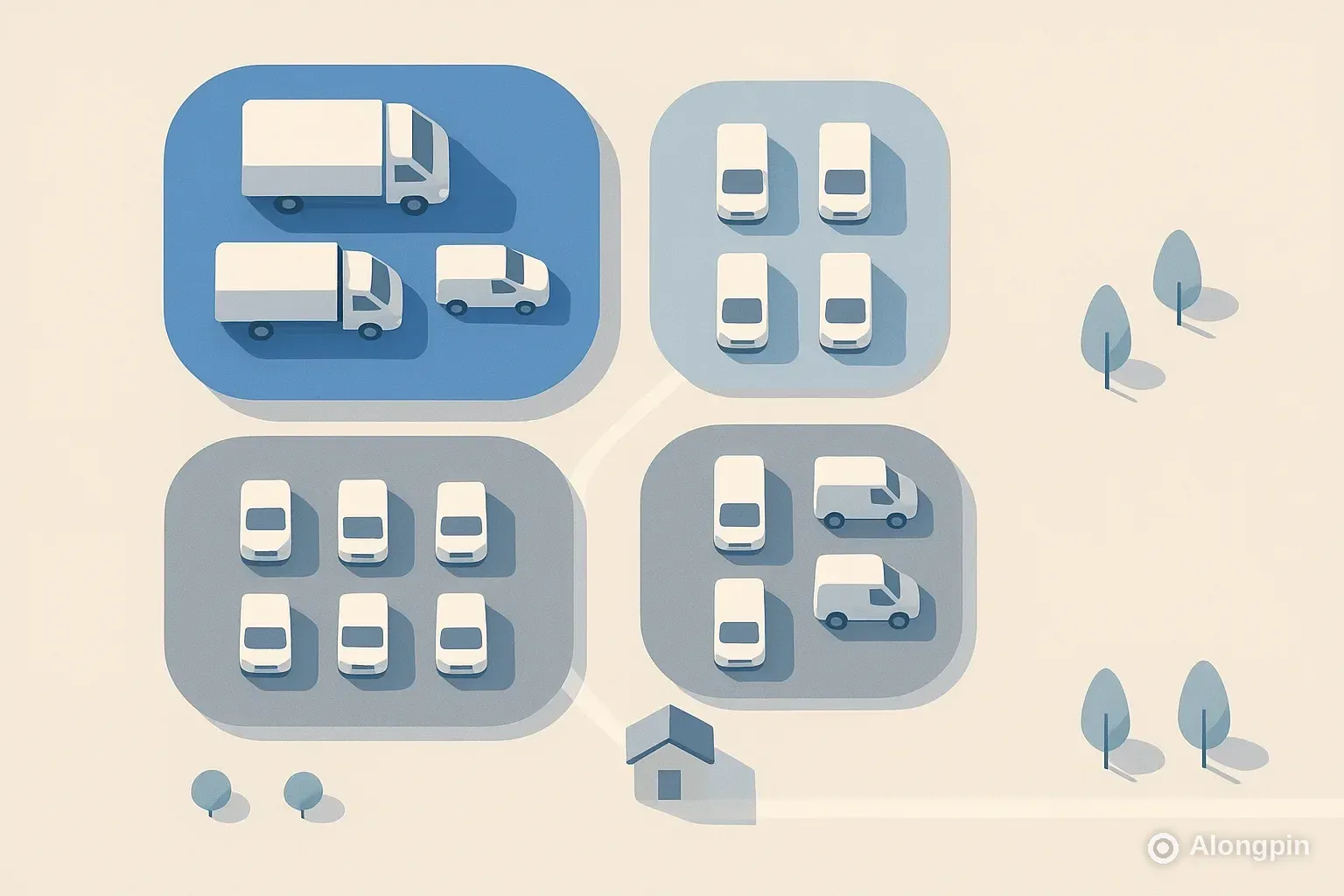
To group vehicles in GPS tracking, open Devices, choose Groups, and create a group with New group. A group is a folder for devices: a depot, a shift, a customer contract or a family. Groups can sit inside other groups, and whatever you store on a group, such as a speed limit, a geofence or an alert rule, applies to every device in it and in its subgroups.
Key takeaways
- Create groups under Devices → Groups; give a group a Parent group to nest it.
- Move devices into a group from the group, from the device list or from the device's own settings.
- Settings on a group apply to all its devices unless a device, or a nearer group, sets its own.
- Deleting a group never deletes its devices.
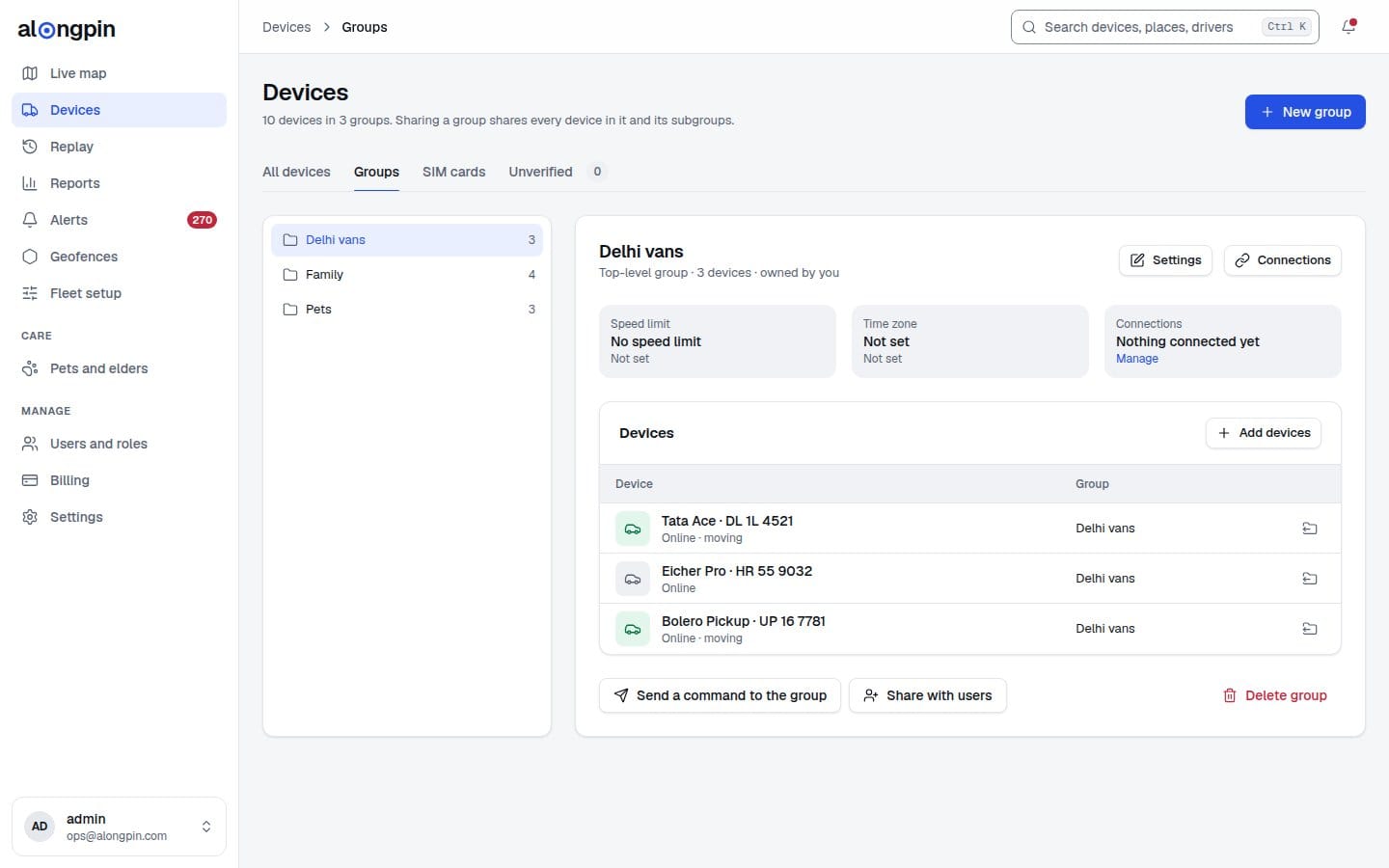
Create, rename and nest a group
- Open Devices in the menu and choose Groups.
- Select New group, type a Name and pick a Parent group, or Top level for a group of its own.
- Select Create group.
To rename a group or move it under another one, open it, change Name or Parent group and select Save group. To add a group inside the one you are looking at, use New subgroup. A group cannot sit inside itself or one of its own subgroups.
A common layout for a fleet is one group per depot or region, with subgroups for vans, trucks or shifts. A family might have one group for the cars and one for the children's watches.
Put a device in a group or move it
There are three ways:
- From the group: select Add devices, tick the devices and add them.
- From the device list: tick several devices in Devices and choose Move to group.
- From the device: open its settings, select Edit and choose a Group.
A device is in one group at a time. When it moves, it takes on the new group's settings and connections and loses the old group's. People who could see it only through its old group lose it.
Settings a group passes on
A group's page shows What its devices inherit: a speed limit, the time zone of trackers that report local time, a no-data alert, the shortest trip, whether trips follow the ignition, fuel alert thresholds and more. Each value says where it comes from: Set here, From a group above, or from the server. A device or a nearer subgroup can set its own value, and that wins.
This saves editing devices one by one: set an 80 km/h limit on the "Trucks" group, and every truck, including one added next month, is checked against it.
What connecting a geofence, rule or report to a group does
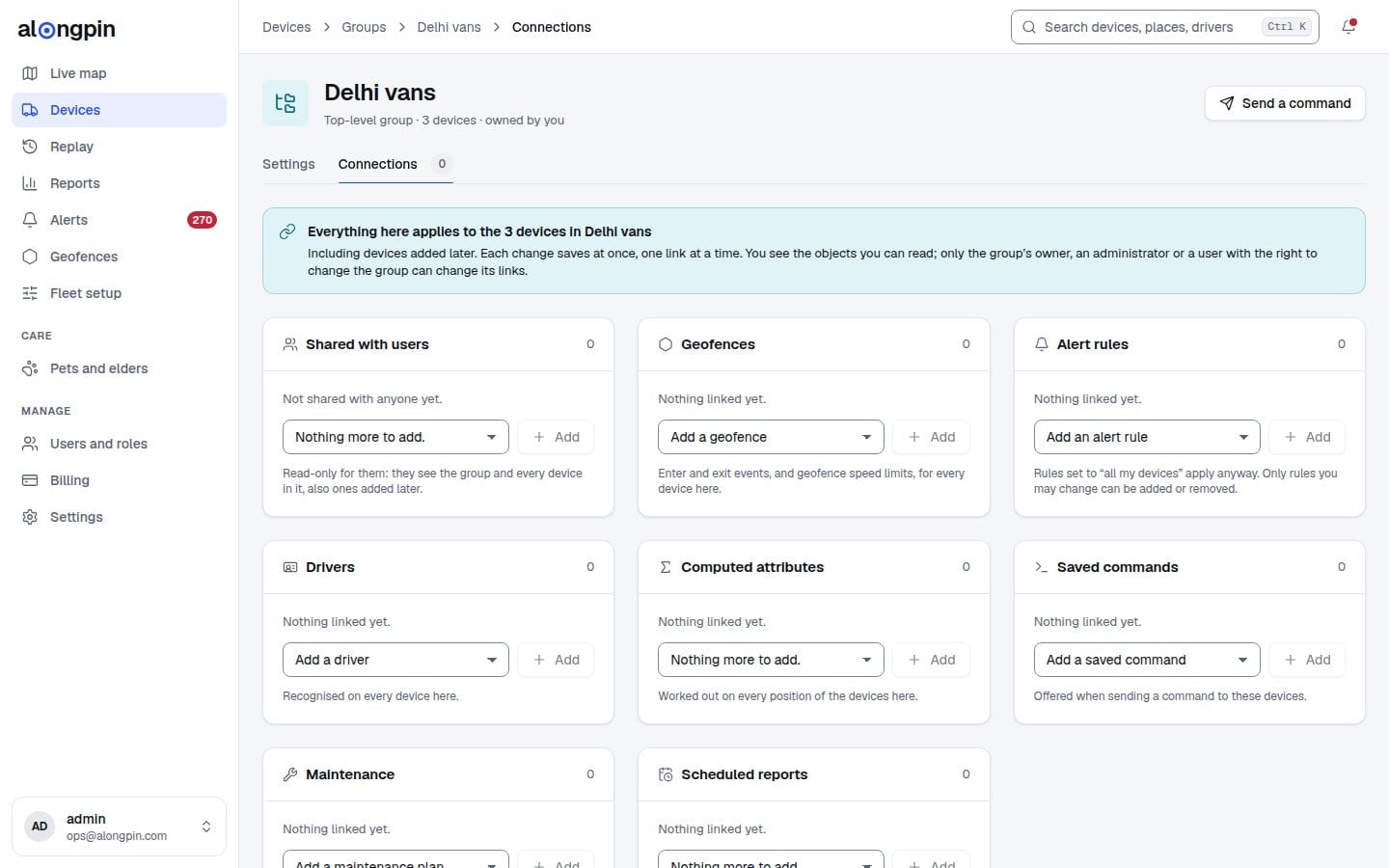
On the group's Connections tab, everything you link applies to every device in the group and its subgroups, including devices added later:
- Geofences: enter and exit alerts, and geofence speed limits, for every device here.
- Alert rules: the rule covers these devices.
- Scheduled reports: the report covers these devices.
- Drivers, Saved commands and Maintenance plans work the same way, where your account has them.
- Shared with users: those people see the group and every device in it, read-only. Only administrators and people who manage other users can share a group. How roles work is explained under users and roles.
Seeing one group at a time
On the live map, type the group's name in the search above the device list: the list and the map show the devices of that group (and any device whose name contains the same words). In Devices, the Group filter shows one group's devices. Reports can be run for a whole group.
Deleting a group
Open the group and select Delete. The confirmation says exactly what happens: the devices are not deleted and stay with no group; subgroups move to the top level; the devices lose what they inherited from the group; its connections go; and people it was shared with lose it. This cannot be undone.
If you cannot change a group
A group shared with you may be read-only: only its owner, an administrator or someone with the right to change groups can edit it. On some accounts groups are switched off altogether, and Groups does not appear. Fleets that run several depots will find more ideas in fleet tracking.
Frequently asked questions
Can a device be in two groups?
No. Use a parent group with subgroups instead, so a device can be part of both "North depot" and its "Vans" subgroup.
Does moving a device change its history?
No. Its trips and positions stay; only the settings and connections it gets from its group change.