Alerts and SOS
Limiting an alert rule to devices, groups or alarm kinds
How to make an alert rule apply to all your devices or only to the vehicles and groups you link it to, how to narrow an alarm rule to chosen kinds such as SOS only, and geofence and overspeed rules to chosen geofences.
Ashish Srivastava4 min read
To set an alert rule for a specific vehicle, open the rule's Devices and people and choose Chosen devices and groups instead of All my devices, then tick the vehicles or groups it should cover. An alarm rule can be narrowed further to chosen alarm kinds, such as SOS only, and geofence and overspeed rules to chosen geofences. That way each rule sends only the notifications someone actually needs.
Key takeaways
- A rule covers either all your devices, now and later, or only the devices and groups you tick.
- Ticking a group covers every device in it, subgroups included, and the ones you add later.
- Alarm kinds narrows an alarm rule: tick only SOS for an SOS-only rule.
- Only these geofences narrows enter, exit, crossed and overspeed rules.
- A rule shared with you is read-only; Stop receiving removes only you.
All devices or only linked devices and groups
Every alert rule answers two questions: which devices it watches, and who receives it. Under Which devices there are two choices:
- All my devices: every device each recipient can see, now and later. Good for rules that matter everywhere, such as a device going offline.
- Chosen devices and groups: only what you tick. Good for a speed rule on the delivery vans but not the cars, or a geofence rule for one depot's trucks.
A rule with neither, not set to all devices and with nothing ticked, does nothing. The list of rules warns that it "reaches nobody yet".
Link the rule to a device or group
- Under Alerts, open Alert rules and select the rule, or create one with New alert rule. After Create rule, the portal asks you to choose its devices and the people who receive it.
- In the rule, select Change devices and people to open Devices and people.
- Under Which devices, choose Chosen devices and groups.
- Find the vehicle with Find a device or group and tick it, or tick a group.
- Under Who receives it, keep yourself ticked and add people you manage if they need it too.
- Select Save.
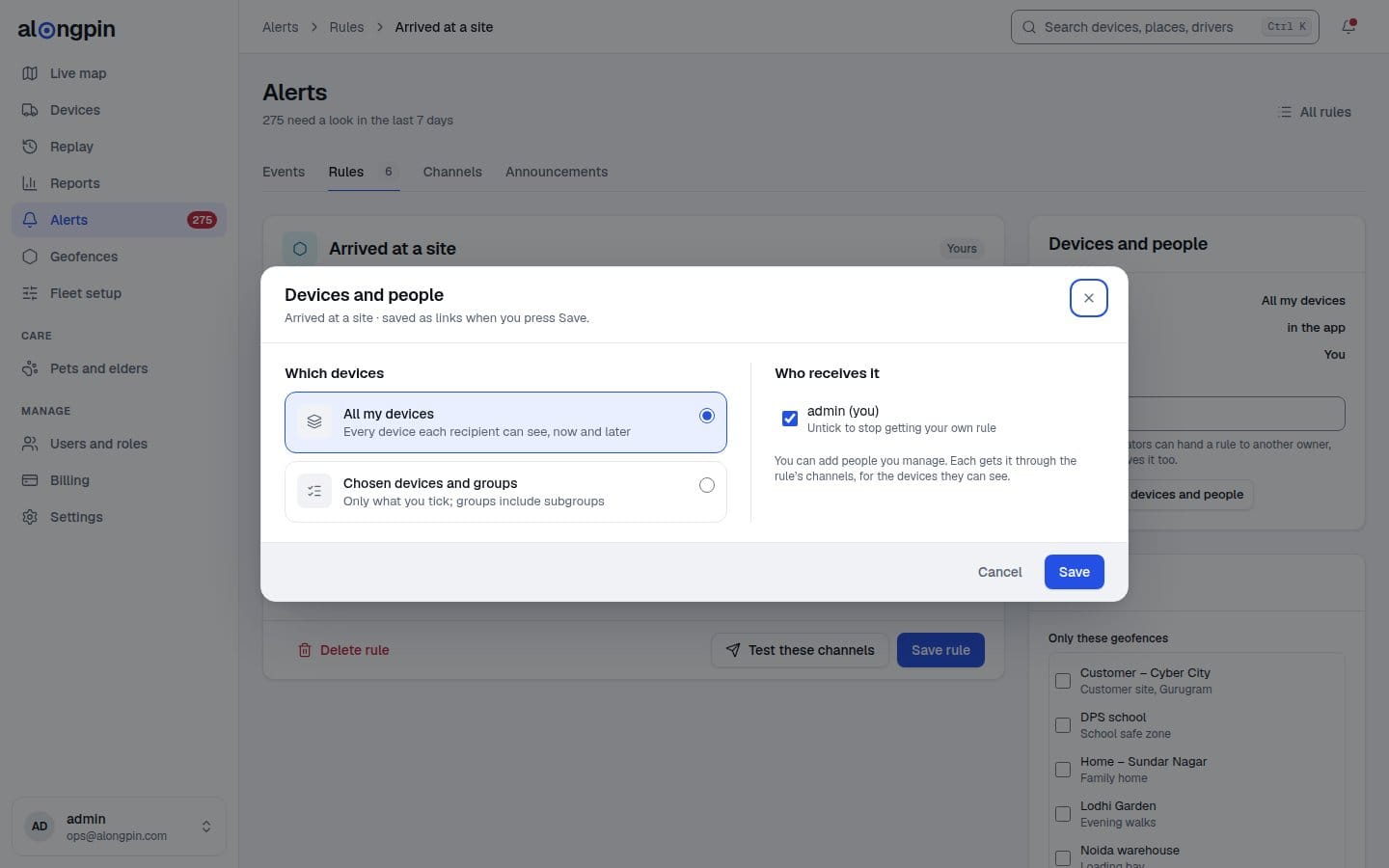
Prefer groups where you can: a van added to the "North depot" group later is covered at once, with no rule to edit. Only devices and groups you may change can be ticked; others show as view only. Each recipient receives the rule for the devices they can see.
Narrow an alarm rule to alarm kinds
An alarm rule (When this happens set to an alarm) reacts to every alarm a device sends: SOS, low battery, power cut, hard braking and so on. To make it an SOS-only rule:
- In the rule, find Alarm kinds.
- Tick SOS and nothing else. With none ticked, the rule reacts to every alarm.
- Select Save rule.
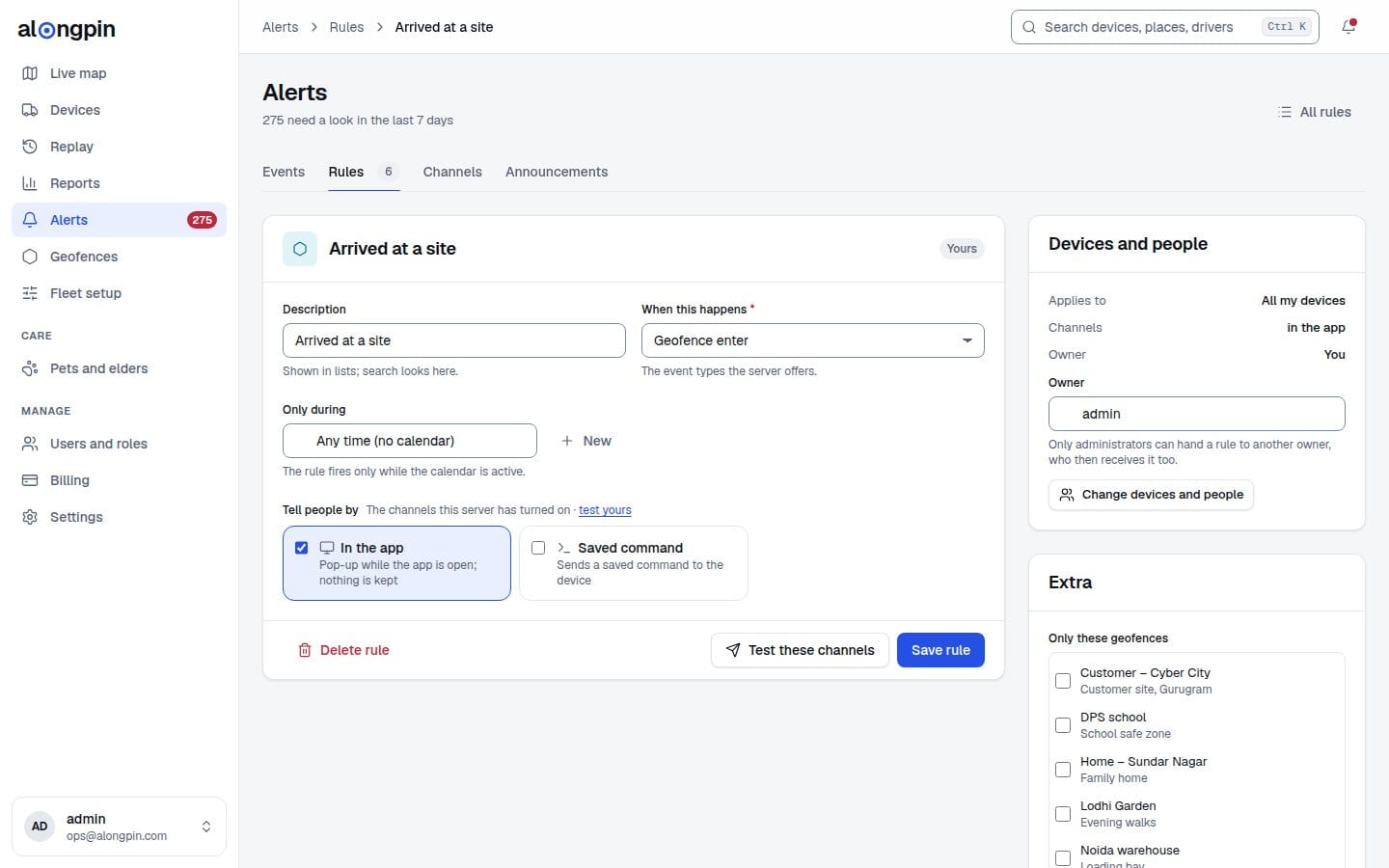
Which alarm kinds arrive depends on the device: a watch or tracker with a panic button sends SOS, while hard braking needs a tracker that reports it. The SOS feature explains how an SOS alarm is shown and acknowledged.
Narrow geofence and overspeed rules to chosen geofences
Rules for geofence enter, exit, crossed and overspeed have Only these geofences in their Extra settings. Tick the geofences that matter, up to 100, and the rule fires only for events in them. With none ticked it fires for every geofence.
For an overspeed rule this means a lower limit inside a school zone or a yard can raise an alert there, while overspeed elsewhere does not fire this rule. A geofence raises events only for the devices or groups linked to it, so link it to the vehicles as well; geofences explains how.
An Only during calendar narrows a rule further in time, for example to working hours.
Rules others set up for you are read-only
Rules can be shared with you by an administrator or the person who manages your account. You receive them, but every field is locked and only their owner can change them. If one no longer concerns you, open it and select Stop receiving: it removes only your own link, and everyone else keeps receiving the rule. Ask the owner to add you again if you need it back.
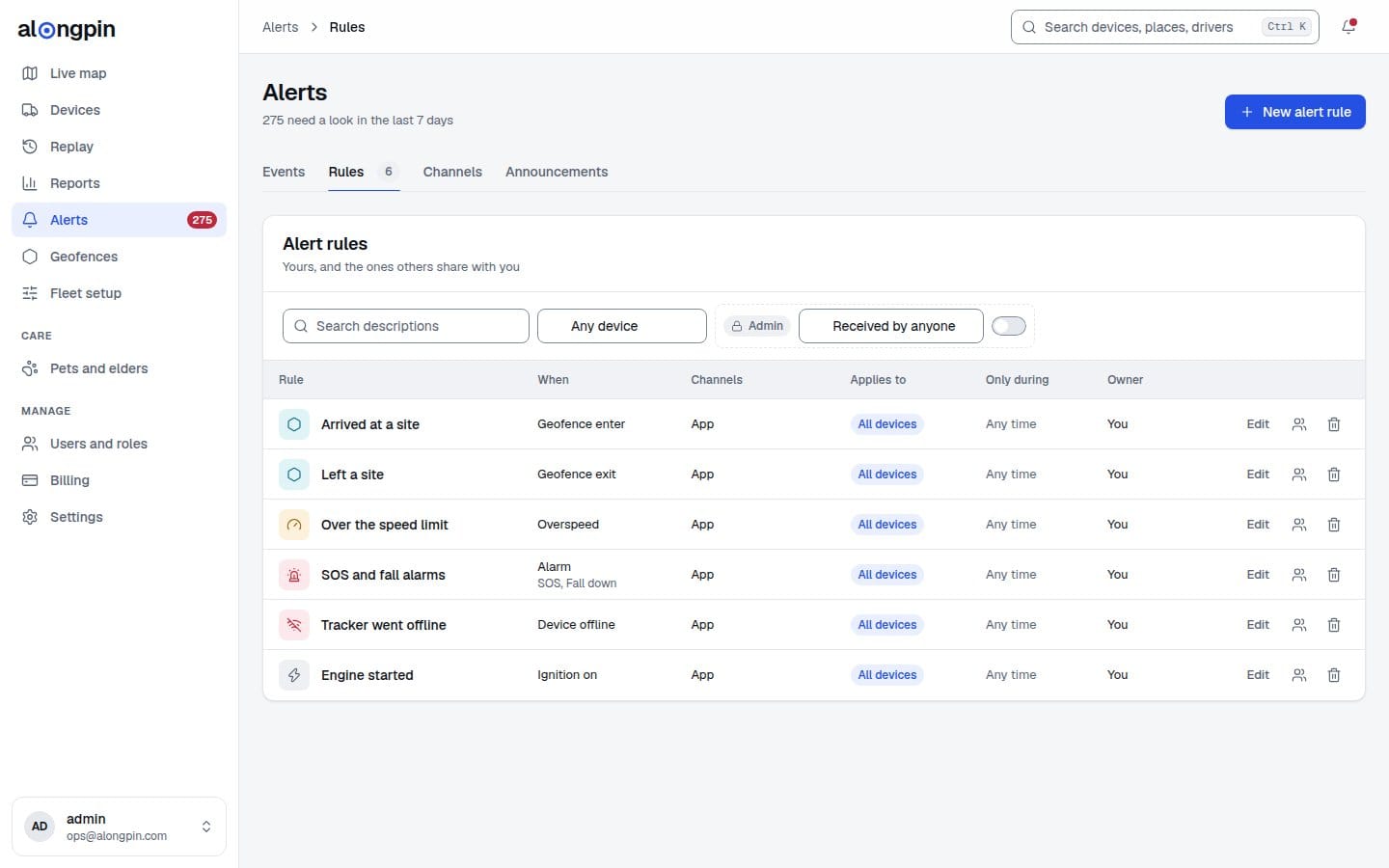
The list of rules shows for each one what it applies to, its channels and its owner, so you can see at a glance which rules are yours. The alerts feature covers the events and channels behind every rule.
Frequently asked questions
Can one rule cover two groups and a single extra van?
Yes. Tick both groups and the van; the rule covers all of them.
Does a device in a ticked group also need its own tick?
No. A ticked group covers every device in it, subgroups included.