Getting started
Finding your way around the portal
A short tour of the Alongpin portal for your first sign-in: where the live map, devices, replay, reports, alerts and settings are, and why a colleague may see a different menu.
Ashish Srivastava4 min read
This GPS tracking portal overview is for the moment after your first sign-in. Everything in the portal is reached from the menu on the left: Live map, Devices, Replay, Reports, Alerts, Geofences and Fleet setup at the top, Pets and elders under Care, and Users and roles, Billing and Settings under Manage. Your own name, password and preferences sit behind the account menu.
Key takeaways
- The left-hand menu holds every area; on a phone it opens from the menu button in the header.
- The menu shows only what your role allows, so a colleague may see more or fewer items than you.
- New alerts show as a dot on the bell in the header and pop up while the portal is open.
- Your profile, password and display preferences are under the account menu, in Profile and settings.
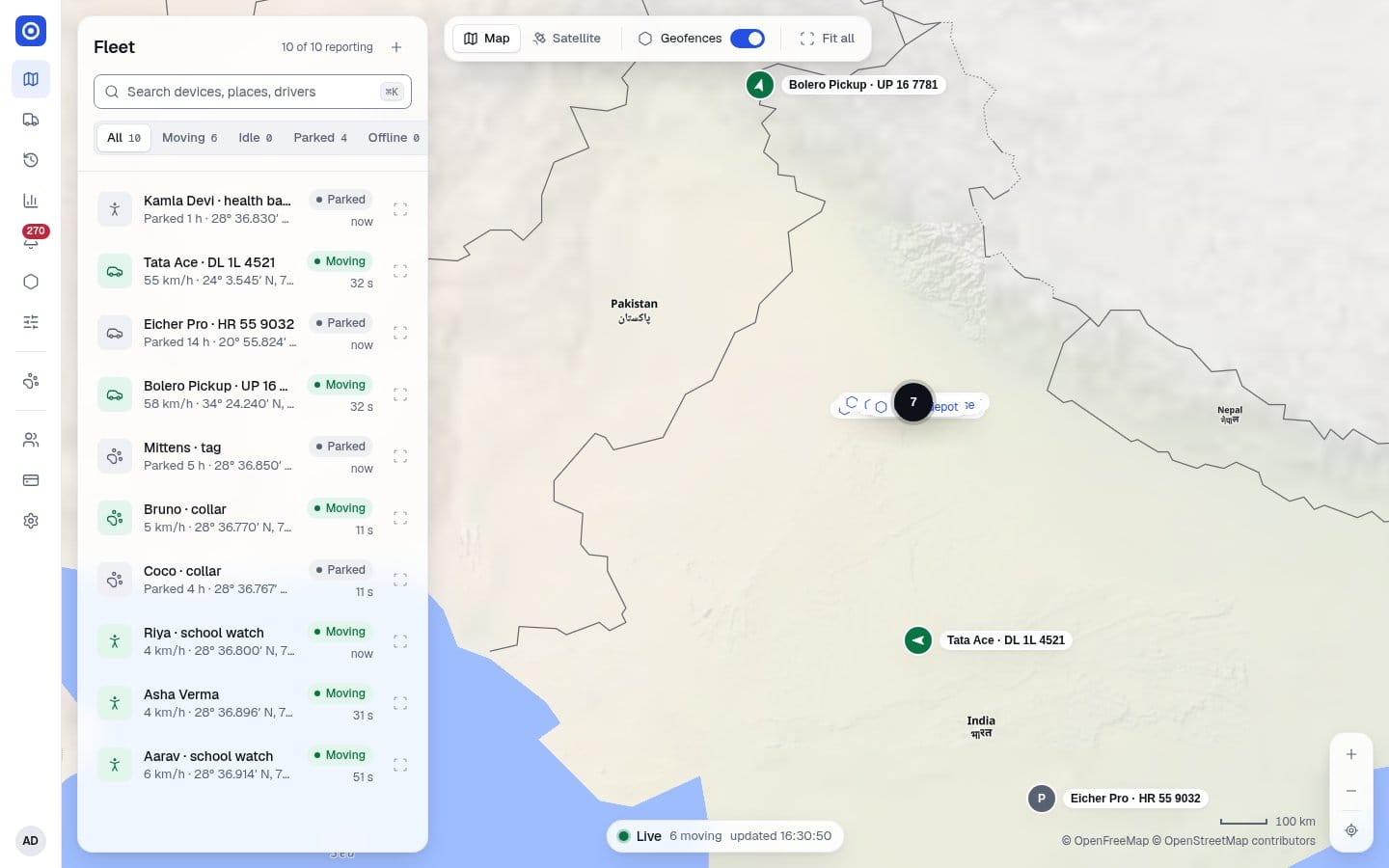
What each item in the menu is for
| Menu item | What you do there |
|---|---|
| Live map | See where every device is now, whether it is moving, idle, parked or offline, and follow one or several. This is the page you land on. |
| Devices | The list of your trackers, watches, phones, dashcams and collars: add one, open its details, its trips and events, its settings. |
| Replay | Play back the route of one device over a period you choose, stop by stop. |
| Reports | Trips, stops, idle time, summaries, events and geofence visits, to view, download or send on a schedule. |
| Alerts | The events that have happened and the rules that decide which ones you are told about. |
| Geofences | Draw zones on the map (a depot, a customer site, home, school) to be alerted on entry and exit. |
| Fleet setup | Drivers, maintenance plans, calendars, saved commands and the other lists a fleet keeps. |
| Pets and elders | Care profiles: the pet or person a collar or watch belongs to, with contacts, health records and care alerts. |
| Users and roles | The people who use your account and what each of them may see and do. |
| Billing | Your subscriptions, invoices and payments. |
| Settings | Your own account, and for administrators the settings of the whole account. |
To learn what each area can do in more depth, the features overview has a page per feature, starting with the live map.
Why a colleague sees a different menu
The portal shows each person only what their role allows. A dispatcher who may view the map and reports but not manage users will not see Users and roles; someone without access to reports will not see Replay or Reports; Pets and elders appears only on accounts that use care profiles; Fleet setup appears only for those who may see drivers, maintenance or the other fleet lists.
If an item you need is missing, nothing is broken: ask the person who manages users in your account to give you the right role. Items are hidden rather than shown and locked, so the menu never leads to a page you cannot open.
Where alerts appear while you work
While the portal is open, a new alert pops up as a short message at the edge of the screen, and the bell in the header gets a dot until you have seen it. Select the bell, or Alerts in the menu, to see the list of events and open any of them on the map.
Which events you are told about, and whether they also reach you by e-mail or other channels, is decided by your alert rules and your own channel choices under Settings → Alerts and channels. The channels on offer depend on what is switched on for your account.
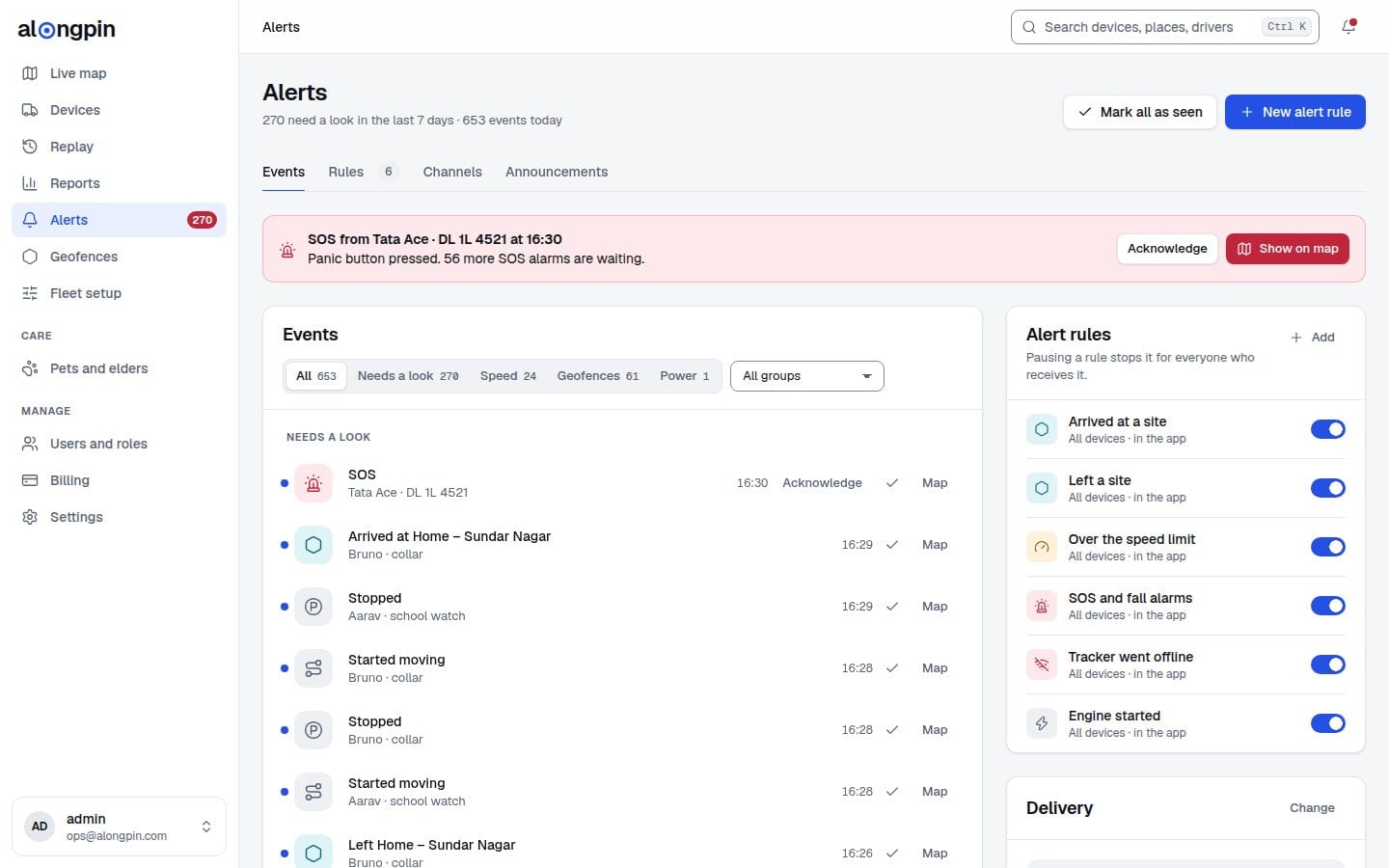
Finding something fast
The search box in the header finds devices, groups, geofences, drivers, users and pages by name or identifier. Press Ctrl K (or ⌘K on a Mac) to open it from anywhere.
Changing your own name, password and preferences
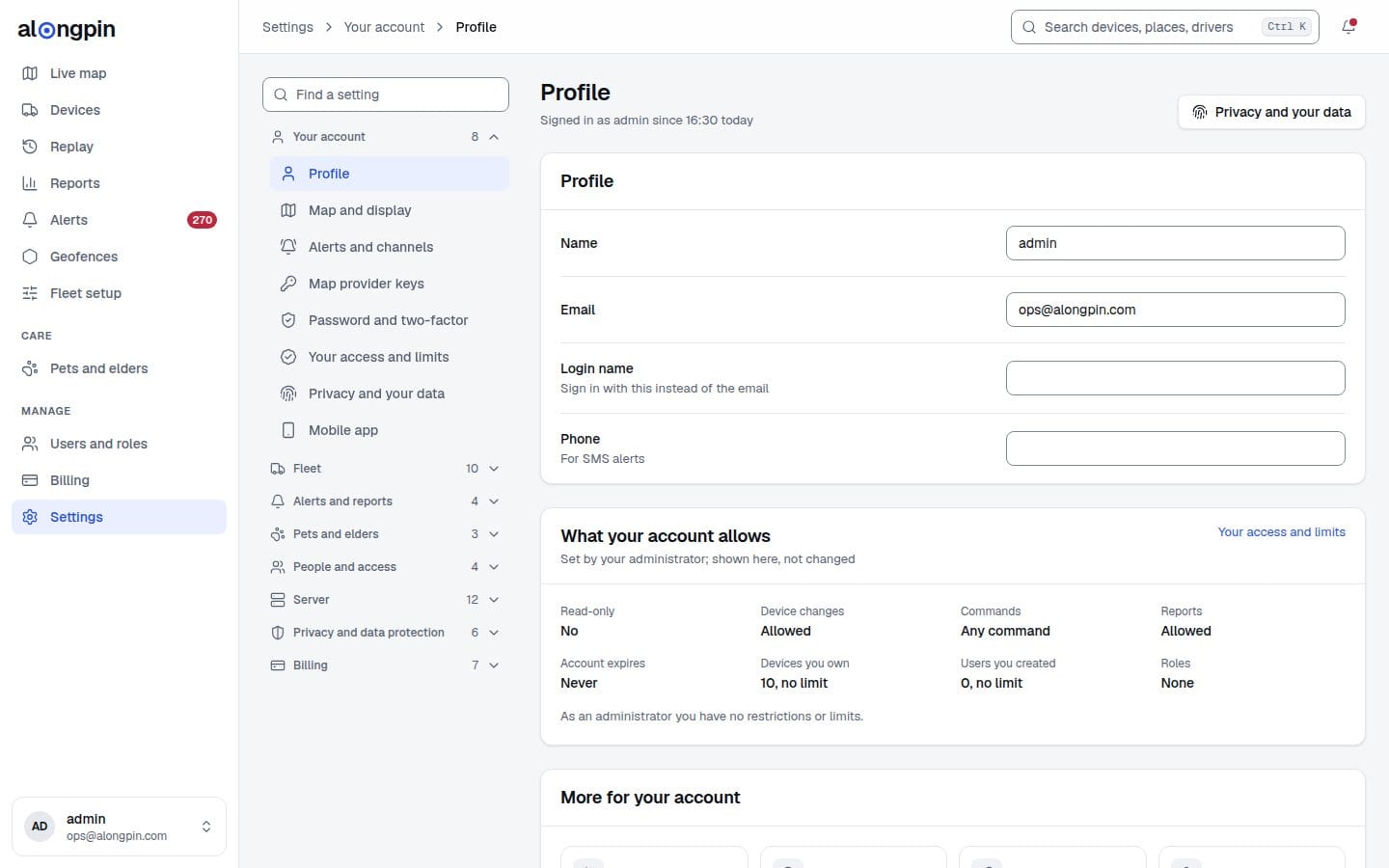
Open the account menu (your name, at the bottom of the menu on a computer) and choose Profile and settings. Under Your account you find:
- Profile: your name and e-mail address.
- Map and display: the map you prefer, units and how the portal shows things.
- Alerts and channels: how alerts reach you.
- Password and two-factor: your password and, if you use it, a second sign-in step.
- Your access and limits: what your role lets you do, which helps when an item is missing.
- Privacy and your data: download or ask to erase your own data.
The same menu switches the theme between light, dark and your system's choice, and signs you out.
Where to go next
If you are about to connect your first tracker, watch or phone, the setup guide takes you from the box to the map in three steps, with a guide per kind of device. For a question about one area, the help center groups its articles by topic.
Frequently asked questions
Why don't I see Reports or Replay?
Your role does not include reports, or reports are switched off for your user. Ask whoever manages users in your account; Your access and limits under your settings shows what you have now.
Can I use the portal on my phone?
Yes. The portal works in a phone's browser; the menu opens from the menu button in the header.
Where do I see how many devices my plan allows?
Under Settings → Your access and limits, and your subscriptions under Billing.