Geofences
Editing or deleting a geofence
How to change a geofence's shape, name or colour, see which alert rules are limited to it, and what stops working when you delete one. Geofences shared with you are read-only.
Ashish Srivastava3 min read
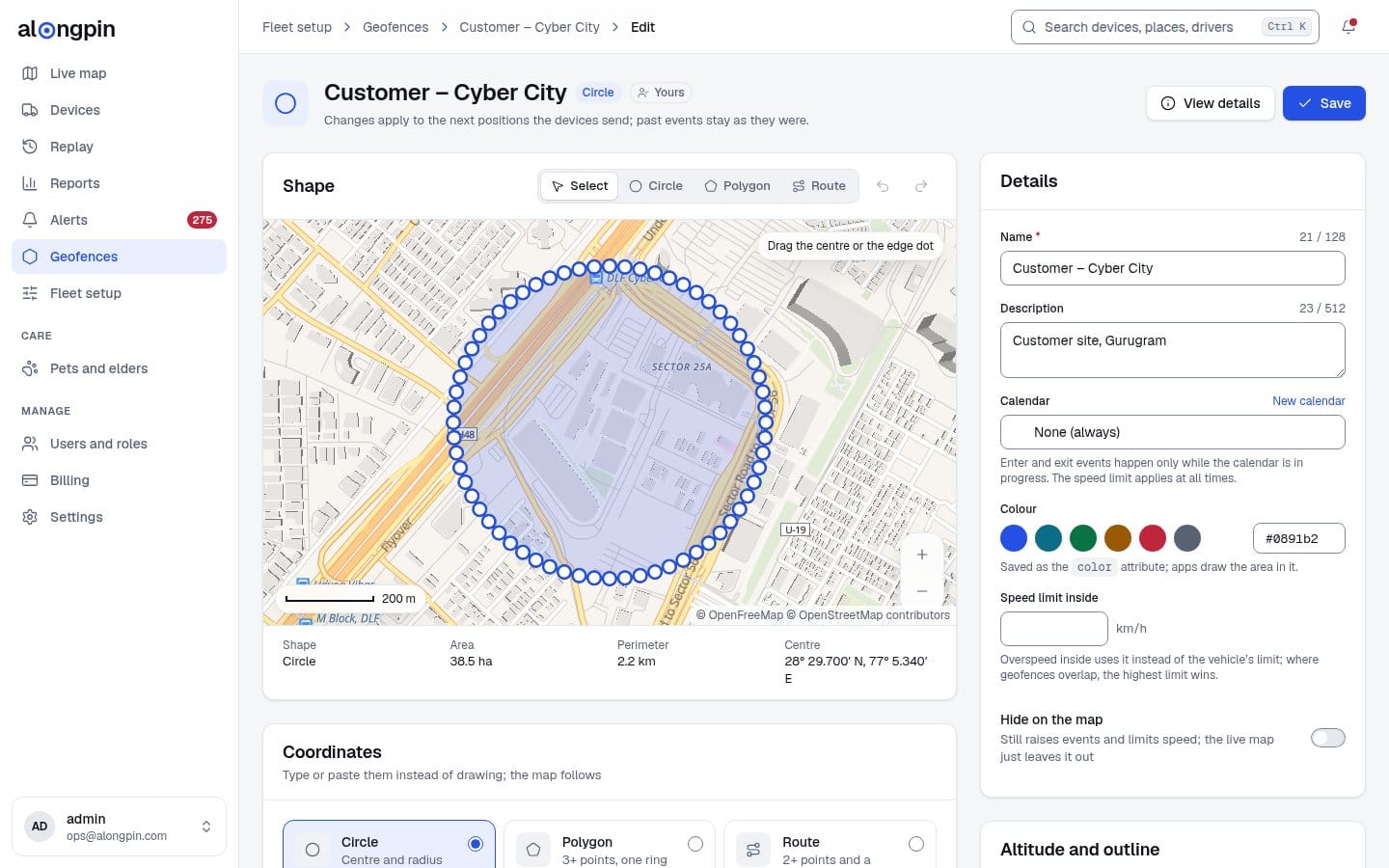
To edit a geofence, open Geofences in the menu, pick the zone on the map or in the list, and drag its points or its edge, change the name or the colour, and press Save. For every field, choose All fields (or Edit on the zone's page) to open the full form. To delete it, use Delete geofence on that form, but first check under Used by which alert rules are limited to it.
Key takeaways
- Changes apply to the next positions the devices send; past events stay as they were.
- Used by lists the alert rules limited to the zone; the zone's page also shows whether it is a pet's or elder's home.
- A geofence shared with you is read-only: you can attach it to your own devices, not change it.
- Deleting removes the zone from every device, group and user at once, with no undo.
Open the geofence and move or redraw its shape
- Open Geofences in the menu. The map shows your zones, with the list beside it.
- Pick the zone on the map or in the list. The panel shows Editing with its name.
- Change the shape:
- Circle: drag the centre to move it, or the edge dot to change the radius. You can also type the Radius.
- Polygon and Route: drag a point to move it, and click the midpoint of a side to add a point. For a route, adjust Width each side.
- Undo and Redo step through your changes. Press Save when the shape is right.
To place points exactly, open All fields: the Coordinates section takes typed or pasted latitude and longitude, and the map follows. A shape cannot be turned into another kind; to change a circle into a polygon, draw a new zone.
Rename it or change the colour
In the same panel or form, change Name (up to 128 characters) and Colour. The full form also has Description, Speed limit inside, Calendar, Hide on the map, and Floor and Ceiling for parking decks and bridges. Press Save geofence.
Renaming does not break anything: alert rules, reports and care profiles refer to the zone itself, not to its name. Alert messages use the new name from then on.
See which alert rules are limited to it
On the full form, Used by lists every alert rule limited to this zone with Only these geofences, or says No alert rule is limited to it. The zone's own page (select its name in the list) has Where it is used, which also shows Care profiles: the pets or elders whose home it is. Check both before you move a zone far or delete it. More on rules is on the alerts page.
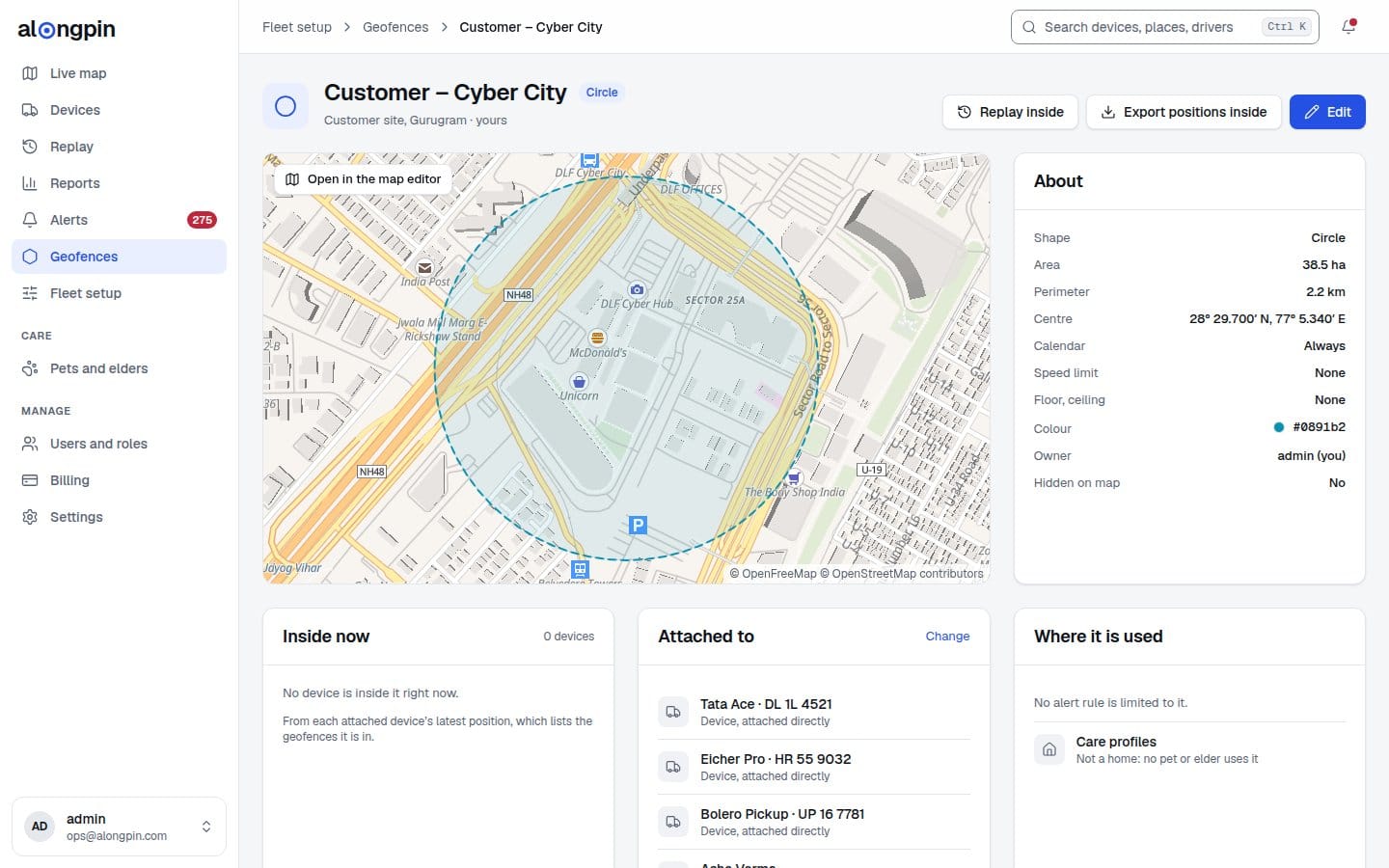
Geofences shared with you are read-only
A zone someone else owns and shared with you shows Shared with you · read-only, or the owner's name. You can look at it and attach it to your own devices, but not move, rename or delete it. If you no longer want it, Remove from my list takes it out of your list and stops it applying to your devices; the owner and everyone else keep it. To have it changed, ask its owner.
Delete it and what stops working
- Open the zone's full form and choose Delete geofence.
- The dialog says how many devices or groups it is attached to and how many other users it is shared with.
- Confirm.
What happens:
- The zone is removed from every device, group and user at once.
- No more enter, exit or overspeed events are raised for it.
- Alert rules limited to it stop firing for it.
- A pet's or elder's profile that used it as home has no home any more, so leaving-home alerts and time at home stop.
- Past events and reports keep it: the geofence report of last month still shows the stays.
There is no undo. If you may need the zone again, select it in the list and use Export selected first: the file can be imported later. The geofences page has more on what zones do.
Frequently asked questions
Why can't I move a zone?
It is shared with you, your account is read-only, or your role does not let you change geofences. The panel says which.
Do past reports change when I move a zone?
No. Events are worked out when each position arrives; moving a zone affects only positions that come after the change.