Devices and connection
Changing the reporting interval with a command
How to send a command that changes how often a tracker reports, for example every 60 seconds, to one tracker or a whole group, what delivered and queued mean, and what to do if the tracker does not support it.
Ashish Srivastava4 min read

To change a GPS tracker's reporting interval, send it the Report periodically command with the number of seconds you want, for example 60. The interval is a setting inside the tracker, so this works only where the tracker's protocol supports the command; the send dialog shows whether it does. Trackers without it are changed in their own settings, by their configuration tool, app or a text message.
Key takeaways
- Open Send command for the device, choose Report periodically and enter Report every in seconds.
- Delivered means the tracker received it now; Waiting in the queue means it goes out when the tracker reconnects.
- If the type is not offered, the tracker's protocol has no such command: change the interval on the tracker.
- Shorter intervals give a smoother map but use more mobile data and battery.
- The same command can go to every device of a group at once.
Send the command to one tracker
- Select the vehicle on the live map or open it under Devices, then select Send command.
- Under What to send, choose New command, and as Command choose Report periodically.
- Enter Report every, in seconds. It starts at 60; any whole number from 1 is accepted, but each tracker takes its own range, so check the tracker's manual.
- Under How to send it, keep Over the data connection. Optionally tick Only if the device is connected now, so the command fails instead of waiting when the tracker is offline.
- Select Send command.
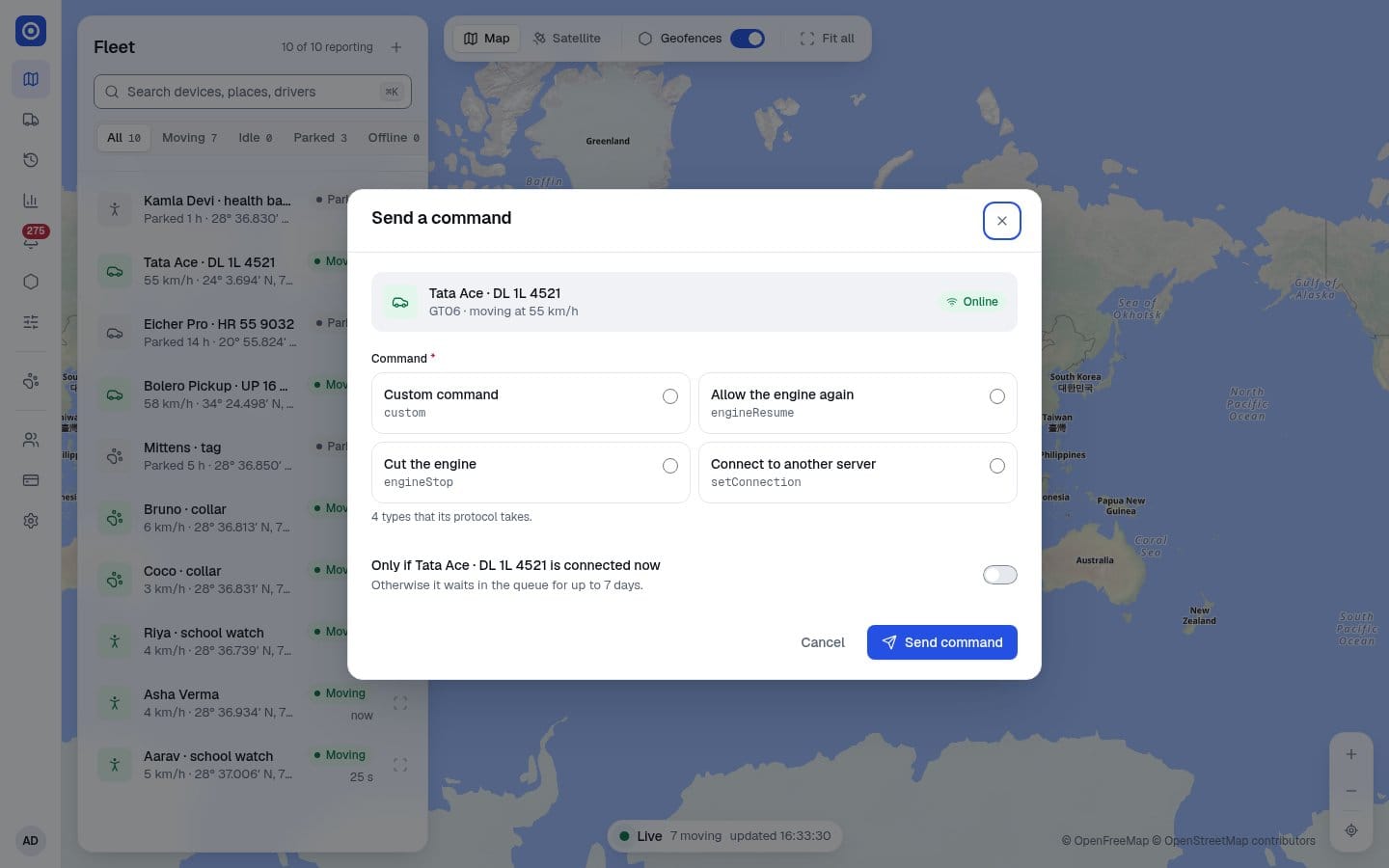
The dialog shows the device's state at the top. The list of command types holds only the types its protocol takes, and says how many there are; if the device has never connected, its protocol is unknown and every type is offered.
Delivered or queued: what the answer means
- Delivered: the tracker received the command. Received means sent to the tracker, not yet carried out; a tracker that answers sends its reply as a command result, which you can be alerted about.
- Waiting in the queue: the tracker cannot take it right now, because it is offline or collects commands with its next report. It is sent when it can, for up to 7 days. The device's Commands tab lists what is waiting and lets you cancel it.
- The command was not sent: the reason is shown, for example that the type is not supported by the tracker's protocol.
Watch the next positions on the live map: once the tracker applies the setting, they arrive at the new pace. Some trackers keep a separate, usually longer, interval for when the ignition is off.
Trackers that do not support it
If Report periodically is not in the list, the protocol has no standard command for it. You can then:
- change the interval in the tracker's configuration tool or app, or by the text message its manual gives;
- send the tracker's own text as a Custom command, if you know it, written exactly as the manual says.
The vehicle trackers page lists the kinds of tracker the platform works with, and the device connection guide explains protocols and ports.
Shorter intervals cost data and battery
Every position is a message over the mobile network. Going from a report every 2 minutes to every 10 seconds multiplies the data the SIM uses and, on a battery tracker, shortens the time between charges a lot. Choose the longest interval that still gives you the detail you need while the vehicle moves, and remember that a parked asset rarely needs frequent reports.
Send the same command to a whole group
To change every tracker of a group, open the group under Devices → Groups, or select Send to the whole group on a device's Commands tab. Choose the command and select Send to the group. The command goes to every device in the group and its subgroups that you may command; others are skipped. The result is listed per device: Delivered, Queued, Failed (for example a device whose protocol lacks the type) or Skipped. With Only to devices connected now, offline devices get nothing instead of a queued command.
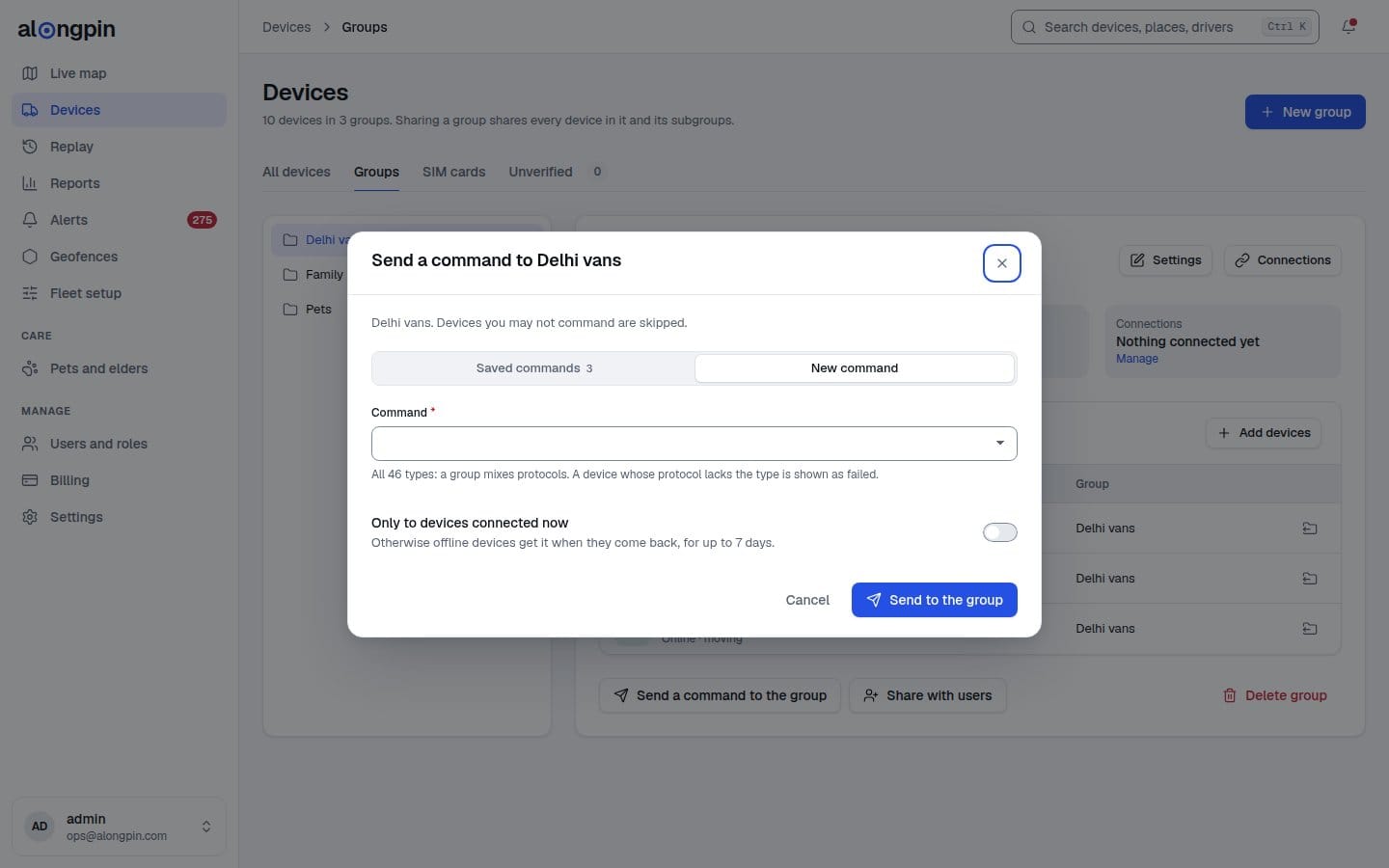
To send the interval often, keep it as a saved command and attach it to the group; then it appears first in Send command. See remote commands for what else can be sent.
Frequently asked questions
Who can send commands?
People whose role lets them command the device. A read-only account cannot send commands, and some users may send only saved commands.
Can I send it by text message?
Where your server has an SMS gateway and the protocol has a text for it, By text message sends it to the tracker's phone number at once, never queued, at most 10 per tracker per hour.