Alerts and SOS
Acknowledging an alarm
How to acknowledge an SOS or another alarm so that colleagues and family see who took it and when. Until then it stays open on the Alerts page.
Ashish Srivastava3 min read

To acknowledge SOS alarms and other alarms, open the alarm from the Alerts page, the pop-up or the push message, look at where it happened, and press Acknowledge. The alarm is then marked "Acknowledged by" your name and the time, and everyone else who can see the device sees that within seconds, so two people do not both rush to the same alarm and nobody assumes someone else has it. Until someone acknowledges it, the alarm stays open on the Alerts page.
Key takeaways
- Acknowledge is on the SOS banner at the top of Alerts, on each alarm in the list, and in the alarm's own view.
- After acknowledging, everyone sees Acknowledged by the name and time, without reloading.
- The first acknowledgement counts; if a colleague was faster, you are told who.
- Read-only accounts cannot acknowledge.
1. Open the alarm
There are three ways in:
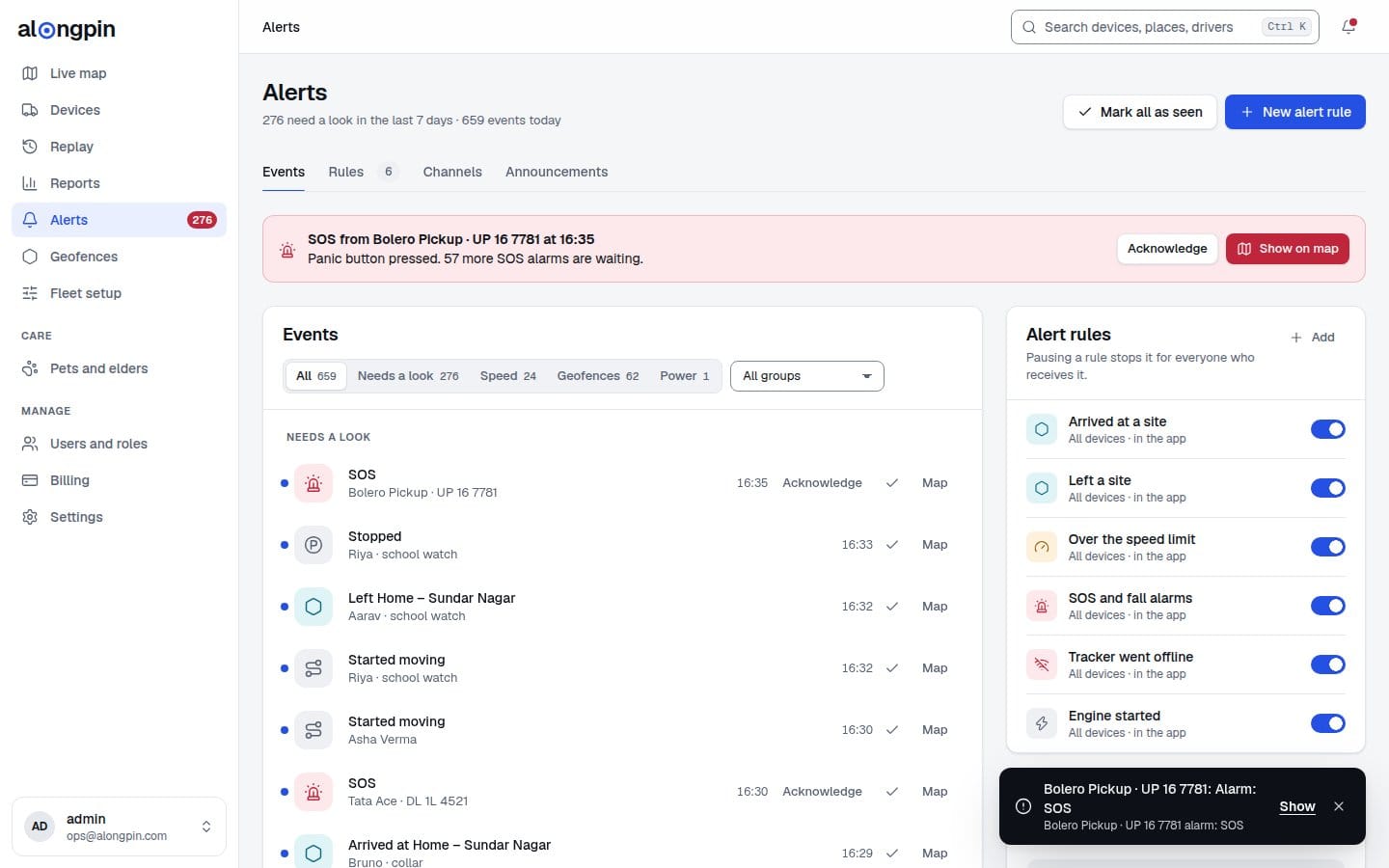
- The Alerts page. An SOS nobody has acknowledged yet shows as a banner at the top: "SOS from" the device and the time, with Acknowledge and Show on map. If several are waiting, the banner says how many more.
- The pop-up. While the portal is open, a new alert pops up at the edge of the screen; open it from there.
- The push message. On a phone, tap the push message to open the alert in the app.
2. See where it happened
Before you take an alarm, look at it. The alarm's view shows the event, the time, Where it happened on a small map, the speed then, the driver where one is known, the rule that fired and who it was sent to. Show on map opens the device on the live map with its current position, and Replay last 10 min shows how it got there.
For an SOS, call the person or the driver first if you can; the view offers a call button where a phone number is known.
3. Acknowledge it
Press Acknowledge. The view now says Acknowledged by you at the time. Acknowledging records who took the alarm and when; it does not send a message to anyone and does not change the device.
If a colleague acknowledged it a moment before you, the portal says so ("Already acknowledged by" their name and time). The first acknowledgement counts and is kept; it is also written to the account's audit log.
What colleagues and family see
Everyone who can see the device, a dispatcher next to you or a family member in the app, sees the alarm change to Acknowledged by your name and the time, within seconds and without reloading. The SOS banner on their Alerts page drops it, so the banner only ever holds SOS alarms that nobody has taken yet.
Seeing only the alarms nobody has taken
The SOS banner at the top of Alerts is that list for SOS: it shows only unacknowledged SOS alarms, newest first. For care profiles, the open alerts of a person or a pet are listed on their profile, each with its own Acknowledge.
Who can acknowledge
Anyone who can see the device's events can acknowledge its alarms, including people whose reports are switched off. Read-only accounts cannot: they see the alarm and who acknowledged it, but not the button. If you should be able to take alarms and cannot, ask the person who manages users to change your role; read more about users and roles.
Learn more about SOS alerts and alert rules and channels.
Frequently asked questions
Can I undo an acknowledgement?
No. The first acknowledgement is the record of who took the alarm and when.
Does acknowledging stop the alarm on the watch?
No. It records that someone is handling the alarm; the device is not told.