Reports and data
Scheduled reports: a nightly and a monthly routine that sticks
Scheduled fleet reports arrive when a calendar period ends: a nightly trips or geofence report for operations and a monthly summary for management. How the link works, who can receive it, and what cannot be scheduled.
Ashish Srivastava6 min read

Scheduled fleet reports arrive by themselves when a period ends, so the people who need them read them without having to remember to run them. In Alongpin a scheduled report is a report type, the vehicles it covers, the people who receive it and a calendar that says when it goes out: each time a period of the calendar ends, every recipient gets an e-mail with a link that opens the report for that period, signed in, ready to read or download as CSV or Excel. Two schedules suit most fleets: a nightly trips or geofence report for operations, and a monthly summary for management.
Key takeaways
- A report that arrives on its own gets read; one that has to be run gets forgotten in a busy week.
- Nightly: a trips or geofence stays report for yesterday, sent after midnight to the people who plan today.
- Monthly: a summary per vehicle for the month, sent to management.
- The e-mail holds a link, not an attachment; the recipient signs in, reads it and downloads CSV or Excel.
- Recipients are users of your account and see only the vehicles they may see.
- The idle report and the chart cannot be scheduled.
Why reports nobody has to remember get read
Reports that need someone to open the reports page, choose the vehicles, set the dates and press a button get run in the first weeks and then less often, usually just when they would have shown something. A report that waits in the inbox at 07:00 is read with the first coffee.
A schedule also makes the report the same each time: the same vehicles, the same filters, the same period length. That makes this week comparable with last week, which a report run by hand on different days by different people rarely is.
How a schedule works
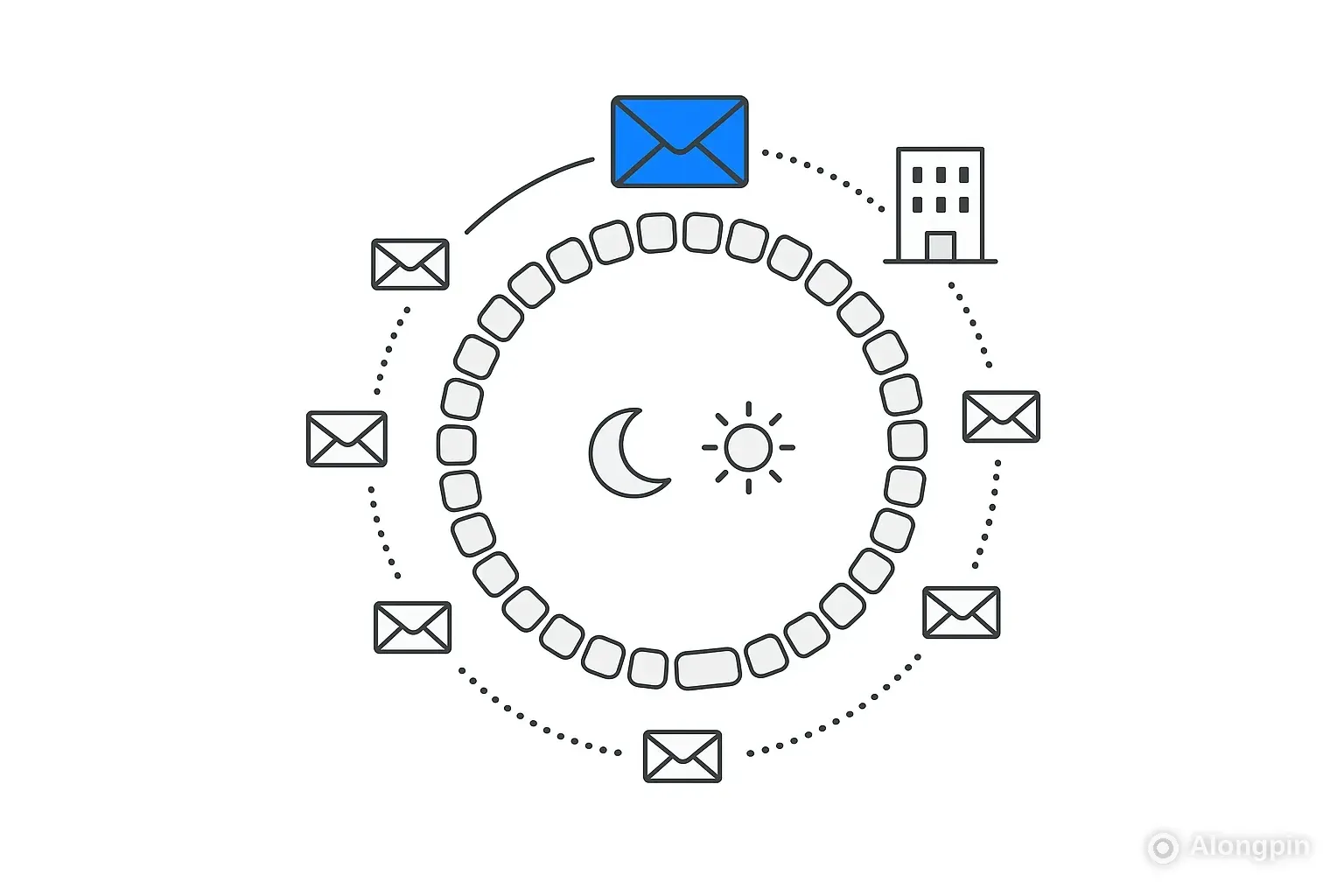
A scheduled report has four parts:
- The report: trips, summary, events, stops, route, combined, geofence stays or wellness, with the filters you set.
- What it covers: chosen vehicles or groups. Left empty, each reader sees every device they can see.
- Who gets it: you, by default, plus people you manage.
- When it is sent: a calendar. The report goes out when each period of the calendar ends and covers that period. A period from 00:00 to 24:00 repeating every day sends each night the report for the day that just ended.
The server checks every 15 minutes, so the e-mail can follow the end of the period by up to a quarter of an hour. Nothing is sent without a calendar, or without a recipient.
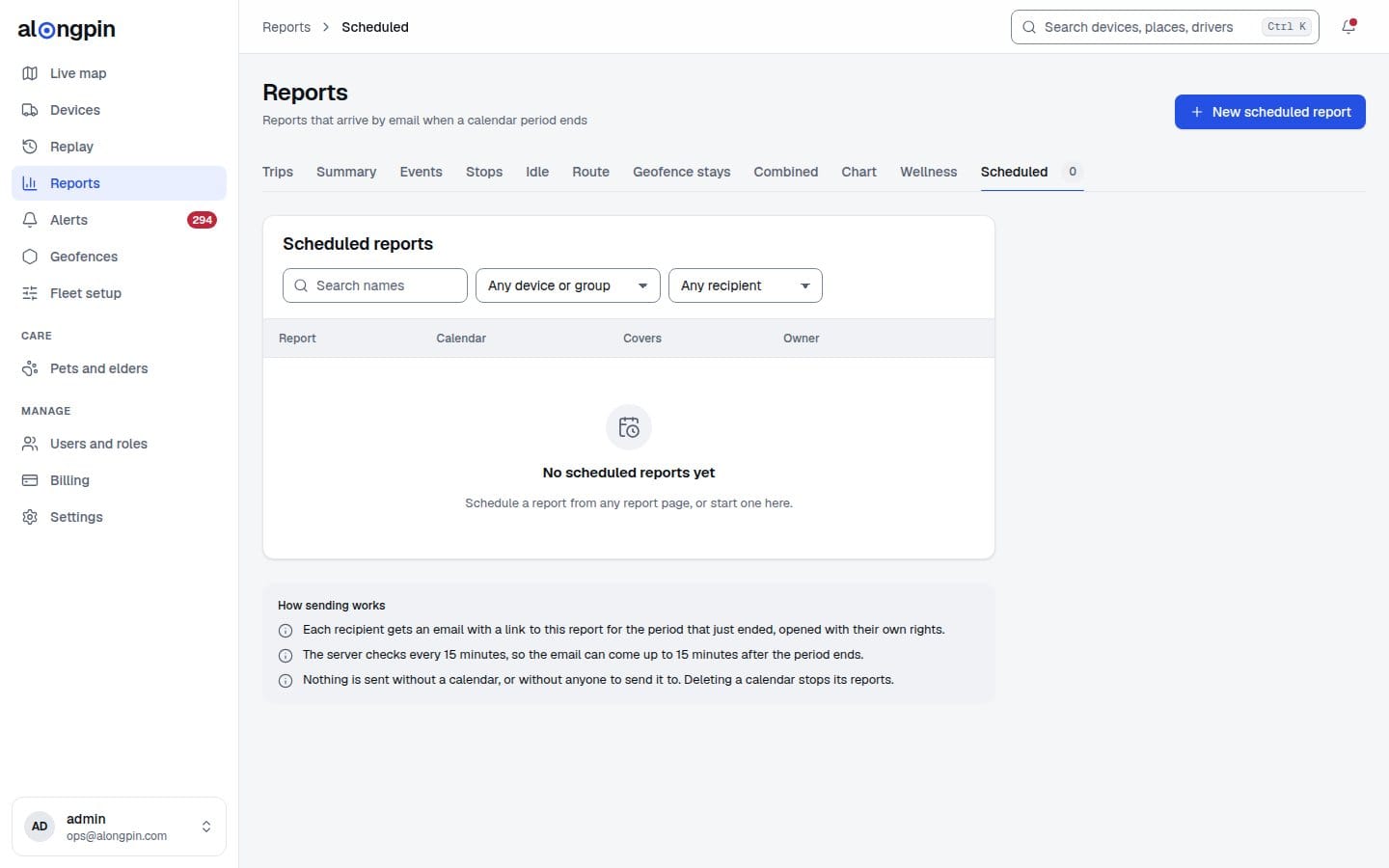
The quickest way to start is from the report itself. Open the report under Reports, set the vehicles, groups and filters, and press Schedule. The dialog Schedule this report takes your choices under Covers; you add a Name, which becomes the e-mail's subject, and the calendar. On the Trips tab, Email weekly opens the same dialog. Everything you schedule is listed under Reports → Scheduled, with when each report goes out next and when it was last sent. Scheduling a report covers each field.
A nightly trips or geofence report for operations
Operations wants yesterday's facts first thing: which vehicles left late, which came back late, which did not move, where the long stops were. Two reports cover it:
- Trips for the operational group: each journey of yesterday with start, end, distance and duration, with the totals of the day above. The dispatcher sees at a glance which van did 40 km and which did 400.
- Geofence stays for the depot or the customer sites: when each vehicle left and returned, or how long it spent at each site. For a depot zone, the stay that began the night before ends at the first departure; the stay still open at the end of the day began with the last return.
For the calendar, use a period from 00:00 to 00:00 the next day, repeating daily, in your time zone; for a business that works weekdays only, the same period repeating Monday to Friday. Send it to the dispatchers and the operations manager. Each receives the link after midnight and finds the report waiting in the morning.
A monthly summary for management
Management wants totals, not journeys: kilometres per vehicle, engine hours, idle time, fuel where trackers report it. The Summary report with Per device rows gives one line per vehicle for the period, and in a download on one sheet it ends with an All N devices row adding it all up.
The calendar is the one tricky part. The simple calendar editor makes periods of up to 24 hours, so a period that spans a whole month needs a calendar uploaded as an iCalendar (.ics) file. Because months differ in length, the safest file holds one event per month, from 00:00 on the first to 00:00 on the first of the next, for the year ahead. Many calendar programmes can export such a file. Upload it under Fleet setup → Calendars, check its time zone, and choose it for the report.
If that is more than you want to set up, a simpler routine works too: tick A row per day on a nightly summary for a running daily record, and run the month's summary by hand with Previous month on the first working day.
How delivery works: a link, then download
The e-mail does not carry the data. Its subject is the report's name, its text says which report is ready for which period, and the link opens the report page with that period and those vehicles. The report itself is worked out when the link is opened.
That has practical effects:
- The recipient signs in. A forwarded e-mail shows nothing to someone without an account.
- The data is current. The report reflects the history as it stands when opened, including positions a tracker sent late.
- Downloads are one click away. From the report, Download gives CSV, Excel or Excel, a sheet per device, in the reader's time zone and units.
Scheduled report recipients and why the e-mail holds a link explains this in more detail. The scheduled reports page shows the list and the dialog.
Recipients are users and see only their own vehicles
You can add as recipients only people you manage, and each must be a user of your account. A recipient sees the report with their own rights: a branch manager sees their branch's vehicles in the same report in which the head of operations sees all of them. That makes one schedule enough for several readers, and it means a schedule never shows a vehicle to someone who could not see it anyway.
To send a report to someone outside the company, such as an accountant, create a user for them first, share the vehicles they should see and add them as a recipient. A read-only user is usually right; see users and roles. Users with reports switched off, and disabled or expired accounts, receive nothing.
What cannot be scheduled: the idle report
Two reports cannot be sent on a schedule: Idle and Chart. For idling, the summary carries the idle time per vehicle or per day, which a schedule can send; open the idle report itself when you want the places where vehicles stood with the engine running. The reports page shows each report and what it holds.
Keep the routine healthy
- Name each schedule after its readers and purpose ("Depot North, departures, nightly"), because the name is the e-mail subject.
- Look at Reports → Scheduled once a month: Nothing to send next means the calendar has no period ahead or the report has no recipient.
- When people change roles, update the recipients; when a calendar is deleted, the reports that used it stop.
How Alongpin helps
Alongpin (alongpin.com) is a GPS tracking platform you open in a browser or on your phone. Trips, stops, idle time, summaries, events and geofence stays are ready as reports to view, download as Excel or CSV, or receive by e-mail on a schedule with scheduled reports; the API takes the same data into your own tools. See how it works for fleets, or sign up and run your first report.
Frequently asked questions
Can I pause a schedule without deleting it?
Yes. Set When it is sent to No calendar: never sent and save. Choose a calendar again to restart it.
Why did the nightly report arrive at 00:12?
The server checks every 15 minutes, so the e-mail follows the end of the period by up to a quarter of an hour.