Logistics and delivery
Unplanned stops and overnight parking: reading the stops report
How the vehicle stops report shows where trucks stood, from when and for how long: the columns, sorting for long and night stops, comparing stops with your zones, following up fairly and scheduling the report.
Ashish Srivastava6 min read
A vehicle stops report lists every place a vehicle stood still during a period, when the stop began and ended, how long it lasted and where it was. In Alongpin it is the Stops tab under Reports: choose the vehicles and the period, and each row shows the Place, From – until and Duration. For logistics managers on long runs, it is the quickest way to find unplanned stops and overnight parking: sort the stops by length and by hour, compare them with the places you expect, and ask about the ones you cannot explain.
Key takeaways
- A stop begins when a vehicle has stood still long enough to end a trip, five minutes in the standard settings.
- Each row has the vehicle, the place, the start and end and the duration; Idling shows engine time during the stop where the tracker reports it.
- Shorter than hides brief stops; download the rows to sort by duration or by hour of the night.
- Stops at your depots and customers are planned; the rest are the ones to look at.
- Ask before you conclude. Breaks, traffic and customers explain most stops.
What a stop is in the data
A tracker reports positions while the vehicle moves and less often while it stands. The platform turns those positions into trips and stops: a trip ends when the vehicle has stood still for a set time (five minutes in the standard settings), or, on vehicles set up to use the ignition, when the ignition goes off. What follows, until the vehicle moves off again, is a stop.
That has two consequences. A pause at traffic lights or in a queue is not a stop, because it is shorter than the threshold. And a stop is measured from where the vehicle came to rest to where it set off, so a lorry that stood for nine hours in a lay-by shows one stop of nine hours, wherever the driver was during that time.
Columns of the stops report: place, start, duration
Open Reports, choose the Stops tab, pick the Devices or Groups and the period, and press Show. Its line reads Where vehicles stood still, for how long and with the engine on.
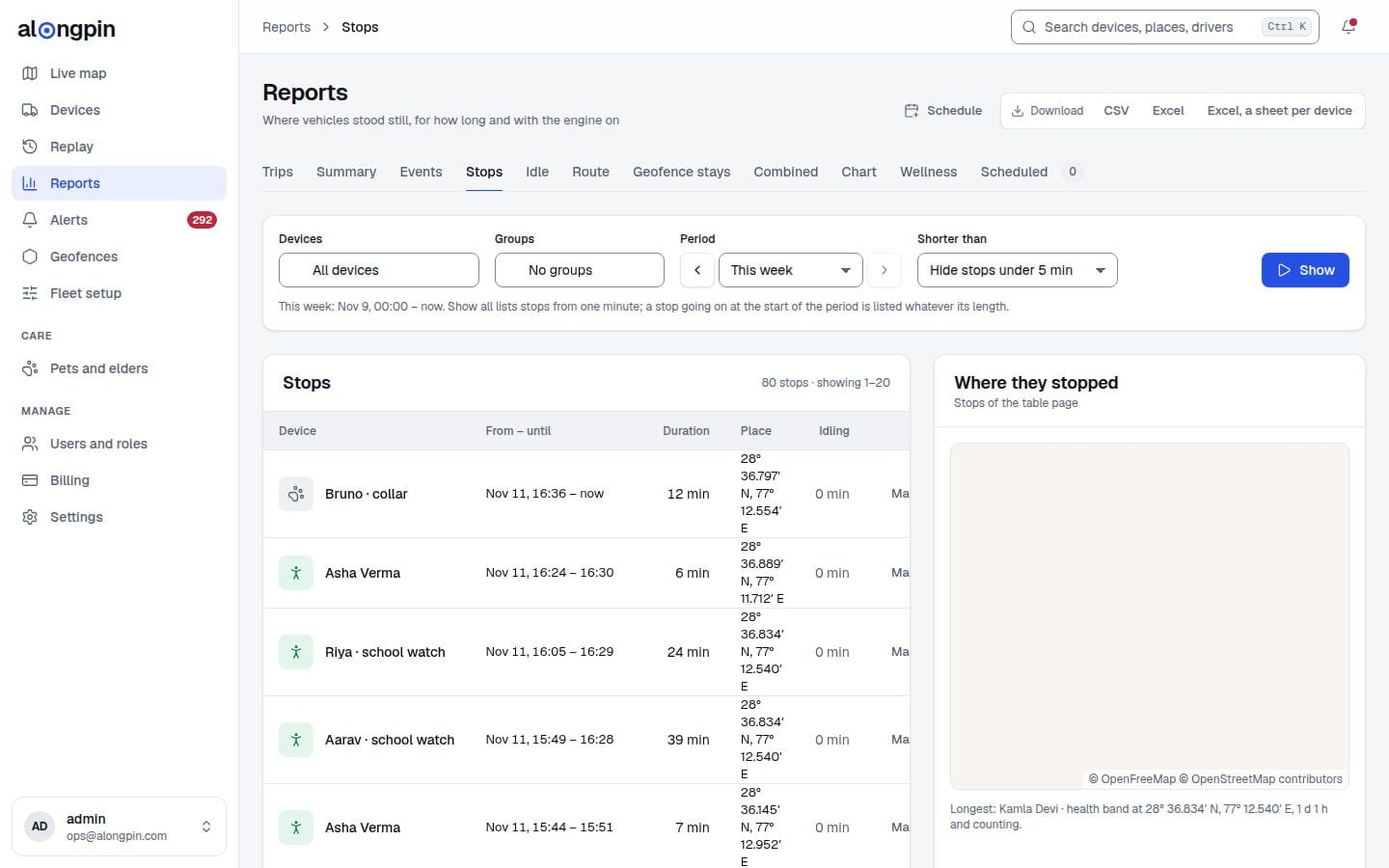
Each row is one stop:
| Column | What it shows |
|---|---|
| Device | The vehicle |
| From – until | When the stop began and ended; now for a stop still going on |
| Duration | How long the vehicle stood |
| Place | The address of the stop, or Unknown place where none was found |
| Idling | How long the engine ran during the stop, for trackers that report engine hours |
Above the table, the map Where they stopped shows the stops of the table page, and the longest one is named with its vehicle, place and duration. Map on a row opens that stop on the map. A stop recorded during a private trip reads Private stop and shows no place.
The Shorter than choice decides which stops are listed: Hide stops under 5 min, Hide under 15 min, or Show all, which lists stops from one minute. For long runs, hiding stops under 15 minutes leaves the ones that matter.
Sorting for long stops and night stops
The table lists stops newest first. To find the long ones and the night ones across a week or a month, download the rows and sort them in a spreadsheet:
- Use Download and choose CSV or Excel. Times are in your time zone, and durations are hours and minutes.
- Sort by duration, longest first. Stops of several hours away from a depot are the ones to understand.
- Add a column for the hour the stop began, and filter for stops beginning between late evening and early morning. Those are the overnight parking places.
- Group the overnight stops by place. A pattern appears quickly: the same truck stop, the same industrial estate, the same street near a driver's home.
For load security, the overnight list is the useful one. A truck that spends its nights in a guarded truck park is in a different position from one parked on a slip road, and the list shows which is which. It can also show where a secure park on the route would save drivers a search at the end of a long day.
Comparing stops with your zones
Many stops are expected: at the depot, at customers, at the fuel station you have an account with, at the truck park drivers are told to use. If you have zones around those places, two reports work together:
- The Geofence stays report lists the time spent in each of your zones.
- The Stops report lists every stop, including those outside any zone.
In the spreadsheet, mark the stops whose place matches one of your zones or known addresses. What is left (stops of any length at places you do not know) is the list of unplanned stops. Repeat the exercise for a few weeks and add zones for the places that turn out to be regular and legitimate: a supplier's yard, a driver's agreed rest area. The list of unknowns gets shorter each time.
For a closer look at a single stop, open Replay for that vehicle and day: you see how the vehicle approached the place and how it left. Trip history explains replay.
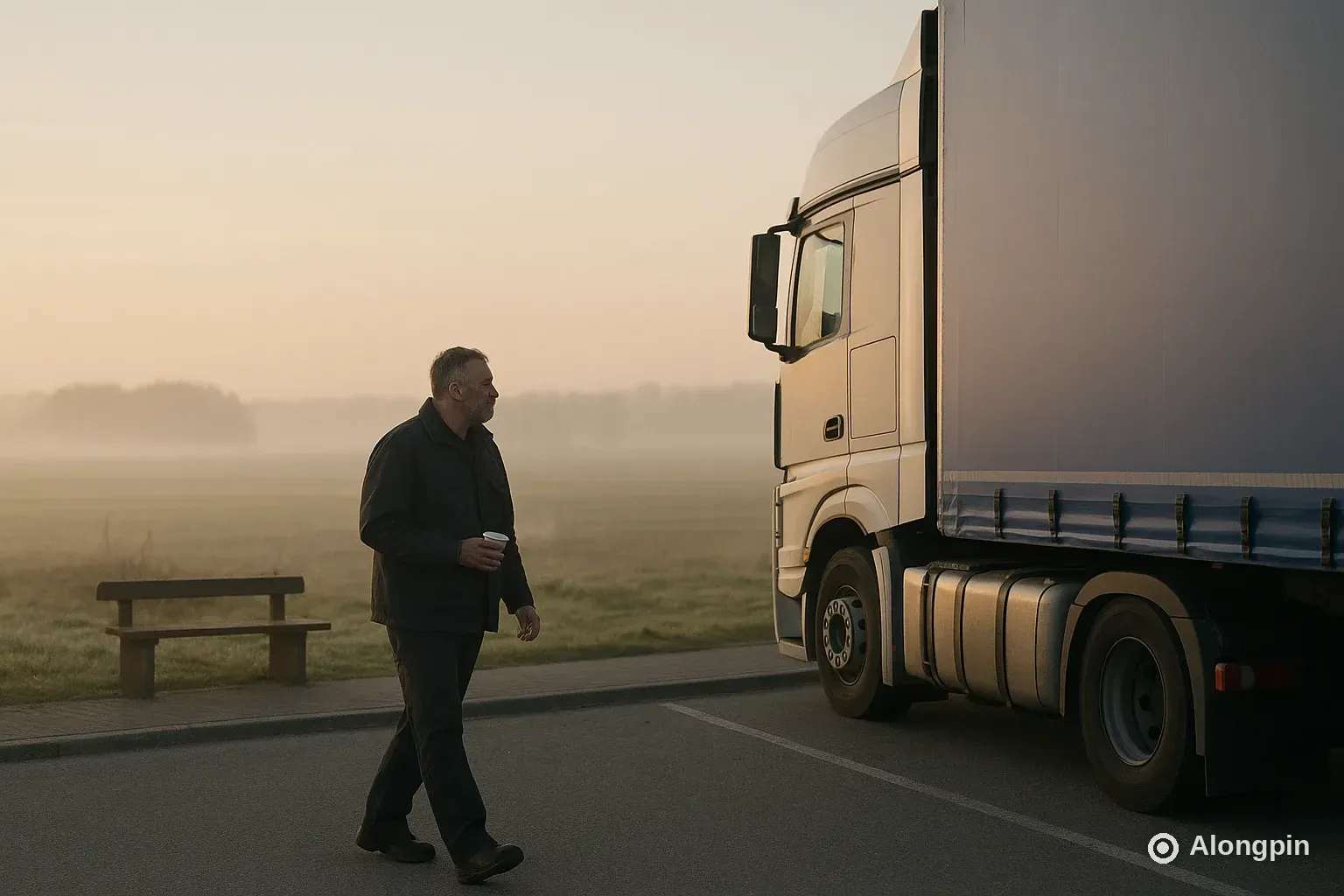
Following up without accusing anyone
A long stop in an unexpected place has many explanations, and most of them are innocent:
- Rest breaks the driver is required to take, at the nearest place they could park.
- Traffic: a closure or an accident that stopped the road.
- Customers: a site that made the driver wait outside the gate, which shows as a stop just outside your customer's zone.
- The vehicle: a breakdown, a puncture, a warning light.
- Weather and border or toll queues on international runs.
So ask, and ask early, while the driver still remembers: "Your truck stood at this place on Tuesday from 14:00 to 16:30. What happened there?" Keep the question about the stop, not the person. If the answer shows a recurring problem (a customer who always delays, a route without safe parking), the fix is in the planning, and the stops report has just shown you where.
Drivers should know what the platform records and that stops are reviewed. Where vehicles are used privately outside working hours, private trips keep those stops without a place, and that is intended.
Scheduling the report for regular review
The report is most useful when it arrives without anyone remembering to run it. On the Stops page, choose Schedule, name the report and choose a calendar under When it is sent; each time a calendar period ends, you and the recipients you add get an e-mail with a link to the stops of that period. A daily calendar works with the simple calendar editor; a weekly review needs a calendar uploaded as an iCalendar file whose event spans the week. Scheduling a report explains the options, and the scheduled reports page shows the other reports you can receive.
The reports page describes the other report types, such as trips, idle time and summaries, that complete the picture of a vehicle's day.
How Alongpin helps
Alongpin (alongpin.com) is a GPS tracking platform you open in a browser or on your phone. Dispatch sees every vehicle on the live map, geofences record arrivals and time on site at depots and customers, and a share link lets a customer follow one delivery without an account. Trip history and reports settle questions after the fact. See how it works for fleets, check your trackers in the device check, or sign up.
Frequently asked questions
Why does a stop have no address?
The address lookup found none for that place, or the stop was recorded during a private trip.
Why is a short stop at the start of the period listed when I hide short stops?
A stop already going on when the period begins is listed whatever its length, because it is cut by the period. Choose a period that starts while the vehicles are moving, or ignore that first row.
Can I see stops for one driver?
Where trucks report who is driving, the stops report can be narrowed to a driver's data; otherwise use the vehicle and your rosters.